A wrong aspect ratio can make a video look stretched, squashed, or surrounded by unwanted black bars. This guide explains what aspect ratio means and shows two practical ways to fix the display.
Need the change saved into a new video file? Get the easy-to-use video aspect ratio converter here: https://www.videoconverterfactory.com/download/hd-video-converter-pro.exe
Private home theater
TVs, monitors, phones, projectors, and social platforms use different screen shapes. The key measurement is aspect ratio, the proportional relationship between an image’s width and height. When a video and its destination use different proportions, the player may add black bars, crop the picture, or stretch it if the ratio is forced.
Changing aspect ratio can make a video fit a target screen or platform better, but it does not create extra image detail. For a permanent change, you normally need to export a new file. If you only want a better viewing experience on your computer, a media player such as VLC can change the display ratio without modifying the source file.
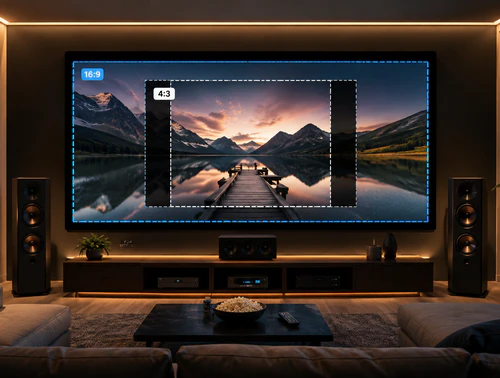
You can play a 4:3 video on a 16:9 display, but the player will usually preserve the original shape and add bars on the sides. If you want to create a 16:9 output file instead, WonderFox HD Video Converter Factory Pro can change the aspect ratio during conversion. Keep in mind that forcing 4:3 footage to 16:9 may stretch the picture. If preserving proportions matters more, cropping or keeping pillarbox bars can be a better choice. See also: 4:3 to 16:9.
Download and install this aspect ratio changer tool to change your video aspect.
Run WonderFox HD Video Converter Factory Pro and open "Converter" module.
Click the "Add Files/Add Video Folder" button to import videos or you can just simply drag and drop your video files. Another advantage is that you can put in your files in bulk, which handsomely saves your time and energy.
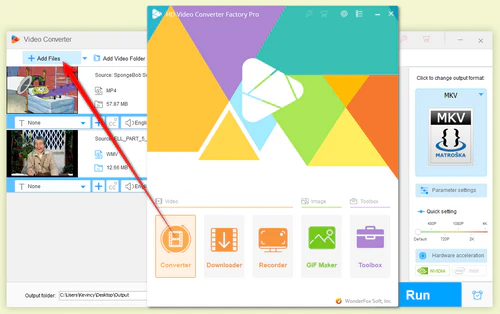
Add files
Press the format image on the right to expand the output profiles. Select the format or device profile you need.
It supports more than 500 common formats and device profiles, even provides 2K, 4K, 5K, and 8K output profiles.
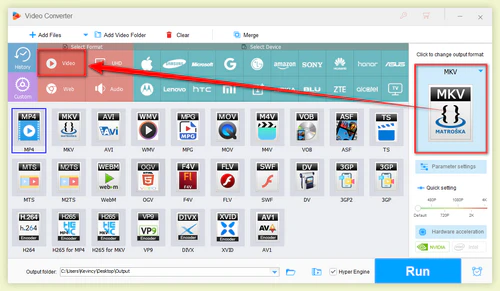
Select output format
Click "Parameter settings" and choose the target aspect ratio, such as 16:9.
Changing aspect ratio requires re-encoding when you export a new file, so use sensible quality settings to avoid unnecessary quality loss.
You can also adjust other output parameters when necessary.
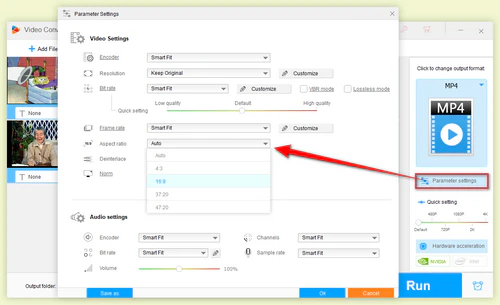
Adjust Aspect Ratio
When everything is ready, click the inverted triangle icon at the bottom of the interface to choose an output folder.
Finally, click the “Run” button to convert aspect ratio of your videos in batches.
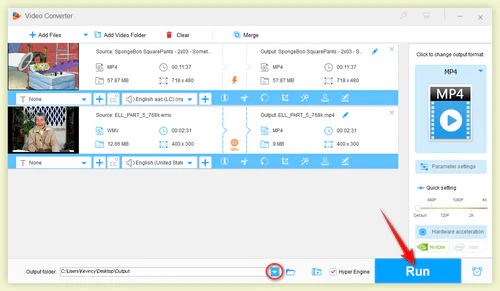
Start Video Aspect Ratio Conversion
The same workflow applies in reverse: import the 16:9 video, choose the output format, select 4:3 in "Parameter settings", and click "Run" to export the new file.
Tips: Converting widescreen 16:9 footage to 4:3 can stretch the image or require cropping, depending on how you want the frame to fit. Preview the result before exporting. If file size is also a concern, you can separately reduce the video size by adjusting resolution, bitrate, codec, or other compression settings.
If the video file itself is fine and you only want it to look different while watching, VLC offers a faster option that does not require exporting a new file. This changes the playback display ratio, not the stored video. It is useful for testing how a clip looks at another ratio or correcting a video that is displayed with the wrong proportions.
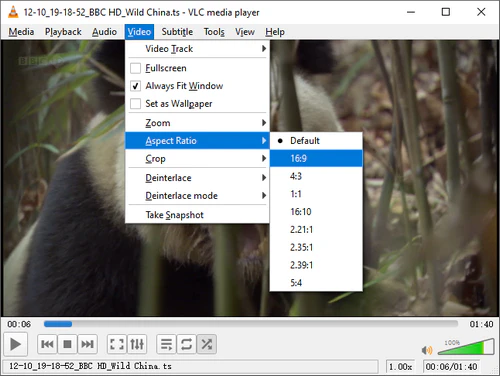
Change Aspect Ratio in VLC
Step 1. Open the video in VLC media player.
Step 2. While the video is playing, go to Video > Aspect Ratio and choose the ratio you want. VLC includes options such as Default, 1:1, 4:3, 16:9, 16:10, 2.21:1, 2.35:1, 2.39:1, and 5:4.
Step 3. If the picture looks stretched or squeezed, return to Video > Aspect Ratio > Default.
If your goal is to remove black bars rather than stretch the whole frame, try Video > Crop instead and choose a suitable crop ratio.
Note: VLC's Aspect Ratio command is mainly a playback control. It does not rewrite the source file. If you need a changed aspect ratio for uploading, sharing, editing, or playback in other apps, use the conversion method above to export a new video.
Aspect ratio is the proportional relationship between an image’s width and height. A 4:3 frame is relatively boxy, while 16:9 is wider. Neither ratio is inherently higher quality. The right choice depends on the source video, the display or platform you are targeting, and whether you are willing to crop or add bars to preserve the original proportions.
4:3: Once the standard for older televisions and computer monitors, this aspect ratio is less common in modern displays but is still used for certain types of content.
16:9: The current standard for high-definition televisions, widescreen monitors, and most online video platforms.
1:1: A square frame often used for social posts and other square layouts.
9:16: A vertical format widely used for short-form and mobile-first video.
Q1. Does changing the aspect ratio improve video quality?
No. Aspect ratio changes the shape of the frame, not the amount of visual detail. Stretching can even make people and objects look unnaturally wide or narrow. Resolution and bitrate are separate settings.
Q2. Why do black bars remain after I select another aspect ratio?
The bars may be needed to preserve the original proportions, or they may already be encoded into the picture itself. If they are part of the image, changing only the display ratio will not remove them. Cropping may be necessary, but it also removes part of the frame.
Q3. Should I use VLC or an aspect ratio converter?
Use VLC when you only need a temporary viewing adjustment on your computer. Use a converter when you need the new aspect ratio saved to an output file for another device, editor, website, or app.
WonderFox HD Video Converter Factory Pro is more than an aspect ratio tool. It can convert video and audio among common formats and device profiles, and it includes practical editing tools such as trim, split, merge, crop, rotate, flip, filters, subtitles, and audio-track handling. It can also download supported online media, record the PC screen, compress files, and adjust video parameters such as resolution, bitrate, and frame rate.

Kevincy joined the WonderFox team in 2014 and has been a senior columnist ever since. With over two decades of experience in the video editing industry, he shares tutorials, tips, and how-to guides on video/audio processing and personal DVD backups. Family-oriented and passionate about helping others, he is dedicated to making video and audio processing easier for readers.


More Special Features of WonderFox HD Video Converter Factory Pro
Product line: DVD Software | Video Software | Watermark Software | GIF software | Office Software
Featured product: Free DVD Ripper | Free Video Converter | Video Converter | Free HD Video ConverterService: Submit A Ticket | Retrieve Key | Order support | Product Support | Money Back Guarantee | 24 Hours Service
Terms of use: Refund Policy | License Policy | FAQ

About | Company | Contact | Affiliate | Privacy
Copyright © 2009-2026 WonderFox Soft, Inc. All Rights Reserved.
 Free Download
 Recommended by the author