Want to save a YouTube video for offline viewing or keep an authorized local copy? This guide explains how to download YouTube videos on Windows, back up videos you uploaded yourself, convert downloads to common formats and devices, move local files to a phone, iPad, or Dropbox, and handle links that cannot be analyzed.
Download YouTube Videos and Save Them Locally
WonderFox HD Video Converter Factory Pro helps you analyze video URLs, choose available formats and resolutions, batch download online videos, and convert the saved files for phones, TVs, tablets, media players, or editing programs.

YouTube provides official ways to save videos for certain situations. YouTube Premium can download eligible videos for offline playback in the YouTube app and supported desktop browsers, while creators can download videos they uploaded themselves through YouTube Studio or export their YouTube data with Google Takeout. Premium offline downloads are not ordinary local MP4 files that you can freely move into Gallery, Photos, or another player.
If the video belongs to your own channel, start with YouTube's official creator tools. You do not need a YouTube Premium membership to download your own uploads.
Download Your Own YouTube Videos Without Premium
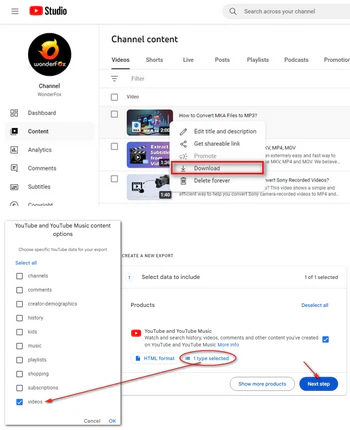
Use YouTube Studio for individual videos: Sign in to YouTube Studio, open Content, find the video, open the three-dot menu, and choose Download. YouTube currently provides the downloaded MP4 in 720p or 360p depending on the video size, and an individual video can be downloaded up to five times within 24 hours.
Use Google Takeout for a channel backup: If you want to export many or all of your uploaded videos, select YouTube data in Google Takeout, choose the video data you want, create the export, and download the archive when Google prepares it. This is more suitable for backup than downloading videos one by one.
On Android, your own uploads may also show Save to device in the YouTube or YouTube Studio app. For other people's videos, use YouTube's official offline feature when available or make sure you have permission before using another method.
If you have permission to keep a regular local copy of a public video, a desktop downloader can be more convenient. WonderFox HD Video Converter Factory Pro is a Windows program that combines URL downloading, format conversion, basic editing, compression, and screen recording in one place.
⚠️ Important: DO NOT download, record, or use copyrighted videos, paid videos, private videos, or protected content for commercial use, redistribution, or any other illegal purpose.
Download the YouTube video downloader and install it on your Windows PC.
Visit YouTube in your browser, find the video you want to save, and copy the video link from the address bar or the Share button.
👉 Playlist and channel links are also supported.
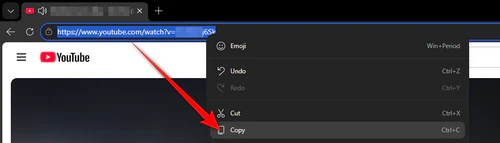
Copy the YouTube video URL
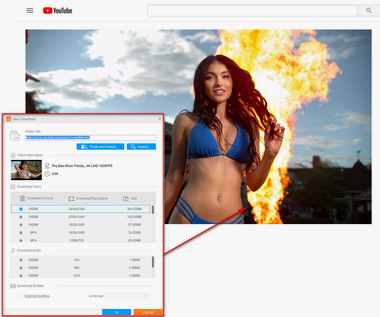
Launch HD Video Converter Factory Pro. Go to Downloader, click + New Download, paste the copied link into the Paste URL box, and click Analyze. You can also use Paste and Analyze to make the process faster. When the analysis is complete, select a preferred format and resolution from the available options. Then click OK.
Tip: The analysis may take a few seconds. If the video is age-restricted, private, deleted, region-limited, or not supported, the program may not return a downloadable result.
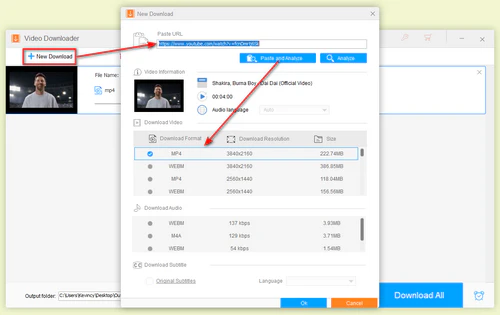
Paste and analyze the video link
Choose a destination folder at the bottom of the interface, and hit Download All to save the YouTube video to your computer.
Tips: You can add more links to create a batch download list.
Also Read: URL to MP4 | Download YouTube Subtitles
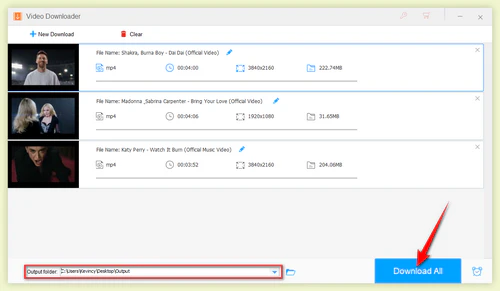
Download YouTube videos to your PC
Sometimes a video link cannot be analyzed, or you may need to save an online webinar, class, livestream, meeting, or your own channel content with permission. In this case, recording is a practical backup method. However, it should not be used to bypass YouTube restrictions, capture protected paid content, or save private videos without authorization.
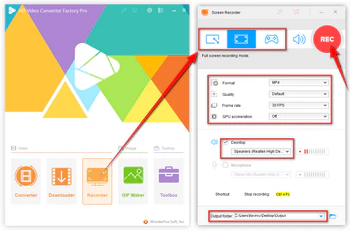
Record YouTube video on Windows
Open HD Video Converter Factory Pro and enter the Recorder module. Choose Custom or Full Screen, select a recording format, quality, and frame rate, enable Desktop audio if you need system sound, set the output folder, and click REC. When you finish, press Ctrl + F1 to stop recording and save the video.
The recorder can be helpful for authorized live content because it records what is playing on your screen in real time. For better results, close unnecessary programs, use a stable network, set the YouTube player to the desired quality before recording, and record a short test clip to check sound and frame rate.
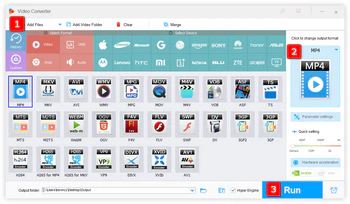
Convert downloaded videos
Besides video downloading, WonderFox HD Video Converter Factory Pro also works as a video converter.
If the downloaded file does not play on your TV, phone, tablet, game console, editor, or media player, open the Converter module, add the video, choose the needed format or device preset, and click Run.
MP4 is the safest general-purpose choice. You can also convert authorized downloads to MOV or M4V for Apple-oriented workflows, WebM for web use, MKV when you want a flexible container, or AVI with DivX/Xvid for older players and devices. For iPad, an iPad preset or an MP4 file with H.264 video and AAC audio is usually the most compatible option.
Note: To compress videos, click the "Batch compression" icon at the bottom to activate the feature. When it turns orange, move the slider to the right side to increase the compression ratio. Find a balance between the quality and file size.
You can also trim unwanted parts, split long videos, merge several clips, crop black bars, rotate or flip footage, adjust resolution, change bitrate and frame rate, boost volume, or compress videos to save storage space.
These tools are useful when you want to keep only a lesson segment, make a short clip from your own footage, or prepare a video for smooth playback on another device.
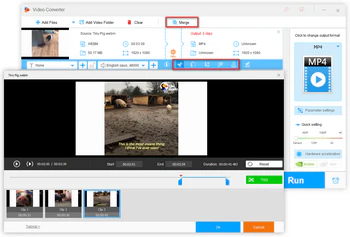
Edit the downloaded video
A YouTube Premium download and a normal local video file are different. Premium downloads are stored for offline playback inside YouTube, so they do not appear as ordinary video files in Android Gallery or Apple Photos.
If you have an authorized local file on your Windows PC, you can copy it to an Android phone over USB, transfer it to an iPhone or iPad through a supported Apple file-transfer or cloud workflow, or upload it to your own cloud storage. If the video does not play after transfer, convert it to MP4 or select the matching device preset first.
For Dropbox: Dropbox does not turn a YouTube watch URL into a stored video file. Download or export the video locally first, then sign in to Dropbox and upload the file from your computer or mobile device. This also makes it easier to organize your own videos, class recordings, or other content you are allowed to keep.
Many users also need to save videos from sites outside YouTube, such as Facebook, X/Twitter, Dailymotion, Vimeo, Instagram, TikTok, and other video-sharing platforms. The same URL-analysis workflow may work for supported sites as long as the content is publicly accessible and you have permission to save it.
If you want to download without installing extra software, first check YouTube's own options: Premium supports offline viewing in supported browsers, and YouTube Studio can download your own uploads. Third-party online downloaders and old URL-changing tricks may work temporarily, but they frequently change, redirect, show misleading buttons, limit quality, or stop working when YouTube updates its site.
For occasional authorized files, an online service can be convenient. For repeated work, higher resolutions, playlists, conversion, compression, or basic editing, a desktop workflow is usually more predictable.
It depends on the content, your location, how you download it, and what you do with the file afterward. YouTube's Terms of Service allow users to access and view content as made available by the service, and they restrict downloading, reproducing, distributing, or using content unless YouTube expressly authorizes it or you have permission from YouTube and the rights holder. The official offline download feature is one example of a built-in authorization for eligible videos, but it is designed for playback inside YouTube, not for exporting a normal video file.
In practice, you should only download or record YouTube videos when you have the right to do so. Safer cases include your own uploaded videos, videos with a visible download option, content released with a license that allows downloading, public-domain materials, or videos where you have received permission from the copyright owner. Do not re-upload, sell, distribute, or commercially use downloaded videos without permission.
The subject of a video does not change its copyright status. Cartoons, workout videos, movies, music, classes, and similar content may still be protected even when they are publicly viewable on YouTube. Fair use may apply to some commentary, criticism, teaching, research, or news-reporting cases, but it is not automatic and is decided case by case. When in doubt, use YouTube's official features, ask the copyright holder, or consult a qualified legal professional.
Q1. Can I download YouTube videos directly from YouTube?
Yes, when YouTube itself provides the option. Premium members can download eligible videos for offline playback, and creators can download their own uploads through YouTube Studio. Premium offline videos stay inside YouTube rather than becoming ordinary local MP4 files.
Q2. Can I download my own YouTube videos without Premium?
Yes. In YouTube Studio, open Content, find your upload, open the three-dot menu, and select Download. Google Takeout is a better choice when you want to export many or all videos from your channel.
Q3. Can YouTube downloads be saved to Gallery, Camera Roll, or Dropbox?
Official Premium downloads do not appear as normal files in Gallery or Photos. If you already have an authorized local video file, you can transfer it to your phone or iPad, or upload the file to Dropbox. Dropbox cannot save a YouTube watch URL as a video by itself.
Q4. Why can't the downloader analyze a YouTube link?
The video may be private, deleted, age-restricted, region-blocked, live-only, membership-only, protected, or temporarily affected by a YouTube site change. Check whether the video plays normally in your browser first. If it still fails, try another permitted video or use the recorder only when you have authorization.
Q5. Can I download YouTube videos in 1080p, 4K, or 8K?
It depends on the source and the streams returned after analysis. If the source only has 720p, downloading or converting it will not create true 4K detail. Higher-resolution streams also require more storage and bandwidth.
Q6. Can I convert a downloaded YouTube video to M4V, MOV, MKV, AVI/DivX, or WebM?
Yes, if you have the right to use the file. Import it into the Converter module and choose the needed output. For iPhone or iPad playback, MP4 with H.264/AAC or an Apple device preset is generally the easiest choice.
Q7. Can I download YouTube videos without installing software?
You can use YouTube's own browser-based features where available, including Premium offline viewing and YouTube Studio for your own uploads. Third-party online downloaders also exist, but their availability, ads, quality limits, and reliability can change frequently.
Q8. Is screen recording YouTube videos allowed?
Recording is only appropriate for content you own, have permission to record, or are otherwise legally allowed to use. Do not use recording to bypass paid, private, protected, or other rights-holder restrictions.

Kevincy joined the WonderFox team in 2014 and has been a senior columnist ever since. With over two decades of experience in the video editing industry, he shares tutorials, tips, and how-to guides on video/audio processing and personal DVD backups. Family-oriented and passionate about helping others, he is dedicated to making video and audio processing easier for readers.


More Useful Features of HD Video Converter Factory Pro
Articles: Convert Video | Rip DVD | Download Video | Play Video | Share Media Files | Record Screen | Edit Video | Toolbox | Third-party Software | Kodi
Store | Download | About | Contact | Support | Privacy | Copyright © 2009-2026 WonderFox Soft, Inc. All Rights Reserved
 Free Download
 Recommended by the author