

In addition to being an awesome home video game console, an Xbox One can be used to play your physical DVD collection, which can spare you the hassle of using a separate DVD player. If you don't have any clue yet, this article can be the beacon of guiding you through how to watch DVD movies on Xbox One family.
Get the DVD to Xbox One converter that ensures a smooth DVD playback experience on Xbox One via USB: https://www.videoconverterfactory.com/download/dvd-ripper.exehttps://www.videoconverterfactory.com/download/dvd-ripper.exe
 Kevincy | Updated on Sep 18, 2026
The answer to "Does Xbox One play DVDs" depends on the model. The Xbox One family includes the original Xbox One, Xbox One S, Xbox One S All-Digital Edition, and Xbox One X. The original Xbox One, Xbox One S, and Xbox One X have optical disc drives and can play DVD movies, while the Xbox One S All-Digital Edition has no disc drive.
💡 Another thing to note is region restriction. Xbox One games are generally region-free, but DVD and Blu-ray movie discs are not always the same case. A DVD bought from another country or region may fail to play on your Xbox One if its region code does not match the region of your console. Region-free discs, however, should play normally. So, if your Xbox One has a disc drive but still refuses to play a certain DVD, the problem may not be the console itself. It could be a region mismatch, an unreadable disc, or an issue with the Blu-ray Player app.
In a nutshell, direct DVD playback is unavailable only on the Xbox One S All-Digital Edition because it was designed without an optical drive. But the good news is, there's still a workaround that can make it possible to watch DVD movies on Xbox One, regardless of which model you have.
A powerful yet smart DVD ripping application that helps convert physical DVD disc to Xbox One compatible digital video file, so that you're able to play DVDs on Xbox One all models through a USB drive connected to the console. GET IT NOW!
To watch DVD movies on an Xbox One console with a built-in optical disc drive, you first need to install the Blu-ray Player app as follows:
Step 1. Insert your DVD disc into the optical drive of your Xbox One.
Step 2. Wait a few seconds. If the app is not installed, you may be prompted to download and install the Blu-ray Player app.
Step 3. After that, your DVD disc should start playing automatically.
Note: The Blu-ray Player app cannot enable physical-disc playback on the Xbox One S All-Digital Edition because that model has no disc drive.
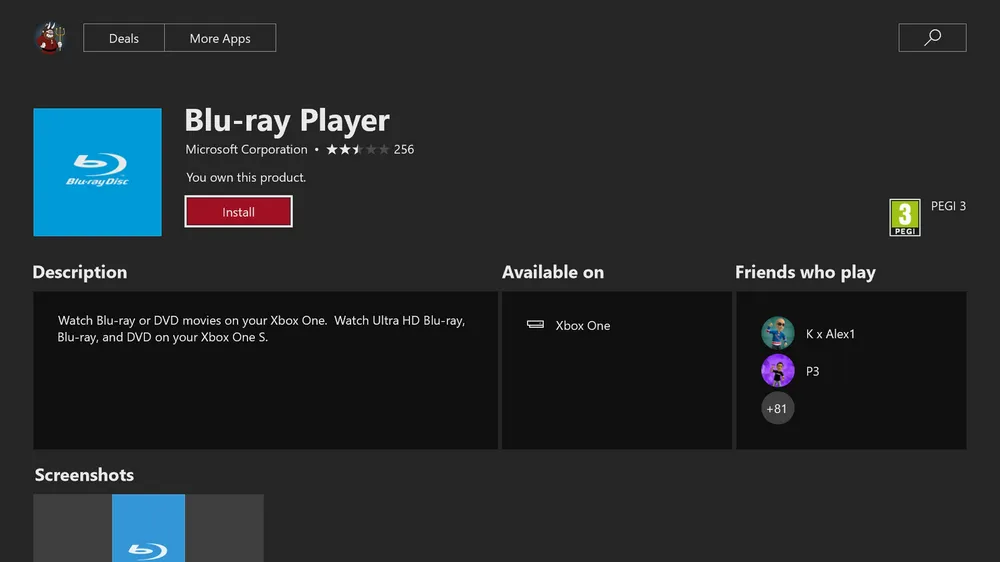
If there's nothing happened or pop up an error message that says "The thing you're looking for isn't here. We probably don't have it, but just in case, try searching for it.", try to manually install the Blu-ray Player app from the Microsoft Store.
Step 1. Open the guide by pressing the "Xbox" button on your controller.
Step 2. Select "Home" tile on the screen and choose "Store" tile.
Note: If you don't see the "Store" tile, scroll down to "Add more" on the "Home" screen and select the Store tile to add it to Home.
Step 3. Go to "Search" and type in "Blu-ray" in the search bar. Select "Blu-ray Player" app when it appears.
Step 4. Select the "Install" tile to download and install the Blu-ray Player app on your Xbox One.
Step 5. Now follow the above steps to play your DVDs on Xbox One.
⚠️ Note: The Blu-ray Player app only enables DVD/Blu-ray playback on Xbox One models with an optical drive. It cannot make the Xbox One S All-Digital Edition read physical discs, nor can it bypass DVD region codes. If the disc is from a different region, damaged, or not recognized by the console, try the fixes below.
Normally, once the Blu-ray Player app is installed, your Xbox One should be able to play DVDs without much trouble. But if the console won’t read the disc, keeps asking you to insert a disc, plays game discs but not movie DVDs, or shows an error such as 0x91d70000, try the fixes below.
What does Xbox One error 0x91d70000 mean? It commonly appears when the Blu-ray Player cannot properly read or recognize a DVD or Blu-ray disc. The code does not point to one single cause. A damaged or unusual disc, region mismatch, a Blu-ray Player app problem, cached playback data, or a disc-drive issue can all lead to the same symptom. So it is better to troubleshoot the disc, app, console, and drive in order instead of relying on one “quick trick.”
Xbox One, Xbox One S, and Xbox One X can play physical DVDs. Xbox One S All-Digital Edition does not have an optical drive, so it cannot read DVDs directly. In this case, you can only play a digital copy through USB or streaming apps.
When the console is horizontal, insert the disc with the printed/artwork side facing up. The original Xbox One should be used horizontally. Xbox One S and Xbox One X can also be placed vertically with a compatible stand, but if you are troubleshooting disc-reading problems, set the console horizontally on a stable, flat surface and try the disc again.
Dust, fingerprints, scratches, cracks, and stains can prevent the console from reading the disc and may trigger errors such as 0x91d70000. Wipe the disc gently with a soft, slightly damp cloth from the center outward. If possible, test another DVD or game disc on the same console, or test the problematic DVD on another player. If only one disc fails, the problem is more likely related to that disc, its region, or the way it was authored rather than the Xbox drive itself.
If your Xbox One can read game discs but fails to play DVDs or Blu-rays, reinstall or update the Blu-ray Player app from the Microsoft Store, then try the disc again.
Xbox One is region-free for games, but movie DVDs and Blu-rays may still be region-locked. If the DVD was purchased from another country or region, it may not play unless it matches your console’s region or is labeled region-free.
First restart the Xbox One normally. If the disc still will not play, hold the Xbox button on the console for about 10 seconds until it shuts down completely, disconnect the power briefly, then reconnect it and start the console again. This clears temporary system state that can interfere with disc detection.
Go to Settings > Devices & connections > Blu-ray > Persistent storage, and select Clear persistent storage. Then restart your Xbox One and try the DVD again. This can help when cached Blu-ray/DVD data causes playback issues.
If none of the above works, you can try resetting the Xbox One system while keeping your games and apps. Go to Settings > System > Console info > Reset console, then choose Reset and keep my games & apps. Avoid choosing “remove everything” unless you have backed up important data.
If your Xbox One cannot read any disc at all, the disc drive may need servicing. In that case, contact Xbox Support or a local repair service.
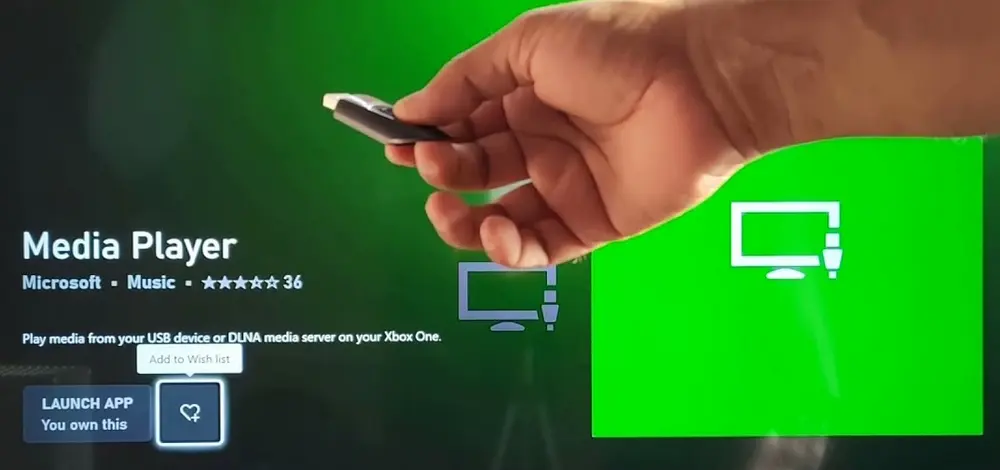
As a matter of fact, all Xbox One models are capable of playing video files from a USB drive using the Media Player app. This gives you another way to watch DVD movies on Xbox One, especially when you are using Xbox One S All-Digital Edition, dealing with a region-coded DVD, or having trouble with the console’s disc drive.
To make it work, you need to convert the DVD to an Xbox One-compatible digital video file first. Here I highly recommend WonderFox DVD Ripper Pro, which is designed to create your own DVD digital library for easier playback on Xbox One, TVs, computers, tablets, and more.
Preparation: Before start, insert a homemade or copy-protected DVD into the DVD-ROM drive connected to your Windows PC.
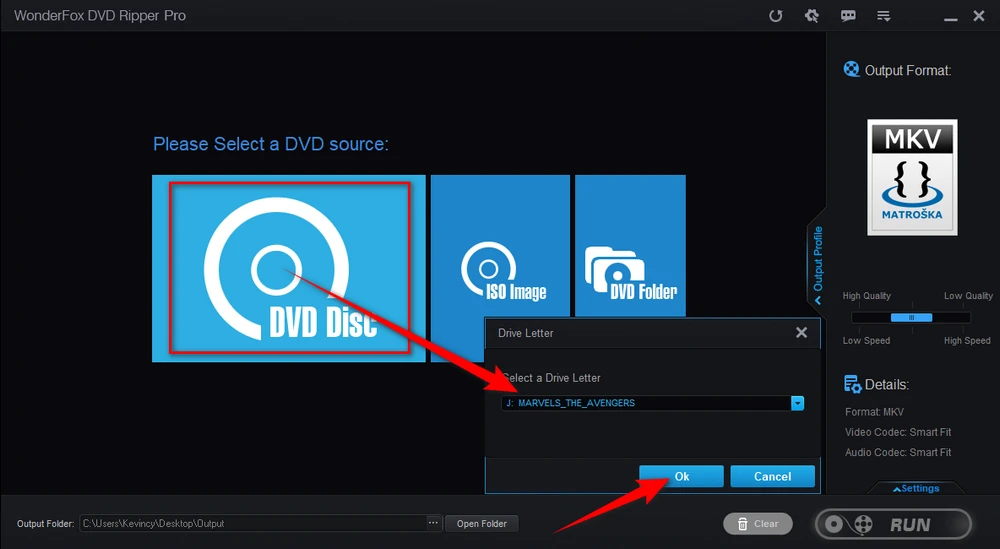
DownloadDownload and run WonderFox DVD Ripper Pro. Press the "DVD Disc" button to select a DVD drive letter. Then hit "OK" to scan the current DVD disc and remove all DVD copy protection. After that, it will intelligently select the main DVD movie, or select all the correct titles for a DVD with multiple episodes.
💡 Tip: In addition to the physical discs, this program also allows you to load a DVD ISO image file or an entire Video_TS folder with a variety of .vob, .bup, and .ifo files.
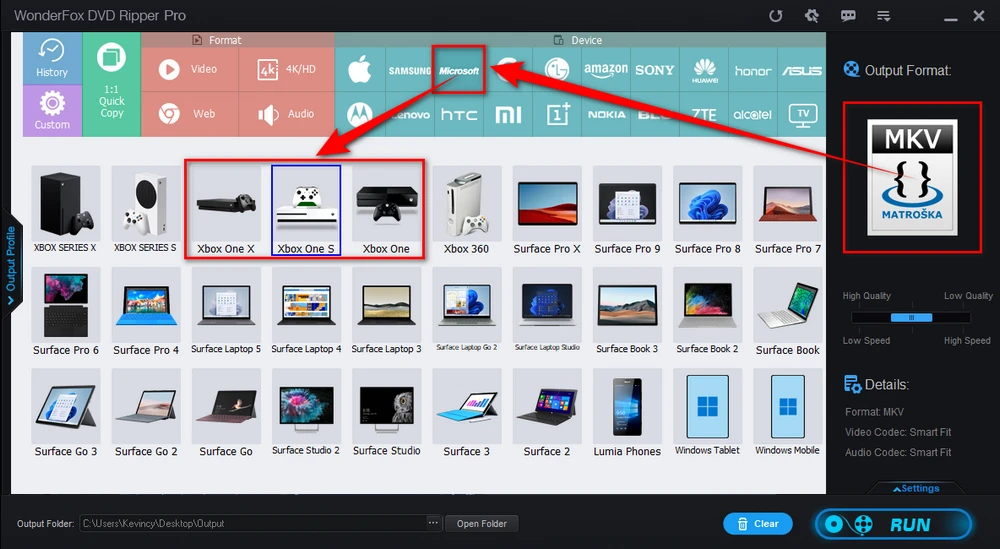
Click on the right-hand large image to unfold a full list of 300+ presets organized by different categories. Go to "Microsoft" category and choose any Xbox One model directly.
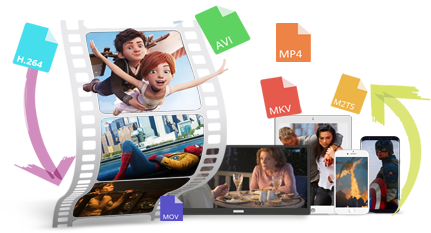
As the Media Player app on Xbox One supports a wide variety of video formats and codecs, you can also choose any other common video format under "Video" category.
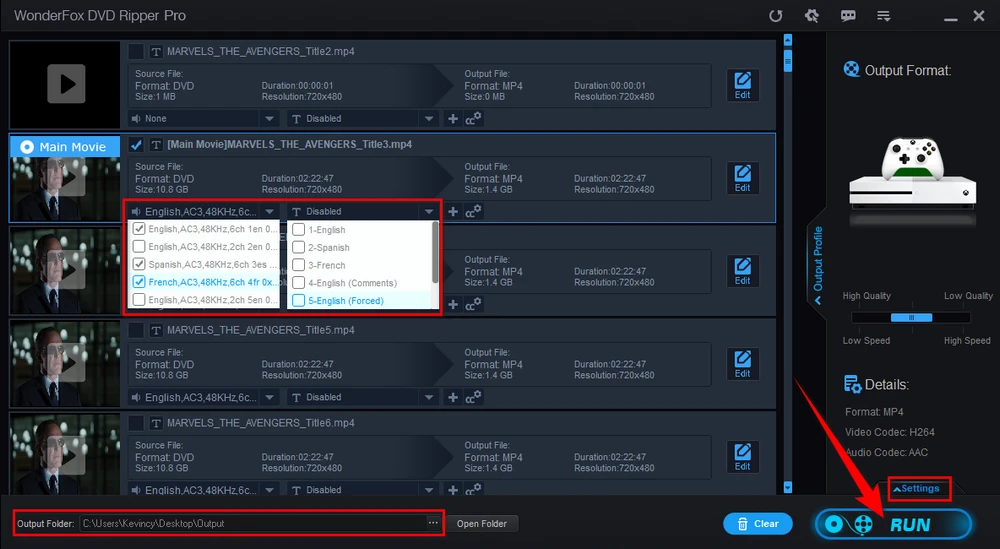
Click on the "three-dots" icon on the bottom to choose an output folder. Finally, hit "RUN" button to digitize DVD to Xbox One-friendly format at a blazing fast ripping speed.
After conversion, the output video is no longer limited by the original DVD disc drive, region code, or minor disc reading issues, so you can play it from a USB drive more conveniently.
💡 Before the process, you can also choose audio track, add subtitles, trim a specific segment from the DVD, and even open "Settings" column to change some parameters like DVD resolution, bit rate, frame rate, deinterlace DVD and so forth.
When the conversion is complete, transfer the converted DVD video file to your removable USB drive. Lastly, connect it to the console for Xbox One DVD playback using the Media Player app.
WonderFox doesn't advocate any copyright infringement, all information provided in this article is presented to make digital copies of personal DVDs for fair-use only. Figure out if it is legal to rip a DVD in your country beforehand.
A: No. Xbox One games are generally region-free, but DVD and Blu-ray movie discs may still be region-locked. Your Xbox One can usually play discs that match the console’s region or discs marked as region-free.
A: It is a disc-reading/playback error that can appear when the Blu-ray Player cannot properly recognize a DVD or Blu-ray. It does not identify one exact fault. Check the disc condition and region, reinstall or update the Blu-ray Player app, restart the console, clear Blu-ray persistent storage, and test another disc. If every disc fails, the optical drive itself may need service.
A: No. Xbox One S All-Digital Edition does not have a disc drive, so it cannot play physical DVDs directly. But you can convert your personal DVD to an Xbox One-supported video file and play it from a USB drive.
A: Changing the console location may affect some services, purchases, subscriptions, or account-related features, and it does not truly make Xbox One region-free. A safer workaround is to convert your own DVD to a region-free digital video for personal playback.
That’s all about how to play DVD movies on Xbox One. If your Xbox One has a disc drive, the easiest way is to install the Blu-ray Player app and play the DVD directly. If you run into 0x91d70000 or another disc-reading error, work through the disc, app, cache, and console checks above first. For Xbox One S All-Digital Edition, a region-coded personal DVD, or a disc that remains troublesome, converting the DVD to an Xbox One-compatible video file is another practical playback option.
With WonderFox DVD Ripper Pro, you can digitize your personal DVD collection to MP4, MKV, or the built-in Xbox One profile, then play the movie from a USB drive without swapping discs every time.
Anyway, I hope I've made everything straightforward and comprehensible. Just sit back and enjoy Hollywood blockbusters or classic films on your Xbox One now.

Kevincy joined the WonderFox team in 2014 and has been a senior columnist ever since. With over two decades of experience in the video editing industry, he shares tutorials, tips, and how-to guides on video/audio processing and personal DVD backups. Family-oriented and passionate about helping others, he is dedicated to making video and audio processing easier for readers.


Kevincy joined the WonderFox team in 2014 and has been a senior columnist ever since. With over two decades of experience in the video editing industry, he shares tutorials, tips, and how-to guides on video/audio processing and personal DVD backups. Family-oriented and passionate about helping others, he is dedicated to making video and audio processing easier for readers.
WonderFox HD Video Converter Factory Pro
500+ optimized presets for fast conversion.
Compress large-sized videos with no quality loss.
Trim, merge, crop, rotate, flip, watermark video.
Download HD/FHD/2K/4K/8K videos from 1000+ sites.
Record live streams, gameplay, webcam, video call
Make animated GIFs from video or image sequence.
Make ringtones, extract subtitles & more...

Privacy Policy | Copyright © 2009-2026 WonderFox Soft, Inc. All Rights Reserved

 Free Download
 Check Details
 Windows, 100% Clean!