Having trouble playing videos in PowerPoint, or getting the "PowerPoint cannot play media" error message? Don't worry. Here you can find out why embedded media files won't play, show a black/white screen, or only play audio, and learn how to effectively fix "PowerPoint video not playing" issues.
👉 Most often, the "PowerPoint video won't play" issue is caused by unsupported formats or codecs. You can use this reliable PowerPoint video converter to easily make your media files PowerPoint-compatible right away:
https://www.videoconverterfactory.com/download/hd-video-converter.exe
PowerPoint Video Converter - Free HD Video Converter
Convert your video to a PowerPoint-compatible format to fix "video in PowerPoint won't play":
1️⃣ Add the unplayable media file
2️⃣ Select a PowerPoint-friendly format (WMV or H264)
3️⃣ Start conversion

Q: I have .wmv video files which are listed as being compatible with PowerPoint 2016 but when I embedded video in PowerPoint and played the video, it did not work but the audio played as expected. Please tell me why my video doesn't play in PowerPoint?
Q: I have an MP4 video, and it works well in PowerPoint 2013 of my own computer. When I try to play the embedded video in the presentation from a different computer, it doesn't work. Why?
Q: When I try to play MPEG files in PowerPoint, I just get a blank (White) screen. What has gone wrong?
Play Video In PowerPoint
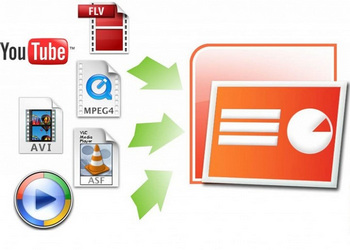
Microsoft PowerPoint has greatly improved the efficiency of our work and study. Additionally, the ability to add audio-visual media files to PowerPoint makes our presentations more interesting and engaging. But when opening media files in a PowerPoint presentation, especially when the presentation is delivered from another computer, it's not uncommon to encounter a situation where the PowerPoint video fails to play, or the PowerPoint video has no sound, and an error message usually pops up saying "cannot play media".
In fact, the causes of video not playing in PowerPoint are many. But the most common reason is format and codec incompatibility. See more details below.
A video consists of a container format and codecs used inside. For PowerPoint to play a video successfully, the video's format and internal codecs must be supported by the version of PowerPoint you are using. In other words, if either the format or the codec is unsupported, PowerPoint won't play the video.
Keep in mind that there are slight differences in media playback capabilities across different versions of PowerPoint. The table below lists the video and audio formats supported by each version of PowerPoint:
| PowerPoint Version | Microsoft 365/2024/2021/2019/2016/2013 | 2010 | 2007 |
| Video Format | .asf .avi .mp4, .m4v, .mov .mpg or .mpeg .swf .wmv |
.asf .avi .mpg or .mpeg .swf .wmv .mp4, .mov, and .qt (Apple QuickTime player required) |
.asf .avi .mpg or .mpeg .wmv |
| Audio Format | .aiff .au .mid or .midi .mp3 .m4a, .mp4 .wav .wma |
.aiff .au .mid or .midi .mp3 .wav .wma |
.aiff .au .mid or .midi .mp3 .wav .wma |
🔔 Additional Notes:
• For PowerPoint 2007 and earlier versions, you can only embed video in WMV, AVI, ASF or MPG/MPEG formats.
• For PowerPoint 2010, videos in the .mp4, .mov, and .qt formats can be played if the Apple QuickTime player is installed.
(* PowerPoint 2010 64-bit is not compatible with 32-bit versions of QuickTime. You must install a 64-bit version of QuickTime, or a 32-bit version of PowerPoint 2010 to to get rid of video not playing in powerpoint 2010.)
It is worth noting again that support for media files varies across different versions of PowerPoint. One supported video file may conflict with another version of PowerPoint, causing the video still won't play in PowerPoint. The best solution is to convert the video to a universal format supported by all PowerPoint versions: WMV.
However, if you are using PowerPoint 2013 or a later version, it's recommended to convert the video to an MP4 file using H.264 video encoding and AAC audio encoding for better cross-platform compatibility and image quality.
💡 Additionally, it is advisable to maintain a video resolution of 1080p (1920×1080) or 720p (1280×720) and a frame rate of 30 fps to ensure smooth and stable playback.
For efficient conversion, WonderFox Free HD Video Converter Factory is highly recommended. This is a powerful yet simple-to-use video converter for Windows that can quickly convert videos to Windows media files that are PowerPoint friendly. Meanwhile, it lets you adjust the size and quality to enhance playback within your presentation.
The software is completely free, and the entire process takes just a few clicks. Without further ado, you can free download this software and learn how to convert media files to a PowerPoint-compatible format below.
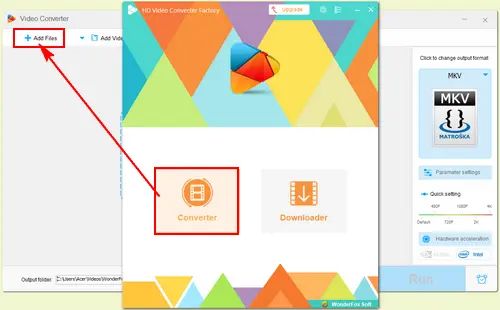
Launch the software and go to Converter. Click Add Files to add the unplayable media file, or directly drag the video into this program.
Add Video File
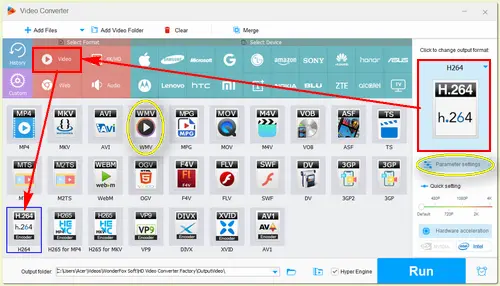
Open the Output Format section on the right. Under the Video tab, select WMV if you're using PowerPoint 2010 and earlier, or H264 if you're using newer PowerPoint versions.
💡 If it is audio that you need to optimize, open the Audio tab and select WMA as the output format.
(Optional: If the media file is too large or has a high resolution, you can reduce the file size and quality in the Parameter settings to make the media playback easier for PowerPoint.)
Choose the Correct Format
Click the ▼ button to set a destination folder and press the big Run button to start the PowerPoint video format conversion.
Now you can embed the converted video in PowerPoint and the "PowerPoint embedded video not playing error" should disappear.
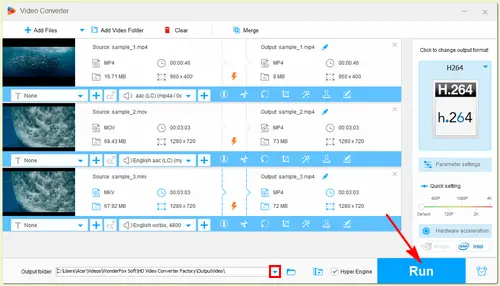
Start to Convert
If you still can't play media in PowerPoint after the conversion, try these additional troubleshooting methods:
If the media file inserted in your PowerPoint plays fine on one device but fails to play when transferred to another device, the media file might have compatibility issues. You can run Optimize Compatibility before sharing the presentation with others. Here is how to optimize media for compatibility.
Step 1. Open your PowerPoint presentation. Then select File > Info.
Step 2. Select Optimize Compatibility. This will automatically optimize any media that has a compatibility issue.
🔔 Note: If you can't see the Optimize Compatibility option, it means the media files in the presentation are fully compatible.
If the source file has been moved, renamed, or deleted, PowerPoint cannot locate the media file (especially for linked videos). Additionally, PowerPoint may fail to play videos if the total file path exceeds 128 characters or contains special characters. Try these steps first:
• Re-insert the media.
• Shorten the file path. You can move both your presentation and the video file into the same, short-path folder (e.g., D:\Presentations\). This can fix the video playing as a white rectangle on a presentation slide.
• Keep files together. Make sure the video file is transferred together with the PPT file.
The temporary files piled up in the Windows Temp folder may also affect the overall performance of PowerPoint. Here are the steps to clean the Temp folder.
Step 1. Close PowerPoint and all other programs.
Step 2. Press Win + R to open the Run box.
Step 3. Type in %temp% and press Enter to open the Temp folder.
Step 4. Press Ctrl + A to select all the temp files in the folder. Then click Delete on the ribbon to empty the temp folder.
A proven method to fix the "cannot play media in PowerPoint" error is to open PowerPoint in Office Safe Mode. This will help troubleshoot the problems you are having with the current PowerPoint presentation, such as invalid resources, files, registries, templates, and add-ins or extensions that won't start.
Step 1. Hold down the Ctrl key and double-click on the PowerPoint presentation.
Step 2. A dialog will pop up asking if you want to open PowerPoint in safe mode. Click Yes.
If your video displays as a black rectangle while only audio plays, your graphics hardware acceleration may be conflicting with PowerPoint.
Step 1. Open PowerPoint. Go to File > Options.
Step 2. Select Advanced and scroll down to find Display.
Step 3. Check the boxes before Disable hardware graphics acceleration and Disable Slide Show hardware graphics acceleration.
Step 4. Click OK to apply this change.
Running PowerPoint as administrator has proven to be a working solution for some users. However, it does not guarantee 100% success for you. But it doesn't hurt to try. Just right-click on the PowerPoint presentation and select Run as administrator to see if it works.
This error is mainly due to unsupported formats or codecs (such as HEVC or DTS). It may also be an invalid file path or name, unavailable media, a heavy temp cache, and a conflict with hardware graphics acceleration.
If you want to make your video playable in PowerPoint, make sure it is encoded with a supported format first. You can use video converter software like WonderFox Free HD Video Converter Factory to quickly change the media format to PowerPoint. Detailed steps are outlined above.
For optimal compatibility across all newer PowerPoint versions (including Microsoft 365, 2021, 2019, 2016, and 2013), the recommended format is MP4 with H.264 video encoding and AAC audio encoding.
For PowerPoint 2010 and 2007, the best video format is WMV.
If your video shows a white box, it usually means the video has an invalid or excessively long file path (over 128 characters). You need to shorten the file path and reinsert the media.
If it displays a black screen, then it's more likely due to an incompatible video codec or hardware graphics acceleration conflicts. You can fix this by converting the video to H.264 MP4 or disabling hardware graphics acceleration in PowerPoint Options.
More Special Features on Free HD Video Converter Factory

I write about multimedia topics, including video and audio conversion, compression, editing, and downloading. I joined WonderFox in 2020, and my goal is to help readers solve everyday tech problems more easily. In this article, I have shared the root cause of PowerPoint embedded video not playing and told you the best fix, plus additional tips to fix PPT video not playing.


Product line: DVD Software | Video Software | Watermark Software | GIF software | Office Software
Featured product: Free DVD Ripper | Free Video Converter | Video Converter | Free HD Video ConverterService: Submit A Ticket | Retrieve Key | Order support | Product Support | Money Back Guarantee | 24 Hours Service
Terms of use: Refund Policy | License Policy | FAQ

About | Company | Contact | Affiliate | Privacy
Copyright © 2009-2026 WonderFox Soft, Inc. All Rights Reserved.
 Free Download
 Recommended by the author