

Have some .mpa audio files that will not open, upload, or edit smoothly? This guide explains what an MPA file is and shows how to convert MPA to MP3, WAV, FLAC, AAC, M4A, OGG, WMA, and other common audio formats with a simple MPA converter for Windows.
 Kevincy | Jul 9, 2026
An MPA file usually refers to an MPEG audio file, often associated with MPEG Audio Layer II. It is closely related to MP2 audio and may appear in old audio streams, broadcast recordings, video soundtracks, conference files, or other media packages that store audio only.
Although many desktop players can still open MPA files, the format is not as convenient as today's common audio formats. You may need to convert MPA when your phone refuses to play it, an editor cannot import it, a website does not accept it, or you simply want a smaller, easier-to-share audio file.
Next, I'll recommend an efficient application to facilitate the process.
WonderFox HD Video Converter Factory Pro helps you convert MPA files to common audio formats in bulk, adjust audio parameters, trim clips, compress files, and extract audio from videos with a clear Windows interface.
For everyday MPA conversion, WonderFox HD Video Converter Factory Pro is a practical choice. It supports batch audio conversion and provides 500+ output presets, so you can change .mpa files to MP3, WAV, FLAC, AAC, M4A, OGG, WMA, AC3, AIFF, and more without dealing with confusing codec settings.
The program is especially useful when you have a folder of old MPA files. You can add them all at once, select one target format, and start conversion in bulk. It also lets you modify bitrate, sample rate, channel, and volume, or trim and merge audio clips before export.
Besides working as an MPA audio converter, it can extract audio from video files, convert video audio tracks, compress media files, download music and videos, record audio or screen activity, and handle other common video/audio tasks in one place.
Free downloadFree download this simple MPA converter and follow the steps below.
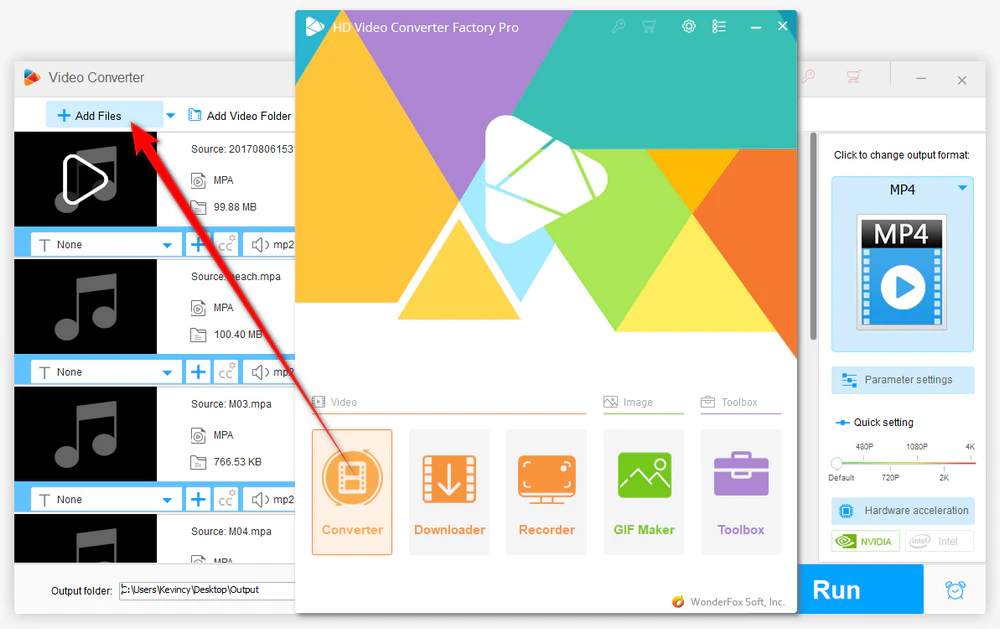
Launch HD Video Converter Factory Pro and open the "Converter" module. Click "Add Files" to import one or more .mpa files, or click "Add Video Folder" to load a whole folder. You can also drag and drop the MPA files into the main window directly.
After the files are loaded, the program will list their basic information. You can play a file in the built-in preview window to make sure it is the right audio before conversion.
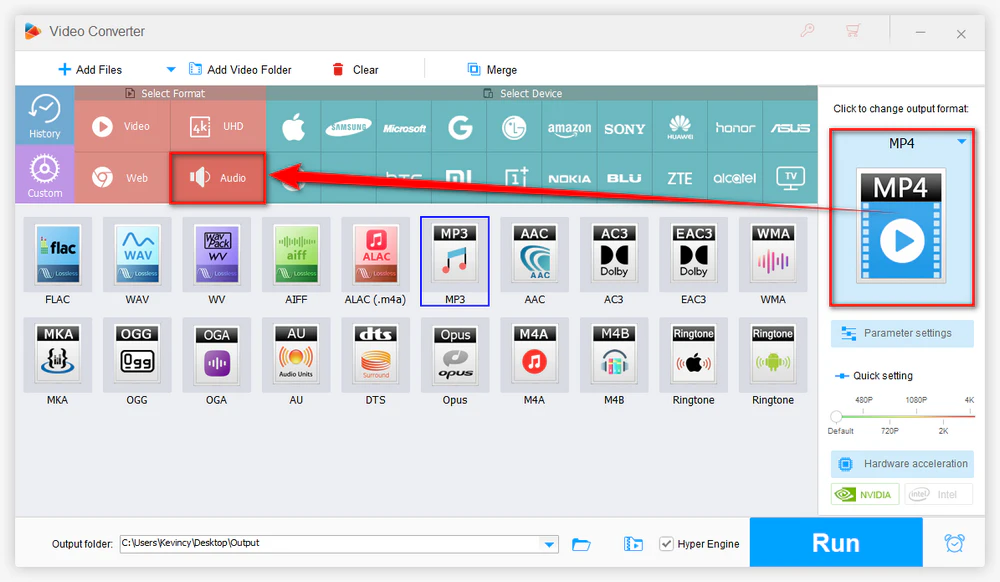
Click the format image on the right side to open the output profile library. Go to the "Audio" category and choose the format you need.
For example, choose MP3 for general playback and sharing, WAV or FLAC for editing or archiving, M4A for Apple-oriented use, OGG for some open-source workflows, WMA for older Windows-related needs, or another format when a specific app or device requires it.
💡 But remember: MPA is a lossy audio format, so converting it to WAV or FLAC can preserve the decoded audio but cannot restore quality that was already lost during the original compression.
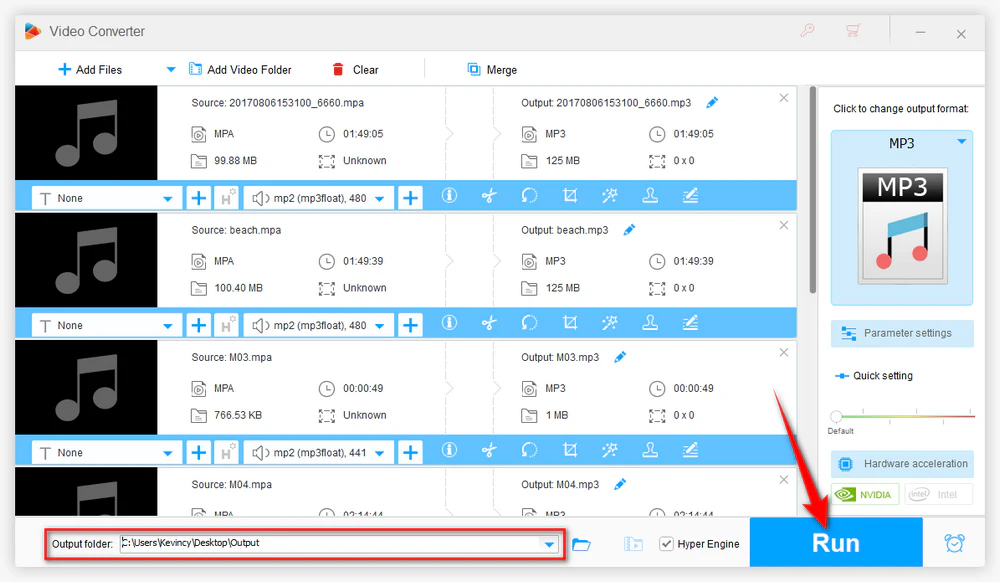
Click the "Inverted Triangle" button at the bottom to choose an output folder. Finally, press the big "Run" button to convert all imported MPA files to your selected audio format.
When the process is complete, open the output folder and check the converted files. You can then play them on common devices, import them into editing software, upload them to websites, or store them for later use.
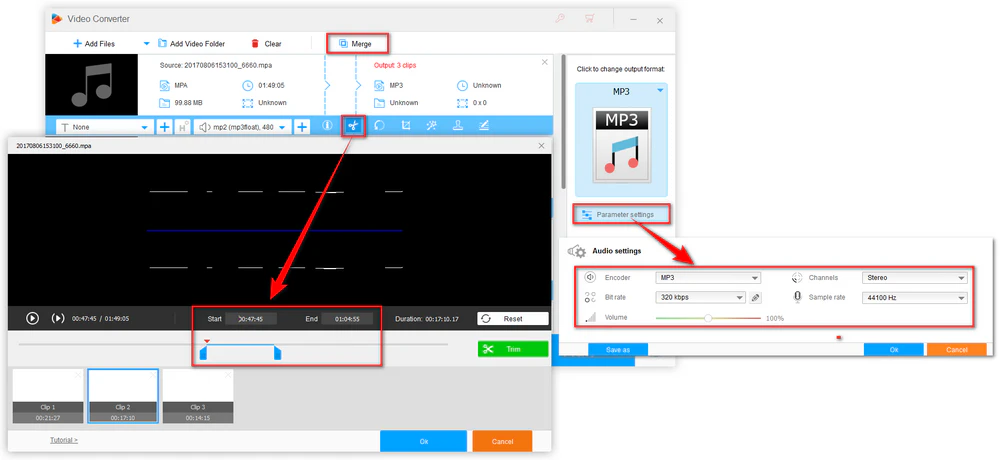
Before clicking "Run", you can open "Parameter settings" to make the output file better fit your needs. For a smaller file, choose a compressed format such as MP3, AAC, M4A, or OGG and lower the audio bitrate properly. For editing, keep the sample rate close to the source file when possible.
If the MPA audio is too quiet, increase the volume. If it contains unwanted parts, use the built-in cutting tool to trim the beginning, ending, or middle section. If several MPA files belong to the same recording, you can merge them into one file after importing them.
For users who only want to change the audio file type for compatibility, choosing a common format and keeping sensible parameters is usually enough. Do not set an extremely high bitrate just because it looks better on paper. It will only enlarge the file and will not add missing audio details back to the original MPA source.
Need to process a folder of old .mpa audio files? Add them all to HD Video Converter Factory Pro, choose one output format, and batch convert them with simple settings.
They are closely related. In many cases, .mpa is used for MPEG audio, especially MPEG Audio Layer II, while .mp2 is another common extension for the same audio layer. Still, file extension alone does not always tell the full story, so convert the file only when your player or editor cannot handle it well.
For normal playback, sharing, or uploading, MP3, AAC, and M4A are convenient choices. For editing or further processing, WAV or FLAC is easier to work with. For specific old Windows workflows, WMA may still be useful, while OGG can be used for some open-source or web-related needs.
You can avoid additional heavy compression by exporting to WAV or FLAC, but you cannot restore the quality that was already lost when the original MPA file was encoded. In other words, WAV or FLAC can keep the current decoded audio quality, not magically upgrade it.
Yes, an online audio converter can be convenient for one or two small files. Before uploading, check whether the site accepts .mpa input and read its file-size, queue, privacy, and download limits. For large files, private audio, or batch jobs, a desktop converter is usually more reliable.
HD Video Converter Factory Pro is a Windows program. On Mac, you can try a Mac-compatible media tool like XLD or fre:ac or an online converter if the file is small. On phones and tablets, it is usually easier to convert MPA on a desktop first and then transfer the converted MP3, M4A, WAV, or other supported file to the device.
The file may be damaged, mislabeled, encrypted, incomplete, or encoded in a way the converter cannot read. Try playing it in VLC or another media player first. If it does not play anywhere, the source file itself may need to be repaired or replaced.
MPA is not a difficult format, but it is no longer the most convenient choice for everyday playback, editing, and sharing. With WonderFox HD Video Converter Factory Pro, you can convert MPA files to common audio formats in batch, adjust audio parameters when needed, and handle extra audio tasks from the same interface. Pick the output format according to your real use, and you will not have to worry about MPA compatibility again.

Kevincy joined the WonderFox team in 2014 and has been a senior columnist ever since. With over two decades of experience in the video editing industry, he shares tutorials, tips, and how-to guides on video/audio processing and personal DVD backups. Family-oriented and passionate about helping others, he is dedicated to making video and audio processing easier for readers.


Kevincy joined the WonderFox team in 2014 and has been a senior columnist ever since. With over two decades of experience in the video editing industry, he shares tutorials, tips, and how-to guides on video/audio processing and personal DVD backups. Family-oriented and passionate about helping others, he is dedicated to making video and audio processing easier for readers.

WonderFox HD Video Converter Factory Pro
1. Batch convert audio/video files to 500+ presets.
2. Convert MPA to MP3, WAV, FLAC, M4A, OGG, WMA...
3. Adjust bitrate, sample rate, channel, and volume.
4. Trim, merge, and compress audio files with ease.
5. Extract audio from video files in different formats.
6. Download and record music, videos, live streams...
7. Make ringtones, GIFs, split-screen videos & more...

Privacy Policy | Copyright © 2009-2026 WonderFox Soft, Inc. All Rights Reserved
