

Need to open, play, edit, or reuse an MP2 file? This guide shows you how to convert MP2 audio files to common audio formats and how to change the MP2 audio track inside a video to MP3, AAC, AC3, EAC3, DTS, and more with a functional video and audio processing tool.
 Kevincy | Jul 1, 2026
MP2, short for MPEG Audio Layer II, is a lossy audio format that was widely used in digital broadcasting, DAB radio, satellite TV, DVD-Video, and some older media workflows. It can still deliver decent sound quality at higher bitrates, but it is not as convenient as modern audio formats for daily playback, editing, sharing, or device transfer.
That's why many people need an MP2 converter. You may want to convert standalone .mp2 audio files to a more compatible audio format, extract the audio from a video that uses an MP2 track, or replace the MP2 audio track in a video with MP3, AAC, AC3, EAC3, DTS, or another encoder required by your TV, player, editor, or home theater device.
Before we start, keep one thing in mind: MP2 is already a lossy format. Converting it to another lossy format will not improve the original quality. Converting MP2 to WAV or FLAC can be useful for editing or avoiding extra compression later, but it cannot restore audio details that were already discarded.
WonderFox HD Video Converter Factory Pro makes MP2 conversion simple. It can batch convert MP2 audio files, extract audio from video, and convert the MP2 audio track in a video with ease.
WonderFox HD Video Converter Factory Pro is an easy MP2 converter for Windows users who want a quick, clean, and flexible way to handle audio conversion. It supports common audio formats and device-friendly presets, so you can convert MP2 audio to MP3, WAV, FLAC, AAC, M4A, OGG, WMA, AIFF, and more without dealing with complicated codec settings.
It is also useful when your video contains an MP2 audio track. You can import the video, keep or change the video format, and select another audio encoder. This is helpful when a TV, media player, editing program, or home theater system fails to recognize the original MP2 audio.
Besides conversion, the program also supports batch processing, audio trimming, merging, volume adjustment, bitrate/sample-rate changes, audio extraction, ringtone making, downloading, recording, compression, and more. Get the tool and follow the tutorial below.
The following steps apply to standalone .mp2 audio files. You can add one file or a whole batch of MP2 files for conversion.
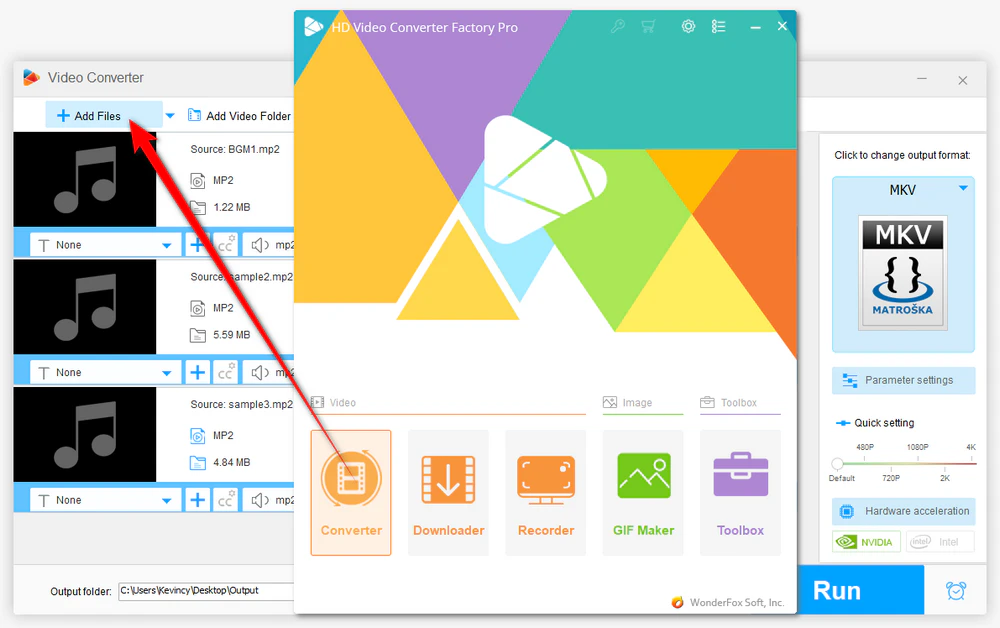
DownloadDownload, install, and launch HD Video Converter Factory Pro on your Windows desktop or laptop. Open the Converter module and click Add Files to import your MP2 audio files.
You can also drag and drop them into the workplace. To save time, add multiple files at once for batch conversion.
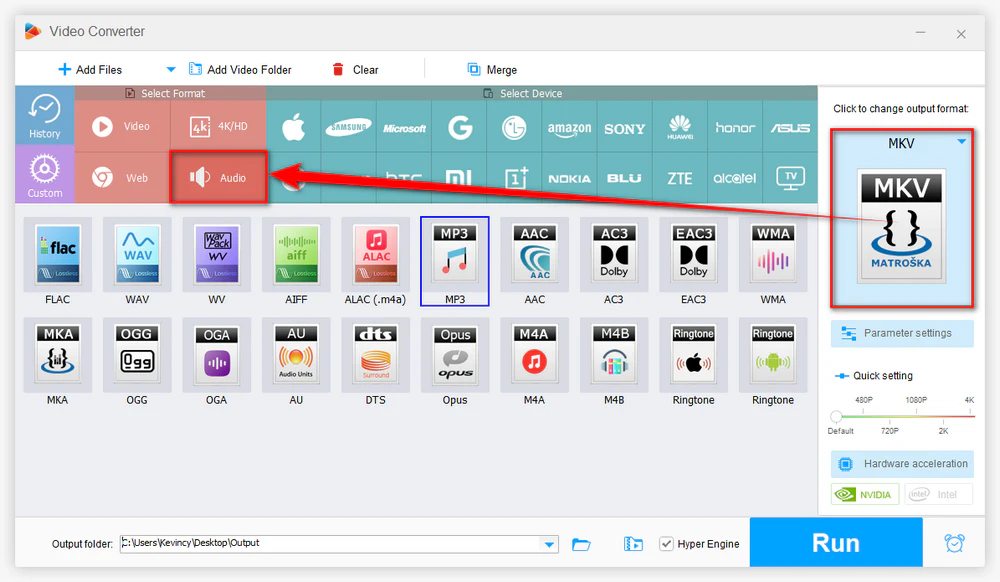
Click the format image on the right side to open the output format library. Go to the Audio category and choose a format according to your needs.
For example, choose MP3 for broad compatibility, WAV for editing, FLAC for lossless storage after conversion, M4A for modern devices, or another format required by your player or workflow.
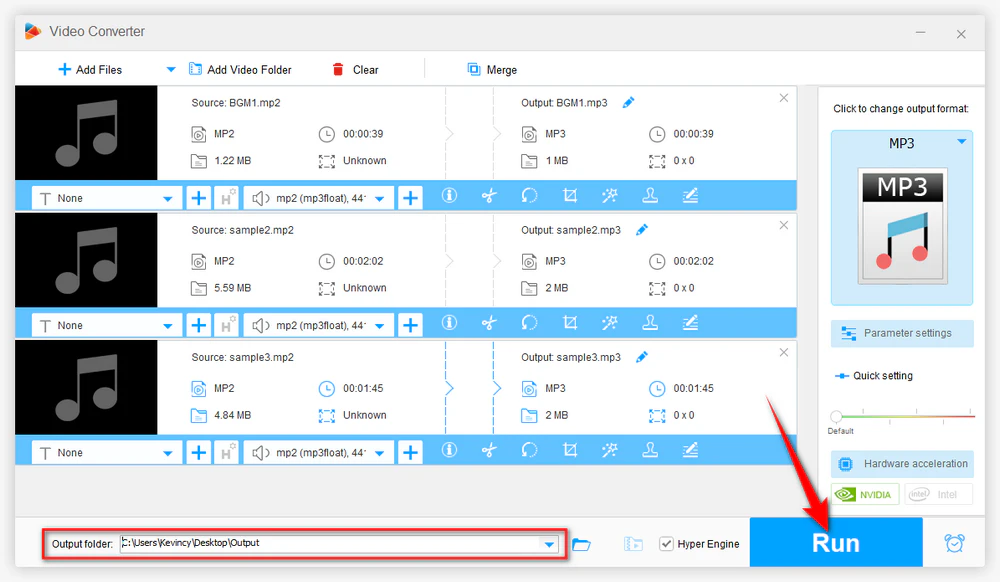
Click the Inverted Triangle button at the bottom to choose an output folder. Finally, hit Run to start converting MP2 files. After the process is finished, open the output folder and check the converted audio files.
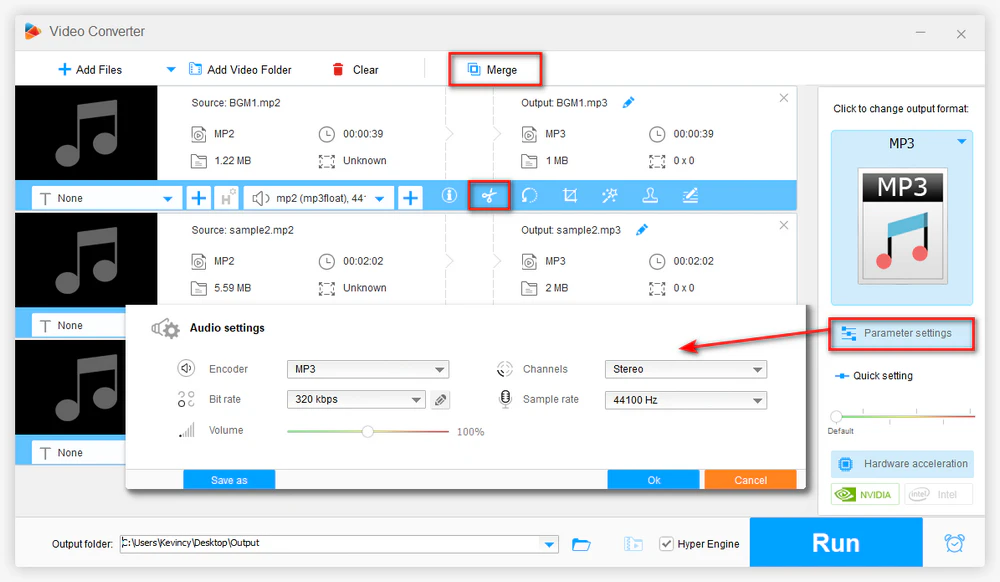
Before conversion, click Parameter settings if you want to change the audio encoder, bitrate, sample rate, channel, or volume. For most users, the default settings are good enough. For smaller files, lower the audio bitrate slightly. For editing, keep a common sample rate such as 44.1 kHz or 48 kHz.
You can also use the editing features to split/cut a long audio recording, or merge several audio files into one. These options are useful when you need to prepare MP2 recordings for phones, editors, car players, or online sharing.
Sometimes the problem is not a separate .mp2 file. Instead, the video itself plays without sound or cannot be imported into an editor because the audio stream is encoded in MP2. In this case, you can convert the audio track while keeping the video in a more compatible container.
Step 1. Open Converter and click Add Files to import the video that contains an MP2 audio track.
Step 2. Click the output format image on the right side and choose a video container, such as MP4, MKV, MOV, AVI, or another format required by your device or software.
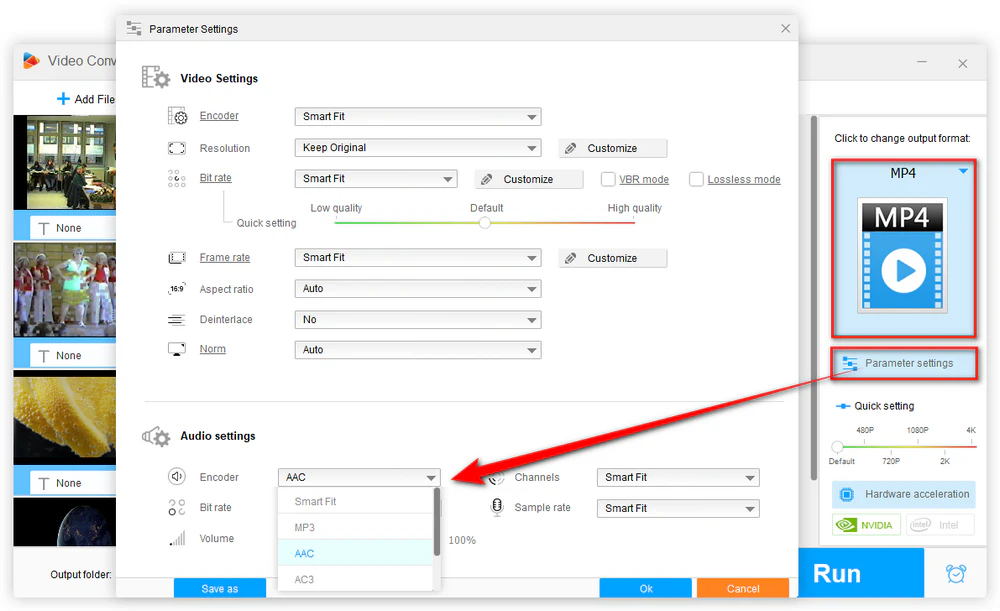
Step 3. Click Parameter settings. Under the audio settings, open the Encoder drop-down list and choose MP3, AAC, AC3, EAC3, DTS, or another available audio encoder. You can also change the sample rate, channel, bitrate, and volume if needed.
Step 4. Set the output folder and click Run. The program will create a new video file with the converted audio track.
Do not upscale audio settings blindly. A higher bitrate or a larger sample depth does not automatically make an MP2 source sound better. It only increases the output file size. Keep the settings close to the source unless your target device or editor requires a specific value.
Choose the output format by use case. For portable playback, pick a compact and widely supported format. For editing, pick a format that your editor can read smoothly. For video sound compatibility, choose the audio encoder that your playback device supports.
Keep a backup of the original file. If the MP2 file comes from a radio recording, TV capture, DVD, or old archive, save the original copy before batch conversion. This gives you room to retry with different settings later.
Import all your MP2 audio files, choose a suitable output format, adjust audio settings if needed, and start conversion at once. HD Video Converter Factory Pro helps you finish the job without complex steps.
No. MP2 and MP3 are both MPEG audio formats, but they use different audio layers. MP2 is older and is still seen in broadcasting and some video sources. MP3 is more common for music, portable playback, and general sharing.
You can convert MP2 to WAV for easier editing or wider software support, but WAV will not restore lost details from the original lossy MP2 audio. It simply saves the decoded audio in an uncompressed container.
Yes. Online tools such as Convertio, CloudConvert, FreeConvert, or Online-Convert can handle small MP2 files in a browser. They are convenient for occasional use, but upload limits, queue speed, privacy concerns, and limited parameter control make desktop software better for large files or batch conversion.
Mac users can try VLC, FFmpeg, or online converters for simple MP2 conversion. If you often need batch conversion and parameter control, X Lossless Decoder, fre:ac, and MediaHuman are worth trying.
For a few small files, a mobile browser-based online converter may work. For large MP2 recordings, videos with MP2 audio tracks, or batch jobs, it is better to move the files to a computer and use a desktop converter.
MP2 is not a bad audio format, but it is no longer the most convenient choice for everyday playback, editing, or sharing. With WonderFox HD Video Converter Factory Pro, you can convert MP2 audio files to common formats in batches, customize audio parameters, and even convert the MP2 audio track inside a video to a more compatible encoder. Pick the output format based on your actual device, editor, or playback workflow, and keep a copy of the original file when possible.

Kevincy joined the WonderFox team in 2014 and has been a senior columnist ever since. With over two decades of experience in the video editing industry, he shares tutorials, tips, and how-to guides on video/audio processing and personal DVD backups. Family-oriented and passionate about helping others, he is dedicated to making video and audio processing easier for readers.


Kevincy joined the WonderFox team in 2014 and has been a senior columnist ever since. With over two decades of experience in the video editing industry, he shares tutorials, tips, and how-to guides on video/audio processing and personal DVD backups. Family-oriented and passionate about helping others, he is dedicated to making video and audio processing easier for readers.

WonderFox HD Video Converter Factory Pro
1. Convert MP2 and other audio/video files in bulk.
2. Convert MP2 audio tracks in video to common encoders.
3. Trim, merge, compress, and adjust audio parameters.
4. Download HD/FHD/4K/8K videos from 1000+ sites.
5. Record live streams, gameplay, webcam, video call.
6. Make animated GIFs from video or image sequence.
7. Make ringtones, extract subtitles & more...

Privacy Policy | Copyright © 2009-2026 WonderFox Soft, Inc. All Rights Reserved

 Free Download
 Check Details
 Windows, 100% Clean!