

Got a .weba file but cannot open it in your player, editor, phone, or car system? This guide explains what WEBA is, which output format to choose, and how to convert WEBA files to common audio formats with WonderFox HD Video Converter Factory Pro in a simple, batch-friendly way.
 Kevincy | Jul 1, 2026
A WEBA file is usually an audio-only file based on the WebM container. In everyday use, it often contains audio compressed with Opus or Vorbis. That makes it efficient for web delivery, downloads, and browser playback, but it is not as widely accepted as common audio formats in desktop editors, portable players, older media apps, or some mobile workflows.
If a WEBA file will not open, cannot be imported, or needs to be used in another program, the most practical fix is to convert it to a more familiar audio format. For example, you can choose a compact format for playback and sharing, or a less compressed format for editing and post-production.
WonderFox HD Video Converter Factory Pro offers a straightforward way to batch convert WEBA files to common audio formats, adjust audio settings, and trim or merge audio clips on Windows. Download and give it a shot!
Let's begin with the recommended desktop program: WonderFox HD Video Converter Factory Pro. Although the name says "Video Converter", it also works as a practical audio converter. You can import one WEBA file or a whole folder of WEBA files, choose an output profile from the Audio category, and convert them in bulk without uploading your files to an online server.
Besides format conversion, the program lets you change audio bitrate, sample rate, channel mode, and volume. It also includes simple editing tools, so you can cut a long audio file, join several clips, extract audio from video, make ringtones, and compress large audio files when needed.
Free downloadFree download this easy-to-use WEBA converter and follow the steps below.
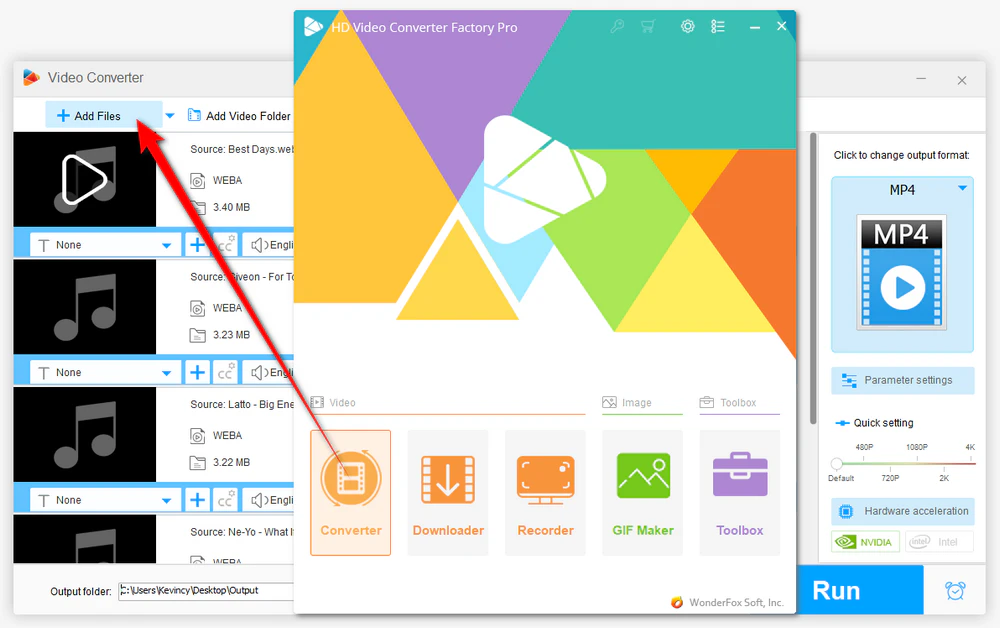
Run HD Video Converter Factory Pro and open the "Converter" module. Click "Add Files" to import a single WEBA file, or click "Add Video Folder" to load multiple files at once. You can also drag and drop the WEBA files directly into the program.
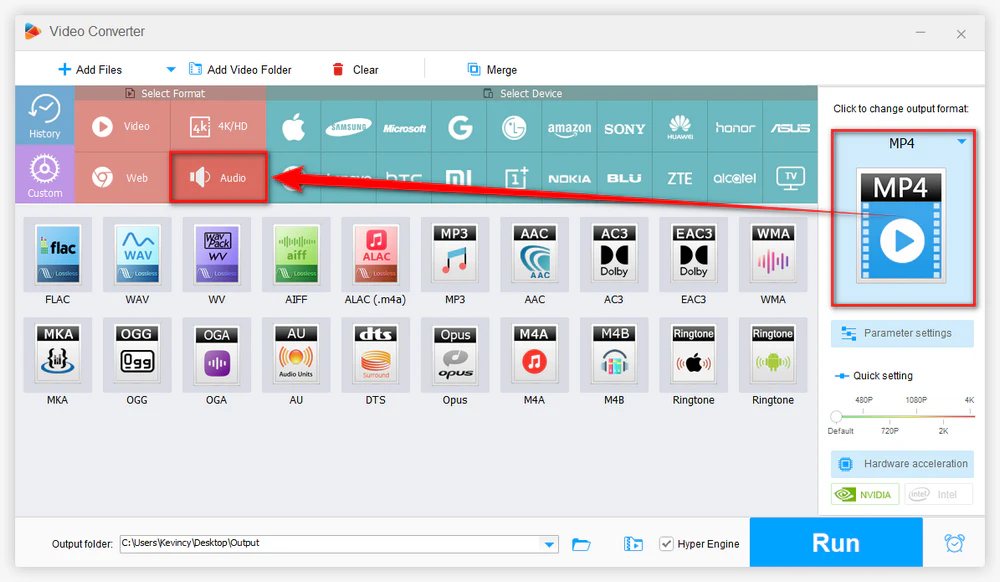
Click the large "Output Format" image on the right side to open the format library. Go to the "Audio" category and choose the format you need, such as MP3, WAV, FLAC, M4A, AAC, OGG, WMA, and more.
💡 For general playback, MP3 is usually the most compatible option. Choose WAV when you want to edit the audio in a DAW or audio editor. For Apple-oriented use, M4A or AAC may be more convenient. FLAC is useful when you want a lossless container for storage after conversion. OGG can also be a good choice for open-source or web-related workflows. You can choose according to the device, player, editor, or platform that will use the converted audio.
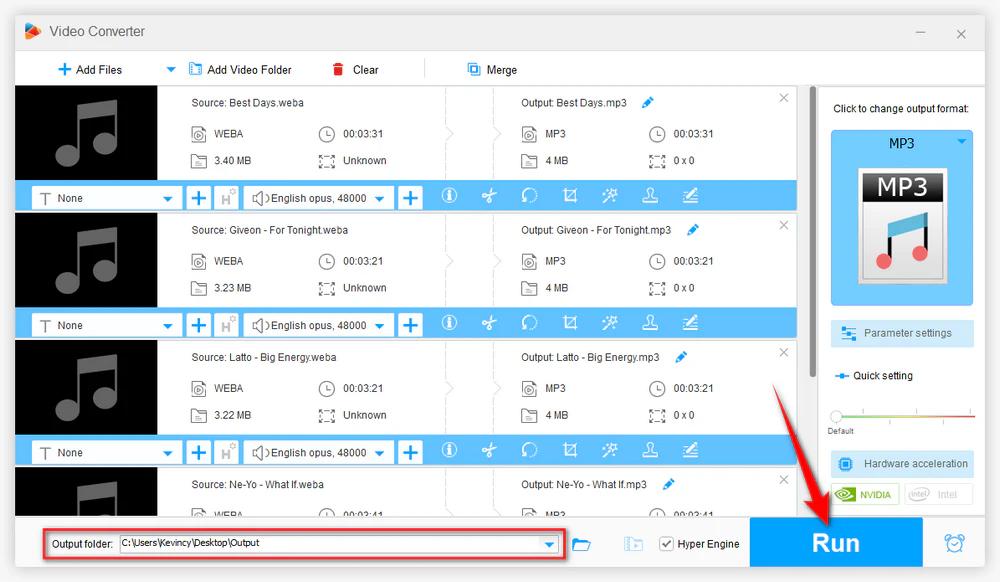
Click the "Inverted Triangle" icon at the bottom to set an output folder. Finally, press the big "Run" button to convert your WEBA files. If you added multiple files, the program will process them in batch mode.
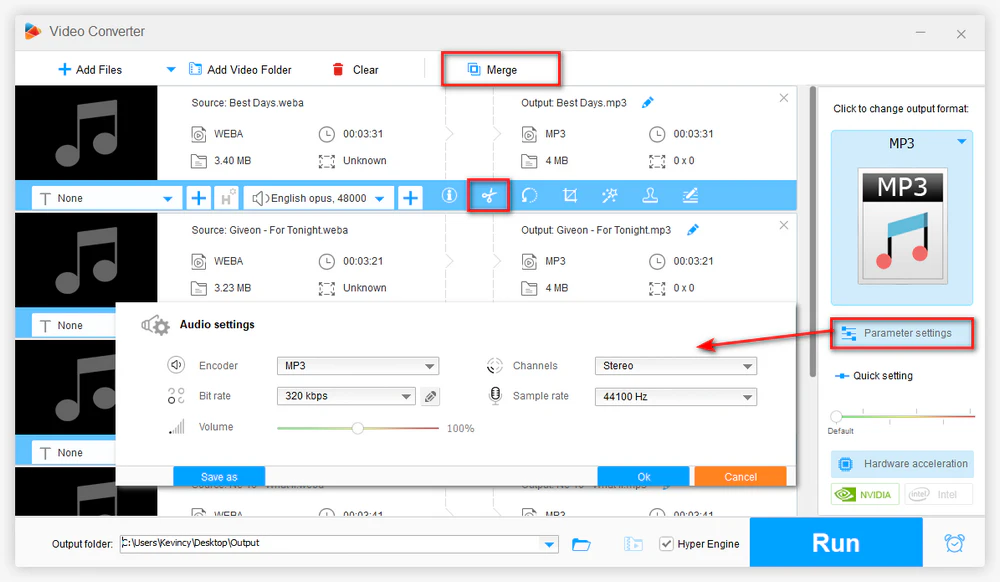
Before conversion, you can open the "Parameter settings" window to change audio bitrate, sample rate, encoder, channel, and volume. This is helpful when you need a smaller file, a specific sample rate, or a stereo/mono output.
The toolbar also lets you trim unwanted parts, split a long recording, merge several clips into one, or quickly make a ringtone. These options are especially useful when your WEBA file comes from a long web recording, lecture, music stream, or downloaded audio source.
If you have a collection of WEBA files from recordings, downloads, or web audio, adding them all at once saves a lot of time. You only need to set the output format and output folder once, then start the conversion.
Many WEBA files are already compressed with a lossy codec. Converting them to WAV or FLAC can make them easier to edit or store, but it cannot recreate sound details that were removed during the original compression.
For music and general audio, 44.1 kHz or 48 kHz is usually enough. Setting a much higher sample rate will often increase the file size without bringing clear audible benefits for an already compressed WEBA file.
A higher bitrate may reduce additional compression loss when exporting to a lossy format, but it will also create a larger file. For speech, a moderate bitrate is often fine. For music, you may want a higher bitrate if storage space is not a concern.
A desktop converter is the most stable choice when you need bulk conversion, private local processing, or adjustable audio settings. Still, there are other ways to handle a WEBA file when you only have a small audio clip or do not want to install a Windows program.
Online audio converters are convenient for small files. CloudConvert, Convertio, Zamzar, FreeConvert, Online-Convert, and 123Apps' Audio Converter are commonly used choices. Upload the WEBA file, choose the target audio format, convert, and download the result. The downsides are file-size limits, slower upload/download speed, internet dependency, ads, and privacy concerns for personal recordings.
VLC media player can play many WEBA files and also includes a basic Convert/Save feature. It is useful for quick one-off conversion, but the workflow and output control are not as friendly as a dedicated audio converter.
Audacity is a good audio editor for trimming, cleaning, or exporting audio. If your Audacity setup cannot import WEBA directly, installing the FFmpeg library usually solves more format import problems. It is better for editing than for simple batch conversion.
With this handy WEBA converter, you can convert WEBA files to common audio formats, customize parameters, and process multiple files on Windows without uploading audio online. Get it now!
In most cases, converting WEBA to another audio format involves decoding and re-encoding. If the output is a lossy format, some additional quality loss may happen. You can reduce that risk by choosing a suitable bitrate, keeping the original sample rate when possible, and avoiding repeated conversions between lossy formats.
If you choose WAV or FLAC, the exported file can avoid another lossy compression stage. However, it will only preserve the current quality of the source WEBA file. It will not make a compressed recording sound like a studio master.
Your player or editor may not recognize the WebM audio-only container or the audio codec inside it. Try VLC for playback, or convert the file to a more common format for easier use.
Yes. HD Video Converter Factory Pro supports batch conversion. Add multiple WEBA files or a folder, select one output format, choose an output folder, and start conversion.
Online converters are fine for small, non-sensitive audio clips. For private recordings, large batches, or unstable network conditions, a local desktop converter is usually safer and more efficient.
Mac users can try VLC, Audacity with FFmpeg support, or an online audio converter for small files. If you need a dedicated workflow, choose a Mac audio converter like X Lossless Decoder, fre:ac, or MediaHuman that clearly supports WebM audio input and your desired output format.
Mobile users can use an online converter in a browser for small files. Some media converter apps may also work, but support varies by app. For a large number of files, it is usually easier to transfer them to a computer first.
WEBA is useful on the web, but it is not always convenient for everyday playback, editing, or sharing. If you only have one small file, an online converter or VLC may be enough. If you need a smoother Windows workflow, batch conversion, private local processing, and more output choices, WonderFox HD Video Converter Factory Pro is a more practical WEBA converter for turning WEBA files into common audio formats with less effort.

Kevincy joined the WonderFox team in 2014 and has been a senior columnist ever since. With over two decades of experience in the video editing industry, he shares tutorials, tips, and how-to guides on video/audio processing and personal DVD backups. Family-oriented and passionate about helping others, he is dedicated to making video and audio processing easier for readers.


Kevincy joined the WonderFox team in 2014 and has been a senior columnist ever since. With over two decades of experience in the video editing industry, he shares tutorials, tips, and how-to guides on video/audio processing and personal DVD backups. Family-oriented and passionate about helping others, he is dedicated to making video and audio processing easier for readers.
WonderFox HD Video Converter Factory Pro
1. 500+ optimized presets for fast conversion in bulk.
2. Compress large-sized videos with no quality loss.
3. Trim, merge, crop, rotate, flip, watermark video.
4. Download HD/FHD/4K/8K videos from 1000+ sites.
5. Record live streams, gameplay, webcam, video call
6. Make animated GIFs from video or image sequence.
7. Make ringtones, extract subtitles & more...

Privacy Policy | Copyright © 2009-2026 WonderFox Soft, Inc. All Rights Reserved

 Free Download
 Check Details
 Windows, 100% Clean!