
Have old .au audio files that will not play smoothly on your current device? This guide shows an easy way to convert AU to MP3, WAV, FLAC, AAC, M4A, and other common audio formats in batches.
Recommended AU Converter: HD Video Converter Factory Pro
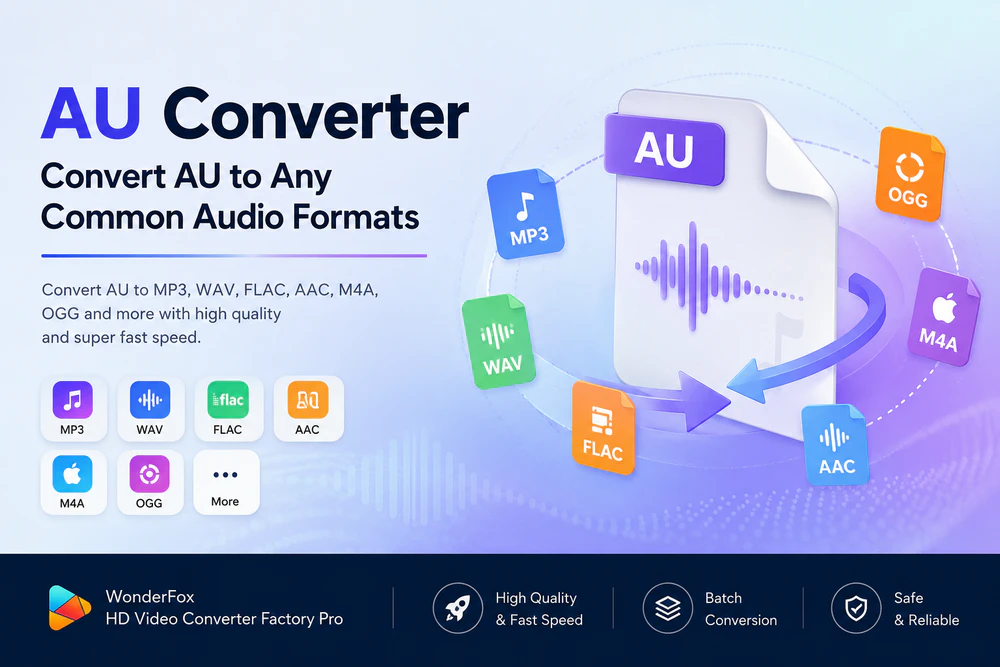

An AU file is an older audio format that was commonly used on Sun, NeXT, and other Unix-based systems. You may also see similar files with the .snd extension. Some AU files contain 8-bit μ-law audio, while newer AU files can store several other audio encodings.
The format is simple and useful in some legacy environments, but it is not as convenient as MP3, WAV, FLAC, or AAC for everyday playback, sharing, editing, or uploading. That is why many users convert AU to a more common audio format first.
WonderFox HD Video Converter Factory Pro is a practical AU converter for Windows users who want a simple desktop workflow. It can convert AU files to common audio formats such as MP3, WAV, FLAC, AAC, M4A, WMA, and OGG. It also supports batch conversion, so you do not need to process old AU recordings one by one.
Unlike online converters, the conversion happens locally on your computer. This is helpful when your AU files include voice notes, research recordings, work audio, or any content you do not want to upload to a third-party server.
Get this functional video and audio processing application and follow the step-by-step guide below.
DownloadDownload, install, and launch the application on your Windows PC. Then open the Converter module.
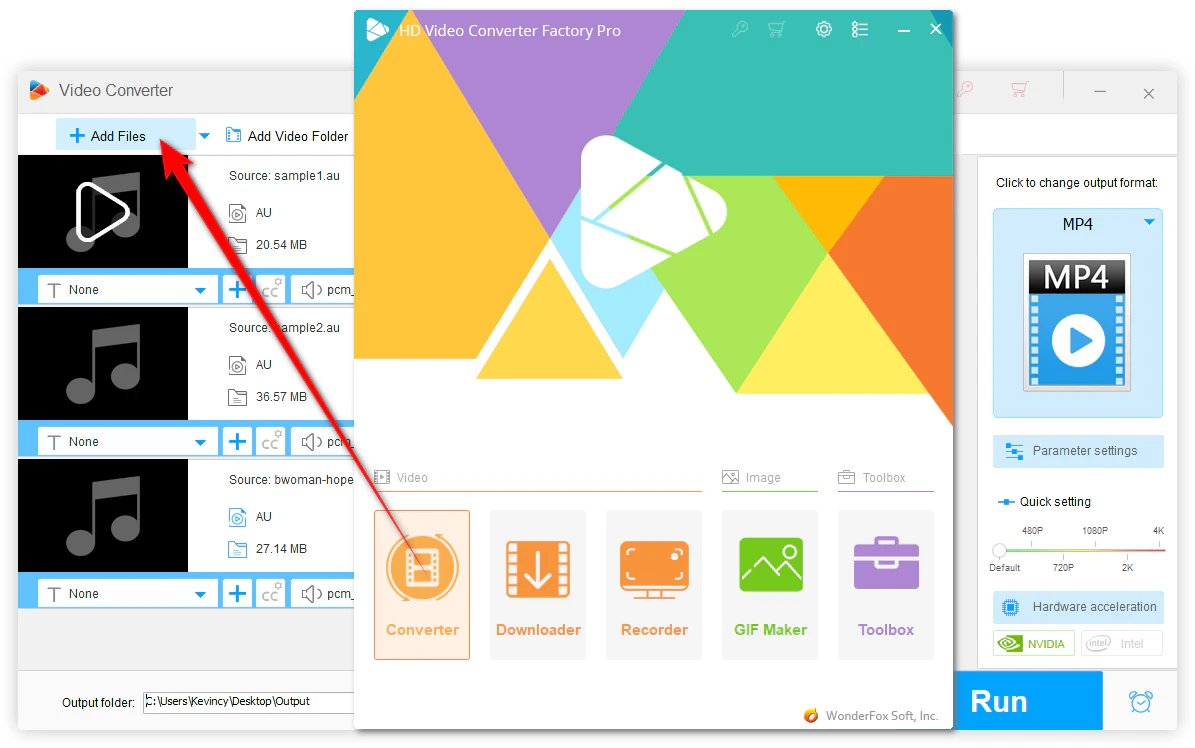
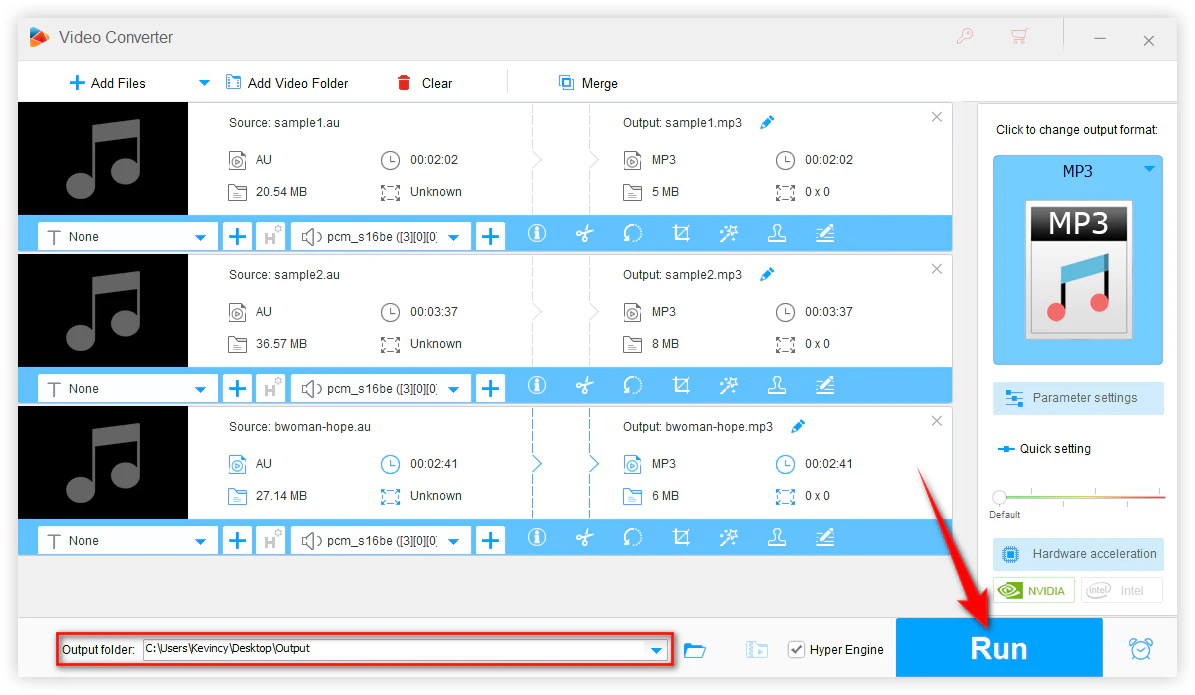
Click Add Files to import your AU audio files. You can add one file or many files at once. Drag-and-drop is also supported if your files are already in a folder.
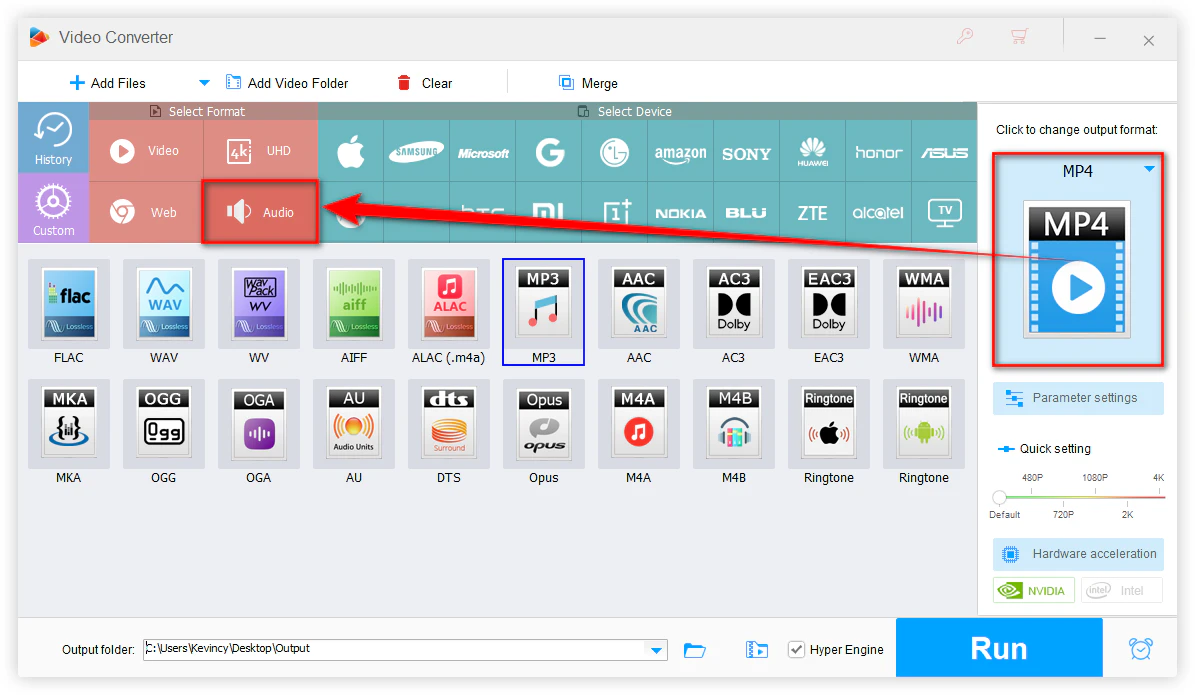
Open the output format panel on the right. Go to the Audio category and choose the format you need:
💡 Although most people convert AU to modern formats, some niche workflows may still require AU output, for example, old Unix projects, legacy software, or a specific audio test environment. In this case, you can also select "AU" as the output format to convert your audio files to AU format.
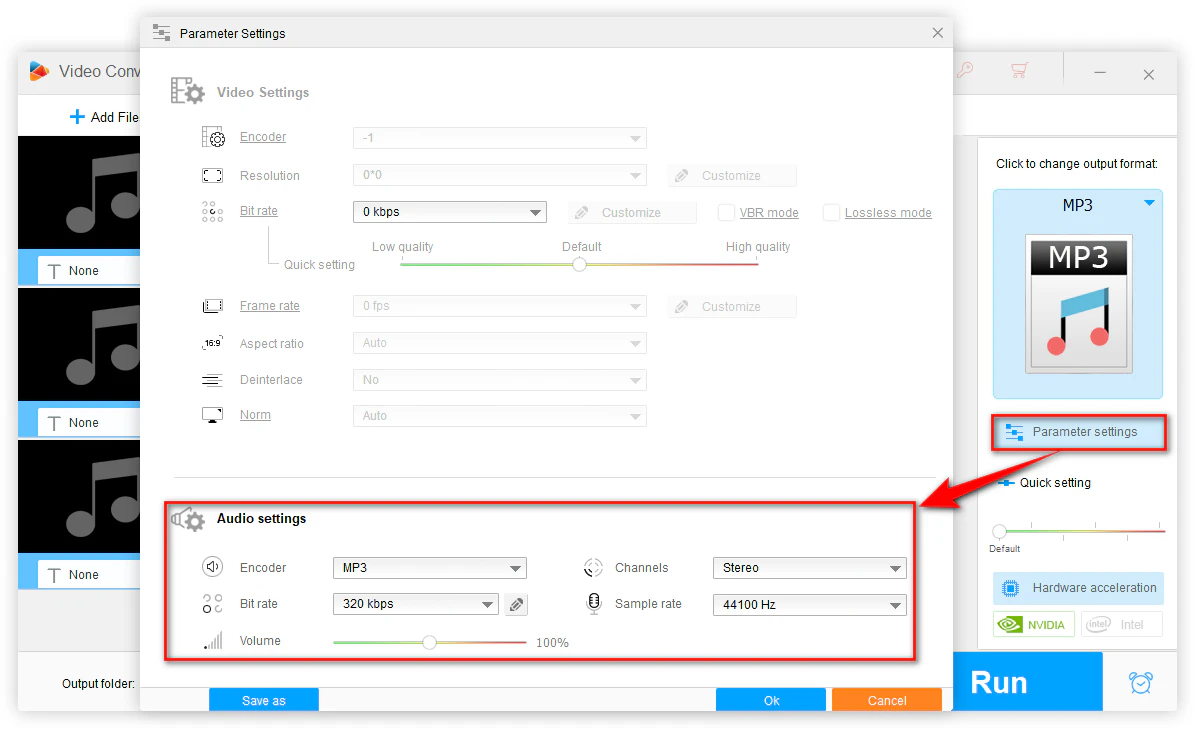
This step is optional. Open Parameter settings if you want to change the audio bitrate, sample rate, channel, encoder, or volume. For most users, the default settings are enough.
If your source AU file is already low-quality or encoded with μ-law/A-law, choosing WAV will not magically restore missing detail. It can only help avoid extra lossy compression during the conversion.
Set an output folder at the bottom before conversion. This makes it easier to find the converted files later.
Click Run to start converting AU files. When the process is complete, open the output folder and play the converted MP3, WAV, FLAC, or other files in your preferred media player.

Note: Do not confuse AU audio files with Audacity project files. Audacity projects usually use .aup or .aup3, not .au. If you have an Audacity project, export it from Audacity to MP3, WAV, or another audio format instead of treating it as a normal AU file.
Yes. Online converters such as CloudConvert or Convertio can handle simple AU conversions in a browser. They are convenient when you only have one or two small files. However, they usually come with file size limits, daily limits, slower uploads, and privacy concerns. For large batches or private audio, a desktop converter is safer and faster.
Mac users can try tools such as VLC, Audacity, X Lossless Decoder, or a trusted online converter. Availability and output options may vary, so check whether the tool can read your specific AU file before starting a large batch.
For mobile users, an online converter in a browser is usually the easiest option. It is fine for small, non-sensitive audio files. For many files, large files, or private recordings, moving the files to a computer and using desktop software is more reliable.
In many cases, .snd files refer to the same Sun/NeXT audio style as AU files. But the .snd extension has also been used by other sound formats. If a converter fails to read your .snd file, verify the real format first.
No. WAV can avoid additional lossy compression, but it cannot recover information that was never in the source. If the AU file is low bitrate, noisy, or already encoded with a lossy codec, the converted WAV will keep those limits.
The file may be damaged, mislabeled, incomplete, or encoded in a way your player does not support. Try another player or audio editor first. If the file still cannot be recognized, it may not be a valid AU audio file.
AU is a legacy audio format, so converting it to a common format is often the quickest way to make the file usable again. Use MP3 for everyday playback and sharing, WAV or FLAC for editing or archiving, and AAC/M4A for modern devices. With WonderFox HD Video Converter Factory Pro, you can batch convert AU files in a few steps and also create AU files from common audio formats when a niche workflow requires it.
WonderFox
HD Video Converter Factory Pro
 Download for FreeDownload for Free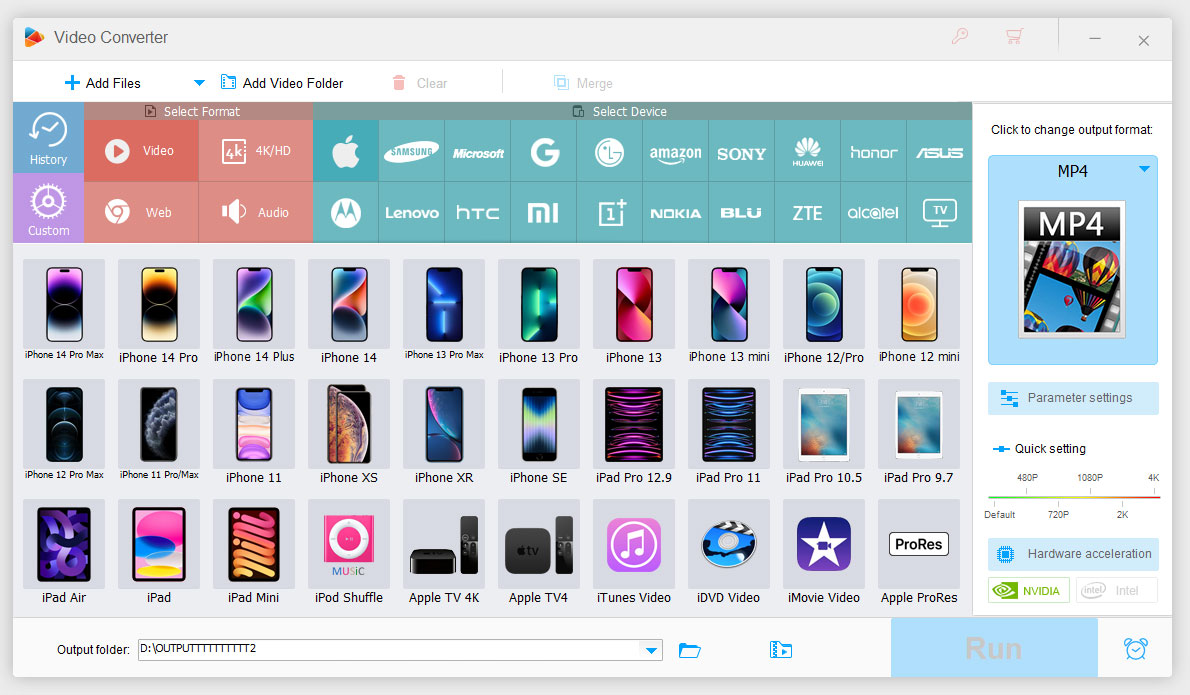

Kevincy joined the WonderFox team in 2014 and has been a senior columnist ever since. With over two decades of experience in the video editing industry, he shares tutorials, tips, and how-to guides on video/audio processing and personal DVD backups. Family-oriented and passionate about helping others, he is dedicated to making video and audio processing easier for readers.


Kevincy joined the WonderFox team in 2014 and has been a senior columnist ever since. With over two decades of experience in the video editing industry, he shares tutorials, tips, and how-to guides on video/audio processing and personal DVD backups. Family-oriented and passionate about helping others, he is dedicated to making video and audio processing easier for readers.


Terms and Conditions | Privacy Policy | License Agreement | Copyright © 2009-2026 WonderFox Soft, Inc. All Rights Reserved.



 Download for Free