Is a movie, phone recording, screen recording, or other video too quiet even with your device volume turned up? This guide covers four practical ways to make the sound louder, from permanent volume adjustment to quick playback and online options.
Install the most efficient video volume booster to increase video volume at once: https://www.videoconverterfactory.com/download/hd-video-converter-pro.exe
A video can sound quiet for several reasons. The audio may have been recorded with a low microphone or system-audio level, the speaker may have been too far from the microphone, or the source may simply have been mixed at a low level. This is especially common with phone videos, camera footage, meeting recordings, gameplay captures, and screen recordings.
Before editing the file, make sure the player, browser, Windows volume mixer, speakers, or headphones are not limiting the sound. If the file itself is still quiet on different players or devices, increasing the audio gain and exporting a new copy is the more reliable fix.
⚠️ Keep in mind: raising volume makes everything in the audio louder, including hiss, background noise, and distortion. If the original recording is badly clipped or noisy, a volume boost can improve audibility but cannot restore missing audio detail.
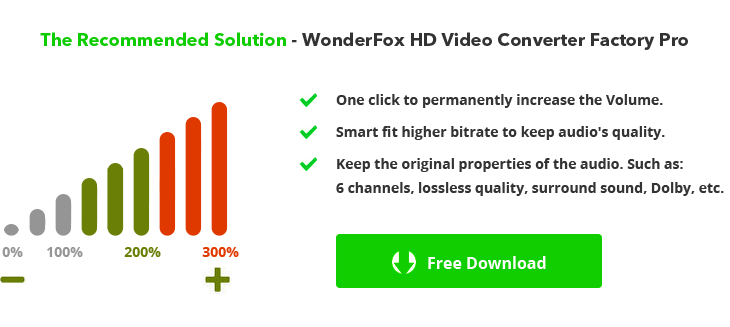
WonderFox HD Video Converter Factory Pro provides a straightforward way to make the audio in a video permanently louder. It works with regular videos as well as phone recordings, camera footage, screen recordings, and other common media files. You can process multiple files in one batch, choose an output format when needed, and adjust other video or audio parameters at the same time.
Free download the program and follow the steps below to adjust the audio level.
An easy way to increase the volume of multiple videos in one batch, with output format and audio/video settings available when needed. Learn more >
Launch HD Video Converter Factory Pro and open the Converter module. Click "Add Files" to import the videos you want to make louder, or drag and drop them into the window. You can add several files for batch processing.
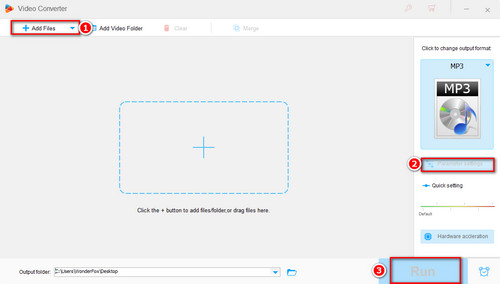
Add the Quiet Video Files
Choose an output profile if you need to change the video format. Then click "Parameter settings" and find Volume in the Audio settings. Move the slider to the right to increase the sound level, up to 200%, and click OK to save the setting.
💡 Tip: Start with a moderate increase and preview the result. Pushing already noisy or distorted audio too far can make the defects more obvious. You can also adjust the resolution, frame rate, encoder, bitrate, sample rate, and channels when necessary.
Similar Posts: MP3 Volume Changer | YouTube Volume Booster
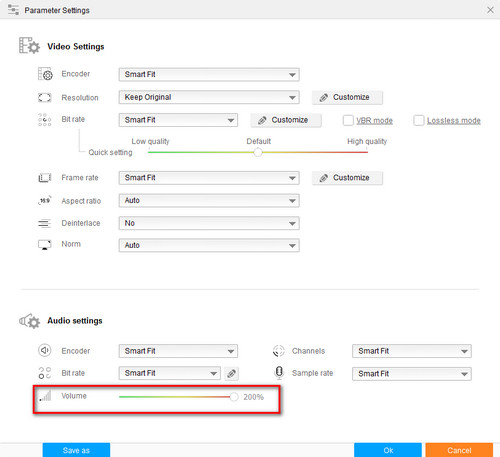
Drag the Slider to Increase Volume (up to 200%)
Choose an output folder and click the blue "Run" button. The program will create new files with the adjusted audio level. This changes the saved output itself, so the video remains louder when played in another player or on another device.
Export the Louder Video
Use three simple steps to make quiet video files louder and export the result for playback on other devices.
The method above changes the exported file itself. If you only need a temporary playback boost, a Windows editor, or a browser-based option, try the alternatives below.
Also Read: Volume Booster for Windows PC
VLC Media Player is a free, cross-platform player that can make a quiet video sound louder while you are watching it. Play the quiet video in VLC, use the volume control at the bottom of the player to raise the playback level. If your VLC installation supports volume above 100%, continue moving the slider until the sound is comfortable. If the video becomes harsh or distorted, lower the volume again.
Increase Playback Volume in VLC
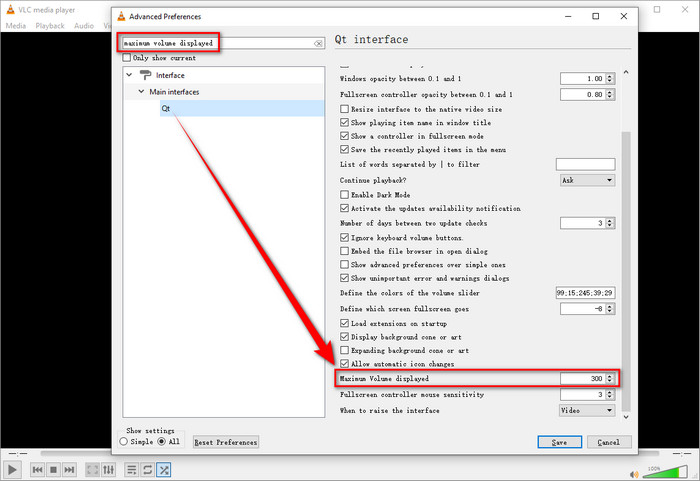
You can also follow the steps below to increase audio volume to maximum 300%.
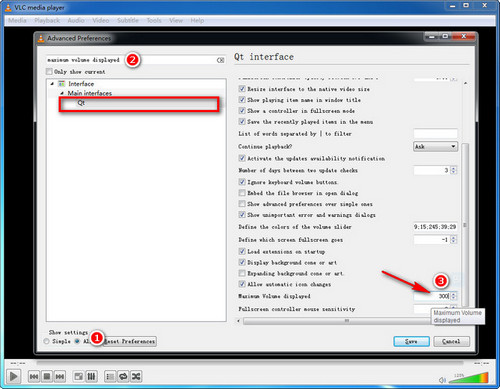
1. Go to Tools > Preferences. Click All in the lower left corner to switch to full preferences view.
2. Type "maximum volume displayed" on the top left side. Click Qt and find the Maximum Volume displayed option on the right.
3. Type 300 in the box and re-launch VLC, you will be able to boost audio volume up to 300% of the original volume.
VLC Boost Volume up to 300%
👉 However, this is only a playback boost. VLC does not modify the source file when you adjust the player volume. The same video may still sound quiet in another player, on another computer, or on a phone or TV.
HD Video Converter Factory Pro can export a new copy with higher audio gain, so the change is retained outside the original player.
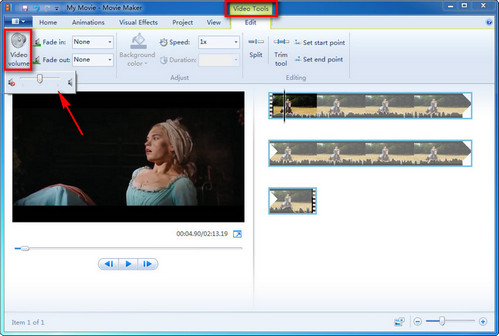
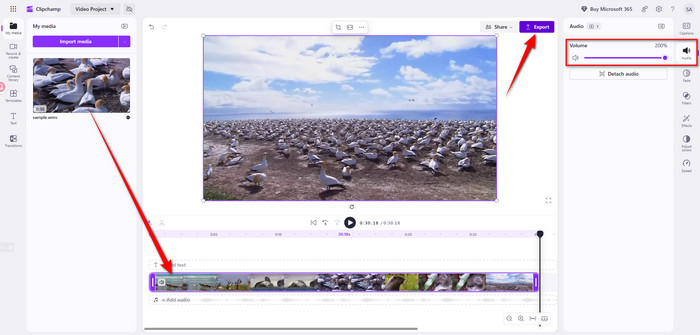
For current Windows users, Microsoft recommends Clipchamp as its official video editor, and it is built into Windows 11. Clipchamp can increase the volume of a video or audio clip up to 200% and export a new file with the change.
1. Open Clipchamp and create a new project. Import the quiet video and drag it onto the timeline.
2. Select the video clip, open the Audio tab in the property panel, and move the volume slider to the right. You can raise it up to 200%.
3. Preview the result. When the sound is right, click Export and save the new video.
Clipchamp is a good choice when you want to increase the volume of only part of a recording: split the clip around that section first, select the segment, and adjust its volume separately.
Increase Video Volume in Clipchamp
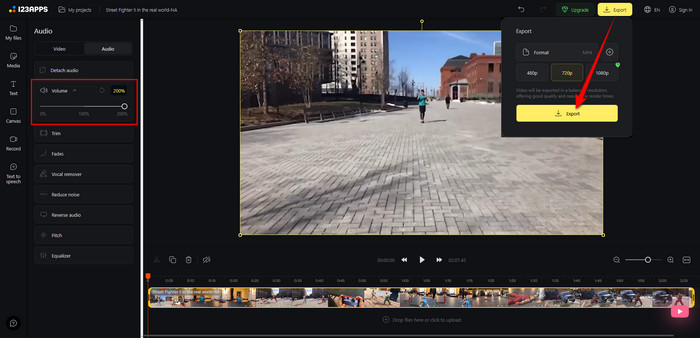
If you only have one or two short videos and do not want to install software, an online editor can be convenient. For example, the 123apps Video Volume Booster lets you upload a video, change its volume in the browser, preview the result, and export a new file.
1. Open the online volume tool and upload your video.
2. Move the volume slider to the right until the speech, music, or other audio is loud enough.
3. Preview the video. If background noise also becomes too strong, reduce the boost.
4. Choose an available output format and click Export to process and download the new file.
Note: Online tools require uploading the video to a remote service. For private recordings, large files, or multiple videos, a desktop tool is usually more practical. Also, volume amplification raises background noise together with the wanted sound; it does not repair a poor recording.
Increase Video Volume in Clipchamp
If the quiet video is a screen recording, it is better to check the audio before recording whenever possible. HD Video Converter Factory Pro also includes a Recorder module that can capture the screen with system audio, microphone audio, or both.
Before you start, choose the recording area or mode, select the audio sources you actually need, and check the Windows output and microphone input levels. Make a short test recording first. This can help you catch an accidentally muted microphone, a very low input level, or an unbalanced mix before recording a long meeting, tutorial, gameplay session, or livestream.
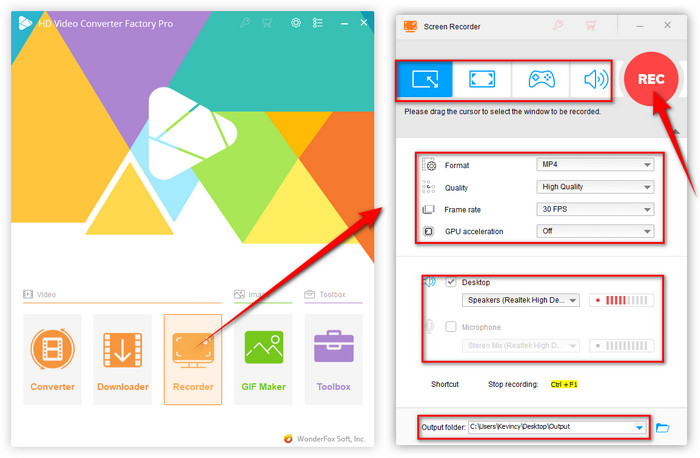
Avoid Low Volume When Recording on a PC
1. Can I increase the volume of only one part of a video?
Yes. A timeline editor such as Clipchamp lets you split out the quiet section and adjust that segment separately. This is useful when only one speaker, scene, or recorded section is too quiet.
2. Why does background noise get louder too?
A basic volume boost raises the whole audio signal, including voices, music, hiss, fan noise, and room noise. If the source is noisy, use a smaller gain increase or apply noise reduction with a suitable audio editor before boosting it further.
3. Can VLC save the video with permanently louder audio?
Not by simply raising VLC's playback slider. That control only changes how loud VLC plays the file. To make the change portable to other players and devices, export a new video with adjusted audio gain.
4. Can increasing volume fix distorted or clipped audio?
No. Increasing gain can make quiet audio easier to hear, but it cannot restore detail that was lost when the original recording clipped or was badly distorted.
For a permanent fix, adjust the audio level and export a new video. VLC is useful when you only need louder playback, Clipchamp is a convenient Windows editing option, and an online tool works well for an occasional small file. For phone, camera, or screen recordings, remember that boosting volume also boosts unwanted noise, so a moderate increase usually sounds better than pushing the level as high as possible.
Free download the recommended software - HD Video Converter Factory Pro:
A practical desktop option for batch volume adjustment, conversion, editing, downloading, and screen recording on Windows. Learn more >

A simple video and audio processor that makes it much easier than ever to make quiet videos louder in batches.





Kevincy joined the WonderFox team in 2014 and has been a senior columnist ever since. With over two decades of experience in the video editing industry, he shares tutorials, tips, and how-to guides on video/audio processing and personal DVD backups. Family-oriented and passionate about helping others, he is dedicated to making video and audio processing easier for readers.


Convert Video | Rip DVD | Download Video | Play Video | Share Media Files | Record Screen | Edit Video | Toolbox | Third-party Software | Kodi
Store | Download | About | Contact | Support | Privacy | Copyright © 2009-2026 WonderFox Soft, Inc. All Rights Reserved