Download Video from a URL and Save It as MP4
 Recommended by the author
 How to & Tips
 Convert Video

 by Kevincy
Updated on Aug 19, 2026
If a website does not provide a download button, a URL video downloader can often analyze the page link and list the video streams that are available to save. This guide shows how to download supported videos from a URL and, when needed, save the result as MP4 for easier playback and sharing. Keep in mind that no downloader works with every site: private, login-only, DRM-protected, region-restricted, or frequently changed pages may not be supported. Here is the recommended Windows tool to get started:
Video links are easy to share, but many pages offer streaming only. If you cannot find the download option on the webpage, you can use a video downloader to analyze the link, choose an available quality, and save the file locally. If MP4 is not listed as a direct download option, you can download an available stream first and then convert the saved file to MP4. The methods below cover both cases.
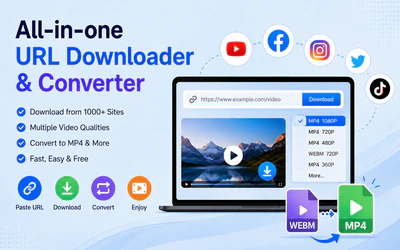
Recommended Free URL Video Downloader
1. Download videos, playlists, and other supported media from YouTube, Facebook, X/Twitter, Vimeo, Dailymotion, and 1000+ sites.
2. Choose from the available source qualities, including HD, 4K, 8K, and higher when provided by the source.
3. Convert downloaded video to MP4, AVI, MOV, MKV, MP3, FLAC, etc.
4. Optimized preset parameters for popular devices.


For a simple desktop method, try WonderFox Free HD Video Converter Factory. Its Downloader can analyze links from YouTube and many other supported video-sharing sites, then show the formats, resolutions, audio tracks, and subtitles available for that source. It supports downloads from 1000+ websites and can save high-resolution streams when the source makes them available. The basic workflow takes only three steps.

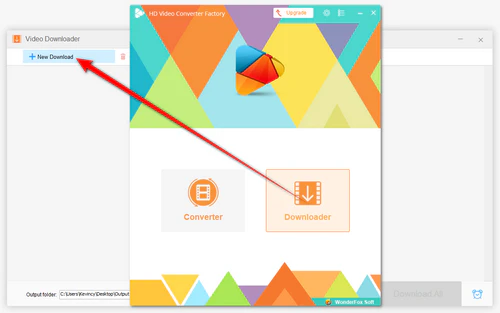
Before we start, downloaddownload and install the free URL downloader on your PC.
Open a preferred video and copy the full video page URL from your browser.
Then launch Free HD Video Converter Factory, open the "Downloader" interface, and click "+ New Download".
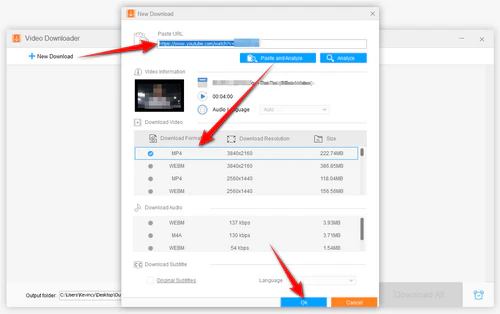
Paste the copied URL into the analyzer and click "Analyze", or just click "Paste and Analyze". Wait until the program finishes reading the available streams.
Select the format and quality you want from the available results, then click "OK" to add it to the download list.
Next, you can analyze another URL and add multiple videos to the list.
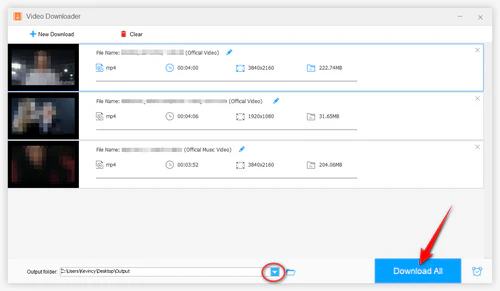
Click the triangle icon at the bottom to choose a save location, and hit "Download All". If several links are queued, the program can download them together.
Tip: The list depends on what the website exposes for that video. You may see MP4, WebM, M4A, different resolutions, or separate audio/video streams. If MP4 is not available directly, use the conversion method in Part 2 after the download finishes. It can also handle supported playlists and channels.
MP4 is a practical choice for phones, TVs, browsers, editors, and messaging apps, but a video website does not always offer an MP4 stream for direct download. That does not mean the link cannot be saved as MP4. First download the best available source, then convert the local file.
👉 If MP4 appears in the Downloader:
Simply select the desired MP4 resolution during Step 2 above and download it directly. No extra conversion is needed.
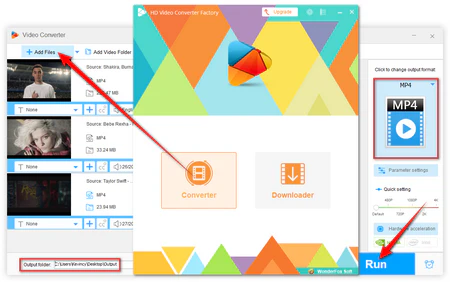 Convert Downloaded Video to MP4
👉 If MP4 is not offered:
Finish the download in the available format. Return to the main interface, open "Converter", click "+ Add Files" to import the downloaded video, open the output format list and choose "Video" > "MP4". Then click "Run" to create an MP4 copy.
You can also choose MKV, MOV, AVI, MP3, FLAC, or another format from 500+ presets when MP4 is not your goal.
This two-stage approach is more reliable than assuming every link can be converted directly to MP4 online, especially when a site provides WebM video, separate audio/video tracks, or changes its streaming format.
Online URL downloaders are convenient when you do not want to install software, but their supported sites, quality options, ads, and availability can change frequently. The services below are examples rather than universal solutions. Avoid entering account passwords or other private information into a third-party downloader, and close unexpected ad or redirect pages instead of installing unknown extensions.
Related: Convert URL to MP4 | Convert URL to MP3 | 60fps Video Download
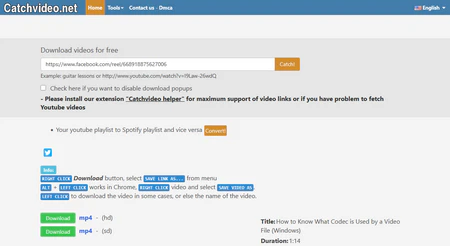 Download video URL Using Catchvideo
https://catchvideo.net/
Catchvideo.net is still available as a browser-based URL downloader. Paste a supported video page URL into its box and click "Catch!".
If the link can be processed, the site lists the available download formats. Choose the option you need and download the file. As with other online tools, results depend on the source website and may change without notice.
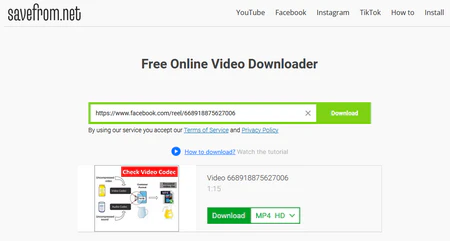 Free download video from URL online
https://savefrom.net/
SaveFrom.net is another copy-and-paste downloader whose features and regional availability have changed over time. If the website is accessible where you are, paste the video URL and check the formats and qualities it actually offers for that link.
If the service is unavailable, cannot analyze the page, or does not provide the quality you need, use a SaveFrom alternative or the desktop method above instead. There is no need to bypass a site restriction just to use a particular downloader.
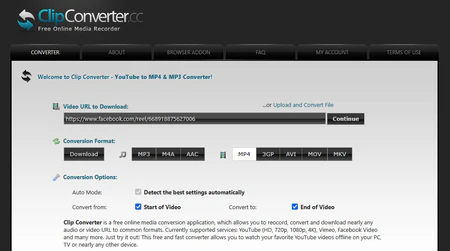 Download any video with Clipcovnerter.cc
https://www.clipconverter.cc/3/
ClipConverter.cc is currently reachable and presents itself as an online downloader/converter for common video and audio formats, including MP4. Paste a supported media URL, let the service analyze it, and choose an available output.
Because online converters can fail when a source site changes its delivery method, do not rely on advertised resolution or site support until the specific link has been analyzed. If it does not work, see ClipConverter alternatives.
Browser extensions can also detect downloadable media on some pages, but only install extensions from a trusted browser store and review the permissions they request. See these Chrome video downloader options for another approach.
For repeated downloads or when you also need to turn the saved file into MP4 or another format, Free HD Video Converter Factory is usually more practical than a browser service because the downloader and converter are in the same program. It also includes 500+ output profiles and basic video editing tools.
Only download videos when you have permission to do so. Respect the website's terms, copyright rules, and any restrictions that apply in your country. These methods are not intended to bypass DRM, paywalls, account access controls, or other protections.
Q1. Can I download a video from any URL?
No. A normal page link may work when the site exposes downloadable streams, but private videos, login-only content, DRM-protected services, geo-restricted pages, or newly changed sites may fail. Use the official offline-download option when a service provides one.
Q2. Why is MP4 not listed after I analyze the link?
The source website may provide WebM or another stream instead of MP4, or it may separate video and audio. Download the available source first, then use the Converter in Free HD Video Converter Factory to create an MP4 file.
Q3. Should I copy the webpage URL or a direct video URL?
Start with the full URL of the page where the video plays. A direct media or streaming URL may also work in some tools, but it is not required for the standard workflow.
Q4. Why did an online downloader stop working with a link that worked before?
Streaming sites frequently change page code, APIs, tokens, or delivery formats. Online services may also change domains or supported sites. If one service fails, retry later, use another trusted method, or use the desktop downloader if the source is supported.
Start Video Download Process with Free HD Video Converter Factory
Use the Downloader to save supported online videos from their links, then use the built-in Converter when you need MP4 or another format. The program also includes tools for making ringtones, extracting audio from video, and merging audio or video files.

Kevincy joined the WonderFox team in 2014 and has been a senior columnist ever since. With over two decades of experience in the video editing industry, he shares tutorials, tips, and how-to guides on video/audio processing and personal DVD backups. Family-oriented and passionate about helping others, he is dedicated to making video and audio processing easier for readers.


More Download and Conversion Options with the Pro Edition

WonderFox HD Video Converter Factory Pro
WonderFox HD Video Converter Factory Pro adds batch-oriented downloading, conversion to 500+ formats and devices, hardware-accelerated conversion, screen recording, compression, and more editing options. It can download supported online videos and music from 1000+ websites, then convert the saved files to MP4, MKV, MOV, MP3, FLAC, and other formats as needed.