

Have some .mpc audio files that your player, editor, phone, or other device cannot open? This guide explains what the Musepack format is and shows you several free ways to convert MPC files to MP3, WAV, FLAC, M4A, OGG, and other common audio formats, starting with an easy Windows freeware solution.
 Kevincy | Jul 16, 2026
MPC usually refers to Musepack, an open-source lossy audio compression format developed with a strong emphasis on high-quality music compression. It was formerly known as MPEGplus, MPEG+, or MP+. Although MPC can provide good sound quality at relatively efficient file sizes, it is far less common than formats such as MP3, M4A, ALAC, WAV, and FLAC.
That limited support is the main reason you may have trouble opening an .mpc file in a media player, audio editor, phone, car stereo, smart TV, or other device. Renaming the file extension does not solve the problem because it does not change the audio data inside. In that situation, the practical fix is to convert MPC to a format your target app or device actually supports.
If your current player already handles MPC correctly, there is no need to convert the file just for the sake of conversion. But when compatibility, editing, sharing, or device playback becomes a problem, an MPC converter can make the audio much easier to use.
Convert MPC (Musepack) audio to common formats for easier playback, editing, sharing, and device compatibility. Simple workflow, no watermark, and no payment required for basic conversion.
For Windows users who simply want to make MPC files easier to play or edit, WonderFox Free HD Video Converter Factory offers a straightforward solution. Despite its name, the program also works as a free audio converter and lets you convert MPC audio to many commonly used formats without dealing with command lines or complicated codec settings.
The software is free to use and available for Windows. For a basic MPC conversion task, the free edition is enough, so there is no need to upgrade just to change the audio format.
DownloadDownload, install, and launch WonderFox Free HD Video Converter Factory on your Windows PC.
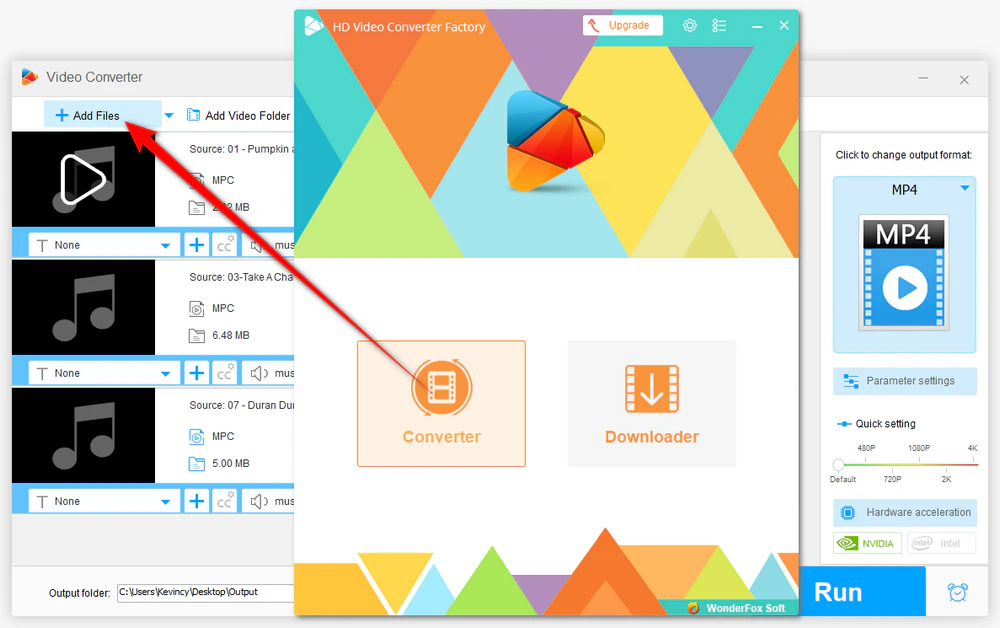
Open the Converter. Click Add Files to import your .mpc files. You can also drag and drop the files directly into the program. When you have several tracks to process, add them together instead of converting them one by one.
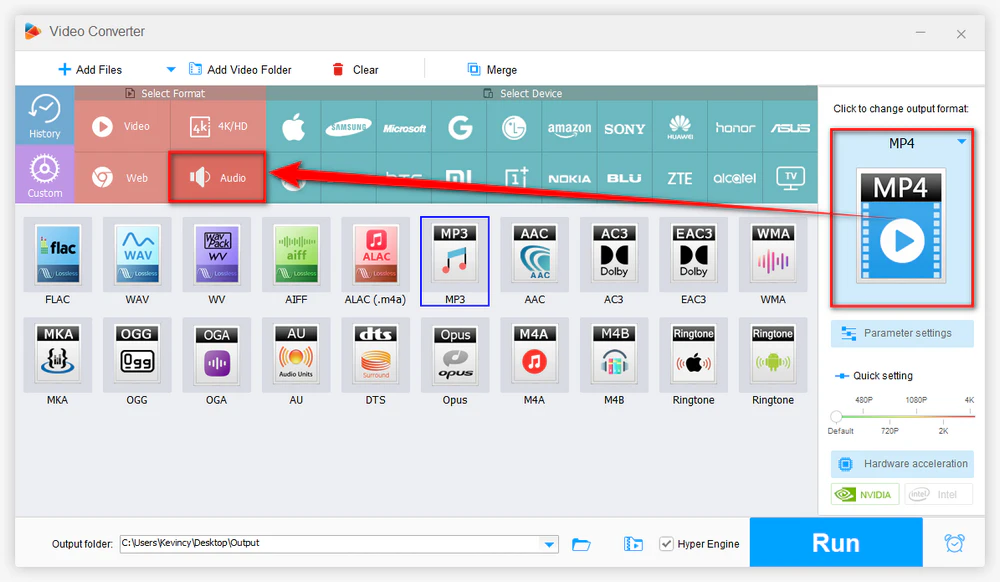
Click the Output Format area on the right to open the format list. Go to the Audio category and choose a suitable output profile.
If you are not sure which format to pick, choose the format required by the app or device that could not open the original MPC file. There is no single "best" output for every situation.
💡 For example, MP3 is a practical choice for broad playback compatibility, WAV is convenient for editing, FLAC/ALAC is useful when you want a lossless output file for further processing, and M4A, OGG, WMA, or Opus may fit other devices and workflows.
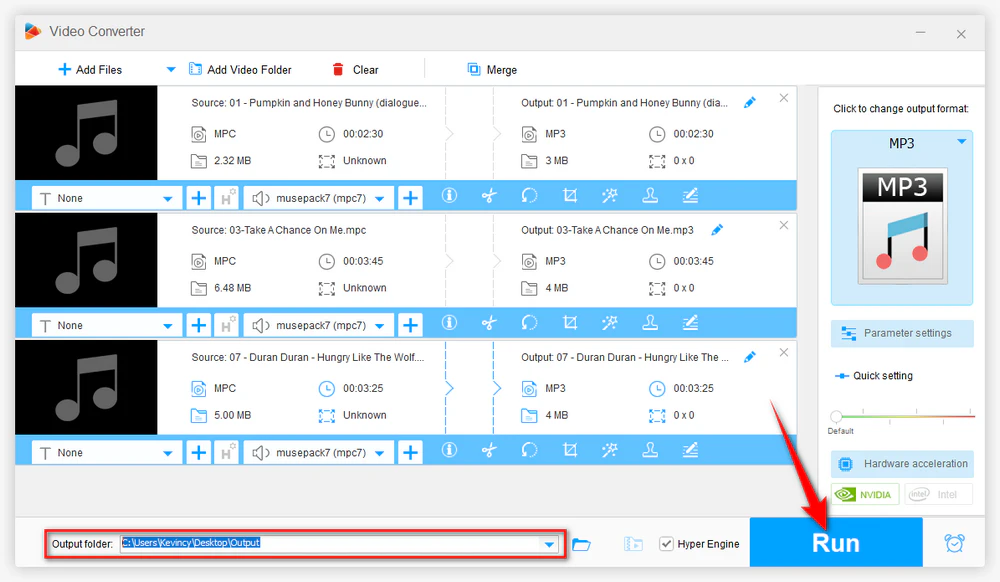
Click the Inverted Triangle icon at the bottom to select an output folder. Then press Run to start the conversion. When it finishes, open the destination folder and test the converted audio in your target player, editor, or device.
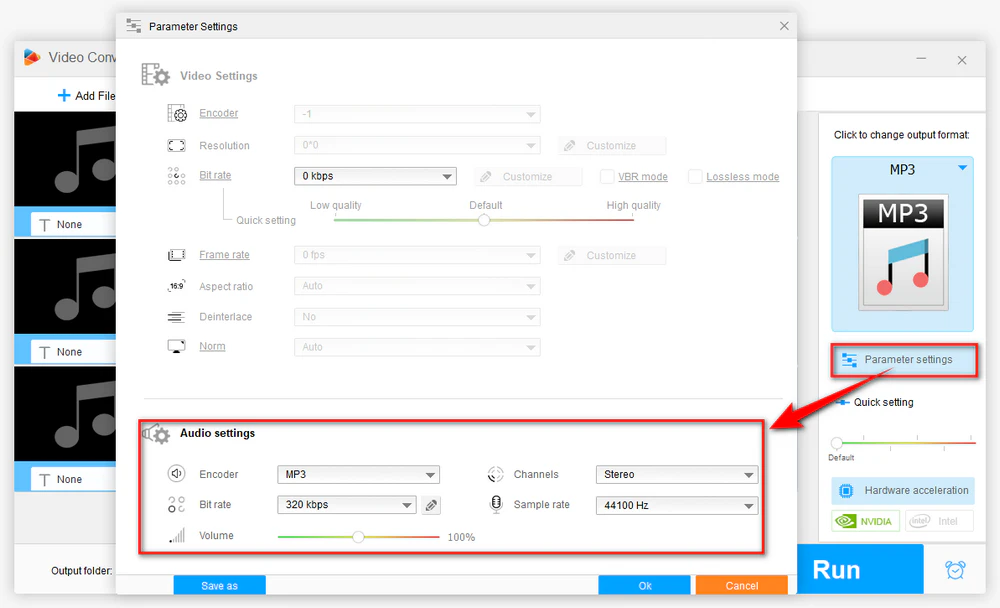
Before conversion, you can open Parameter settings to change the audio bitrate, sample rate, channel layout, or volume.
For most users, however, the default settings of the selected output profile are a safer starting point. Increasing the bitrate or converting MPC to an uncompressed format cannot restore audio information that was already removed by the original lossy compression.
WonderFox Free HD Video Converter Factory is the easiest option in this guide for Windows users who want a simple graphical workflow, but it is not the only free choice. The following tools can also be useful depending on your operating system, the formats you need, and how much control you want.
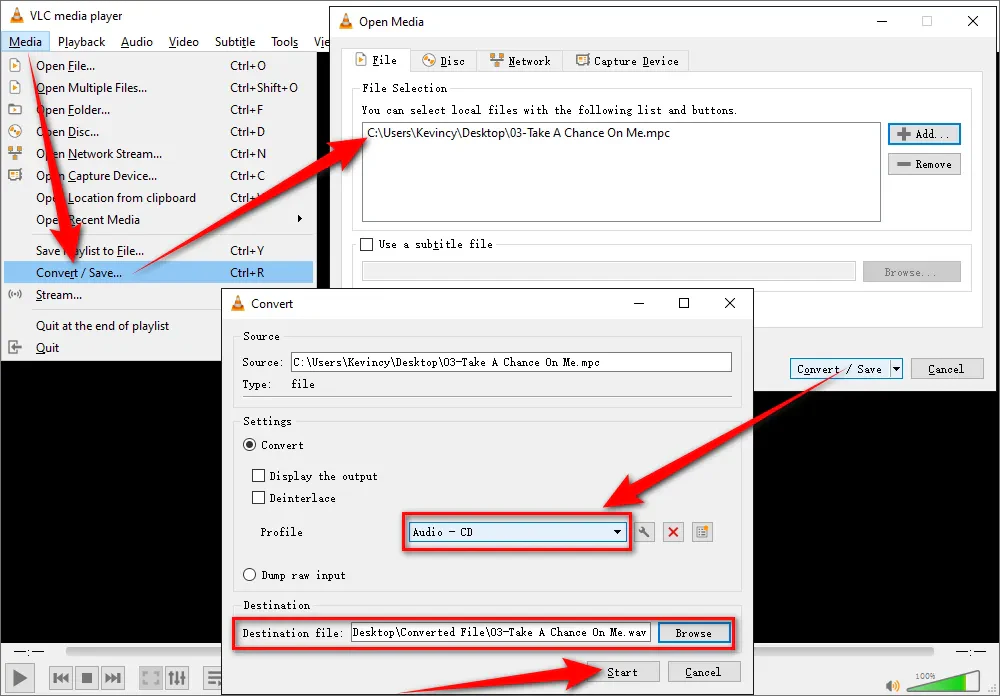
VLC is a free, cross-platform media player with built-in Musepack decoding support. If you already use VLC, its Convert / Save feature can be a convenient way to turn an MPC file into a more widely supported audio format without installing a dedicated converter.
Step 1. Open VLC and go to Media > Convert / Save. Click + Add to import one or more .mpc files, and then click Convert / Save again.
Step 2. Choose a suitable audio profile from the Profile list. The available presets can vary by VLC version. If the exact format you need is not listed, you can edit or create a profile, though this is less beginner-friendly than using a preset-based converter.
Step 3. Choose the destination file and click Start to begin the conversion.
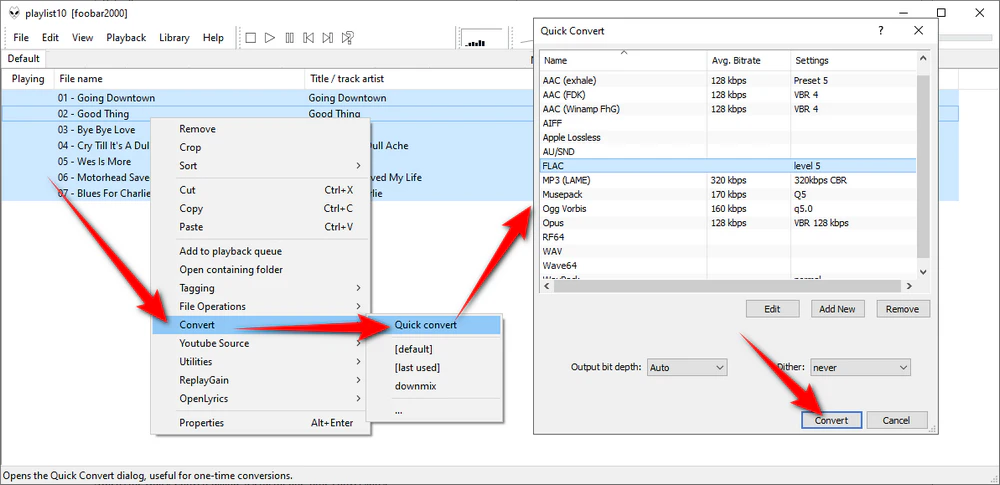
foobar2000 is a lightweight audio player that natively supports Musepack files and also includes conversion features. It is especially useful when you already manage your music library in foobar2000 or need to convert a group of MPC tracks at once.
Step 1. Install foobar2000 and add your MPC tracks with File > Add files, or drag them into a playlist.
Step 2. Select the tracks, right-click them, and choose Convert. Pick an available output format and configure the destination folder. WAV can be created directly, while formats that rely on external encoders may require the free foobar2000 Free Encoder Pack.
Step 3. Start the conversion and wait for foobar2000 to write the new audio files to the selected folder.
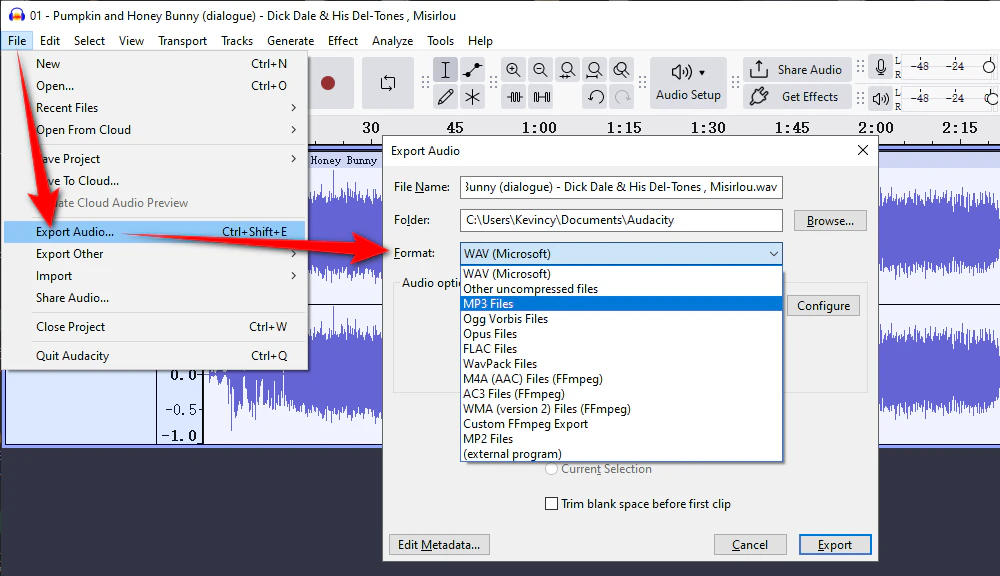
Audacity is better known as a free audio editor than as a format converter. It can still be useful when you want to edit an MPC track before exporting it, but you may need to install Audacity's optional FFmpeg support to import additional audio formats.
Step 1. Install Audacity and its supported FFmpeg library if your MPC file cannot be imported directly.
Step 2. Open or drag the MPC file into Audacity. Make any necessary edits, such as trimming unwanted sections or adjusting the volume.
Step 3. Use File > Export Audio, choose a supported format such as WAV, FLAC, or MP3, set the output options, and export the file.
This method makes more sense when editing is part of the job. For simple format conversion only, WonderFox, VLC, or foobar2000 usually involves fewer steps.
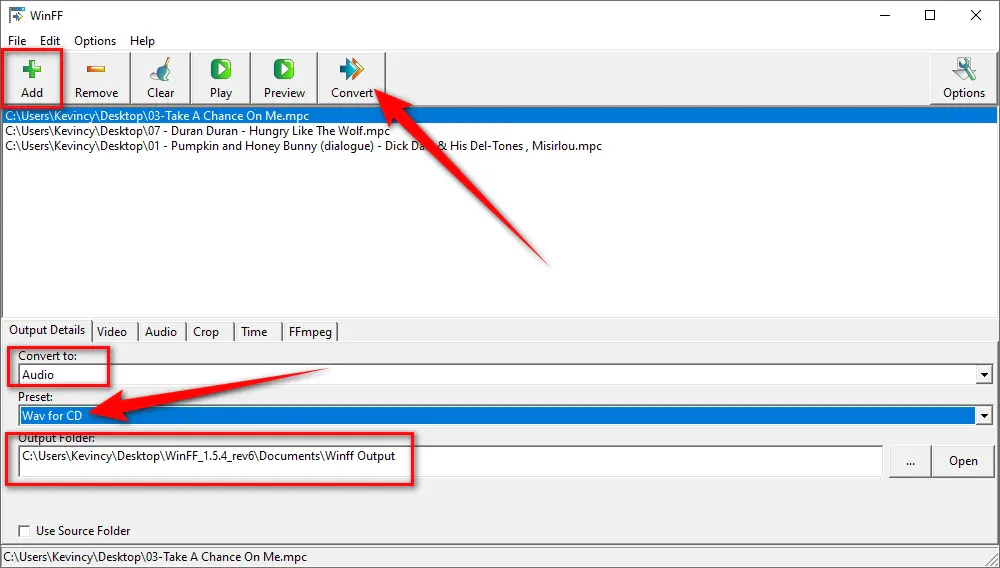
WinFF is a free graphical front end for FFmpeg or avconv. It appeared in the older MPC-to-WAV guide because it lets users run FFmpeg-based conversions without typing commands manually.
Step 1. Install WinFF, click + Add, and select the MPC files you want to process.
Step 2. Choose an audio conversion preset, select the output folder, and check the preset settings before starting.
Step 3. Click Convert and let WinFF pass the job to FFmpeg.
WinFF is a relatively old-style interface and is not as polished as newer converter apps. Keep it as an alternative if it already works well on your system; new users may find a current FFmpeg build or one of the other GUI tools above easier to maintain.
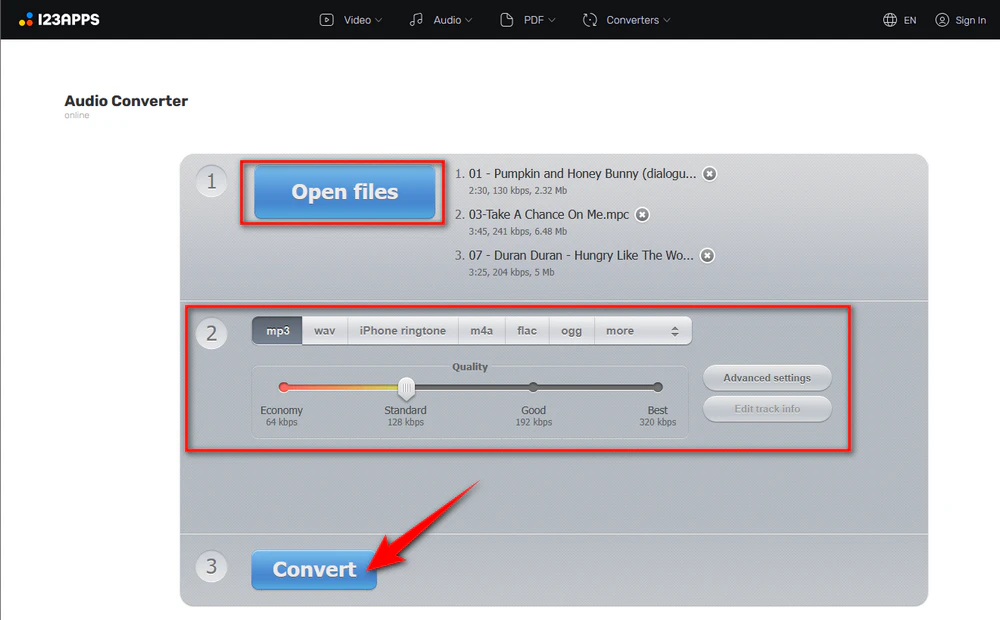
For an occasional small file, a browser-based service can be the quickest option because there is nothing to install. 123apps Online Audio Converter states that it supports hundreds of input formats and can export common audio formats including MP3, WAV, M4A, FLAC, OGG, and more.
Step 1. Open the website in your browser and upload the MPC file.
Step 2. Choose the output format and adjust any available quality or advanced settings only when needed.
Step 3. Start the conversion and download the result when processing is complete.
An online converter is convenient for a few non-sensitive files, but uploading takes time and depends on the service's current file-size and usage limits. For a large music collection or private audio, a local desktop converter is usually the better choice.
Yes. Mac users can try cross-platform options such as VLC or Audacity with FFmpeg support. foobar2000 also has a macOS edition with Musepack support, although its available conversion workflow can differ from the Windows version.
A browser-based audio converter can be the easiest option for occasional mobile use, provided the service explicitly accepts MPC/Musepack input. Avoid uploading private or sensitive recordings to an online service, and keep in mind that large files may be limited by upload size, network speed, or free-plan restrictions.
Not necessarily. Online Audio Converter is convenient for one or two small files and requires no installation. A desktop converter is usually more practical for many files, larger audio collections, slower internet connections, or audio you prefer not to upload to a third-party server.
No. MPC is a lossy format. Converting it to WAV or FLAC can avoid an additional lossy compression step, but it cannot reconstruct audio information that was already removed from the original MPC file.
Changing a filename extension only changes the name. It does not re-encode the audio stream. A player that cannot decode Musepack will still see incompatible audio data, so a real conversion is required.
MPC is still a usable audio format, but its limited support can make older Musepack music inconvenient on modern players, editors, and portable devices. Instead of hunting for a separate MPC-to-MP3 tool or MPC-to-WAV tool, you can use one free MPC converter and simply choose the output format that fits your real needs.
For Windows, WonderFox Free HD Video Converter Factory provides an easy three-step workflow: add the MPC files, select a common audio format, and run the conversion. Just remember that format conversion improves compatibility, not the quality of the original lossy source.

Kevincy joined the WonderFox team in 2014 and has been a senior columnist ever since. With over two decades of experience in the video editing industry, he shares tutorials, tips, and how-to guides on video/audio processing and personal DVD backups. Family-oriented and passionate about helping others, he is dedicated to making video and audio processing easier for readers.


Kevincy joined the WonderFox team in 2014 and has been a senior columnist ever since. With over two decades of experience in the video editing industry, he shares tutorials, tips, and how-to guides on video/audio processing and personal DVD backups. Family-oriented and passionate about helping others, he is dedicated to making video and audio processing easier for readers.

WonderFox HD Video Converter Factory Pro
1. 500+ optimized presets for fast conversion in bulk.
2. Compress large video files with flexible quality settings.
3. Trim, merge, crop, rotate, flip, watermark video.
4. Download HD/FHD/4K/8K videos from 1000+ sites.
5. Record live streams, gameplay, webcam, video call
6. Make animated GIFs from video or image sequence.
7. Make ringtones, extract subtitles & more...

Privacy Policy | Copyright © 2009-2026 WonderFox Soft, Inc. All Rights Reserved
