

GSM audio is usually made for speech, not everyday playback. If your .gsm files cannot open in your player, editor, phone, or cloud app, this guide recommends some free GSM converters and shows you how to turn GSM into a more playable audio file without making the process complicated.
 Kevincy | Jul 9, 2026
Q: "I found several old .gsm voice recordings, but Windows Media Player and my phone cannot play them. I do not necessarily need a specific format. I just want the files to be playable and easier to share. What should I do?"
A: A file with the .gsm extension usually stores audio encoded with the GSM speech codec. It was designed for voice communication, so it is small and efficient, but it is not a modern all-purpose audio format like MP3, AAC, FLAC, or WAV.
That is why GSM files often fail to play in common media players, video editors, phones, messaging apps, or online platforms. Even when a player can decode the file, the sound is normally narrow-band voice quality rather than music-grade audio.
👉 Converting GSM file to a more widely supported audio format makes it easier to play, edit, upload, send, and keep. Next, I'll show you how to complete the GSM file conversion with some easy-to-use tools. Just keep reading!
WonderFox Free HD Video Converter Factory provides a straightforward way to turn GSM files into more common audio formats on Windows. It also lets you trim audio, merge clips, adjust volume, and change basic audio settings without touching command lines.
For users who prefer a visual, beginner-friendly GSM converter, WonderFox Free HD Video Converter Factory is a practical first choice. It's a 3-in-1 freeware application for downloading, editing, and converting video and audio, allowing you to import GSM audio files and export them to popular audio formats such as MP3, WAV, FLAC, AAC, M4A, OGG, WMA, and more.
More surprisingly, the free tool even features a Downloader, allowing you to download video and music files from YouTube, Vimeo, and 500+ popular websites.
👇 Get this easy-to-use program and follow the guide below to convert GSM files efficiently.
DownloadDownload, install, and launch Free HD Video Converter Factory on your Windows PC.
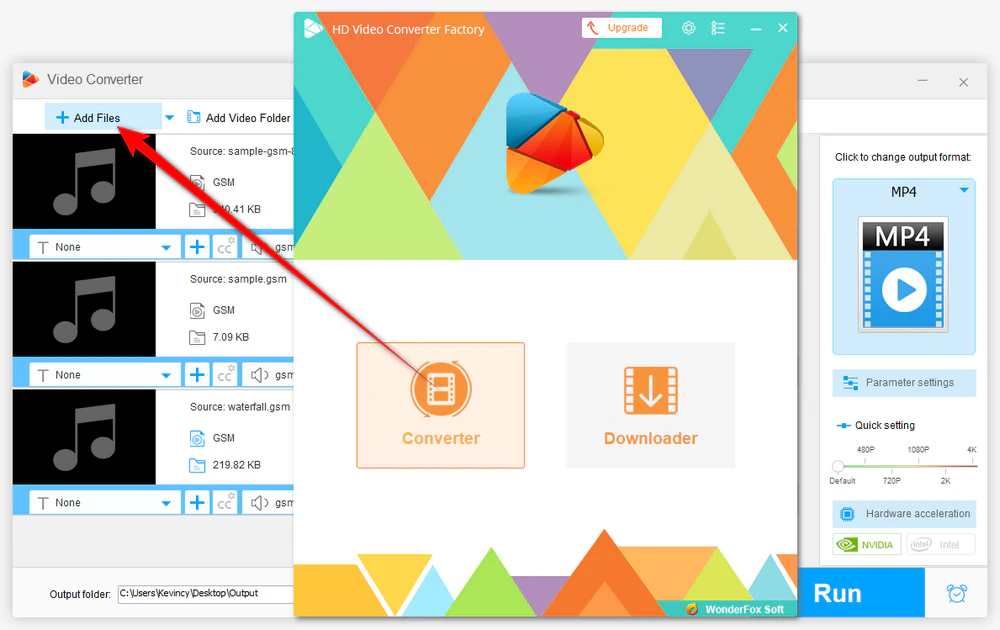
Open "Converter" and Click "Add Files" to import your .gsm files. You can also drag and drop the files into the main interface for quicker loading.
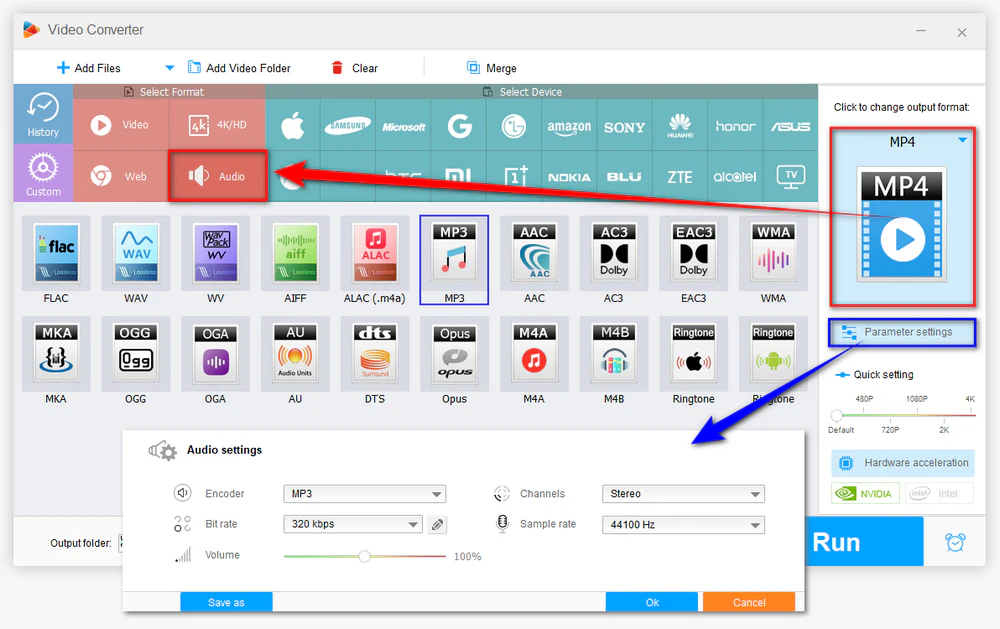
Click the format image on the right side to open the output profile library. Go to the "Audio" category and choose the format you need.
For general playback, choose MP3 or M4A. For editing, choose WAV. For a lossless decoded copy with a smaller size than WAV, choose FLAC. You can also choose AAC, OGG, WMA, and more according to your device or workflow.
💡 Open "Parameter settings" if you want to change the audio bitrate, sample rate, channel, encoder, or volume. For old voice recordings, using a very high bitrate will not magically improve the source quality, but it can avoid unnecessary extra compression when exporting to a lossy format.
Click the "Inverted Triangle" button at the bottom to set an output folder. Finally, hit "Run" to start converting your GSM files.
The application will queue up your GSM files in the list for later conversion. When the process is done, you can play, edit, upload, or share the converted audio more easily.
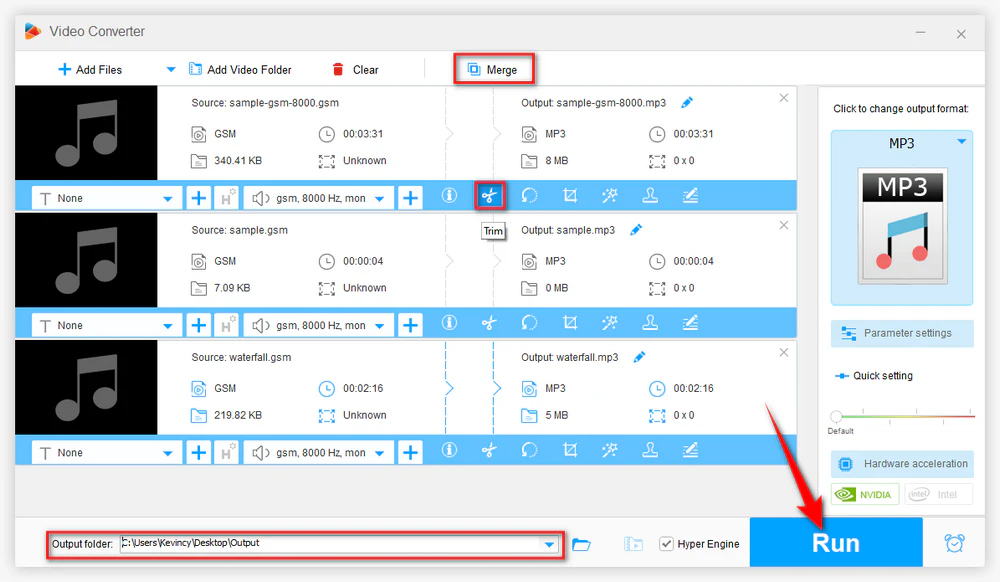
Before conversion, you can use the editing toolbar to cut unwanted parts, split a long recording, merge several GSM clips into one file, or adjust the volume. These small tools are especially useful when you are dealing with old phone recordings, voicemail files, or speech notes.
💡 For heavier tasks, the Pro version offers faster batch workflows, hardware acceleration, downloader, recorder, and other advanced features.
VLC media player can be helpful when you only need a quick, free conversion and do not want to install a dedicated converter. The available output profiles are more limited than a desktop audio converter, but it is enough for basic GSM conversion.
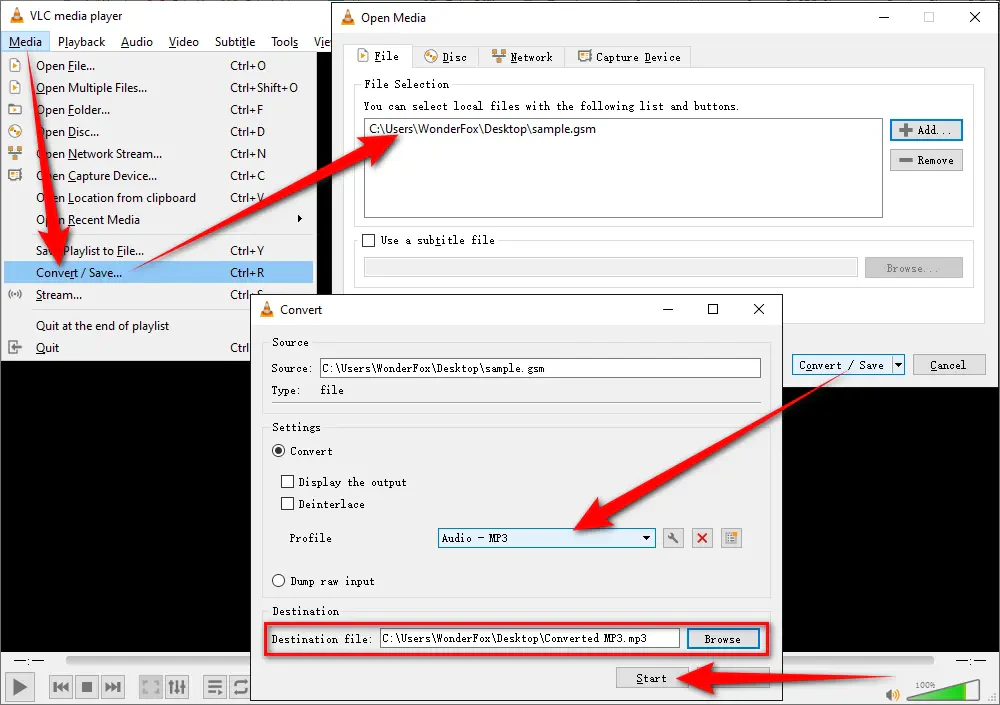
Step 1. Open VLC, click "Media" menu on the top and choose "Convert / Save" option.
Step 2. Click "+ Add" button to add multiple GSM files for VLC batch conversion on "Open Media" window. You have to choose "ALL Files (*)" option in the "Media Files" drop-down list to display your GSM files. Then press "Convert / Save" button to proceed.
Step 3. Choose a suitable audio option in the drop-down list of "Profile" section.
Step 4. Click "Browse" button to choose a destination folder. It can't be changed if you've added multiple GSM files, the converted files will be saved in the same location with the source GSM files.
Step 5. Press "Start".
FFmpeg is a powerful choice for advanced users, batch scripts, or cross-platform workflows. Once FFmpeg is installed and added to your system path, you can convert GSM audio with simple commands.
For example, convert GSM to MP3:
ffmpeg -i input.gsm output.mp3
Convert GSM to WAV:
ffmpeg -i input.gsm output.wav
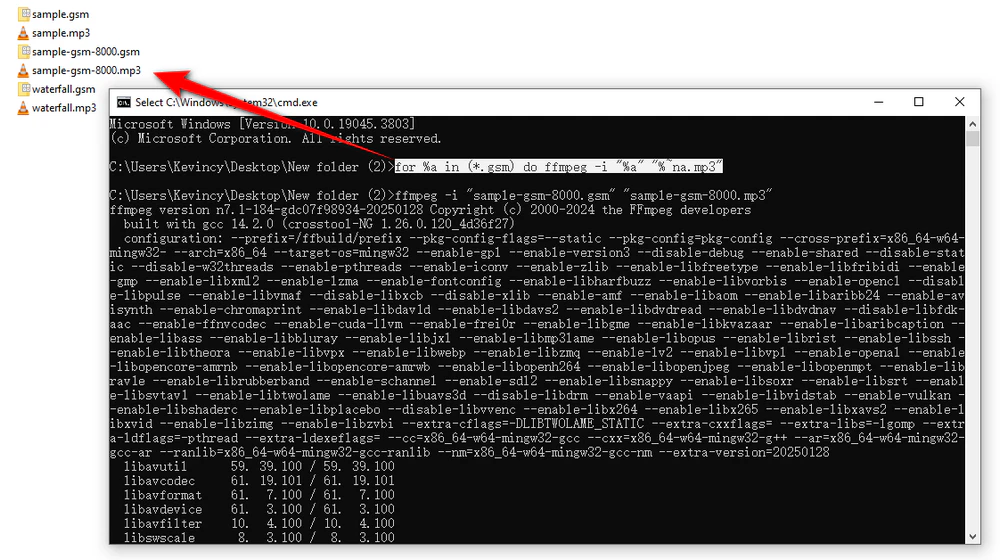
Convert all GSM files in the current folder to MP3 on Windows:
for %a in (*.gsm) do ffmpeg -i "%a" "%~na.mp3"
FFmpeg is flexible, but the command-line workflow may not be friendly for beginners. If you do not want to type commands or troubleshoot paths, use the desktop converter method above.
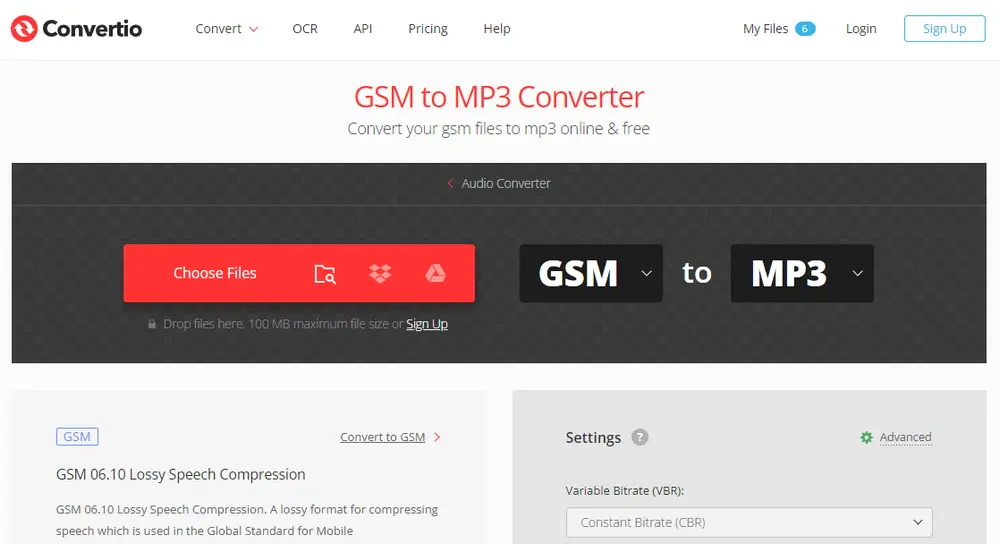
Online audio converters can be useful for one or two small GSM files. Websites such as Convertio, AnyConv, and Online-Convert usually follow a similar workflow: upload the GSM file, select the target audio format, start conversion, and download the result.
Online tools are convenient, but they may have file-size limits, queue limits, slower upload/download speed, ads, and privacy concerns. For private voice recordings or many files, a local desktop converter is usually safer and faster.
WonderFox Free HD Video Converter Factory is not limited to GSM conversion. It also handles many everyday video & audio converting, editing, and downloading tasks for free. Download and have a try!
Yes. You can convert GSM to MP3 for easy playback and sharing, or to WAV for editing and uncompressed decoded audio. The same process also works for FLAC, M4A, AAC, OGG, and other common audio formats.
No. WAV can store the decoded audio without extra lossy compression, but it cannot restore the detail already lost in the original GSM file. If the source is narrow-band voice, the output will still sound like narrow-band voice.
For general use, MP3 or M4A is convenient and small. For editing, WAV is easier to work with. For archiving the decoded audio without creating a huge WAV file, FLAC is a reasonable option.
Yes. Mac users can try VLC, FFmpeg, or a trusted online audio converter. If you want a graphical desktop workflow similar to the Windows method, choose a Mac audio converter that clearly lists GSM input support before installing it.
For occasional small files, an online converter in a mobile browser may work. For private recordings, large files, or batch conversion, it is better to move the files to a computer and convert them locally.
GSM audio is small and useful for old speech recordings, but it is not friendly to modern playback, editing, or sharing. A GSM converter can quickly turn these files into MP3, WAV, FLAC, M4A, AAC, OGG, or another common format depending on your needs. For a simple Windows workflow, WonderFox Free HD Video Converter Factory is the recommended free option. VLC, FFmpeg, and online converters can also help in different situations, while the Pro version is better for users who need more advanced media features. Hopefully, this guide makes your old GSM files usable again.

Kevincy joined the WonderFox team in 2014 and has been a senior columnist ever since. With over two decades of experience in the video editing industry, he shares tutorials, tips, and how-to guides on video/audio processing and personal DVD backups. Family-oriented and passionate about helping others, he is dedicated to making video and audio processing easier for readers.


Kevincy joined the WonderFox team in 2014 and has been a senior columnist ever since. With over two decades of experience in the video editing industry, he shares tutorials, tips, and how-to guides on video/audio processing and personal DVD backups. Family-oriented and passionate about helping others, he is dedicated to making video and audio processing easier for readers.

WonderFox HD Video Converter Factory Pro
1. 500+ optimized presets for fast conversion in bulk.
2. Compress large-sized videos with no quality loss.
3. Trim, merge, crop, rotate, flip, watermark video.
4. Download HD/FHD/4K/8K videos from 1000+ sites.
5. Record live streams, gameplay, webcam, video call
6. Make animated GIFs from video or image sequence.
7. Make ringtones, extract subtitles & more...

Privacy Policy | Copyright © 2009-2026 WonderFox Soft, Inc. All Rights Reserved
