

Have a .dat file from an old VCD or another video source that modern players and editors do not handle well? This guide explains which DAT files can actually be converted and shows an easy way to convert DAT video files to the format you need for playback, editing, sharing, or archiving.
 Kevincy | Updated on Sep 14, 2026
The .dat extension does not describe one specific media format. Many programs use DAT files to store application data, email data, indexes, settings, or other information. A normal document or program DAT file cannot be turned into a playable video just by sending it through a video converter.
👉 This article focuses on DAT video files, especially the files commonly found on old Video CDs (VCDs). If you open a VCD and see a file such as AVSEQ01.DAT inside the MPEGAV folder, it contains the disc's MPEG video and audio data. A standard VCD typically uses MPEG-1 video with MPEG-1 Layer II (MP2) audio, so this kind of DAT is very different from an arbitrary .dat file created by an app or game. Those are the DAT files that a media converter can work with.
⚠️ If your DAT file came from an email client, database, game, software folder, or another unknown application, first identify what created it. Converting the wrong kind of DAT file will not make it a playable video.
WonderFox HD Video Converter Factory Pro can open DAT video files and convert them to 500+ format and device presets with ease. It also includes more features for handling old DAT videos more efficiently.
VCD-era DAT video is old and not a convenient file type for today's phones, TVs, browsers, cloud services, and editing programs. Even when a player can open it, another app may reject the file because it does not expect video content inside a .dat extension.
Converting the video to a familiar format makes it easier to use elsewhere. You can choose a broadly compatible format such as MP4 or MKV for everyday playback and sharing, a format preferred by your editor, or an older format when a legacy device specifically requires it.
WonderFox HD Video Converter Factory Pro is a practical choice for turning old DAT video files into formats that work better with modern players, editors, devices, and sharing platforms. It supports DAT input and provides 500+ output presets, so the same workflow can handle common targets such as MP4, MOV, AVI, MKV, MPG, WebM, or audio-only formats when you only need the soundtrack.
Besides format conversion, it can batch process multiple DAT files, use hardware acceleration on supported systems, adjust resolution, frame rate, bitrate, encoder, aspect ratio, and audio settings, and perform basic edits such as trimming, cropping, rotating, merging, and adding subtitles. This makes it suitable for both a single VCD clip and a larger collection of DAT videos.
Get the all-in-one video processing tool and follow the steps below. 👇
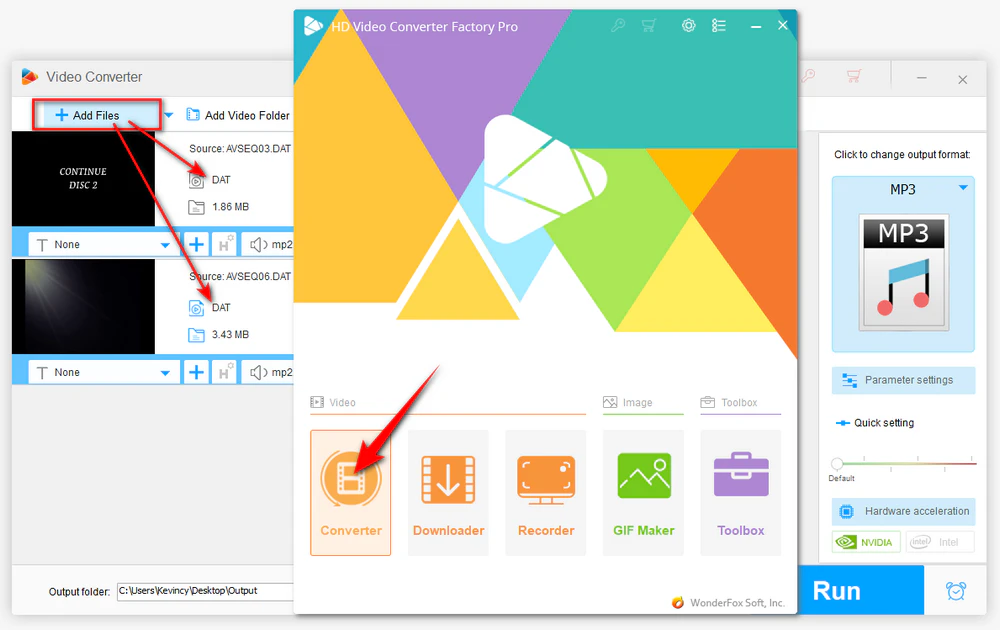
DownloadDownload, install, and open HD Video Converter Factory Pro, then enter the "Converter" module. Click "Add Files" to load the DAT video, use "Add Video Folder" when you have a folder of clips, or drag and drop files into the window. You can import multiple files at a time to convert them in bulk.
Note: If the DAT video is still on a VCD, it is better to get a readable local copy or properly extract the video track first. A converter cannot repair a disc that your optical drive cannot read reliably.
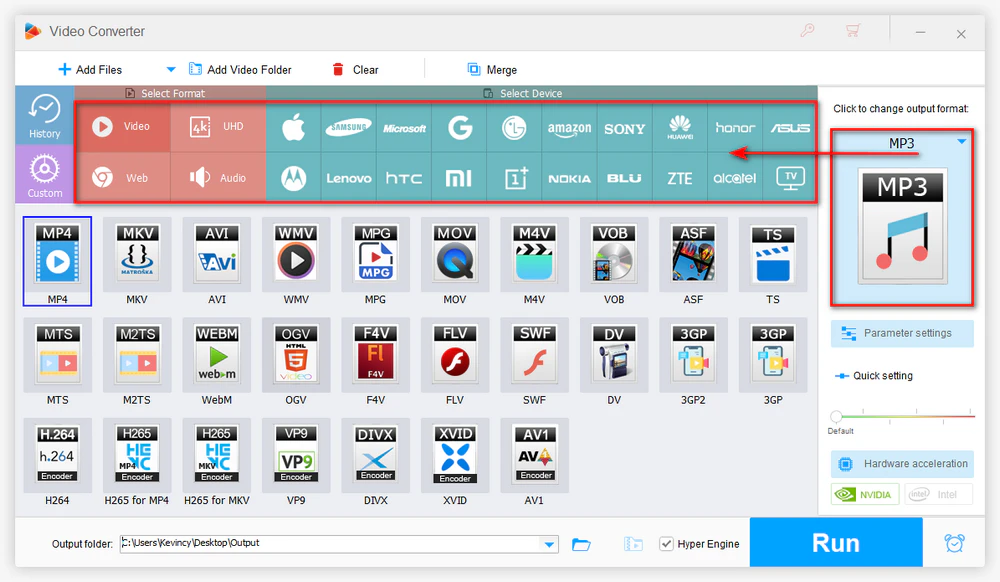
Click the output format image on the right to open the preset library. Pick a desired video, audio, or device profile. For example, choose MP4 or MKV under the Video category if that is what your player or media library needs; otherwise select MOV, MPG, AVI, WebM, an audio format, or a device preset as appropriate. The best choice is the one your destination actually accepts.
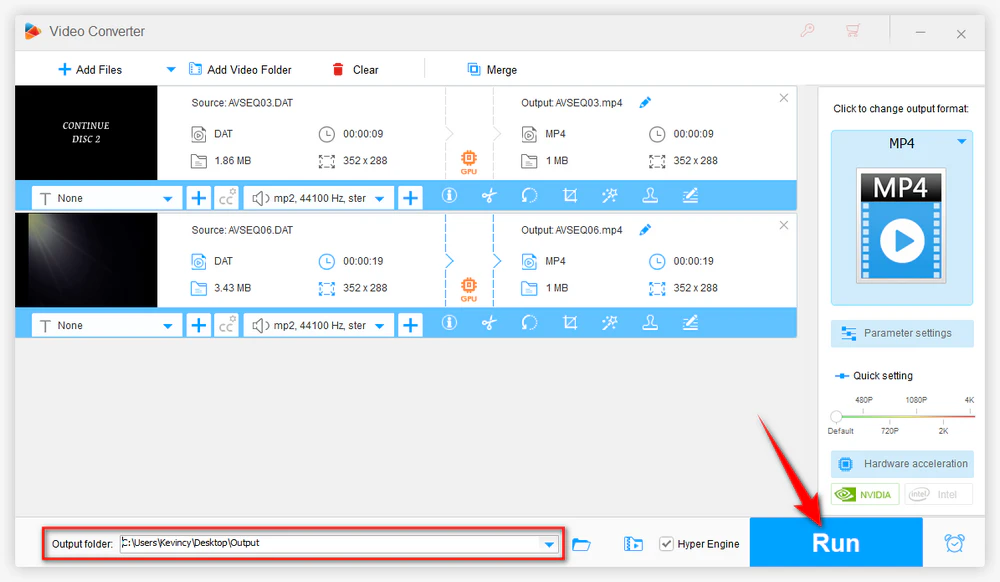
Choose an output folder at the bottom of the window, then click "Run".
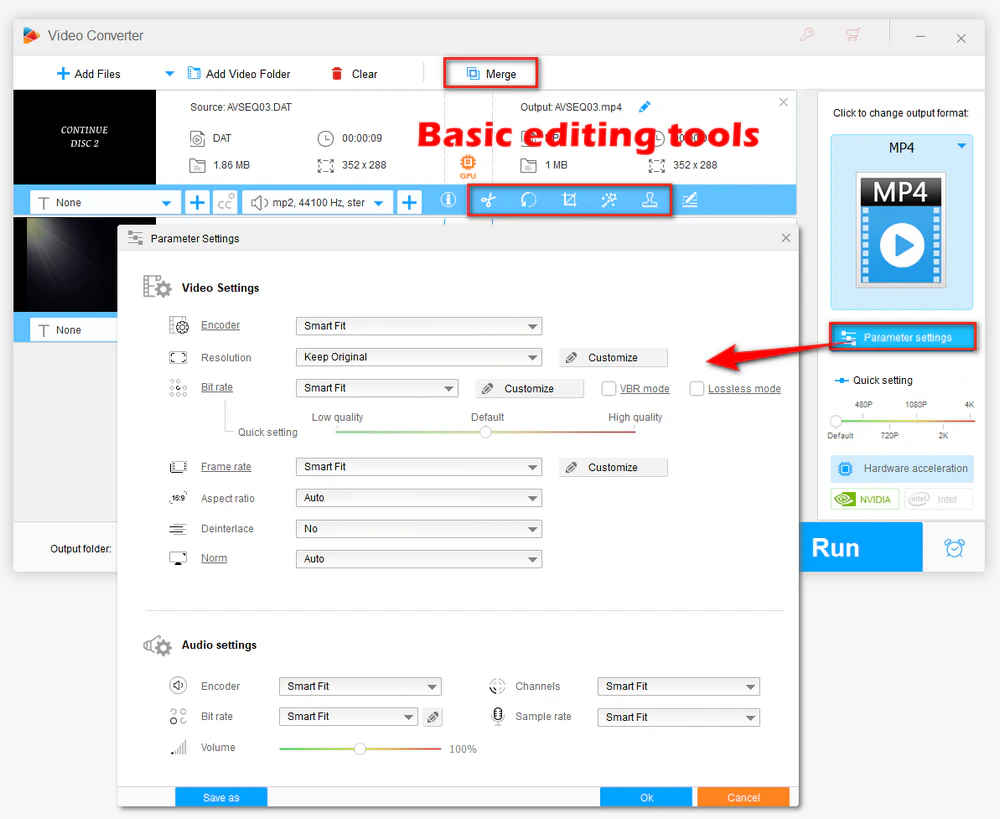
Open "Parameter settings" if you need to change the encoder, bitrate, aspect ratio, channels, or volume. For an old VCD source, keeping the original resolution and frame rate is usually more sensible than enlarging the picture and creating a much bigger file.
You can also trim unwanted parts, crop borders, rotate the picture, merge clips, add subtitles, add a watermark, apply simple filters, or adjust audio before conversion.
For everyday playback and sharing: choose a broadly supported modern format such as MP4. This is usually the easiest route when you want an old VCD video to play on a current PC, phone, TV, browser, or messaging app. MKV can also be a good choice for desktop playback, media servers, or local libraries when your software supports it.
For editing: choose a format and codec your editor handles reliably. MOV or ProRes can make sense in some Apple-oriented workflows, while MP4 is accepted by many editors across platforms.
For an older device or legacy program: AVI may still be required by some software or hardware. Use it because the destination asks for it, not because AVI is inherently better.
For an MPEG-oriented workflow: keeping the result in MPG/MPEG can be convenient when you are working with older video tools or disc-era media.
For audio only: if the DAT file contains a concert, speech, or music video and you only need the sound, select an audio profile like MP3.
Old VCDs add another problem that has nothing to do with format conversion: the disc itself may be difficult to read. If Windows or macOS cannot copy or access the video track reliably, a converter may fail before encoding even begins.
For important home videos, first try to get a clean local extraction. If ordinary copying reports read or input/output errors, try another optical drive or a disc-aware VCD extraction tool rather than repeatedly converting a damaged partial file. Once you have a readable DAT video or MPEG stream on the hard drive, conversion becomes much more predictable.
Sometimes. A VCD DAT video is based on MPEG video data, so changing the extension of a properly extracted local copy from .dat to .mpg may be enough for some programs to recognize it. But renaming does not change the actual media structure, codec, or quality, and it does not make every DAT file a valid MPEG video.
If the renamed file still will not open, or if you need a file that works reliably on modern devices and editors, convert the video instead. Never rename an unknown application DAT file and assume it contains video.
Load a DAT video file, pick the format or device you actually need, and click Run. HD Video Converter Factory Pro keeps the workflow simple while also providing batch conversion, hardware acceleration, parameter controls, and editing tools when needed.
Converting a VCD DAT file cannot restore detail that was never present in the source. If the original video is low resolution, exporting it as 1080p or 4K only creates more pixels; it does not recreate lost detail.
For a faithful conversion, keep the original frame rate and avoid unnecessary resizing. Use a reasonable bitrate for the chosen codec, and do not repeatedly convert the same video from one lossy format to another. Keep the original DAT or extracted MPEG file as a backup before editing or compressing the converted copy.
The important part is not the .dat extension itself, but what is inside the file. If you have a genuine DAT video file, especially one extracted from a VCD, converting it to a format your current player, editor, or device supports is straightforward. HD Video Converter Factory Pro provides an easy Windows workflow with batch conversion, format presets, parameter controls, editing tools, and hardware acceleration support.
Keep the original video as a backup, avoid unnecessary upscaling, and choose the output based on where you actually plan to use the file rather than chasing a specific format name.

Kevincy joined the WonderFox team in 2014 and has been a senior columnist ever since. With over two decades of experience in the video editing industry, he shares tutorials, tips, and how-to guides on video/audio processing and personal DVD backups. Family-oriented and passionate about helping others, he is dedicated to making video and audio processing easier for readers.


Kevincy joined the WonderFox team in 2014 and has been a senior columnist ever since. With over two decades of experience in the video editing industry, he shares tutorials, tips, and how-to guides on video/audio processing and personal DVD backups. Family-oriented and passionate about helping others, he is dedicated to making video and audio processing easier for readers.
WonderFox HD Video Converter Factory Pro
1. 500+ optimized presets for fast conversion in bulk.
2. Compress large-sized videos with no quality loss.
3. Trim, merge, crop, rotate, flip, watermark video.
4. Download HD/FHD/4K/8K videos from 1000+ sites.
5. Record live streams, gameplay, webcam, video call
6. Make animated GIFs from video or image sequence.
7. Make ringtones, extract subtitles & more...

Privacy Policy | Copyright © 2009-2026 WonderFox Soft, Inc. All Rights Reserved
