Free Download
How to Copy DVD Movies to Local or External Hard Drive
AuthorRecommended by the author

SoftwareHow to & Tips

Convert DVDRip DVD

Resources

How to Copy DVD to Local or External Hard Drive

Author: Kevincy by Kevincy

Updated on Jul 15, 2026

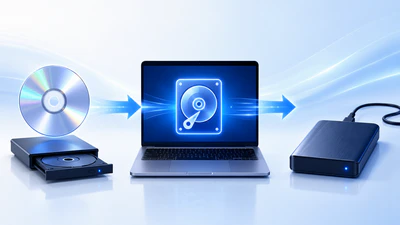
A local or external hard drive gives you a practical place to preserve and organize a DVD collection. Once digitized, the movies are easier to browse and play on a PC, compatible TV, media box, or home server.

This guide explains how to copy a DVD to a local or external hard drive as a convenient video file or a complete ISO/VIDEO_TS backup. Download the DVD ripping tool below to follow the steps:

Why Copy Your DVDs to a Local or External Hard Drive?

DVDs can be scratched, misplaced, or become difficult to play when a computer no longer has an optical drive. Converting your discs to digital files protects the original media and makes the collection easier to search, rename, and organize.

A local hard drive is usually the most stable destination while the DVD is being read and converted. An external hard drive is especially useful for long-term storage because it can hold a large library, move between computers, and connect to a compatible TV, media player, router, or home server.

Before starting, decide whether you want a smaller, widely playable movie file or a complete disc backup with menus and extras. The right choice affects file size, playback compatibility, and how much of the original DVD is preserved. You should also leave enough free space on the local drive for the conversion, even when the external drive is the final storage destination.

Choose the Right Way to Store a DVD

There is no single best output for every DVD collection. Choose according to how you plan to watch or archive the disc:

Output Best for What to expect
MP4 (H.264) Easy playback on computers, TVs, phones, and tablets Good compatibility and a manageable file size; normally saves the selected title rather than the full disc structure
MKV Keeping multiple audio tracks or subtitles in one movie file Flexible container, but device support should be checked before conversion
MPEG-2 MPG Fast digitization with little or no re-encoding Retains DVD-level quality but usually creates a larger file
ISO or VIDEO_TS Complete archival backup Preserves the disc structure, menus, chapters, audio, subtitles, and extras; requires compatible playback software and more space

Disclaimer: WonderFox doesn't advocate any illegal duplication and distribution. Please refer to the DVD copyright laws in your country before you rip any DVDs. Ripped content CANNOT be used for commercial use.

Why You Usually Cannot Just Copy and Paste a DVD

Copying the visible files from an unprotected homemade DVD may work, but many commercial movie DVDs use encryption or copy protection. A normal drag-and-drop operation can fail, produce incomplete files, or leave you with a VIDEO_TS folder that is inconvenient to play on common devices.

WonderFox DVD Ripper Pro can analyze the disc, handle common DVD protections, and save the content in a more useful form. You can convert the main movie to MP4, MKV, MPG, and hundreds of format or device presets, or create an ISO image/VIDEO_TS folder for a 1:1 backup. It also lets you select titles, audio tracks, and subtitles before saving the DVD to a local drive and transferring it to external storage.

Copy DVD to Hard Drive to Build Your Own Digital Library
WonderFox DVD Ripper Pro
  • 1. Make a complete 1:1 backup as an ISO image or VIDEO_TS folder.
  • 2. Handle common protections such as CSS and DVD region codes.
  • 3. Convert DVDs to MP4, MKV, MOV, and 300+ presets.
  • 4. Fast-copy the main movie to MPEG-2 MPG in minutes.
  • 5. Reduce file size by adjusting codec, resolution, and bitrate.
  • 6. Select or preserve wanted audio tracks and subtitles.
  • 7. Trim, rotate, flip, and modify common output parameters.
  • 8. Support homemade, commercial, and recorded DVD sources.
Download Free Download
Product Page Product Page
Compatible with Windows 11, 10, 8, 7 Windows, 100% Clean!

How to Rip a DVD to a Local Hard Drive or an External Drive

Before you begin, make sure the computer’s local drive has enough free space for the output. You can connect the external hard drive now or wait until the conversion is complete. Then downloaddownload and install the software.

Select the DVD Source

Step 1. Load DVD Source

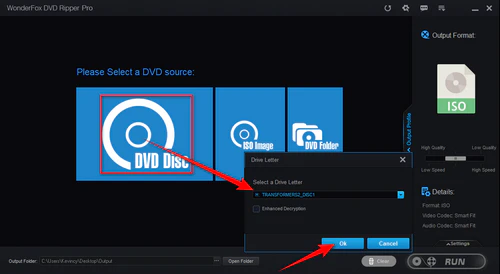
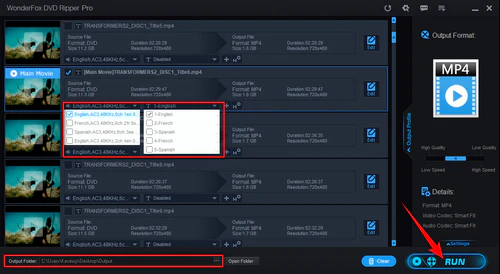
Insert the DVD into your computer’s optical drive and launch WonderFox DVD Ripper Pro. Click "DVD Disc," select the correct drive letter, and press "OK." The software will analyze the disc, decrypt supported DVDs, and select the likely main movie. You can change the selected title when you need an episode, bonus feature, or another part of the disc.

Choose a Needed Format

Step 2. Choose an Output Format

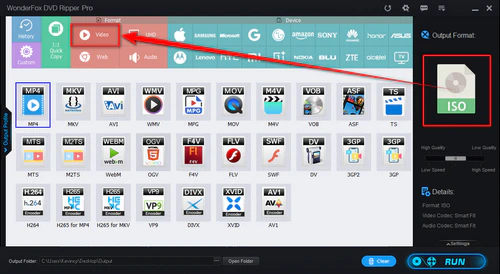
Open the "Output Format" menu on the right. Choose MP4 for broad compatibility, MKV when you want more flexibility with audio and subtitles, or MPG for a fast DVD-quality copy. For a complete archive, open the 1:1 Quick Copy category and create an ISO image or a VIDEO_TS folder.

When the file will be played on a specific TV, phone, tablet, or other device, you can also select a matching preset. Before continuing, confirm the preferred audio track and subtitle track in the title list.

Convert DVDs to Digital Files

Step 3. Set a Local Folder and Start Conversion

Click the three-dot icon at the bottom of the window and select a folder on the computer’s local hard drive. Finally, click "Run".

Ripping speed depends on the selected output, disc condition, optical-drive reading speed, and computer hardware. Afterward, play the locally saved file and check several points near the beginning, middle, and end. Confirm that the video is complete and that the audio, subtitles, and picture stay in sync.

💡 Note: Keep the DVD in the optical drive until the process is complete. Avoid choosing an external USB drive as the primary conversion destination. Reading continuously from the optical drive while writing continuously to another external device places the process on two separate hardware connections. Slow transfer speeds, brief disconnections, power-saving interruptions, or read/write errors can cause the conversion to stop, produce an incomplete file, or occasionally result in abnormal playback such as audio and video losing synchronization.

Optional. Transfer the Verified File to the External Hard Drive

Connect the external hard drive, create a suitable movie folder, and copy the verified video, ISO image, or VIDEO_TS folder from the local drive. Wait until the file transfer is fully complete before safely ejecting the drive. You may delete the local copy afterward when you are certain that the external copy opens and plays correctly.

Also Read: Free DVD Players for Windows 10/11 | Rip DVD to Plex | Copy DVD to PC

Useful Tips for Local and External Hard Drive Storage

Reserve space on both drives. A single-layer DVD holds up to about 4.7 GB, while a dual-layer DVD holds up to about 8.5 GB. A compressed video can be smaller, but an ISO or VIDEO_TS backup normally requires space close to the original disc size. Keep sufficient temporary space on the local drive before transferring the finished output externally.

Transfer only after verification. Test the locally saved movie first. Copying a confirmed-good file to the external drive is safer than asking the program to read from the DVD drive and write to an external drive throughout the entire conversion.

Pay attention to the external drive’s file system. FAT32 cannot store an individual file larger than 4 GB. NTFS or exFAT is more suitable for large movie files, but you should confirm which file systems your TV, media player, or game console can read before reformatting the drive.

Use clear folder and file names. A simple structure such as Movies > Title (Year) makes a large collection easier to browse. Keep separate folders for ISO backups and compressed playback copies.

Keep the original discs when possible. A hard drive can also fail. For important titles, retain the physical DVD or keep another backup on a second drive.

FAQs

Q1. Can I copy a DVD to an external hard drive without ripping it?

You may be able to copy the files from an unprotected homemade DVD. With a protected commercial DVD, normal copy and paste often fails. Even when the VIDEO_TS folder is copied successfully, many TVs and portable devices cannot play the folder directly, so converting the movie to a standard video file is usually more convenient.


Q2. What is the best format for saving DVDs on a hard drive?

MP4 with H.264 is a practical choice for broad playback compatibility. MKV is useful when you want multiple audio or subtitle tracks. ISO or VIDEO_TS is better when your priority is preserving the complete DVD structure, menus, and extras.


Q3. Can I rip a DVD directly to the external drive?

Yes, but it is not the recommended workflow. Direct output depends on stable reading from the DVD drive and stable writing to the external drive at the same time. To reduce the chance of interrupted conversion, incomplete output, or playback problems, save the DVD to the local hard drive first, verify the file, and then copy it to the external drive.


Q4. Why will a large DVD movie not copy to my external drive?

The drive may be formatted as FAT32, which has a 4 GB limit for each file. Back up any existing data and reformat the drive to a suitable file system such as exFAT or NTFS only after confirming that your playback device supports it.

At Last

Copying DVDs to a local or external hard drive is straightforward once you choose the right backup type. Use MP4 or another common video format for everyday playback, or ISO/VIDEO_TS when you need a complete disc archive. For a more reliable result, use WonderFox DVD Ripper Pro to save the output to the local hard drive, verify that it is complete and plays correctly, and then transfer it to the external drive. The program can also rip DVDs to NAS, prepare movies for portable devices, and edit DVD videos when needed.

Free Download Free Download


Kevincy

Kevincy Berel

Kevincy joined the WonderFox team in 2014 and has been a senior columnist ever since. With over two decades of experience in the video editing industry, he shares tutorials, tips, and how-to guides on video/audio processing and personal DVD backups. Family-oriented and passionate about helping others, he is dedicated to making video and audio processing easier for readers.

Email

Kevincy

Kevincy Berel

Kevincy joined the WonderFox team in 2014 and has been a senior columnist ever since. With over two decades of experience in the video editing industry, he shares tutorials, tips, and how-to guides on video/audio processing and personal DVD backups. Family-oriented and passionate about helping others, he is dedicated to making video and audio processing easier for readers.

Email

Multipurpose Video Converter for Windows

The Best Video Converter for You

WonderFox HD Video Converter Factory Pro

It’s a versatile program that enables you to convert video/audio formats, download online videos, capture screens, make GIFs, merge/clip/rotate videos, etc. Batch mode and GPU acceleration are supported. Get it now to finish your video and audio processing tasks easily!

Free Download HD Video Converter Factory Pro Free Download HD Video Converter Factory Pro

More Related Articles

How to Play DVDs on Android Tablets and Phones? 7 Best Free DVD Players to Play DVDs in Windows 10/11 How to Fix Choppy, Stuttering, and Jerky DVD Playback Issues?
Guide on How to Play DVD on PS4 Without Internet How to Play Region 1 DVD in UK with Region Code Free Top 15 Free DVD Copy Software Review