Free Download
How to Get Digital Copies of Movies You Already Own
AuthorRecommended by the author

SoftwareHow to & Tips

Convert DVDRip DVD

Resources

How to Get Digital Copies of Movies You Already Own

Author: Kevincy by Kevincy

Updated on Jul 21, 2026

What does a digital copy of a DVD mean? It can be a digital code that adds an eligible movie to an online library, or a local video file you create from a DVD you own for personal use. Not every disc includes a digital code, and some codes expire. This guide explains two practical ways to get digital copies of movies you already own. Before further reading, you can get the desktop DVD ripper for preparation.

2 Ways | How to Get Digital Copies of Movies You Already Own?

Streaming makes it easy to watch movies and TV shows across devices, but many people still have valuable content stored only on DVD. Physical discs can take up space, get scratched, or simply become inconvenient when newer laptops, tablets, TVs, and phones do not have built-in DVD drives.

If you have a personal DVD collection, creating digital access can make playback and backup much easier. This applies not only to feature films, but also to TV-series box sets, concert discs, family recordings, and workout or training programs that you may want to follow without carrying a disc and DVD player around.

There are two different approaches. You can create local digital files from DVDs you own and keep them on your own computer, drive, or device. Or, for eligible movie titles, you can use a commercial Disc to Digital service that adds an electronic copy to a cloud-based library. The two options are not the same, so choose based on where and how you want to watch your collection.

Method 1: Create Local Digital Copies with a DVD Ripper/Extractor

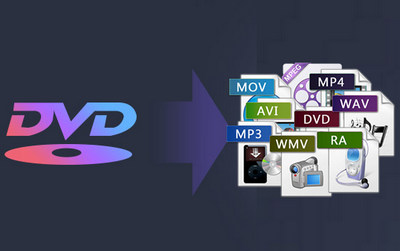
If you want a digital file that you can store and play locally, a DVD ripper/extractor is the most direct option. WonderFox DVD Ripper Pro is a Windows program that can convert DVD video to MP4, MKV, MPG, MOV, and many device presets, or create a 1:1 ISO/VIDEO_TS backup. It can process homemade discs as well as many commercial DVDs protected by common schemes such as CSS, region codes, RCE, Sony ARccOS, UOPs, and Disney X-Project DRM.

For a single movie, the software can identify the main title automatically. For TV-series, anime, workout, or course DVDs that contain several episodes or routines, it can even select multiple titles. You can also choose the preferred audio track and subtitle track before conversion.

Now, downloaddownload it if you want to follow the steps below.

Free Download Free Download

Get Digital Copies of Movies You Already Own
WonderFox DVD Ripper Pro
  • 1. Make a 1:1 intact digital copy (VIDEO_TS or ISO) with all content.
  • 2. Convert DVD to MP4, MKV and 300+ presets with GPU acceleration.
  • 3. Fast copy DVD video to MPEG-2 MPG with minimal processing.
  • 4. Compress large DVD video to smaller digital files when needed.
  • 5. Handle common DVD protections such as region code and CSS.
  • 6. Support homemade/commercial DVD & ISO & Video_TS.
  • 7. Multiple audio tracks and hard/soft/forced subtitles are supported.
  • 8. Trim clips and customize output video/audio parameters.
Download Free Download
Product Page Product Page
Compatible with Windows 11, 10, 8, 7 Windows, 100% Clean!

Steps to Get Digital Copies of Movies You Already Own with WonderFox

Load DVD into Program

Preparation: DownloadDownload, install, and launch WonderFox DVD Ripper Pro on your Windows PC. Insert the DVD into an internal or external DVD drive connected to the computer.

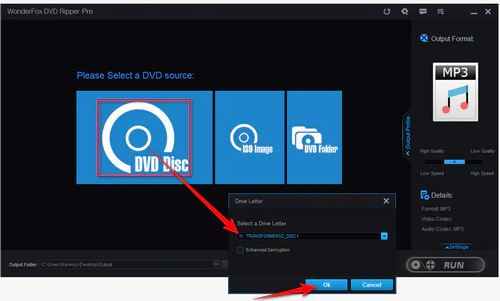
Step 1: Load DVD into Program

Click on DVD Disc on the main interface to load the disc. The program will scan its titles and usually select the main movie automatically. WonderFox DVD Ripper Pro also enables you to rip an ISO image file and DVD VIDEO_TS folder.

How to Get a Digital Copy of a Movie

Step 2: Select the Wanted Titles and Output Type

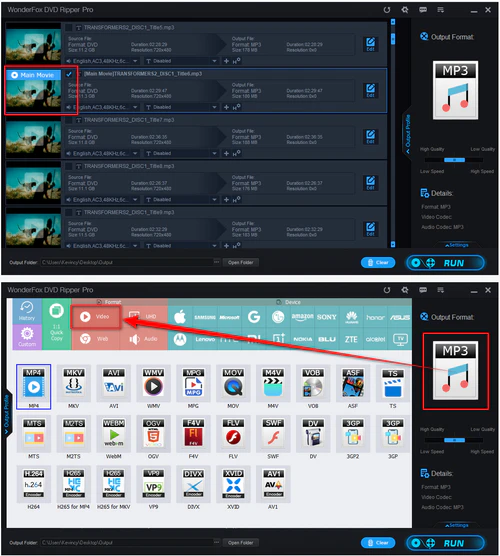
For a movie disc, the automatically selected main title is usually what you need. For a TV-series or workout disc, the software can select all correct titles, but you'd better check the title list carefully and select every episode or routine you want to digitize. Disc authoring varies, so a program may store each episode as a separate title while another disc may group several segments together.

Next, click the output format image on the right. There are 300+ presets available for your choice. Choose MP4 under the Video tab for broad device compatibility, or MKV when you want more flexibility for multiple audio and subtitle tracks. If your goal is a full-disc archive instead of a regular video file, go to the 1:1 Quick Copy category to create an ISO image or DVD Folder (VIDEO_TS). You can also use the MPG profile for a fast MPEG-2 copy with less processing.

Create the Digital Copies

Step 3: Create the Digital Copies

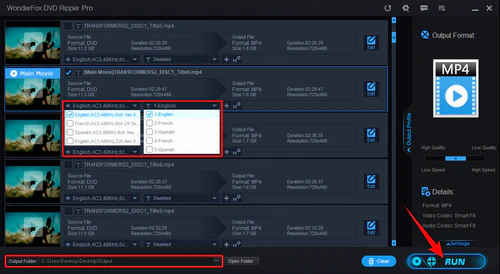
You can select preferred language and subtitle tracks. Set the output path at the bottom of the interface. Then click the "Run" button to start the process. When digitizing a multi-title disc, check the finished files afterward and rename episodes or workout routines clearly so they are easier to organize and find later.

Hot search: Free DVD Player for PC | Copy Protected DVD

Tips for Movies, TV Shows, Workout DVDs, and Other Collections

Movie DVDs: Start with the detected main title and preview it if necessary. This helps you avoid ripping trailers, previews, and other extras when you only want the feature film.

TV-series and episodic DVDs: A season disc may contain several similarly sized titles. Select all wanted episodes and export them as separate files. MP4 is convenient for everyday playback, while MKV is a better choice when you need to keep multiple audio or subtitle tracks.

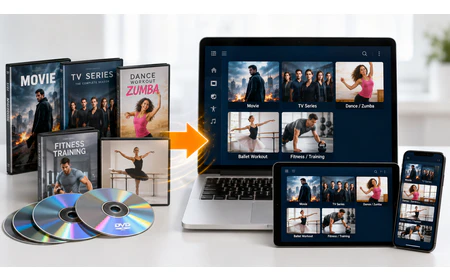
Digitize Different Types of DVDsDigitize Different Types of DVDs

Workout, fitness, and training DVDs: Collections such as dance workouts, ballet programs, INSANITY, 21 Day Fix, or FOCUS T25 may contain multiple routines across one or more discs. Instead of focusing on a specific brand, treat each disc as a multi-title collection: choose the routines you need, keep the correct audio/subtitles, and save them in a device-friendly format for offline viewing on a phone, tablet, laptop, or TV.

Whole-disc backups: Choose ISO or VIDEO_TS when you want to preserve the complete disc structure. A normal MP4 or MKV file is easier to play, but it does not reproduce an interactive DVD menu in the same way as a full-disc backup.

Physically damaged discs: Ripping software may help you avoid further wear on a readable disc, but it cannot reliably recover sectors that a DVD drive can no longer read. For important collections, digitize them while the discs are still in good condition.

All information provided in this article is presented for general informational purposes and personal use only. Copyright rules and exceptions differ by country and may also depend on whether a disc is copy-protected. Check the laws that apply where you live before ripping a DVD. Do not use copied content for unauthorized distribution or commercial use.

Related reading: Is It Legal to rip a DVD for Backup and Private Use in Your Country?

Method 2: Use Fandango at Home (Formerly Vudu) Disc to Digital

Fandango at Home Disc to DigitalFandango at Home Disc to Digital

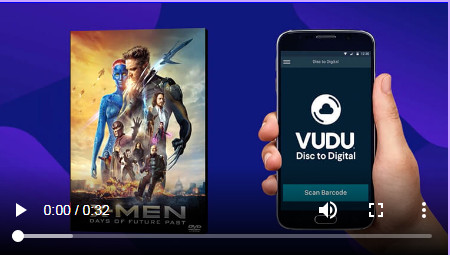
Vudu is now branded as Fandango at Home, and Disc to Digital is still listed as a feature. This option is different from ripping a DVD: it does not create a local MP4, MKV, or ISO file on your computer. Instead, an eligible physical DVD or Blu-ray can be converted into an electronic copy stored in your Fandango library for streaming through supported devices.

In general, sign in to your Fandango at Home account on a supported mobile device, open Disc to Digital, and follow the on-screen instructions to scan the UPC/barcode on the original disc case. If the title is eligible, choose the available digital quality and complete the purchase. The electronic copy will then be added to your library.

Keep in mind that not every disc is eligible. Fandango's current policy says the program applies to legitimately purchased and presently owned eligible physical Blu-ray and DVD titles, with a maximum of 100 Disc to Digital conversions per calendar year. Some conversions may also require a linked Movies Anywhere account. Eligibility, pricing, supported devices, and other requirements can change, so check the current Disc to Digital page before starting.


Which method should you choose? Use Disc to Digital when you have an eligible movie and prefer a cloud library. Use a desktop DVD ripper when you need local files, want to digitize TV episodes or workout routines, or need an ISO/VIDEO_TS backup under the laws that apply to you.

Also see: Vudu/Fandango Disc to Digital Not Working | Rip/Convert/Upload DVD to Cloud | Fix DVD Rip Errors

At last...

Getting a digital copy of a DVD you own can mean two different things. A local rip gives you direct control over the files and works well for movies, TV episodes, workout programs, and full-disc backups. Fandango at Home Disc to Digital is a convenient alternative for eligible movie titles when you prefer a cloud-based library. Choose the approach that matches your collection and viewing habits.

For local copies, WonderFox DVD Ripper Pro can save DVD video to common formats, preserve multiple audio/subtitle tracks when needed, extract audio, cut clips from a DVD, or create 1:1 ISO/VIDEO_TS backups. Always use these features responsibly and in accordance with the copyright rules where you live.

Free Download Free Download


Kevincy

Kevincy Berel

Kevincy joined the WonderFox team in 2014 and has been a senior columnist ever since. With over two decades of experience in the video editing industry, he shares tutorials, tips, and how-to guides on video/audio processing and personal DVD backups. Family-oriented and passionate about helping others, he is dedicated to making video and audio processing easier for readers.

Email

How to Get Digital Copies from DVD Disc and Websites

How to Get Digital Copies from DVD Disc and Websites

WonderFox DVD Video Converter

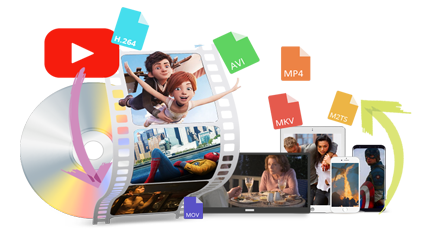
WonderFox DVD Video Converter is an all-in-one Windows program for ripping DVDs and converting video/audio files to common formats and device presets. It also includes an online video downloader for supported websites, making it useful when you need DVD processing and general media conversion in one application.

Free Download DVD Video Converter Free Download DVD Video Converter

More Related Articles

How to Solve HandBrake Copy Protection Ripping Fail with the Best Way How to Play DVD on Samsung Smart TV Without Connecting a DVD Player to Your TV The Best DVD to Roku Streaming Method - How to Watch DVD on TV with Roku
How to Remove Copy Protection from DVD Handily? What Is the Best Format to Rip DVD for Storing DVD Movies The Best Plex DVD Streaming Method – How to Rip DVD to Plex Media Server