


Many people still have cherished old DVDs, such as movies, home videos, and concert recordings. You might want to play them on your TV. The old-fashioned way is to simply connect the DVD player to the TV. But modern smart TVs, including Samsung, LG, and Sony, are getting thinner, and your TV may have removed traditional audio/video interfaces, or you might be using an Apple TV, which doesn't support external players at all. What to do next?
Don't worry. This article will provide the most comprehensive steps to play DVDs on your TV, including the traditional connection method (connecting the DVD player directly to the TV) and the modern digital method (converting the DVD to digital video and streaming it to a smart TV or Apple TV via USB or network). Let's jump right in!
Connecting a DVD player directly to your TV still remains a straightforward solution. Depending on your DVD player and TV model, there are 3 primary connection methods: HDMI, A/V, and Component.
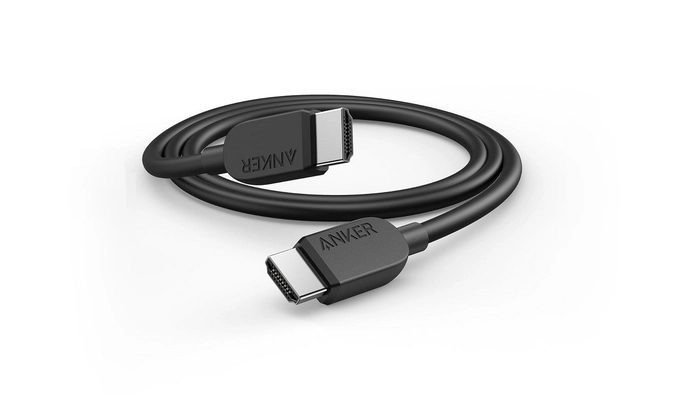
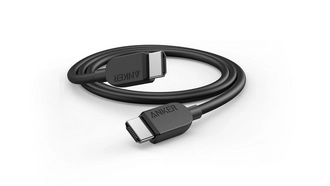
This is the recommended solution for modern DVD players and smart TVs equipped with HDMI ports. The HDMI cable can deliver the highest video and audio quality, up to 1080p/4K upscaling, without audio/video sync issues.
Simply plug one end of the HDMI cable into the HDMI OUT port on the DVD player, and the other end into the HDMI IN port on the TV. Then use your TV remote to change the input source to the correct HDMI port to start playing the DVD on your TV.
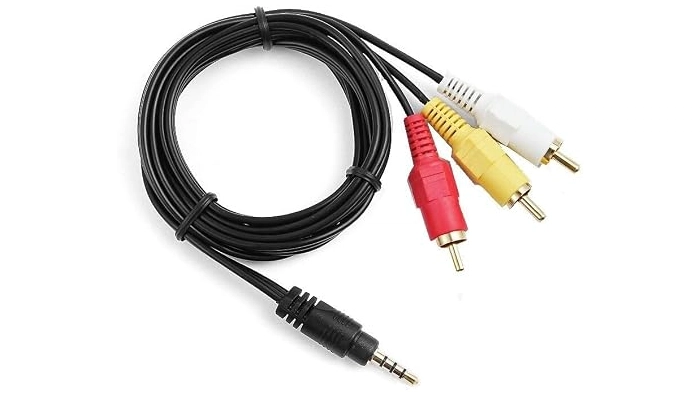
This method is suitable if you have an older DVD player and older TV model with traditional yellow, red, and white RCA jacks.
All you need to do is to match the connector colors to the jack colors on both devices: Yellow to Video OUT/IN, Red to Right Audio OUT/IN, and White to Left Audio OUT/IN. After that, switch the TV's input source to AV or Composite.
(🔔 Note: If your Smart TV does not have full-sized RCA ports, use a 3.5mm-to-RCA AV adapter cable).
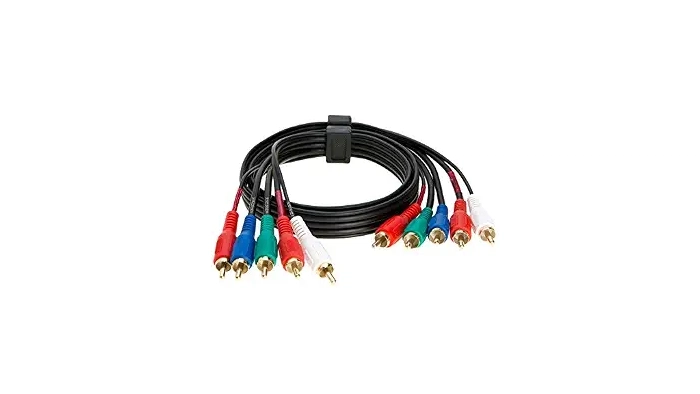
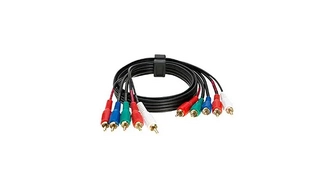
If your DVD player and HDTV have 5-color component jacks, this method is for you. It offers better video clarity (up to 480p/720p) than standard AV composite cables.
Similarly, you can connect the video cables to the color-matched ports on both devices: Green (Y), Blue (Pb/Cb), and Red (Pr/Cr). Then plug the other Red (Right Audio) and White (Left Audio) cables in for sound. Change your TV input source to Component once all cables are connected.
⚠️ Troubleshoot: If you get "No Signal", black screen, stretched video, audio lag, or your TV can't detect the DVD player after connecting, check out our dedicated guide: Fix DVD Player Not Working on TV.
That said, if you don't want the mess of cables, we recommend the modern digital streaming method detailed below.
The best reason to go digital is that you can completely get rid of DVD player and watch digitized DVD movies and videos on your TV whenever you want.
Plus, getting DVDs saved in digital copies makes them easier to carry with you on the go.
Considering that most DVDs are encrypted, we need a professional DVD ripper to digitize them.
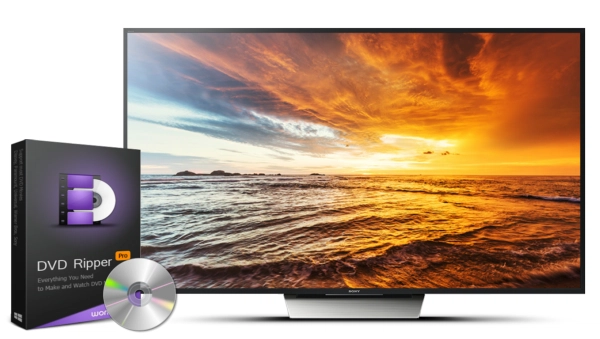
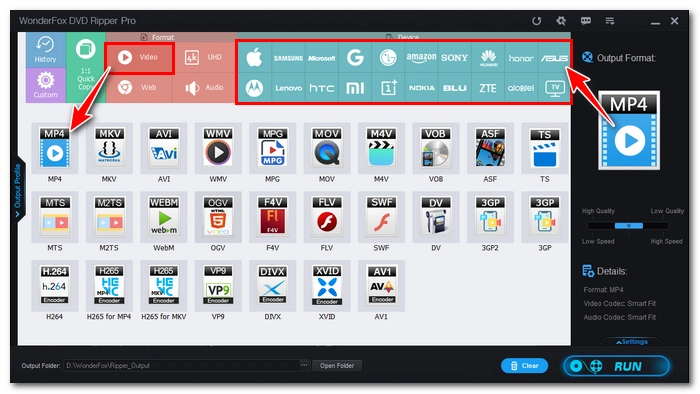
Our top recommendation is WonderFox DVD Ripper Pro. This Windows software boasts powerful DVD decryption capabilities, and it supports commercial DVDs, homemade DVDs, ISO images, and VIDEO_TS folders. It also includes built-in presets for major TV brands, like Samsung TV, LG TV, Apple TV, Sony TV, etc., and universal formats such as MP4 and MKV, which can ensure smooth playback of your converted DVD video on your TV.
The software supports GPU acceleration and 1:1 lossless copy. Usually, a complete DVD movie can be converted to a digital video in 5 minutes.
Before starting your DVD conversion, please click the button below to download and install download and install the software on your Windows computer:
 Download for Free
Download for Free
Download for Free
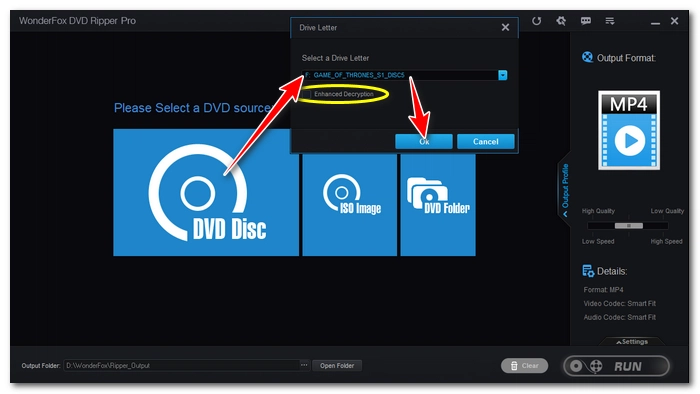
Insert the DVD disc into your computer's DVD drive. Launch WonderFox DVD Ripper Pro, click on DVD Disc, select the target drive letter, and click OK. The software will automatically analyze and decrypt the DVD, and select the main movie title.
You can also import from an ISO image or VIDEO_TS folder if you have existing backups saved on your computer.
💡 If a DVD fails to load, enable Enhanced Decryption and load it again.
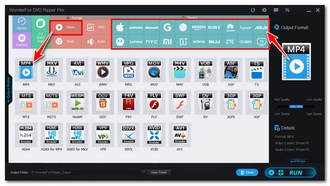
Click on Output Format on the right side of the main interface. Then select the profile based on your target device.
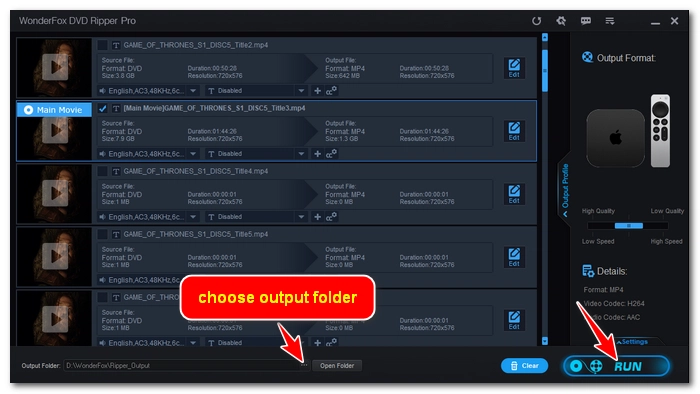
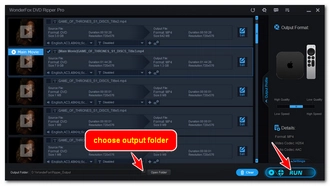
Click the three-dots button at the bottom to specify an output folder. Then click Run to start the DVD conversion process. Once finished, a pop-up window will prompt you to open the output folder where you will see the converted DVD video.
🔔 Note: The unregistered version only supports converting the first 15 minutes of a DVD. To convert the entire DVD, you need to purchase a license.
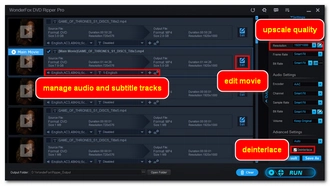
Click here to download the software and try it: Download Link Download Link
This method works for most smart TVs, including Samsung, LG, Sony, TCL, Hisense, and Roku TVs.
💡 Note: Apple TV does not support playing video files directly from a USB drive. Instead, you should refer to the next streaming solution.
Step 1: Copy the converted DVD video files to a folder named ‘Movies' or similar on your USB or external hard drive.
Step 2: Insert the drive into your Smart TV's USB port.
Step 3: Open the built-in media player app your TV and select the DVD movie to play.
For more details: How to Play Video from USB on TV
This wireless method is perfect for Apple TV users and any smart TV connected to your home Wi-Fi. Once your DVD is digitized into a modern MP4 video (H264 + AAC), it's easy to stream.
Plex is a popular media player that can turn your computer into a personal media server and stream your converted DVD movies stored on your computer to your TV via your local network.
Step 1: Download and install Plex Media Server on your computer.
Step 2: Create a video library and add the folder containing your converted DVD movies to it.
Step 3: Download the Plex app from the app store on your TV, sign in to your account, and then select the movie you want to play.
🔔 Important: While streaming, ensure your host computer is on and connected to the same local network. For a complete step-by-step setup guide, see our detailed article: How to Use Plex.
For Apple users, the native solution for playing digitized DVD files on Apple TV is to stream via AirPlay.
Step 1: Import the converted DVD file (ensure it uses an Apple-friendly format first) into your iPhone or iPad.
Step 2: Swipe down the screen and tap the AirPlay icon to stream directly.
💡 Alternatively, you can use Home Sharing on your Mac to stream locally stored movies to Apple TV.
🔔 Note: If you want to play a commercial DVD using your Mac's built-in DVD Player app and then mirror your screen to Apple TV via AirPlay, you may encounter a black screen or system error due to DRM copy protection. To avoid this, you still need to convert the DVD to a digital MP4 file using WonderFox DVD Ripper Pro before streaming.
If you find it challenging to set up a dedicated media server like Plex, this will be an easier alternative. All you need is to use VLC's streaming feature.
Step 1: Place the converted DVD files into a folder on your computer and turn on local folder sharing in your OS settings.
Step 2: Download and install VLC on your TV.
Step 3: Open VLC, go to Local Network tab, find your shared computer folder and play the converted DVD video.
| Traditional Way (Direct Connection) | Modern Way (Digital Video) | |
|---|---|---|
| What Required? | DVD player, physical discs, and cables | Computer, USB drive, or home Wi-Fi |
| TV Compatibility | Works on TVs with compatible physical ports (HDMI/AV/Component) | Works on all smart TVs |
| Play Region-locked DVDs? | Restricted | WonderFox DVD Ripper Pro removes all region and DRM locks |
| Convenience | Must swap discs manually; messy cables | Easy click-and-play; no cable |
| Best For | Users with working DVD players and old TVs | Smart TV users |
Verdict: Connecting a DVD player to a TV is intuitive, but interface and compatibility bottlenecks are common with modern TVs. The better option is to digitize DVDs, which will not only overcome hardware limitations but also permanently preserve your disc collection. Download WonderFox DVD Ripper Pro to convert your DVDs at fast speed now:
 Download for Free
Download for Free
Download for Free
No, because Apple TV does not have the drivers and DVD decoding capability to read external optical drives. The best solution is converting DVD to digital video with WonderFox DVD Ripper Pro first.
MP4 encoded with H.264 video and AAC audio is recommended. It's fully compatible with all major TVs like Samsung, LG, Sony, Apple TV, and Roku.
WonderFox DVD Ripper Pro has a powerful built-in DVD decrypter that can remove various protections such as CSS, Region Code, RCE, and Sony ARccOS from your DVDs, ensuring smooth playback on your TV.

I write about multimedia topics, including video and audio conversion, compression, editing, and downloading. I joined WonderFox in 2020, and my goal is to help readers solve everyday tech problems more easily. In this guide, you can learn two effective ways to play DVDs on any TV. Pick your preferred method and happy watching!


I write about multimedia topics, including video and audio conversion, compression, editing, and downloading. I joined WonderFox in 2020, and my goal is to help readers solve everyday tech problems more easily. In this guide, you can learn two effective ways to play DVDs on any TV. Pick your preferred method and happy watching!

Terms and Conditions | Privacy Policy | License Agreement | Copyright © 2009-2024 WonderFox Soft, Inc.All Rights Reserved