

Kodi supports a wide range of video containers, codecs, audio formats, and even DVD-Video structures. Still, a file can fail to start, show a black or green screen, play without sound, stutter badly, or keep buffering. This guide explains the most common causes and practical fixes. Let's get started!
 Kevincy | Aug 20, 2026
Kodi is a capable media player, but “supported format” does not mean every file with that extension will behave the same way. A container such as MKV can hold many different video, audio, and subtitle streams. Likewise, H.265/HEVC is supported by Kodi, but smooth decoding still depends on the device, driver, bit depth, resolution, frame rate, and available hardware acceleration.
The same idea applies to disc-based media. Kodi can work with DVD-Video stored in an ISO image or a proper VIDEO_TS structure, but a generic data ISO, an incomplete DVD folder, damaged files, access problems, or a source that your Kodi build/device cannot handle can still fail. In other words, the extension is only the first clue.
Before converting anything, first identify what Kodi is actually doing wrong. Many playback issues can be fixed in Kodi or at the device/network level without changing the source file.
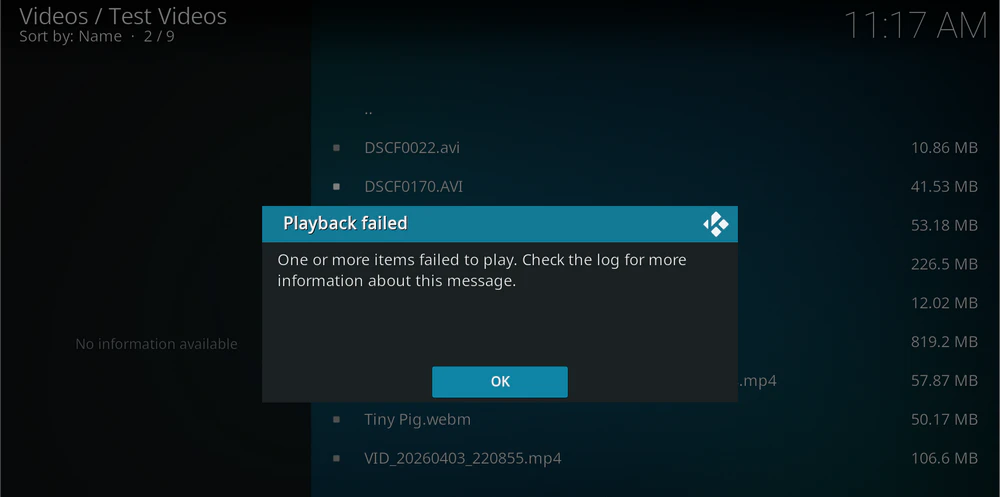
The media may be damaged, incomplete, inaccessible, or packaged in a way your current device/build does not handle. For MKV and other containers, the actual codec inside matters more than the extension. For ISO or VIDEO_TS sources, confirm that you have a valid DVD-Video structure instead of unrelated files stored in an ISO image.
This often points to the video decoding path. HEVC/H.265, especially high-resolution, 10-bit, or HDR material, can expose hardware-decoder or driver limitations. A decoder that works for one H.265 file may still struggle with another profile or level.
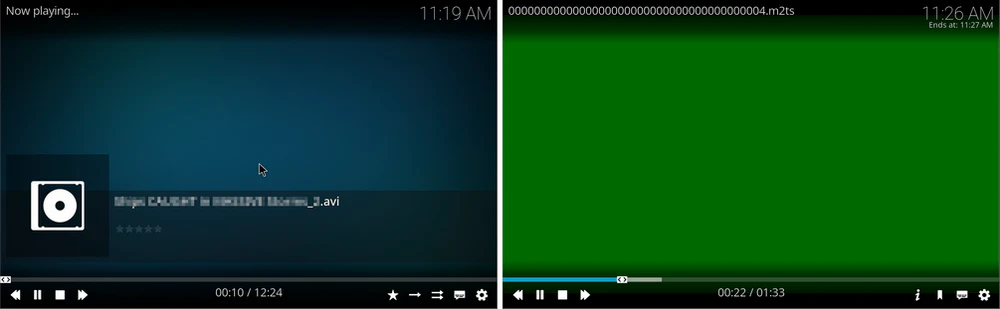
Check the selected audio track, Kodi's volume, the operating system output device, and passthrough settings. A file may contain an audio format your TV, soundbar, or receiver cannot decode even when Kodi can open the video stream.
The file may simply be too demanding for the current hardware path. High-bitrate 4K HEVC is a common example. Display refresh-rate mismatch, an unstable hardware decoder, a slow storage device, or heavy background activity can also make playback look choppy.
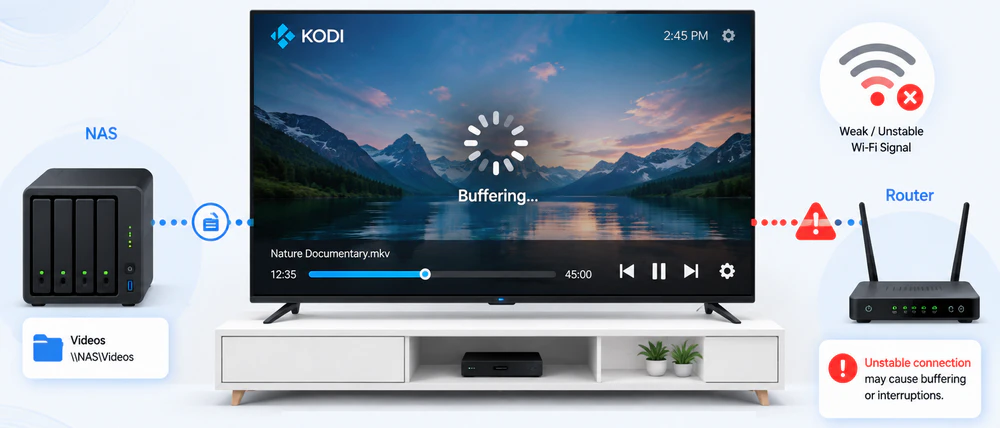
That usually shifts attention away from the codec and toward the network path. Wi-Fi interference, a slow server, a busy NAS, insufficient read speed, or a remote source that cannot deliver data fast enough can empty Kodi's playback buffer.
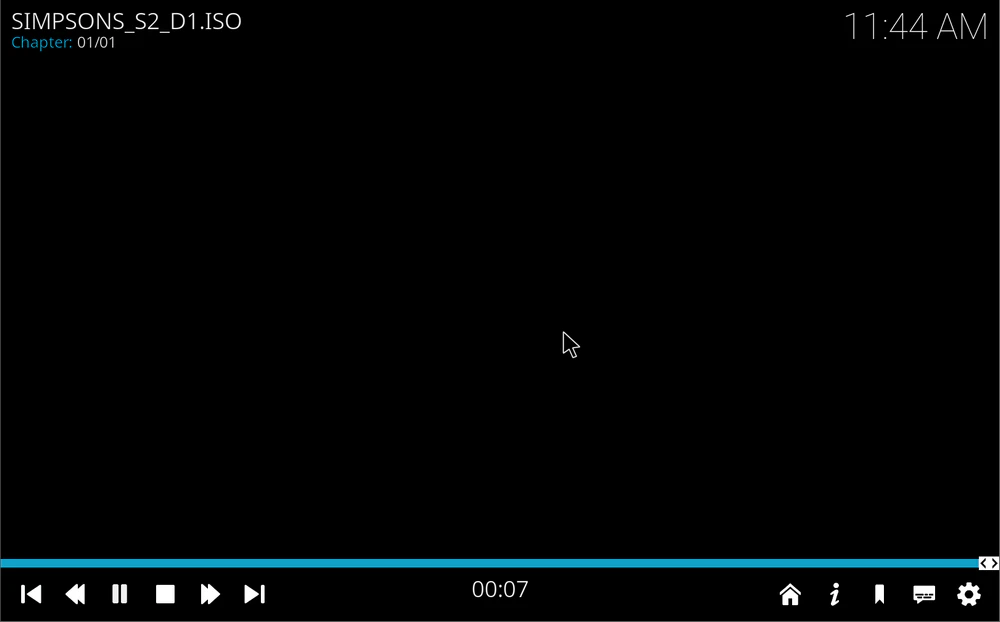
Make sure the source is a complete DVD-Video structure. A normal DVD folder typically contains the required IFO, BUP, and VOB files in the expected layout. If files were copied selectively, renamed, corrupted, or stored on a source Kodi cannot read reliably, menus or titles may fail.
WonderFox DVD Video Converter can convert ordinary video/audio files and also load DVD discs, ISO images, and DVD folders. Use it as a fallback when Kodi settings cannot solve a codec, stream, or DVD-source compatibility problem.
Start with the latest stable Kodi release available for your platform. On Windows or a PC-based Kodi box, also update the GPU driver. On Android TV, Fire TV, set-top boxes, and smart-TV platforms, install current system/firmware updates when available. Playback fixes often depend on the operating system and hardware decoder as much as Kodi itself.
If the problem file lives on a NAS, SMB/NFS share, USB hub, or remote server, copy a short sample or the full file to local storage and test again. Smooth local playback strongly suggests a network, share-permission, server, or I/O bottleneck rather than a format problem.
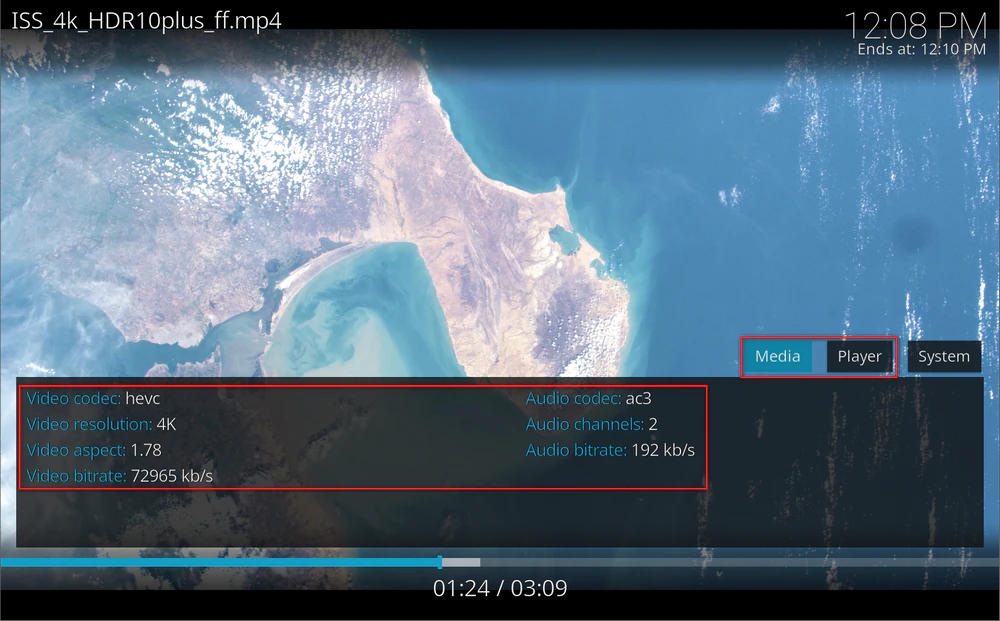
During playback on a keyboard-controlled Kodi device, press O to open Player Process Information. It can show the video/audio codec, resolution, frame rate, decoder in use, and whether playback is going through a hardware or software path. This is especially useful when one H.265 or MKV file works but another does not.
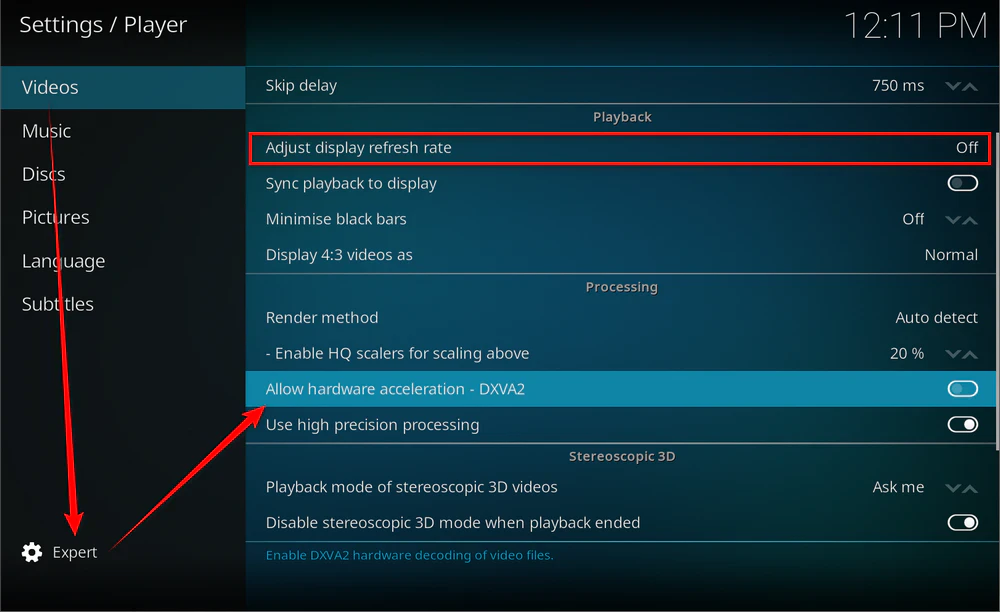
Go to Settings > Player > Videos and switch the settings level to Expert if needed. Under Processing, the available acceleration option depends on your operating system and hardware. If a video shows a green/black screen, visual corruption, or severe stutter, temporarily toggle hardware acceleration and replay the same file. If the behavior changes, the decoding path is a strong suspect.
Do not assume that turning hardware acceleration off is always better. Software decoding can be too slow for 4K HEVC on modest CPUs. Treat this as a diagnostic test, then keep the setting that works best for your device.
Under Settings > Player > Videos > Playback, try Adjust display refresh rate if your TV/monitor and connection support the needed refresh rates. Matching the display to 23.976/24/25/50/60 fps content can reduce judder without re-encoding the video.
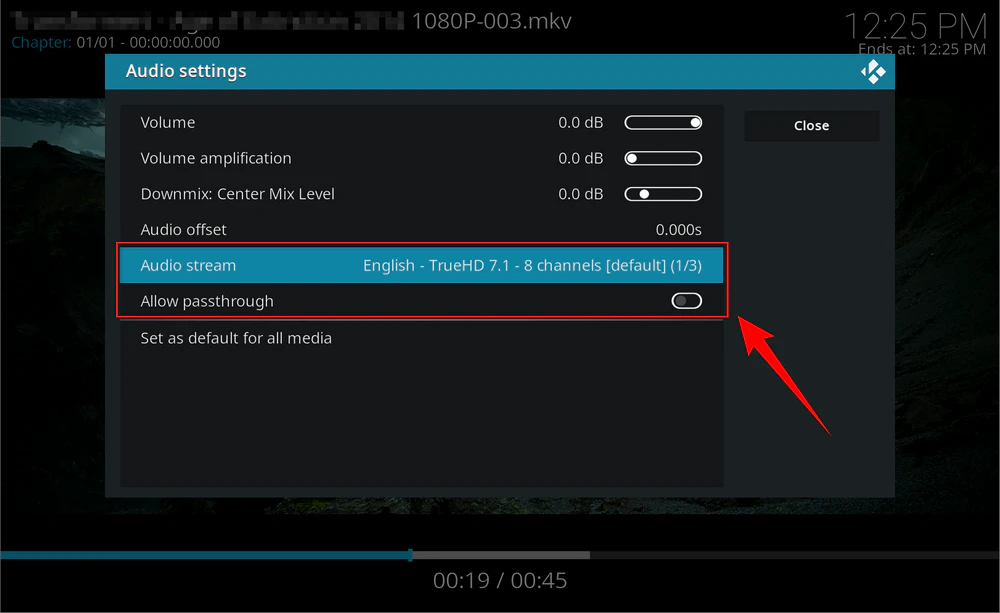
If the picture is normal but there is no sound, open Kodi's on-screen audio settings and try another audio stream when multiple tracks are present. Also verify the selected output device. If passthrough is enabled, temporarily disable it and test again. Passthrough requires the receiving TV, AVR, or soundbar to support the transmitted format.
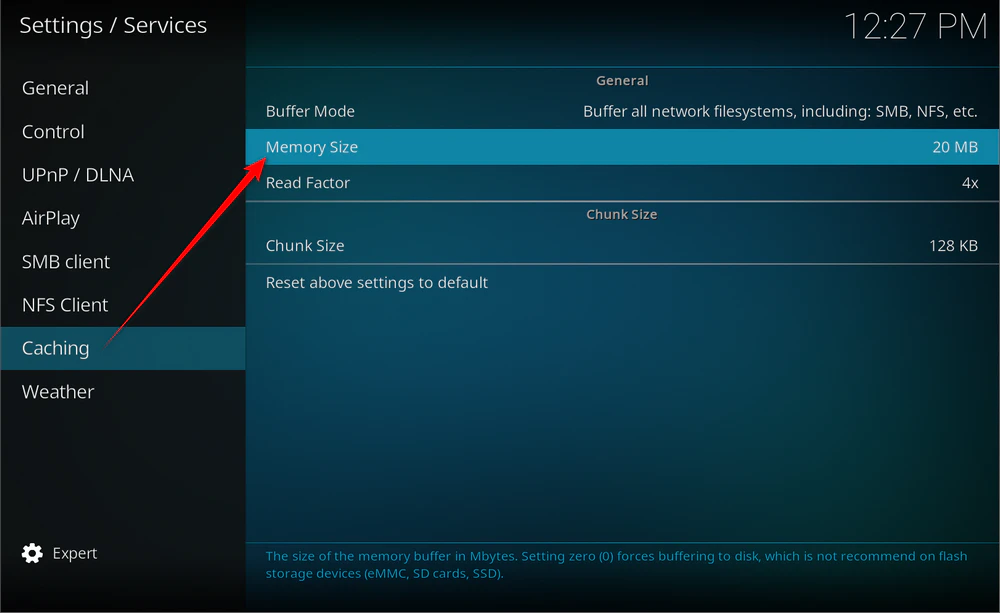
For current Kodi releases, caching controls are available under Settings > Services > Caching. Increasing the cache can help absorb short network fluctuations, but it cannot make a consistently slow server or connection fast enough for a high-bitrate file. Prefer Ethernet when possible, move closer to the Wi-Fi access point, check NAS load, and test a lower-bitrate file from the same source.
Note: Many older Kodi tutorials recommend manually changing cache values in advancedsettings.xml. Those cache tags are deprecated in Kodi 21 and later, so use the current Caching settings instead.
Try the same media in another reliable player. If it also fails, freezes at the same point, or reports stream errors, the file itself may be incomplete or corrupted. A fresh copy is better than transcoding damaged source data.
If Kodi settings are fine but a particular file still fails on your device, converting the media to a simpler combination can be the fastest practical workaround. WonderFox DVD Video Converter handles both common and uncommon video/audio inputs in a straightforward three-step workflow.
DownloadDownload, install, and run the tool on Windows. Click Add Files and select the problematic video, or drag and drop it into the program. You can use the same workflow for MKV, MP4, AVI, MOV, H.265/HEVC files, and many other sources.
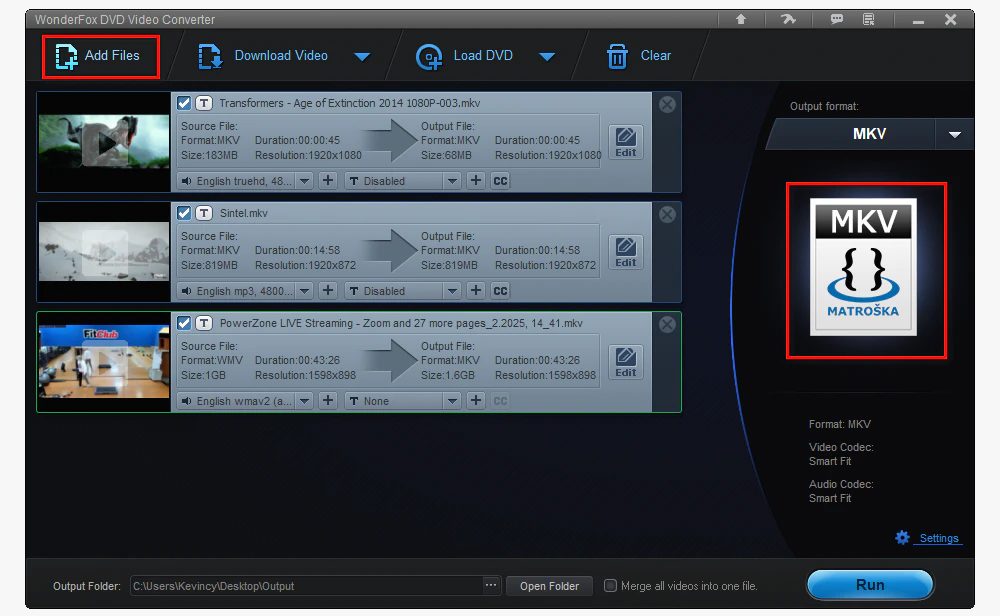
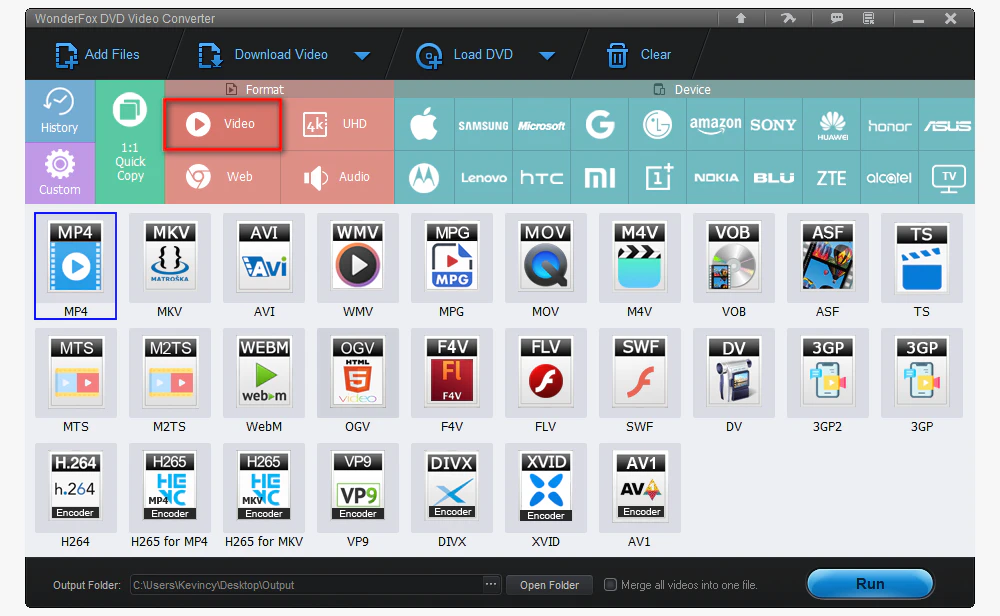
Click the Output Format image to open the profile list. Kodi itself accepts many formats, so there is no single mandatory output. When the goal is maximum compatibility with older or lower-powered playback hardware, MP4 with H.264 video and AAC audio is a sensible fallback. If you prefer MKV, you can keep the MKV container while changing an incompatible video or audio stream.
For example, if a demanding HEVC/H.265 file stutters because the playback device lacks a suitable hardware decoder, convert it to H.264. If an MKV opens but its audio track is the problem, choose MKV and only change the audio codec in the Settings Windows. You can also modify other parameters like bitrate, encoder, deinterlacing, and more.
Choose an output folder at the bottom, then click Run. When conversion finishes, add or open the new file in Kodi and test the same scene that previously failed.
If the converted file works, you have confirmed that the original stream combination or decoding requirements were the problem. Keep the original file until you have checked video quality, audio tracks, subtitles, and sync in the converted result.
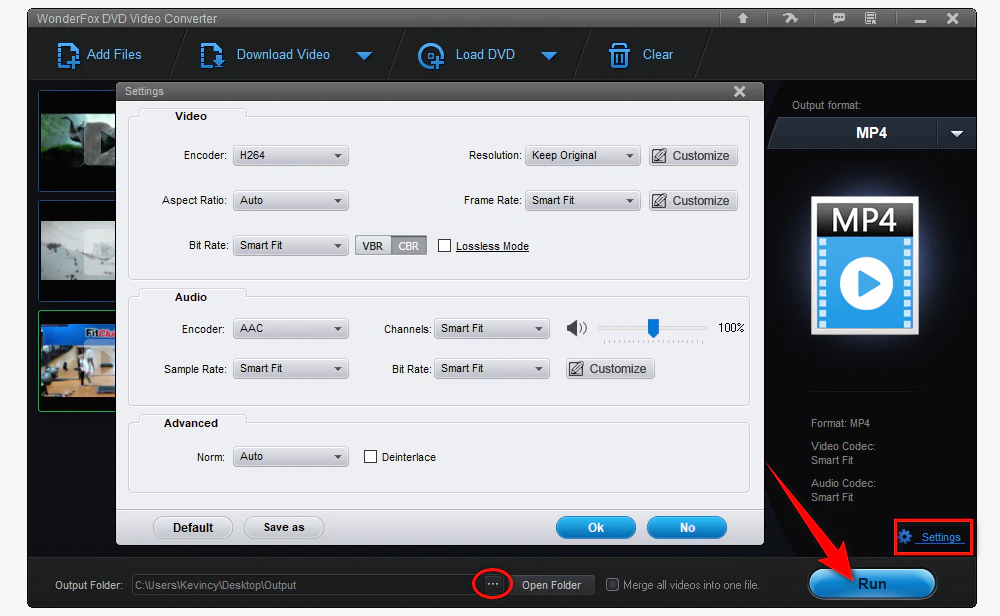
Note: Avoid increasing resolution or frame rate just to “improve” compatibility. It adds work and usually does not restore detail. If the source is 1080p/24 fps, keeping those values is normally more efficient. Adjust bitrate, encoder, resolution, frame rate, audio codec, and channels only when your target device needs a specific combination.
Kodi supports DVD-Video playback from disc images and standard DVD file structures. The important distinction is whether the source is a valid, complete DVD-Video structure and whether your specific Kodi platform can read it correctly.
For an ISO, confirm that it is a DVD-Video image rather than a generic data ISO containing unrelated files. For a VIDEO_TS folder, avoid moving only selected VOB files or renaming the IFO/BUP/VOB set. If possible, test the original disc or folder in another DVD-capable player to rule out damaged data.
If the DVD structure works locally but not from a NAS or shared folder, check the source path, permissions, share protocol, and network stability. DVD menu navigation can involve frequent reads across several small control files, so an unreliable share may behave differently from one large movie file.
If you do not need the original DVD menu and simply want dependable movie/episode playback in Kodi, converting the disc, ISO, or VIDEO_TS folder to regular video files can simplify the library. WonderFox DVD Video Converter is useful here because the same program that handles normal video conversion can also load DVD sources.
Run WonderFox DVD Video Converter. Click Load DVD for a physical disc. For an ISO image or DVD folder, click the triangle icon next to Load DVD and choose the corresponding source type.
The program automatically analyzes the DVD structure, loads the available titles, and select the main movie title. If you are converting a multi-episode TV DVD, it can select all episodes.
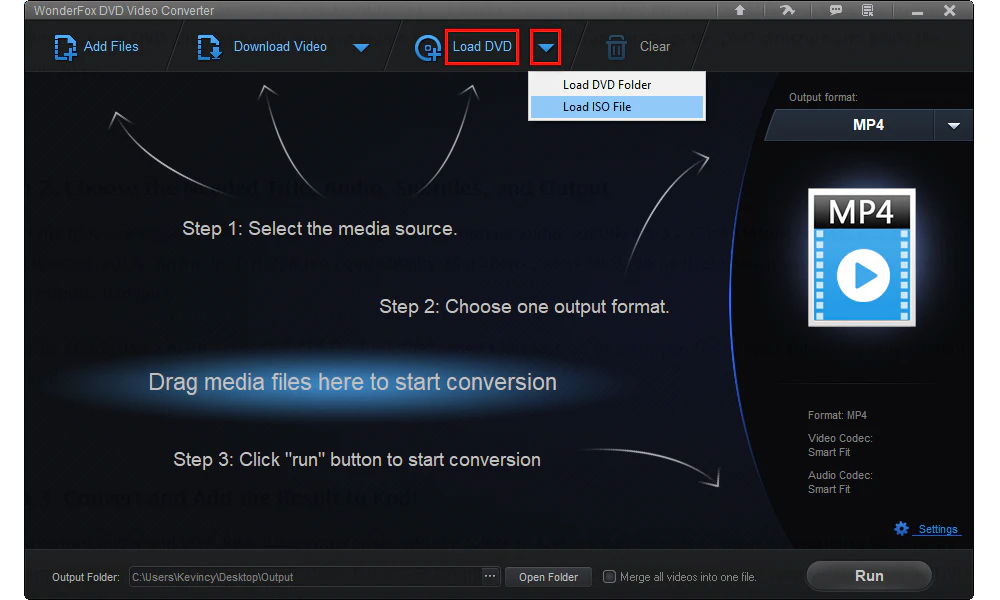
Keep the appropriate audio/subtitle tracks you want. Click Output Format and choose a regular video profile. Again, MP4/H.264 is a compatibility-first choice, while MKV can be useful when you want more flexible audio/subtitle handling.
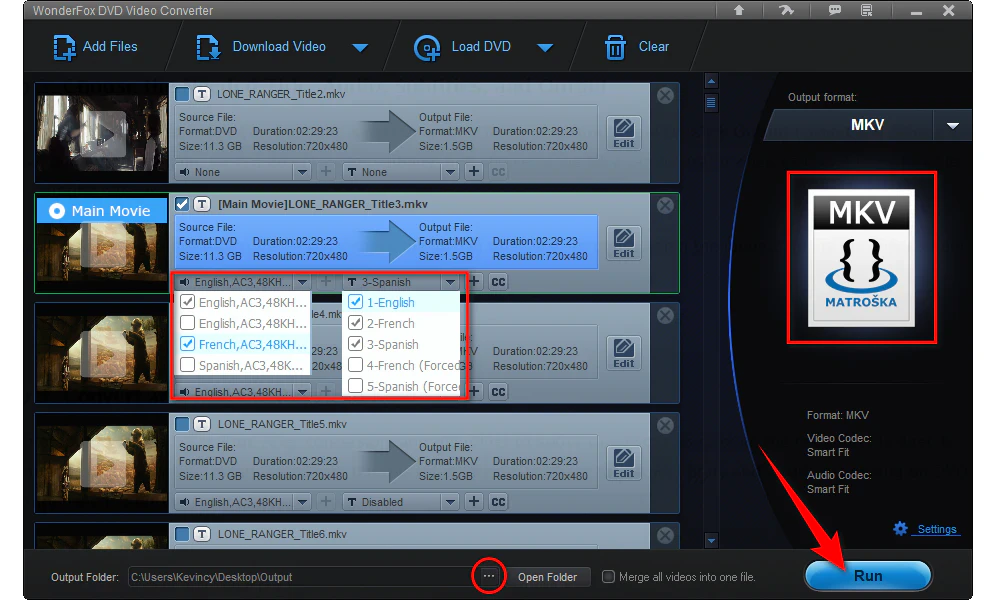
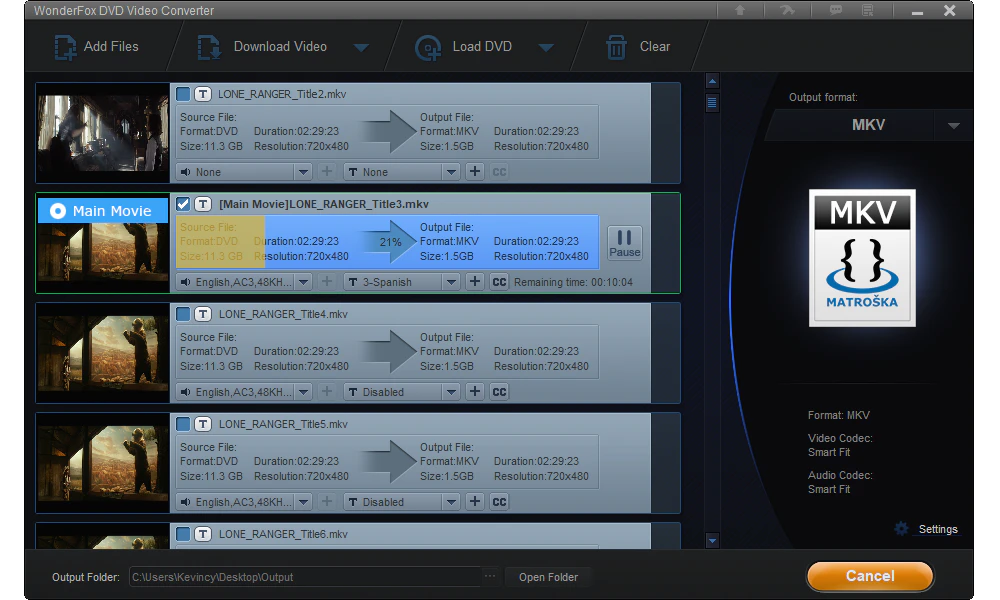
Set an output folder and click Run. After conversion, add the folder to Kodi's video sources or open the resulting file directly. This approach gives up DVD menu navigation, but it is often more convenient for a Kodi library and avoids depending on DVD structure handling during every playback session.
Kodi supports MKV. If only certain MKV files fail, compare the video codec, audio codec, bit depth, subtitles, resolution, and frame rate with MKVs that play normally. Repackaging or transcoding the problematic stream is more meaningful than treating every .mkv file as incompatible.
Kodi has supported H.265/HEVC for years. The usual problem is the playback device: it may lack hardware decoding for the exact HEVC profile, level, bit depth, or resolution in the file. When software decoding cannot keep up, H.265-to-H.264 conversion is a practical workaround.
An .iso extension only describes a disc image container. Kodi's DVD playback capability applies to a valid DVD-Video image. A data ISO, damaged image, or unusual disc structure may not open as a movie.
A proper VIDEO_TS folder can contain VOB movie data plus IFO navigation information and BUP backups. If the folder was only partially copied, direct DVD-style playback may break. When you only need the movie or episodes, converting the intact source to normal video files can make library playback simpler.
WonderFox DVD Video Converter gives you one workflow for ordinary videos and DVD-based sources. Keep the original whenever possible, and convert a copy when a simpler codec or regular video file solves the playback problem.
Yes. Kodi supports AVI, including common RIFF AVI and OpenDML AVI files. However, AVI is only a container, so playback still depends on the codecs stored inside it. If a particular AVI file has no sound, no video, or fails to open, check its video and audio codecs first or convert it to a more device-friendly format such as MP4 with H.264 and AAC.
The two players may use different decoder paths, hardware acceleration, audio output, or network buffering behavior. Compare Kodi's Player Process Information and test hardware acceleration before converting the file.
Kodi supports many formats, so conversion is not normally required. When you need a broad compatibility fallback for older or less powerful devices, MP4 with H.264 video and AAC audio is a practical choice. If you need multiple audio or subtitle streams, MKV with device-friendly codecs can also work well.
When Kodi refuses to play a video, start with the symptom instead of the filename extension. Kodi supports a wide range of video and audio formats, but decoding hardware, internal codecs, audio output, file integrity, DVD structure, and network speed can still break playback.
Try the Kodi-side fixes first. If the source remains troublesome on your device, WonderFox DVD Video Converter can convert regular video/audio files as well as DVD discs, ISO images, and VIDEO_TS folders to a more convenient playback format. That makes conversion a useful fallback—not the first assumption whenever Kodi encounters a difficult file.

Kevincy joined the WonderFox team in 2014 and has been a senior columnist ever since. With over two decades of experience in the video editing industry, he shares tutorials, tips, and how-to guides on video/audio processing and personal DVD backups. Family-oriented and passionate about helping others, he is dedicated to making video and audio processing easier for readers.


Kevincy joined the WonderFox team in 2014 and has been a senior columnist ever since. With over two decades of experience in the video editing industry, he shares tutorials, tips, and how-to guides on video/audio processing and personal DVD backups. Family-oriented and passionate about helping others, he is dedicated to making video and audio processing easier for readers.
WonderFox DVD Video Converter
1. Convert video/audio to 500+ presets.
2. Load DVD discs/ISO images/VIDEO_TS folders.
3. Select audio/subtitle tracks & adjust parameters.
4. Support batch process/GPU acceleration/basic edits.
5. Download video/audio from 1000+ websites.

Privacy Policy | Copyright © 2009-2026 WonderFox Soft, Inc. All Rights Reserved
