

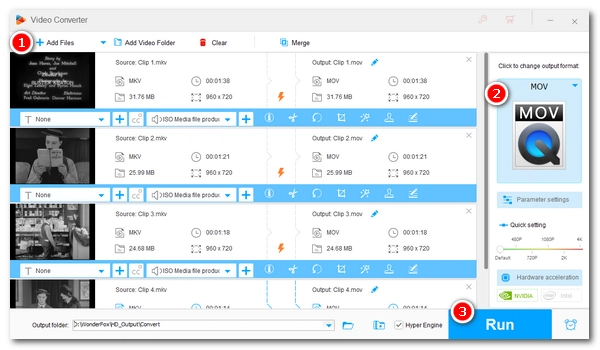


MKV (Matroska) is a powerful video container format that can hold multiple video, audio, and subtitle streams in one file, making it ideal for storing movies. But sometimes, you may find your MKV file to be a headache: it cannot be opened in QuickTime, it shows a black screen when importing to editing software, it plays no sound on TV, or you simply want to have the audio of it. In such cases, the ultimate solution is to convert MKV to a more appropriate format.
But how?
Don't worry. In this article, I will share a professional yet easy-to-use video converter that can help you convert MKV to all major formats and even devices to suit your specific needs within a few simple clicks. Just read and follow!
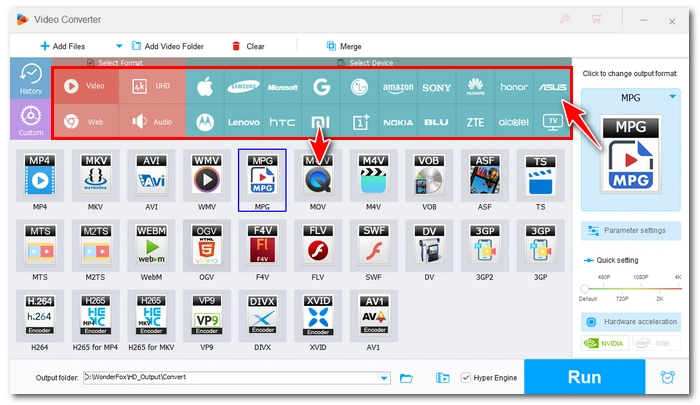
To convert MKV files efficiently and with high quality preserved, we're going to use WonderFox HD Video Converter Factory Pro. This is an excellent video converter that can turn your MKVs into videos like MP4, MOV, WMV, ProRes, TS, M2TS, M4V, FLV, and MPG, as well as audio files such as MP3 and FLAC. Even better, it comes with loads of ready-made presets for various devices and platforms to help you ensure format compatibility in one click.
The program is fast, simple, and supports batch conversion. You can download download it right now and follow the steps below to start your MKV conversion:
 Download for Free
Download for Free
Download for Free
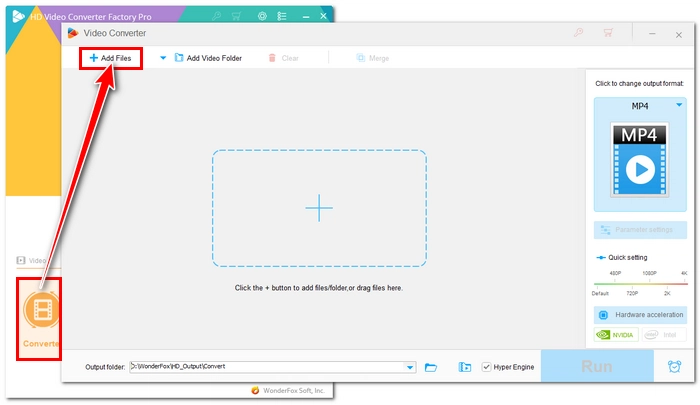
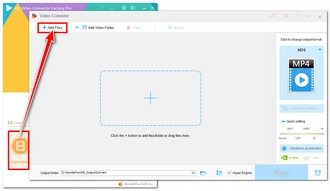
Open the software and enter the Converter module. Click +Add Files or simply drag and drop your MKV files from your computer to the program.
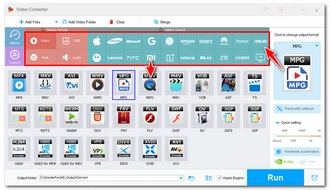
Click the Output Format section on the right and choose your needed format.
For example:
👉 To convert MKV with more advanced settings, see more tips >>
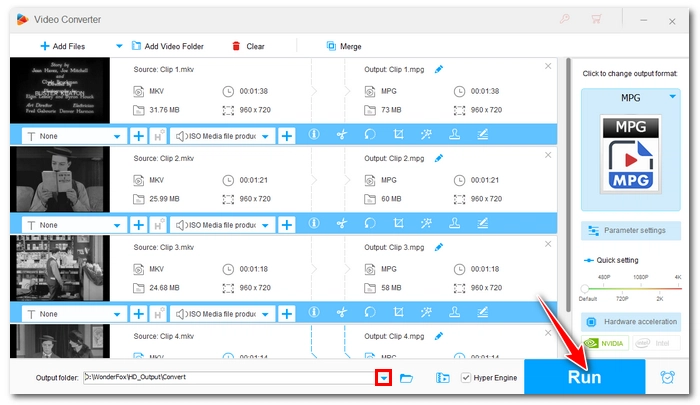
Click ▼ at the bottom of the program to set an output path, and then click the Run button to begin the conversion process immediately.
Let WonderFox HD Video Converter Factory Pro help you convert MKV files to any format you need easily and quickly!
Download for Free
Download for Free
Different formats serve different purposes. Here is a quick overview of the common formats to convert your MKV files to.
| Output Format | Key Features | Use Cases |
|---|---|---|
| MOV | Standard video format for Apple devices | Work natively in Apple ecosystem, e.g., QuickTime, Mac, iPhone/iPad |
| M4V | Standard Apple movie format | Play in iTunes and Apple TV |
| ProRes | One of the best editing formats, but with large file size | Edit in professional editing software like Final Cut Pro, Premiere smoothly |
| WMV | Standard video format by Microsoft | Work natively within the Windows Media framework |
| MP3 | Most widely used audio format with decent quality | Play on phone, car stereo, and MP3 players |
| FLAC | Lossless compressed audio format to preserve the original sound quality | Archive music and enjoy in hi-fi audio systems |
| TS | Streaming media format | Stream video over the internet |
| M2TS/AVCHD | High-definition recording format | Burn on Blu-ray |
| MPG/MPEG | Longstanding format with excellent compatibility with old devices | Burn on DVD |
| FLV | Legacy web format with small file size | Display on specialized embedded players |
Your MKV files may contain multiple subtitles or audio tracks, have very high image and audio quality, or come with large file sizes. Therefore, you may want to master these skills before converting your MKV.
One big characteristic of MKV is that it can embed multiple language tracks and subtitles. If you don't want to lose them all, be sure to select MP4 or MOV as the output format, as these two formats can also include multiple audio and subtitle tracks.
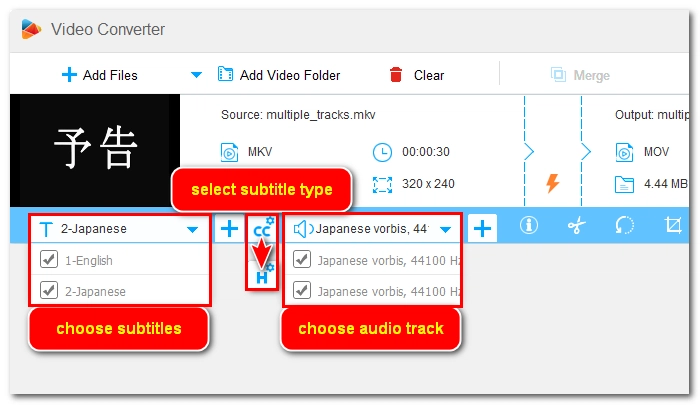
That said, if you only want to keep one specific subtitle or audio track, you can choose whatever output format you prefer. Just remember to select the needed subtitle or audio before export. Here is how to do it in WonderFox:
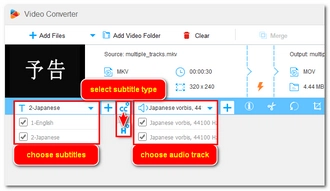
After selecting the output format, go back to the main interface. Click the box labeled with T to select the needed subtitles, and then the speaker box to choose the audio tracks. Additionally, you can click the + button to insert external subtitle files or audio tracks if needed.
Note that if you want to burn subtitles in the video permanently (a fail-safe trick to watch video with subtitles on older devices), you need to change the subtitle type from CC (closed captioning) to H (hardcoded).
👉 Check out the detailed guide on how to convert video with subtitles >>
When converting HD or 4K MKV movies, you likely want to preserve maximum quality. It's possible to convert MKV files with zero loss of quality, and the method is to use the same codec so as to avoid re-encoding, the culprit for quality degradation.
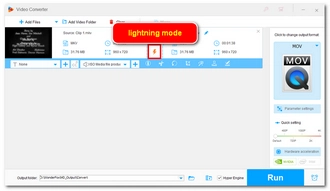
The premise is that the target format must support the codecs used by the MKV file. For instance, to convert an H264-encoded MKV without losing quality, you need to select MP4, MOV, or M4V as the output container format. In WonderFox, you will see a lightning bolt icon ⚡ indicating that the same video codec is used, so you can enjoy lossless MKV conversion and at the same time, super-fast speeds.
Other resources you might be interested in: Check video codec | Change video container only
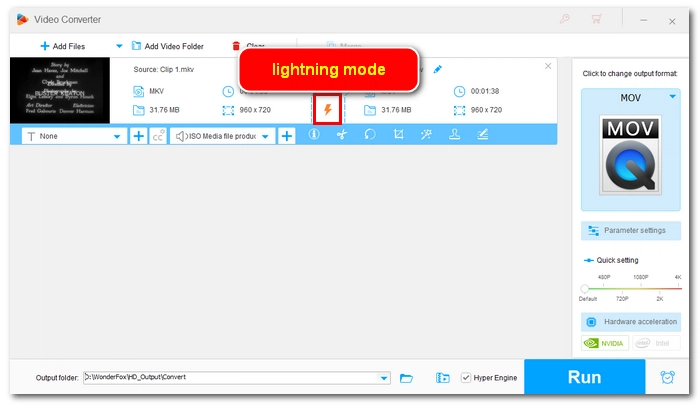
On the other hand, if the target format, such as MPG, does not support the MKV's video codec (like HEVC or VP9), then re-encoding is involved, which will inevitably lead to a certain degree of quality loss, though not be imperceptible to the naked eye. That said, you can minimize the loss by going to Parameter settings and specifying a higher bitrate.
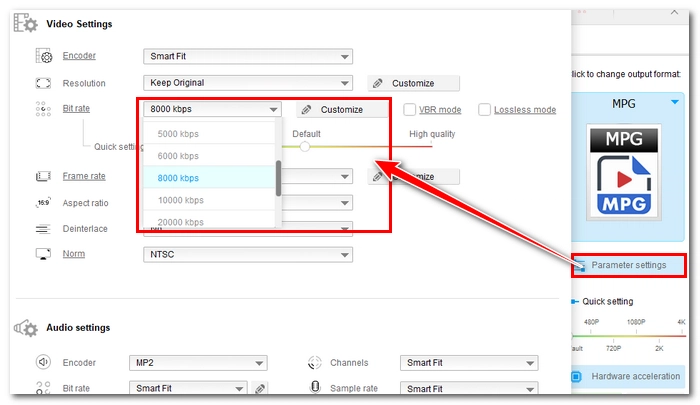
If you need to extract audio from an MKV movie, there are two popular output choices: MP3 and FLAC.
MP3 is for general listening needs, while FLAC is mainly for lossless preservation. You can further adjust the audio settings to meet your standards in Parameter settings:
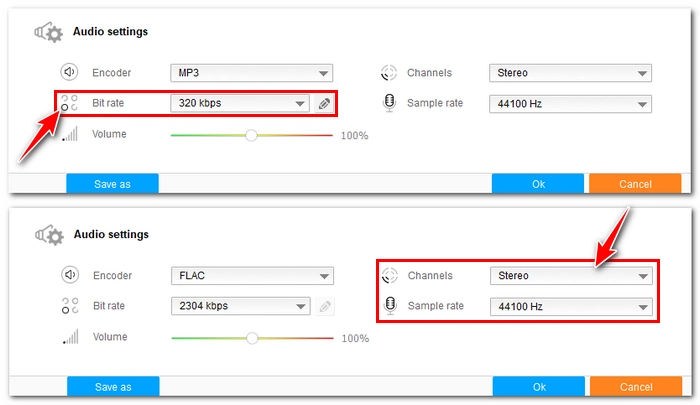
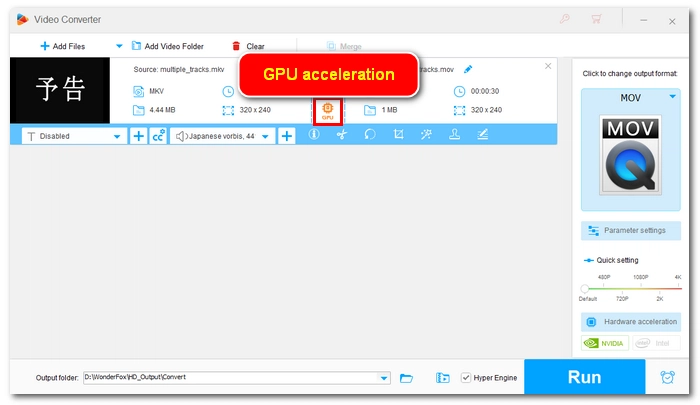
Converting large MKV files can take a very long time. If your computer has the latest version of an NVIDIA graphics card or Intel QSV, you can enjoy up to 30x faster conversion by hardware acceleration when converting MKV to MP4 or MOV using the H264 or HEVC encoder.
In WonderFox, you'll see a GPU icon that indicates the conversion will be accelerated by your GPU.
It's important to understand that MOV is just a container format that can house various codecs. If your original MKV file uses a video codec like HEVC and that codec isn't changed during the conversion to MOV, the editing software will still fail to recognize it. It's recommended to manually set the video encoder to H264 in the software's Parameter settings.
Not if the conversion process does not involve re-encoding (changing encoding parameters such as the codec, resolution, frame rate, or bitrate); otherwise, it will.
The conversion speed is closely related to your computer's hardware performance and whether re-encoding is required. If there is no re-encoding, the conversion typically takes from a few seconds to several minutes, depending on the video length. And if GPU hardware acceleration is enabled, the conversion should be sped up 5 – 30x compared to standard video conversion, depending on your GPU power.

I write about multimedia topics, including video and audio conversion, compression, editing, and downloading. I joined WonderFox in 2020, and my goal is to help readers solve everyday tech problems more easily. Learn how to convert MKV to your desired format with more advanced tips!


I write about multimedia topics, including video and audio conversion, compression, editing, and downloading. I joined WonderFox in 2020, and my goal is to help readers solve everyday tech problems more easily. Learn how to convert MKV to your desired format with more advanced tips!
✅ Convert between other major video and audio files
✅ Batch compress large files
✅ Download movies and music from 1000+ websites
✅ Record computer screen with audio
✅ Make GIFs from videos and photos
✅ Toolbox: slideshow maker, split-screen video creator, ringtone studio, and subtitle extractor
Download for Free
Download for Free

Terms and Conditions | Privacy Policy | License Agreement | Copyright © 2009-2026 WonderFox Soft, Inc.All Rights Reserved