Free Download
Easy Tool to Downmix 5.1/7.1 Surround Sound to Stereo
AuthorRecommended by the author

SoftwareHow to & Tips

Video FormatsConvert Video

Resources

How to Downmix 5.1/7.1 to Stereo in 3 Practical Ways

Author: Kevincy by Kevincy

Updated on Sep 21, 2026

Need to play 5.1 or 7.1 surround audio on stereo speakers, headphones, a laptop, TV, phone, or another 2-channel device? This guide explains what downmixing actually does and shows three practical ways to downmix 5.1/7.1 to stereo. The first method works easily with both standalone audio and videos that contain multichannel sound:

What Does Downmixing 5.1/7.1 to Stereo Mean?

Downmixing combines a multichannel surround track into fewer playback channels. In this case, a 5.1 or 7.1 mix is converted to standard 2.0 stereo so the important parts of the original soundtrack can be heard through left and right speakers.

5.1 audio contains six channels: front left, front right, center, surround left, surround right, and a low-frequency effects (LFE) channel. 7.1 audio expands this to eight channels by adding two more surround/rear channels. Both are common in movies, Blu-ray content, games, and some high-resolution music.

Downmixing is useful when the target player, editor, TV, phone, headphones, or speaker system accepts only stereo, or when you simply want a more portable 2-channel copy. It does not recreate the surround experience in stereo: directional separation is reduced, but a proper downmix blends the center, surround, and other channels into the left/right mix instead of simply discarding them.

The methods below can handle common multichannel sources such as AC-3/E-AC-3, DTS, AAC, FLAC, WAV, and compatible video files. Keep reading!

3 Ways to Downmix 5.1/7.1 Surround Sound to Stereo

Method 1 - Downmix with WonderFox Free HD Video Converter Factory

WonderFox Free HD Video Converter Factory provides a straightforward channel setting for common audio and video conversions on Windows. You can load a 5.1- or 7.1-channel source, choose a suitable output format, and set the output Channels to Stereo.

This is especially useful when a multichannel file has no sound, missing dialogue, or poor compatibility on a stereo-only device. You can also change the audio codec, bitrate, sample rate, and volume when the target device has additional requirements.

Now, downloaddownload the program and follow the steps below.

Free Download Free Download

How to Downmix 5.1 or 7.1 to Stereo with WonderFox

Load 5.1/7.1 Audio or Video File into Program

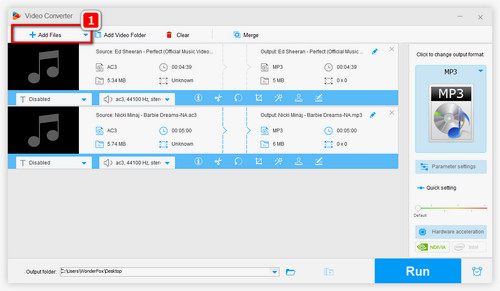
Step 1: Load the 5.1/7.1 Audio or Video File

DownloadDownload and install the freeware on your Windows PC.

Open Converter, click “Add Files”, and import the audio file or video that contains the 5.1/7.1 track.

Drag-and-drop also works, and you can add multiple files into the interface.

How to Downmix 5.1/7.1 Audio to Stereo

Step 2: Choose an Output Format & Set Channels to Stereo

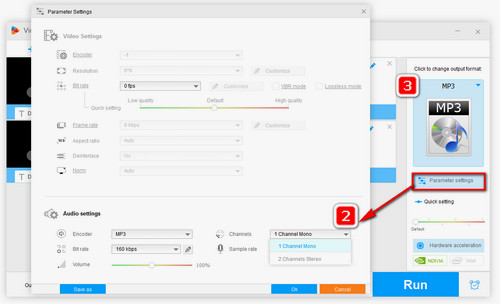
Click the “Output Format” image on the right. For a standalone audio file, choose the audio format you need, such as MP3, AAC, FLAC, or WAV. If the source is a video and you want to keep the picture, choose a video preset instead.

Next, open “Parameter settings”. In the Audio settings area, set Channels to Stereo. This changes a 5.1 (6-channel) or 7.1 (8-channel) source to a 2-channel output. Click “OK” to save the setting.

💡 If needed, you can also adjust the audio encoder, bitrate, sample rate, or volume. Avoid raising these values just for the sake of it; higher settings cannot restore detail that is not present in the source.


Downmix 5.1/7.1 Audio to Stereo

Step 3: Start the Downmix

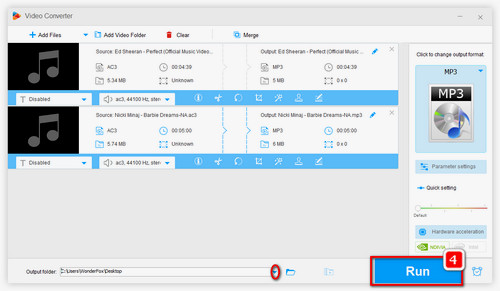
Choose an output folder at the bottom and click the blue “Run” button. When conversion finishes, play the result on the target stereo device and check dialogue, music, and effects for a balanced mix.

Tip for video files: You do not need to extract the soundtrack first. The program can process the audio track while exporting a new video file with stereo sound.

Method 2 - Downmix 5.1/7.1 to Stereo with VLC Media Player

Load 5.1/7.1 Audio or Video into VLCLoad 5.1/7.1 Audio or Video into VLC

VLC Media Player can also transcode a multichannel audio track to stereo, whether the track is stored in an audio file or inside a video. If you are converting a video, VLC can keep the picture while changing the audio to 2-channel stereo. The steps below describe the Windows interface; menu names may differ slightly on macOS or Linux.

Note: VLC is convenient for an occasional file, but its Convert/Save workflow gives you less control over the downmix than a dedicated audio/video converter. Keep the original file until you have checked the result.


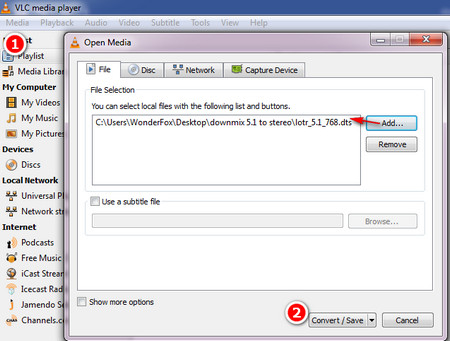
Step 1: Open VLC Media Player and choose Media > Convert/Save (or press Ctrl+R on Windows).

Step 2: Click Add to import the audio or video file with a 5.1/7.1 soundtrack, then click Convert/Save.

How to Downmix 5.1/7.1 Audio or Video to Stereo with VLCDownmix 5.1/7.1 Audio or Video to Stereo with VLC

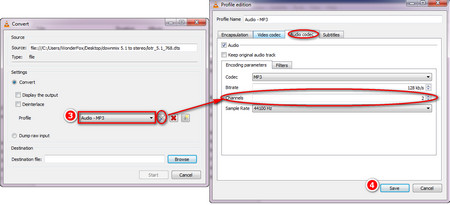
Step 3: Choose a profile based on what you want to keep. For an audio-only source, you can select an audio profile such as Audio - MP3. For a video, choose a video profile with a suitable container and video codec so the picture is retained.

Step 4: Click the wrench icon to edit the selected profile. Open the Audio codec tab, enable Audio if necessary, and set Channels to 2. For video conversion, also make sure the Video codec tab is enabled and configured as needed. Then save the profile.

Step 5: Click Browse to choose the destination and file name, then click Start. After VLC finishes, play the output and confirm that the audio is stereo and, for video files, that the video stream has been preserved correctly.

Method 3 - Downmix 5.1/7.1 to Stereo Online with FreeConvert

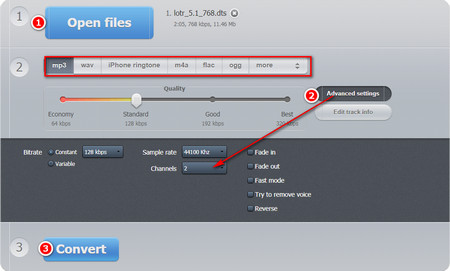
Downmix 5.1/7.1 Audio or Video to Stereo with FreeConvertDownmix 5.1/7.1 Audio or Video to Stereo with FreeConvert

If you prefer a browser-based solution, FreeConvert can work with both audio and video files. This is useful when you want to downmix a standalone 5.1/7.1 audio file or keep the video while changing its multichannel soundtrack to stereo. Its Advanced Settings also let you customize the audio output, including the channel layout.

Step 1: Visit https://www.freeconvert.com/, then open the Audio Converter or Video Converter depending on your source and desired output.

Step 2: Click “Choose Files” and upload your 5.1/7.1 audio or video file. Select the output format you want to keep or convert to.

Step 3: Open “Advanced Settings” (the gear icon). In the audio settings, change Channels/Audio Channels to Stereo (2 channels). If you are converting a video, keep a video output format so the picture remains in the finished file.

Step 4: Apply the settings, start the conversion, and download the finished file.


Keep in mind: FreeConvert is convenient for occasional browser-based conversion, but the file must be uploaded for processing. For large, private, or sensitive media, a local desktop tool may be more suitable.

FAQs about 5.1/7.1 to Stereo Downmixing

Q1. What is the difference between 5.1 and 7.1 audio?

5.1 uses six channels in total, while 7.1 uses eight. The extra channels in 7.1 provide additional surround/rear separation. Both can be downmixed to the same two-channel stereo layout when the playback system does not support surround sound.


Q2. Does downmixing reduce audio quality?

It changes the presentation because separate surround channels are folded into left and right, so some spatial separation is inevitably lost. Whether there is also codec quality loss depends on the output format and encoding settings. A lossless output such as FLAC or WAV avoids lossy audio compression, while MP3/AAC re-encoding can introduce some compression loss.


Q3. Can I downmix a movie with 5.1/7.1 audio without extracting the soundtrack?

Yes. A converter that accepts video input can keep the video and create a new file with a stereo audio track. Choose a video output profile, then set the audio Channels option to Stereo.


Q4. Can I downmix on macOS or Linux?

Yes. VLC is available on Windows, macOS, and Linux, and browser-based converters work across major desktop systems.

Wrap-up

Downmixing 5.1 or 7.1 surround sound to stereo is mainly a compatibility task: it lets multichannel audio play properly through ordinary 2-channel speakers and headphones while keeping the main dialogue, music, and effects in the mix.

For Windows, WonderFox Free HD Video Converter Factory provides the most direct channel setting and can handle both audio and video sources. VLC is a useful cross-platform alternative, while an online converter is convenient for smaller, non-sensitive files.

Free Download Free Download


Kevincy

Kevincy Berel

Kevincy joined the WonderFox team in 2014 and has been a senior columnist ever since. With over two decades of experience in the video editing industry, he shares tutorials, tips, and how-to guides on video/audio processing and personal DVD backups. Family-oriented and passionate about helping others, he is dedicated to making video and audio processing easier for readers.

Email

Need More Batch and Media Tools?

HD Video Converter Factory Pro

HD Video Converter Factory Pro

HD Video Converter Factory Pro adds more conversion, editing, recording, downloading, and hardware-acceleration features for heavier workflows. It also supports 5.1/7.1 channel settings, so you can use the same basic Stereo selection when processing multichannel audio or video files.

Free Download HD Video Converter Factory Pro Free Download HD Video Converter Factory Pro

More Related Articles

The Best Video to MP3 Converter for PC Windows How to Remove Audio from Video: Easy Methods for Any Device How to Convert Stereo to 5.1 Surround Sound?
How to Add Audio to Video for Free Offline & Online How to Fix the Problem of Audio not being in Sync with Video Best Audio Compressor: How to Reduce Audio File Size Easily?