

Have an MKA file that your phone, music player, editor, or other app cannot open? This guide shows you how to convert MKA files to common audio formats in batches on Windows. It also covers the reverse process when you specifically need to create an MKA file from another audio format.
 Kevincy | Jul 23, 2026
MKA is the audio-only extension commonly used for the Matroska container. An MKA file can carry audio encoded with different codecs, so compatibility depends on both the container and the audio stream inside it. A player may recognize the file while another device, editor, car stereo, smart TV, or mobile app refuses to open it.
In that situation, converting the file to a more familiar audio format is often the simplest fix. You can choose a format that better matches your playback device, editing software, storage needs, or quality requirements. Common choices include MP3, FLAC, WAV, M4A, OGG, WMA, and others.
If you have many MKA tracks, an offline converter is usually more practical than processing files one by one online. The method below supports batch conversion and lets you change the output format without complicated command lines.
WonderFox HD Video Converter Factory Pro helps you batch convert MKA files to common audio formats, customize audio settings, and convert other audio files to MKA when needed.
WonderFox HD Video Converter Factory Pro is a straightforward option for converting MKA files on Windows. It supports batch processing, a broad range of audio output profiles, and adjustable audio parameters. The interface is graphical, so you do not need to write commands or configure a long list of technical options before starting.
Get the program and follow the steps below. 👇
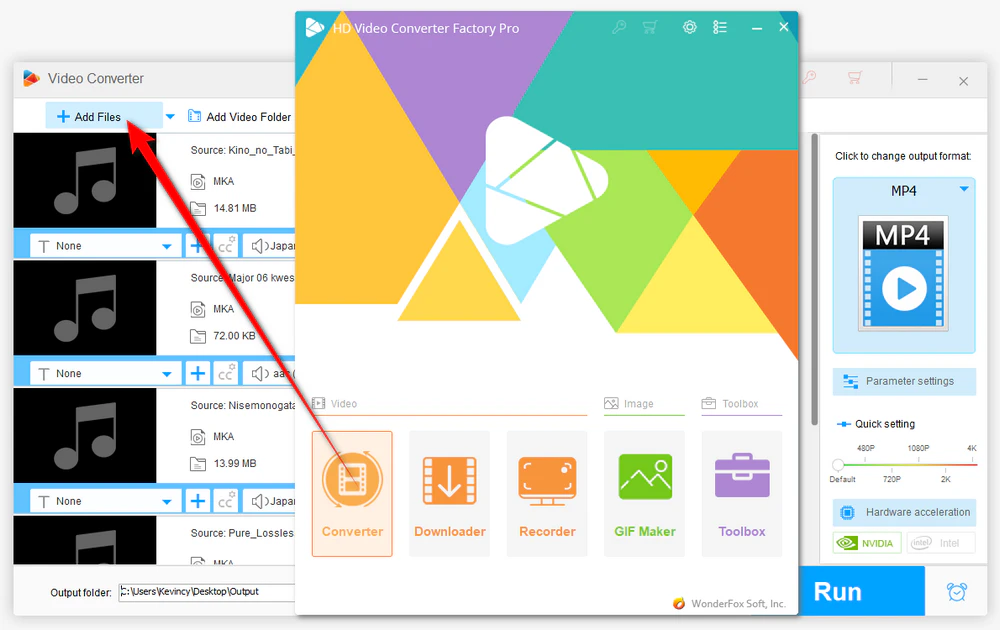
DownloadDownload and install HD Video Converter Factory Pro on your PC. Launch it and open the "Converter" module. Click "Add Files" to import one or multiple MKA files. You can also drag and drop the files directly into the main window.
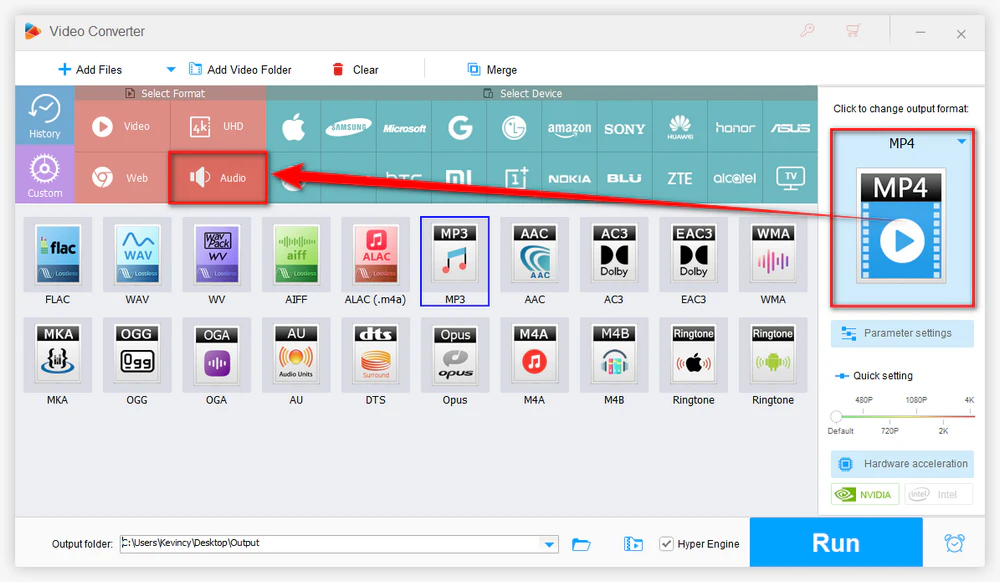
Click the large format image on the right to open the output profile list. Go to the "Audio" category and select the format you need.
💡 For general playback and sharing, choose a widely supported format such as MP3 or M4A (AAC). If you want a lossless output for archiving or editing, FLAC, ALAC or WAV may be more suitable. Other profiles are available for specific devices and workflows. Choose the format based on where the converted audio will actually be used rather than simply changing the file extension.
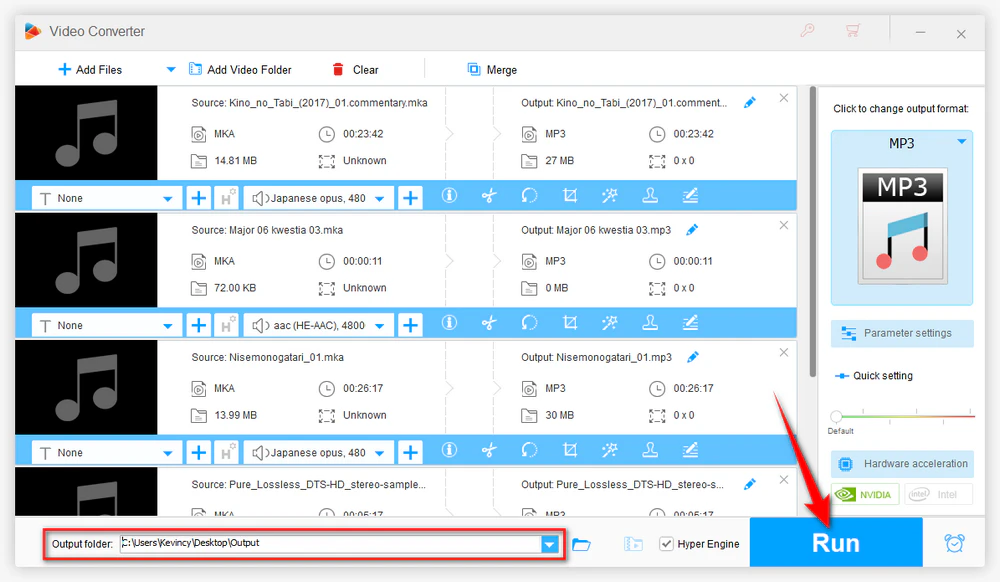
Click the inverted triangle at the bottom to set an output location. Then press "Run" to start converting the MKA files. When multiple files are loaded, the program processes them as a batch using the selected output profile.
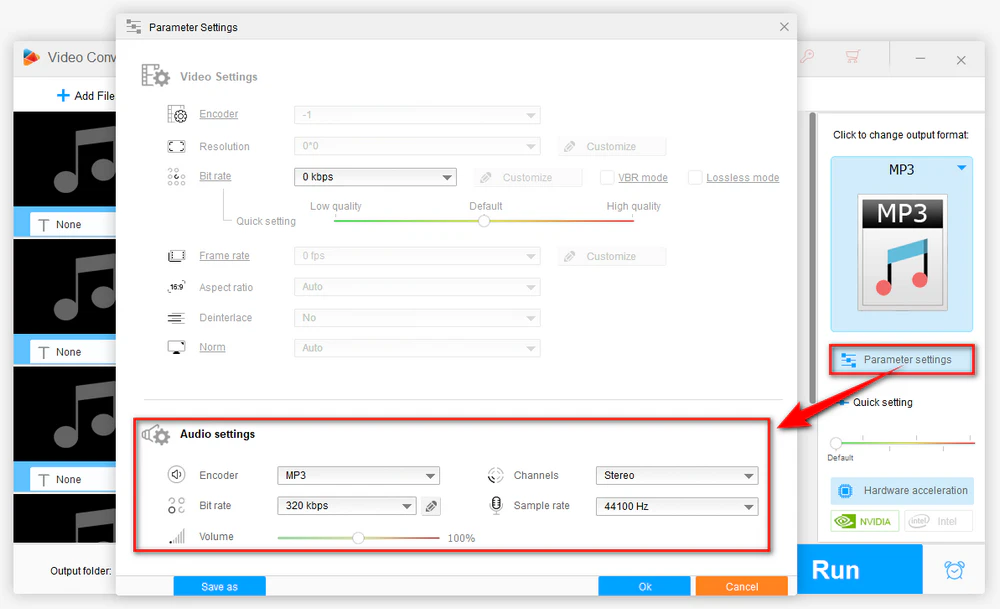
Open "Parameter settings" before conversion if you need to change the audio encoder, bitrate, sample rate, channel mode, or volume. For most compatibility fixes, the preset defaults are enough. Change these values only when your target device or application has a specific requirement.
MKA is not usually the first choice for everyday playback, but it can still be useful when you specifically want a Matroska audio container. HD Video Converter Factory Pro can also handle this reverse conversion.
Step 1. Open the "Converter" module and import your source audio files.
Step 2. Open the output format list, go to the "Audio" category, and choose "MKA".
Step 3. Set the output folder and click "Run" to create the MKA files.
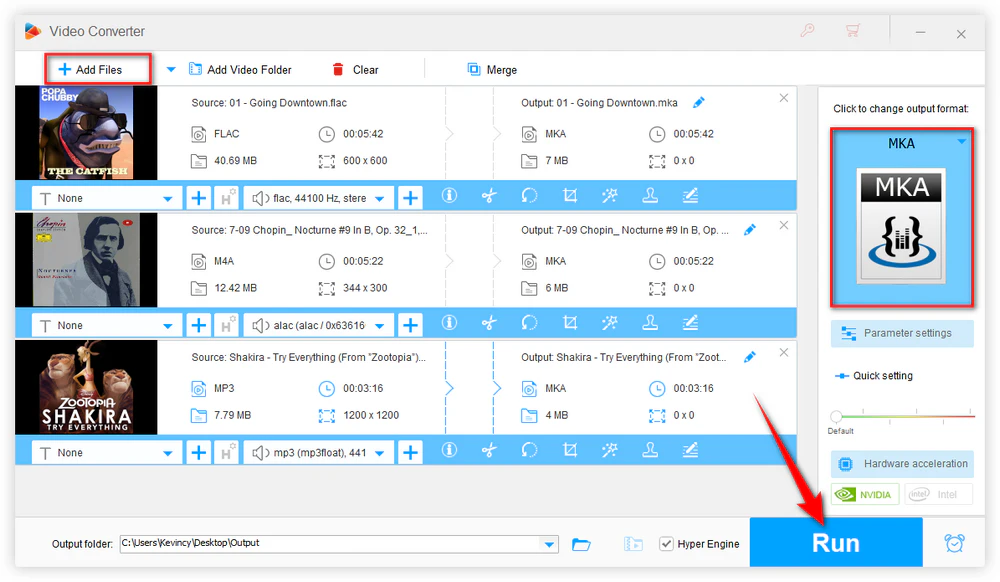
👉 Keep in mind that changing an audio file to MKA does not automatically improve its sound quality. MKA is a container, so the final quality still depends on the source audio and the codec and settings used during conversion.
Convert MKA to a more compatible audio format for playback and editing, or select MKA under the Audio category when you need to create MKA files from other audio sources.
Match the output to your real goal. A highly compatible lossy format is usually better for portable playback and sharing, while a lossless format is more suitable when you want to preserve the decoded audio for editing or archiving.
Do not expect a lossy-to-lossless conversion to restore quality. If the audio inside the original MKA file is already compressed with a lossy codec, converting it to FLAC or WAV can avoid another lossy generation, but it cannot recreate information that was removed earlier.
Avoid increasing bitrate or sample rate without a reason. Setting values far above the source usually makes the output file larger without adding real detail. For routine conversions, keeping the default preset or staying close to the source settings is generally the safer approach.
Check channels when compatibility matters. If a device does not support multichannel audio, selecting stereo may solve playback problems. On the other hand, keep the original channel layout when your target system supports it and you want to preserve surround sound.
An MKA file is a container, and the audio stream inside it can use different codecs. A player may support the MKA container but still lack support for the particular codec stored in your file. Converting the audio to a format and codec supported by the target device is often the easiest solution.
Yes. Command-line users can use a cross-platform tool such as FFmpeg to process Matroska audio and convert it to another supported audio format. If you prefer a GUI-based audio converter, XLD or fre:ac is highly recommended.
For a small, one-off file, a browser-based audio converter can be convenient and can also be used from many mobile browsers. Check the service's current MKA support, file-size limits, upload policy, and privacy terms before sending personal or large audio files. For batches or large files, local desktop software is usually more practical.
Converting MKA files does not have to be tied to one specific output format. The best choice depends on where you plan to play, edit, share, or store the audio. With HD Video Converter Factory Pro, you can batch convert MKA files to common audio formats, adjust the necessary audio settings, and also convert other audio files to MKA when you have a specific need for that container. Pick the format that fits your actual workflow and avoid unnecessary parameter changes for a cleaner, simpler conversion.

Kevincy joined the WonderFox team in 2014 and has been a senior columnist ever since. With over two decades of experience in the video editing industry, he shares tutorials, tips, and how-to guides on video/audio processing and personal DVD backups. Family-oriented and passionate about helping others, he is dedicated to making video and audio processing easier for readers.


Kevincy joined the WonderFox team in 2014 and has been a senior columnist ever since. With over two decades of experience in the video editing industry, he shares tutorials, tips, and how-to guides on video/audio processing and personal DVD backups. Family-oriented and passionate about helping others, he is dedicated to making video and audio processing easier for readers.

WonderFox HD Video Converter Factory Pro
1. Fix any unsupported format issue with 500+ presets.
2. Compress large files with imperceptible quality loss.
3. Save HD/FHD/2K/4K/8K videos from 1000+ sites.
4. Trim, merge, crop, rotate, flip, watermark video.
5. Record live streams, gameplay, webinar, video call.
6. Make animated GIFs from video or image sequence.
7. Ringtone Studio, Subtitle Extractor, and MORE...

Privacy Policy | Copyright © 2009-2026 WonderFox Soft, Inc. All Rights Reserved
