


Do you need to send a video via email? What if the video you attached is too large to email?
Considering most email services such as Gmail, Yahoo Mail, Outlook, and Exchange limit the attachment file size to under 25MB, emailing most videos, especially high-definition ones, is difficult. That leads to this question: How do you compress a video for an email?
If you are looking for an easy and quick way to reduce video size for email sharing, don't worry, you are in the right place. Below, we'll show you the best ways to effectively compress videos to email size for smooth uploading. These work for many types of videos, including MP4, MOV, MKV, etc. Continue reading.
Before compressing your file, you need to know the exact file size limit of your email service. Here's a quick rundown of the maximum attachments size for popular email and messaging platforms:
| Maximum Attachment Size Limit | |
|---|---|
| Gmail | 25 MB |
| Yahoo Mail | 25 MB |
| ProtonMail | 25 MB |
| Outlook | 20 MB |
| iCloud Mail | 20 MB |
| Discord (Free Tier) | 10 MB |
🔔 Even if your email provider supports 25MB, file sizes can grow slightly due to the network overhead of encoding. So the safest way is to compress your video to around 20 MB for a smooth upload.
The best way to email a video that's too big is to use a dedicated video compressor for email.
WonderFox HD Video Converter Factory Pro is a powerful and versatile video converter on Windows that can easily convert and compress videos to file sizes small enough to email in Outlook, Gmail, Yahoo, and more. It supports almost any video format and provides output size control, which is very helpful for targeting the desired size. As the cherry on top, it allows you to batch compress multiple videos in one go, saving you a lot of time and effort.
Let's download and install download and install the software and see how to compress a video to send via email.
 Download for Free
Download for Free
Download for Free
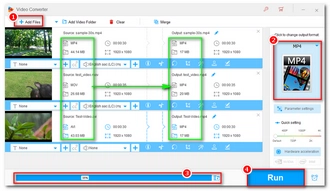
Step 1: Launch WonderFox HD Video Converter Factory Pro and enter the Converter module.
Step 2: Click Add Files in the upper-left corner to add the videos you want to compress. You can also directly drag and drop files here.
Step 3: Expand the right-side output format page. Then click the Video tab and choose your preferred video format. MP4 is recommended.
Step 4: Click the Compress button at the bottom of the converter and drag the slider to set a compression ratio. You can see the real-time output size as you change the compression ratio.
Step 5: When you reach your desired size, click the Run button to export the compressed video.
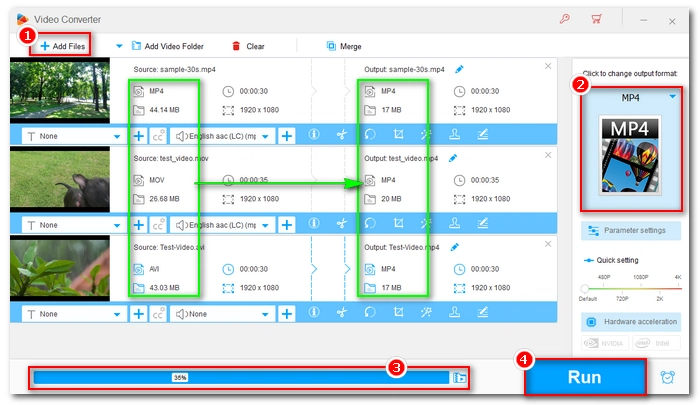
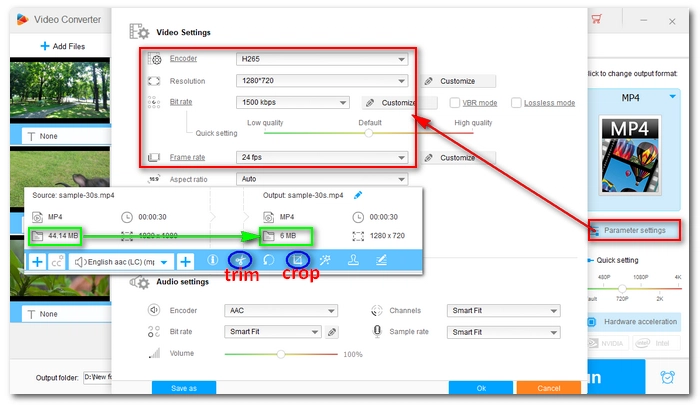
Besides the compression button, the software also provides flexible parameter adjustment and includes a built-in video trimmer/cropper that you can use to manually reduce the size of your videos. This can be helpful if you want to maintain a relatively good output quality at the same time.
For instance, you can select MP4 as the output format and then open Parameter settings and adjust the parameters as follows:
If the output size still exceeds the email size limit, you can use the Trim or Crop tool to delete unimportant parts from the video.
💡 You can refer to this article: How to Compress a Video: Beginner's Guide to explore more compression tips.
 Download for Free
Download for Free
Download for Free
If your video is extremely long or large, shrinking it below 25MB may ruin the quality of the video too much. In those instances, check out these other options:
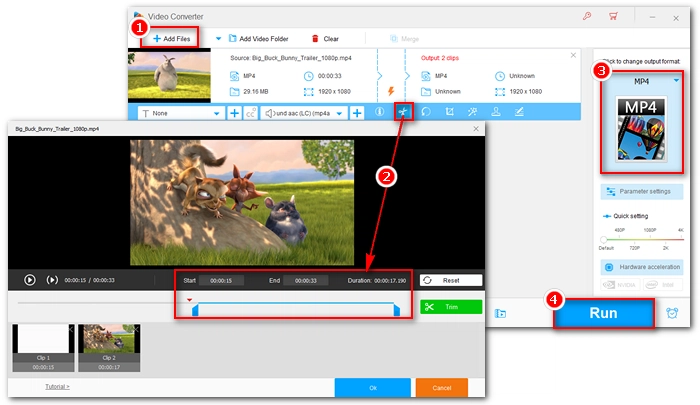
As mentioned, you can use the video editor offered by WonderFox HD Video Converter Factory Pro to easily and quickly trim unnecessary segments or split a long video into shorter clips and send them in separate emails.
Step 1: Open WonderFox HD Video Converter Factory Pro and click Converter.
Step 2: Drag your video into the program interface.
Step 3: Click the Trim button to open the video trimmer.
Step 4: Drag the two sliders in the timeline or type in the Start and the End time to select the part you want to keep. Then click Trim. Repeat this step and you can create multiple clips.
Step 5: Select an output format on the right. Keeping the same video format is recommended.
Step 6: Press Run to export the final video.
If you don't want to lose any video data, you can compress your video into a Zip file.
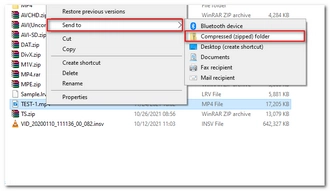
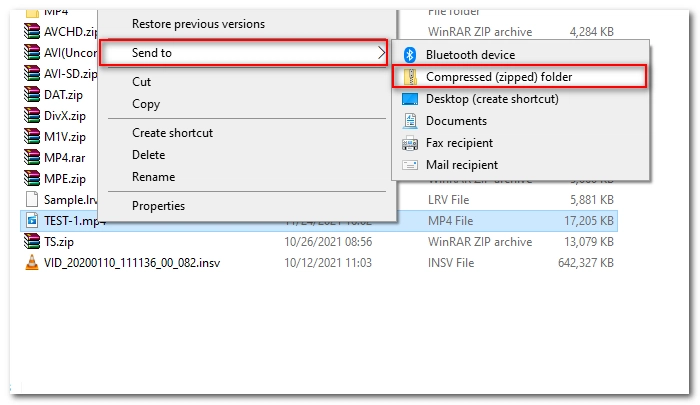
In Windows 10, you can locate the video file you want to email and right-click on it. Then select Send to > Compressed (zipped) folder. A zip file containing your video will be created in the same folder as the original video.
Note, however, since the video is already compressed, using Zip compression typically saves only an additional 5% to 10% of space. So if your file is 100 MB, this method cannot magically shrink it to under 25 MB.
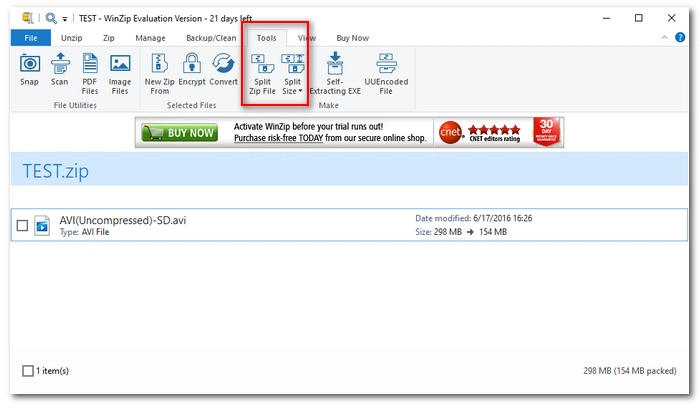
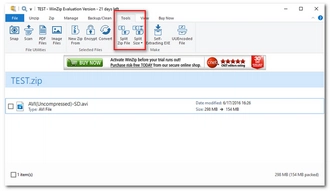
That said, you can use a third-party file compressor such as WinZip or WinRAR to split the Zip file into smaller pieces or simply create new split Zip files. Here's how to use WinZip to zip video into multiple small pieces to overcome email size limits.
Step 1: Open WinZip.
Step 2: Add or drag the video or Zip file into the tool.
Step 3: Click the Tools tab on the top.
Step 4: Click the Split Size option and choose a desired size.
Step 5: Click Split Zip File. Then choose a folder and rename the file.
Step 6: Click OK. The split zip files are created and you will see one file with a .zip extension and multiple other files with numeric extensions such as .z01, .z02, etc.
🔔 The recipient will need the appropriate software, in this case WinZip, to unpack the split Zip file properly.
In fact, you don't necessarily need to compress a video to email. Instead, you can generate a link to your video by uploading it to a video sharing site like YouTube. This way, you can email the video link without size limitations. One advantage is that the recipient can watch the video directly without downloading. Here's how to email a large video with a YouTube link.
Step 1: Open YouTube.
Step 2: Click Create > Upload Video.
Step 3: Click Select Files to choose the video you want to send via email.
Step 4: Fill in the details of the video. Then click Next.
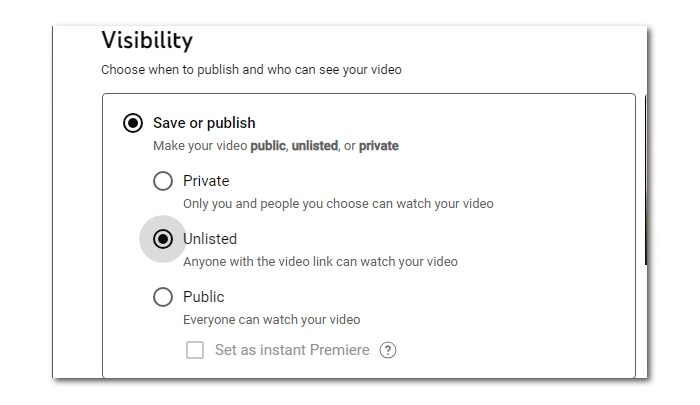
Step 5: In the last step, you can choose Private or Unlisted to share the video with only the people you choose. Then click Save.
Step 6: Now copy the video link and share it with your friends, colleagues, etc.
In addition to YouTube, you can also upload videos to Vimeo, Facebook, Twitter, etc. any video-sharing site you are familiar with, then share the video link without hassle.
Similar to sharing a video link, uploading a video to a cloud service can also help you bypass the email attachment file size limit. This can be private and secure, depending on your sharing settings. But the best thing about using a cloud service is that it won't compromise the video quality, so you can really send a video without losing quality. Follow along with the instructions below to learn how to upload your video to the cloud for email sharing.
Step 1: On your computer, go to drive.google.com.
Step 2: Click New > File Upload.
Step 3: Choose the video you want to upload.
Step 1: Go to dropbox.com.
Step 2: Click Upload > Files.
Step 3: Choose the video and click Open.
Step 1: Sign in with your OneDrive.
Step 2: Select Upload.
Step 3: Choose the video and click Open.
Once you have finished uploading, you can share the video with anyone.
| Method | Description | View Details |
|---|---|---|
| Use a Video Compressor | - Compress any video file while keeping a relatively good quality; - Support batch compression. |
>> View Details |
| Trim or Split the Video | - Keep original quality but lose information inevitably. | >> View Details |
| Compress the Video to a .zip File | - Keep original quality but low compression ratio, suitable for small files; - Recipients need compatible software to unpack zipped files. |
>> View Details |
| Share a Video Link | - Sharing videos without worrying about size limits, but may not be private. | >> View Details |
Attachment file size is always a factor to consider before emailing a video. Fortunately, even if your video is too large for emailing, you can find many ways to make it small enough to email, including using a video compressor, a zip tool, cutting and splitting video, creating a video link, and uploading to cloud service. Just pick the method you like and get started.
That's all we want to share about how to compress a video for email and hope you'll find this article helpful. Thanks for reading. Have a great day!
Also read: Send Large Video on Messenger | Send Large Video on WhatsApp | Send Long Video on Discord

WonderFox DVD Ripper Pro
WonderFox DVD Ripper Pro is a professional DVD ripping program that can easily rip any DVD (whether homemade or commercial) to all popular formats including MP4, MKV, MOV, AVI, MP3, WAV, H264, H265, Android, iPhone, and so on. It also lets you edit and compress DVD videos efficiently. Download it to enjoy a fast and trouble-free DVD ripping experience.
Download for Free
Download for Free
The file size of a video is affected by several factors, including compression method (encoding), resolution, bit rate, frame rate, and length.
High-efficiency encodings such as HEVC, VP9, and AV1 can create smaller videos at the same level of quality compared to inefficient encodings such as MPEG-2, WMV, and MPEG-4.
Also, the higher the resolution, bit rate, and frame rate, the larger the video file size.
The easiest way to make a video less MB is to use a video MB reducer like WonderFox HD Video Converter Factory Pro. With its help, you can efficiently reduce high MB to low MB while keeping a decent video quality.
A video size reducer like HD Video Converter Factory Pro is going to greatly help you make a video less than 25MB.
When you attach a file to an email, the email client converts the binary file to MIME (Base64) format, which adds about 33% overhead to the file size. So a 24MB file on your hard drive might be ~31MB in transit, which would be over the 25MB limit. So, it's best to target the final size around 20MB for seamless sending.
Not if you do it right. For example, converting an old video into MP4 with H265 encoding or downscaling a 4K video to crisp 720p can significantly reduce file size while keeping a very clean visual quality on phone screens.
You can email videos in many formats. But for compatibility, MP4 is the best video format for emailing.

I write about multimedia topics, including video and audio conversion, compression, editing, and downloading. I joined WonderFox in 2020, and my goal is to help readers solve everyday tech problems more easily. In this article, you can learn the most effective ways to compress videos for email without error.


I write about multimedia topics, including video and audio conversion, compression, editing, and downloading. I joined WonderFox in 2020, and my goal is to help readers solve everyday tech problems more easily. In this article, you can learn the most effective ways to compress videos for email without error.

Terms and Conditions | Privacy Policy | License Agreement | Copyright © 2009-2026 WonderFox Soft, Inc.All Rights Reserved