Best Way to Split Video into Frames
 Recommended by the author
 How to & Tips
 Convert Video

 by Kevincy
Updated on Sep 11, 2026
A video is made up of a sequence of still images called frames. Sometimes you may want to save one exact moment as a picture, while in other cases you may need a complete image sequence for analysis, editing, thumbnails, reference images, or other projects. This guide shows how to extract frames from videos with five practical methods, plus extra options for command-line users and Mac users. You can save the results as JPG, PNG, or other common picture formats depending on the tool:
Frame rate is measured in frames per second (FPS). A 30 FPS video, for example, contains about 30 displayed frames for each second of playback, so extracting every frame from a long video can quickly create thousands of images and use a lot of storage space. Before you start, decide whether you need one still image, regularly sampled frames, or every frame in the clip. The five methods below cover all three situations, including two dedicated desktop programs, VLC, a JPG-only utility, and a browser-based option.

Extract Video Frames as Pictures
WonderFox Video to Picture Converter is a straightforward Windows tool for turning common video files into image sequences or capturing a single still. You can control the output rate, resize the pictures, select part of a clip, and save the results as JPG, PNG, BMP, GIF, ICO, and other common image formats.


WonderFox Video to Picture Converter is a dedicated Windows program for turning videos into image sequences or saving a single frame as a picture. It supports many common video formats and can output JPG, PNG, BMP, GIF, ICO, and other image formats. You can adjust the output size and rate, extract the whole video or only a selected section, and use the Capture function when you need just one still image.
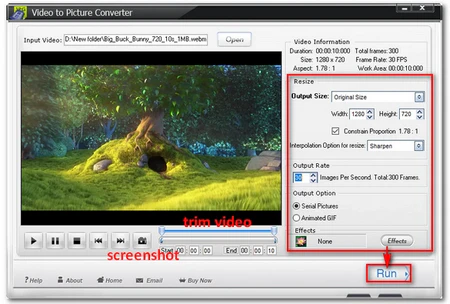 Extract Frames with WonderFox Video to Picture Converter
Step 1. Download and install WonderFox Video to Picture Converter on your Windows PC:
https://www.videoconverterfactory.com/download/video-to-picture.exe
video-to-picture.exe
Step 2. Launch the program and click Open to import your video. If you only need one picture, move to the wanted frame and use Capture. To extract frames from only part of the video, select the desired section with the slider.
Step 3. Adjust Output Size and Output Rate as needed, then choose Serial Pictures as the output option. To extract as many frames as possible from the source, you can set the output rate to match the video's frame rate. You can also apply an effect before export.
Step 4. Click Run. In the Output window, choose a destination folder and select an image format such as JPG, PNG, BMP, GIF, or ICO. Click Run again to start extracting the frames.
Tips. WonderFox Video to Picture Converter is an older utility. Some newer codec variants may not import even when the file extension itself is supported. For example, WebM files encoded with VP9 or AV1 may not import, while VP8 is supported. If a file cannot be opened, try another method below or convert the video to a more compatible codec first.
Video to Picture developed by Watermark-Software is a separate program from WonderFox Video to Picture Converter. It can split common video files into image sequences, resize the output frames, adjust the extraction frame rate, apply effects, and save pictures in formats such as JPG, BMP, PNG, and TGA.
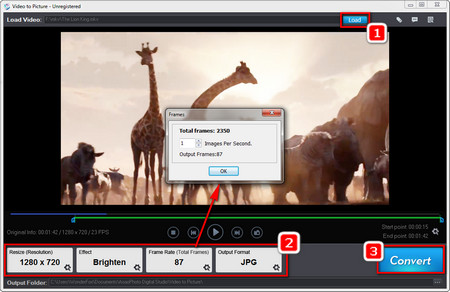 Convert Video to Image Sequence
Step 1. Download and install Video to Picture by Watermark-Software:
https://www.watermark-software.com/products/video-to-picture/video-to-picture.exe
video-to-picture.exe
Step 2. Open the program, click Load, and choose the video you want to process.
Step 3. After the file is loaded, adjust the resolution, effects, frame rate, output image format, and quality according to your needs.
Step 4. Click the three-dots button to choose an output folder, then click Convert to start extracting pictures from the video.
Tips. The unregistered version of Video to Picture by Watermark-Software may add watermarks to exported files. A license is required to remove them.
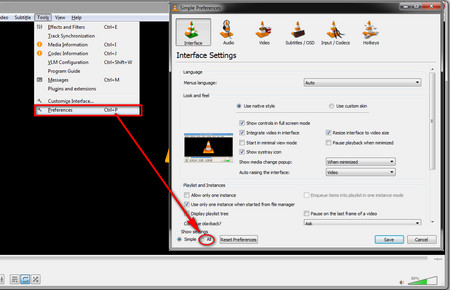 Extend All Settings
 VLC Media Player is more than a player. Its Scene video filter can automatically save frames while a video is playing, which makes it useful when you want pictures at a fixed interval without installing a dedicated frame extractor.
Step 1. Open VLC Media Player and go to Tools > Preferences. At the bottom-left, set Show settings to All.
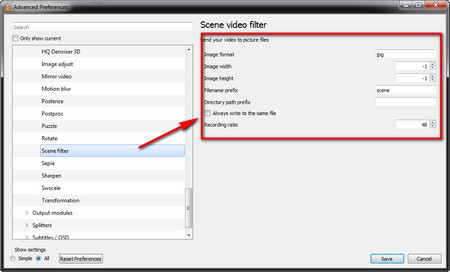 Scene Video Filter
 Step 2. Expand Video > Filters and select Scene filter.
Step 3. Set the image format and destination folder, then enter a Recording ratio. VLC saves one image for every specified number of input frames. For example, with a 24 FPS video, a recording ratio of 48 saves about one picture every two seconds.
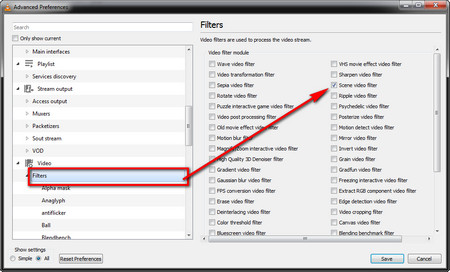 Extract Frames from Video VLC
 Step 4. Return to Video > Filters, enable Scene video filter, and click Save.
Step 5. Open and play the video. VLC will save frames automatically according to the recording ratio until playback stops.
Tips. The Scene video filter remains enabled for later playback. After you finish extracting frames, return to the filter settings and disable it so VLC does not keep saving pictures from other videos.
Free Video to JPG Converter is a simple Windows option when JPG is the only output format you need. It can import multiple videos and lets you extract every frame, save one picture every specified number of frames or seconds, or generate a fixed total number of images. Its current download page lists support for Windows 11, 10, 8, and 7.
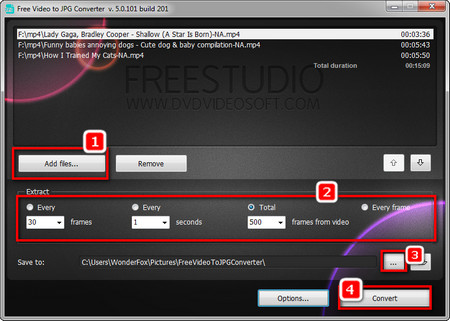 Extract Stills from Video
 Download Address:
https://www.dvdvideosoft.com/products/dvd/Free-Video-to-JPG-Converter.htm
Step 1. Click Add Files and choose one or more videos from your computer.
Step 2. Choose how often to save a frame: every specified number of frames, every specified number of seconds, a fixed total number of pictures, or every frame.
Step 3. Choose a folder for the JPG images.
Step 4. Click Convert to start the extraction.
If you only need to process a short or moderate-size clip and do not want to install software, Ezgif Video to JPG and Video to PNG can extract an image sequence in a browser. The services accept many common video formats, currently allow files up to 200 MB, and let you select a time range, output size, and frame rate. The JPG extractor supports 1-30 FPS and output widths up to 1920 pixels.
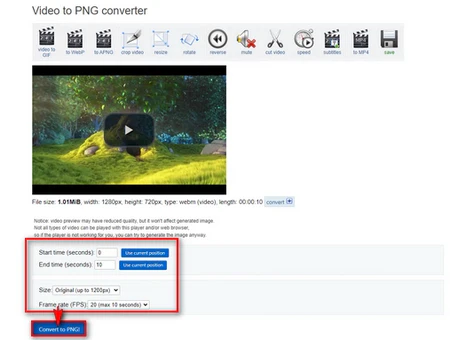 Extract Video Frames Online with Ezgif
Step 1. Open the JPG or PNG frame extractor and upload your video. You can also paste a direct video URL when available.
Step 2. Set the start and end time if you only want part of the clip. Then choose the output size and FPS. A lower FPS extracts fewer images; a higher FPS produces a denser frame sequence.
Step 3. Start the conversion. After processing, preview the extracted pictures and download individual frames or save the whole sequence as a ZIP archive.
Note: Online tools require uploading the source video. Avoid using them for private or sensitive footage. Ezgif states that uploaded files are automatically deleted after one hour. Also, you can try other alternatives such as Online-Convert.com or Aspose Video to Image.
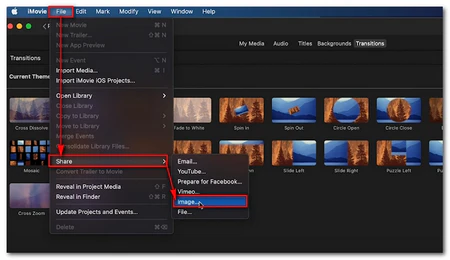 Extract Video Frame with iMovie
Mac users don’t need to install any software because iMovie, the Mac’s built-in video editing application, will suffice.
Step 1. Open iMovie.
Step 2. Import your MOV file into the timeline. Then scrub through the clip and locate the frame you want to extract.
Step 3. Click “File” > “Share” > “Image”.
Step 4. Enter the file name and the location. Then click “Save”.
A “Share Successful” message will appear when the process is complete.
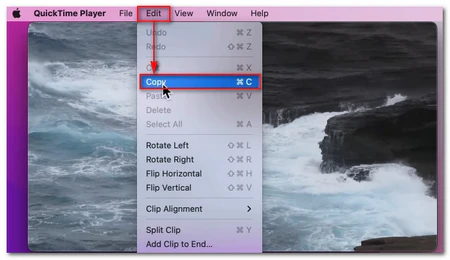 Save a Single Video Frame with QuickTime
Besides iMovie, QuickTime can also help you copy video frames into images.
Step 1. Open QuickTime.
Step 2. Play your video file and go to the position where you want to save the image.
Step 3. Then go to “Edit” > “Copy”.
Step 4. Open the Preview app.
Step 5. Go to “File” > “New from Clipboard”. Now the copied image will be displayed.
Step 6. At last, use Command + S and save the image.
If you are comfortable with commands, FFmpeg is one of the most flexible ways to export video frames. It works with a wide range of video codecs and lets you save every decoded frame, sample frames at a chosen interval, or process only a specific time range.
Extract every decoded frame as PNG:
ffmpeg -i input.ext frame-%06d.png
Save one JPG every two seconds:
ffmpeg -i input.ext -vf fps=1/2 frame-%06d.jpg
Extract frames from a five-second section starting at 00:00:10:
ffmpeg -ss 00:00:10 -i input.ext -t 00:00:05 frame-%06d.png
Replace input.ext with your actual file name, such as sample.mp4. The numbered pattern keeps the exported images in sequence. The %06d specifies that the output images will be named in a sequence with six digits (e.g., frame-000001.png, frame-000002.png, and so on). For long or high-frame-rate videos, make sure the destination drive has enough free space before exporting every frame.
Q1. How do I extract only one frame from a video?
Use a snapshot or Capture function instead of exporting a full image sequence. Seek to the exact moment you want, pause the video, and save that frame as a picture.
Q2. Should I save video frames as JPG or PNG?
Choose JPG when you want smaller files for photos, thumbnails, or easy sharing. Choose PNG when you prefer lossless image quality or need to preserve fine details. Extracting every frame as PNG can use much more storage space.
Q3. Why does a supported video file sometimes fail to import?
A file extension does not tell the whole story. Videos with the same extension can use different codecs, and an older frame extractor may not decode newer codecs. Try another method in this guide or convert the video to a more compatible codec first.
Q4. Does saving a frame as PNG make it higher quality?
No. PNG avoids additional lossy image compression, but it cannot restore detail that is not present in the original video frame. The extracted picture is still limited by the source video's resolution, compression, and motion blur.
Q5. Can I turn a video into a complete JPG or PNG image sequence?
Yes. Use a frame-sequence tool such as WonderFox Video to Picture Converter, VLC, Ezgif, or FFmpeg. If you truly need every frame, match the extraction rate to the source frame rate or use FFmpeg to export every decoded frame.
In Summary
Now you have several practical ways to save pictures from a video without worrying much about the source file extension. WonderFox Video to Picture Converter is convenient for image sequences and flexible picture formats, while Video to Picture by Watermark-Software provides another desktop option with adjustable frame rate, size, effects, and image formats. VLC and Free Video to JPG Converter work well for interval-based extraction, Ezgif is handy for occasional browser-based jobs, and FFmpeg gives advanced control over full or timed frame sequences. Mac users can also save individual frames with iMovie or QuickTime. Before exporting every frame, remember that long or high-frame-rate videos can generate thousands of images and use a large amount of storage.

Kevincy joined the WonderFox team in 2014 and has been a senior columnist ever since. With over two decades of experience in the video editing industry, he shares tutorials, tips, and how-to guides on video/audio processing and personal DVD backups. Family-oriented and passionate about helping others, he is dedicated to making video and audio processing easier for readers.


Kevincy joined the WonderFox team in 2014 and has been a senior columnist ever since. With over two decades of experience in the video editing industry, he shares tutorials, tips, and how-to guides on video/audio processing and personal DVD backups. Family-oriented and passionate about helping others, he is dedicated to making video and audio processing easier for readers.
All-in-one Video & Audio Converter for Windows

WonderFox HD Video Converter Factory Pro
• Convert between any video and audio files.
• Download video and music from 1000+ sites.
• Batch convert video format, size, and quality.
• Record computer screen with audio.
• Capture still frames and make GIFs from videos.
• Make a slideshow, video collage, ringtones, and extract subtitles.