

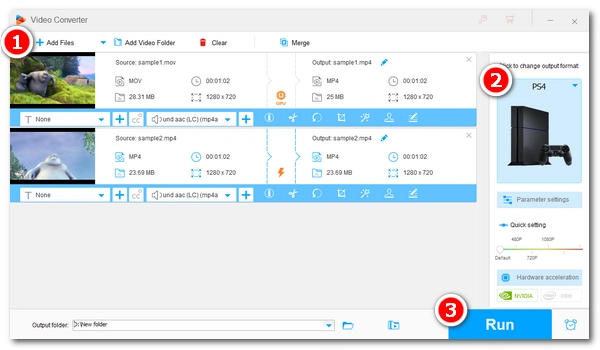
While the PS4 is a great media hub, it's notoriously picky about codecs. You might have noticed that even common files like MKV, AVI, or MP4 often trigger 'Unsupported Format' errors. This usually happens because the console doesn't support the internal encoding, such as DTS audio in MKVs or Xvid in AVI files.
If you own a PS4 and want to play movies on PS4 via USB, you'd better check out this article first, which will teach you the fastest and best way to convert videos to PS4 format for smooth playback. Read on to learn more.
WonderFox HD Video Converter Factory Pro is a dedicated video-to-PS4 converter that can help you convert any video to PS4 format for easy playback.
It offers a PS4 profile that’s already configured for optimal playback performance on PS4, so you don’t have to change any settings or parameters. This means even if you are a beginner, you can optimize your videos for PS4 in just one click. At the same time, the software can output files while maintaining original quality, so you can keep good playback quality on PS4.
The software also allows batch conversion and offers super-fast speed thanks to its hardware acceleration support and Lightning Mode. So it'll be quick to export the final files. Below, you will learn the detailed steps to convert video for PS4 using this software.
Your choice to fast convert any video, including MKV, AVI, and MP4, to PS4 with high quality preserved. Try WonderFox HD Video Converter Factory Pro now!
 Download for Free
Download for Free
Download for Free
* You need to download and install download and install the software to convert your video for PS4.
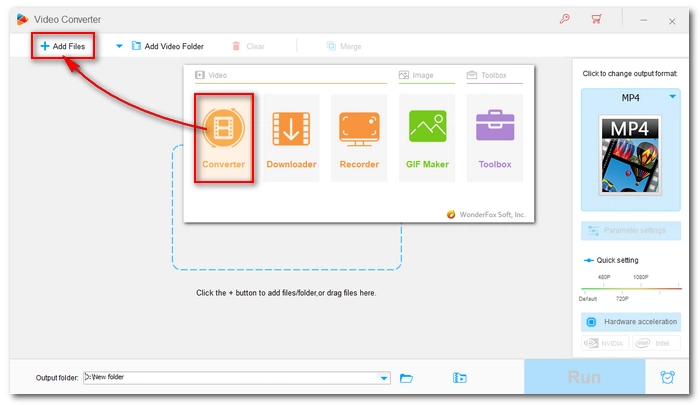
Launch WonderFox HD Video Converter Factory Pro and open Converter.
Next, click Add Files in the upper-left corner to add your video files to the program. A direct drag-and-drop import is also supported.
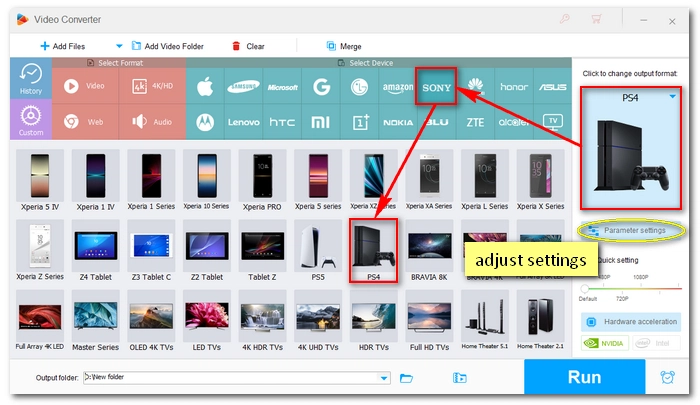
Expand the output format page on the right side of the program. Then click the Sony tab and choose the PS4 profile.
💡 When you select the PS4 profile, the software automatically handles the complex stuff: it converts MKV's DTS audio to AAC and switches AVI's unsupported Xvid video to H.264. That said, you can still open Parameter settings and adjust the parameters to meet your specific needs.
For example, the frame rate of PS4 is set to 24 fps by default. But if your video is recorded at 25 fps, you can change the frame rate to 25 fps to avoid re-encoding the frame rate. But if the original frame rate is over 30 fps, you need to keep the frame rate below 30 fps to ensure that all PS4 devices support it.
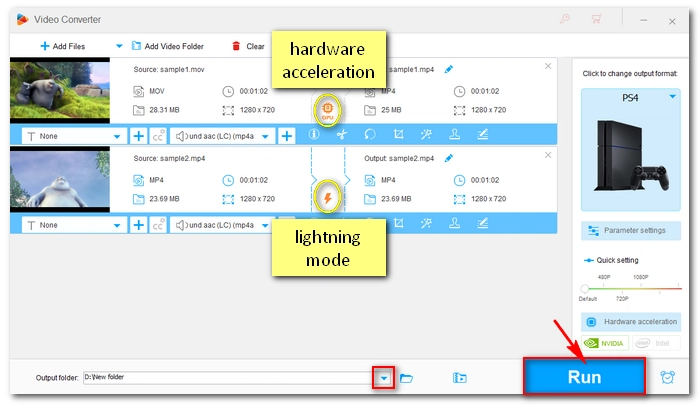
Click the ▼ button at the bottom of the program to set an output path and press Run to convert the video to PS4.
💡 The conversion should take a few seconds to several minutes depending on the source file size. But if your computer supports GPU acceleration, the processing time could be greatly reduced. Also, if the Lightning Mode (appeared as ⚡ in the middle of the task) is triggered, the conversion will be even faster.

After the conversion, you can put the converted video in a folder and transfer it to your USB (make sure that the USB is formatted with either exFAT or FAT32). Then connect your USB to your PS4 to enjoy your movies without error.
🎯 Common PS4 Playback Fixes:
🔔 NOTE: WonderFox HD Video Converter Factory Pro provides a 5-minute free trial where you can try all features, including the Lightning Mode and Hardware Acceleration. But if you need to convert longer videos (> 5 minutes), you’ll need to buy a license to activate the full version of the software. Currently, the 50% off coupon for the software is still valid.
Download for Free
Download for Free
It’s not a bad idea to watch videos on PS4. But keep in mind that PS4 allows you to play videos only in specific formats. If you are unsure about PS4-supported formats, you can use a PS4 video converter like WonderFox HD Video Converter Factory Pro to convert video to PS4 format directly. With this program, you can convert MP4, AVI, MKV, and other formats into PS4-compatible formats easily.
That’s all. I hope this article was useful. Thanks for reading. Have a great day!
Hot search: PS4 DVD
The PS4 supported video formats include
Generally speaking, MP4 with H264/AAC is the best video format for PS4.
There are multiple reasons why your PS4 won’t read MP4:
This usually happens if the MKV contains an H.265 (HEVC) codec. The PS4 (Standard/Slim) is limited to H.264. Converting the MKV to the standard PS4 MP4 profile will fix this instantly.
Yes, but only if the AVI is encoded in a specific way. If your AVI files aren't showing up or playing, they likely use the Xvid codec. Using a converter to change them to H.264/AAC is the most reliable solution.
WonderFox HD Video Converter Factory Pro lets you speed up the video-to-PS4 conversion using hardware acceleration and Lightning Mode.
If your computer is equipped with the latest version of Intel QSV or Nvidia NVENC graphics card, you can take advantage of the hardware to increase the conversion speed up to 25 times.
On the other hand, if your video is already encoded to fit PS4, but just in an unsupported container like MOV, it will trigger Lightning Mode, which can provide instant and lossless conversion.

WonderFox DVD Ripper Pro
Want to enjoy your DVDs on PS4 without limitations? Let WonderFox DVD Ripper Pro fast convert your DVD collection to digital for PS4 in one click. Then you will have no problem watching DVDs on PS4. All DVDs are supported and the quality is guaranteed. Download the software to try it out.
Download for Free
Download for Free

Terms and Conditions | Privacy Policy | License Agreement | Copyright © 2009-2026 WonderFox Soft, Inc.All Rights Reserved