

AVCHD, MTS, and M2TS are often treated as three interchangeable video formats, but they are not quite the same thing. AVCHD is a recording specification and folder structure, while MTS and M2TS are file extensions commonly used for the video streams inside or derived from that structure. This guide explains how they fit together, what really changes between MTS and M2TS, and where MP4 fits into the picture.
 Kevincy | Aug 24, 2026
AVCHD stands for Advanced Video Coding High Definition. Sony and Panasonic introduced it as a recording format for consumer and prosumer HD camcorders and cameras. The important point is that AVCHD is not simply a filename extension. It defines how video, audio, metadata, playlists, and related files are organized for recording and playback.
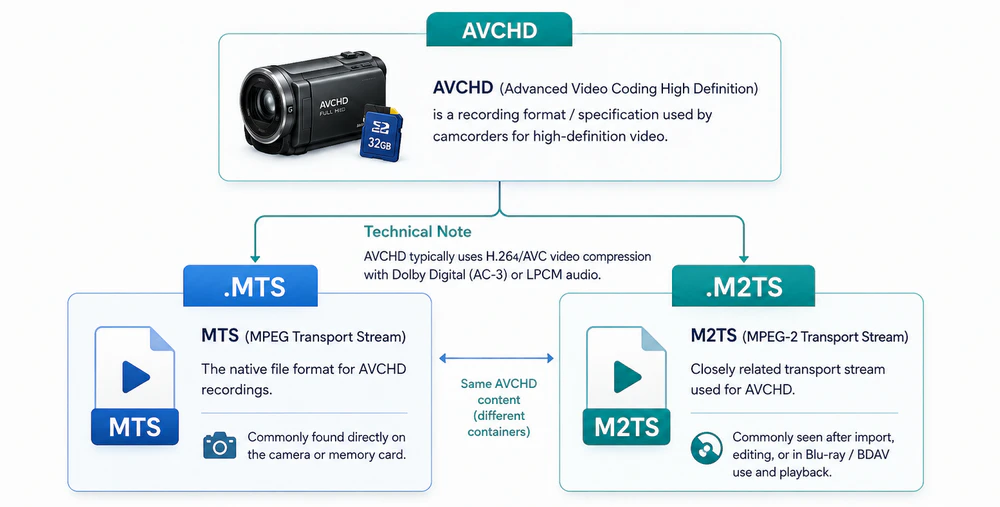
In a typical AVCHD recording, the video is compressed with MPEG-4 AVC/H.264. Audio is commonly stored as Dolby Digital (AC-3) or Linear PCM, depending on the camera and recording mode. These streams are multiplexed in an MPEG transport stream. AVCHD 2.0 later expanded the specification with modes such as 1080/50p and 1080/60p and stereoscopic 3D recording.
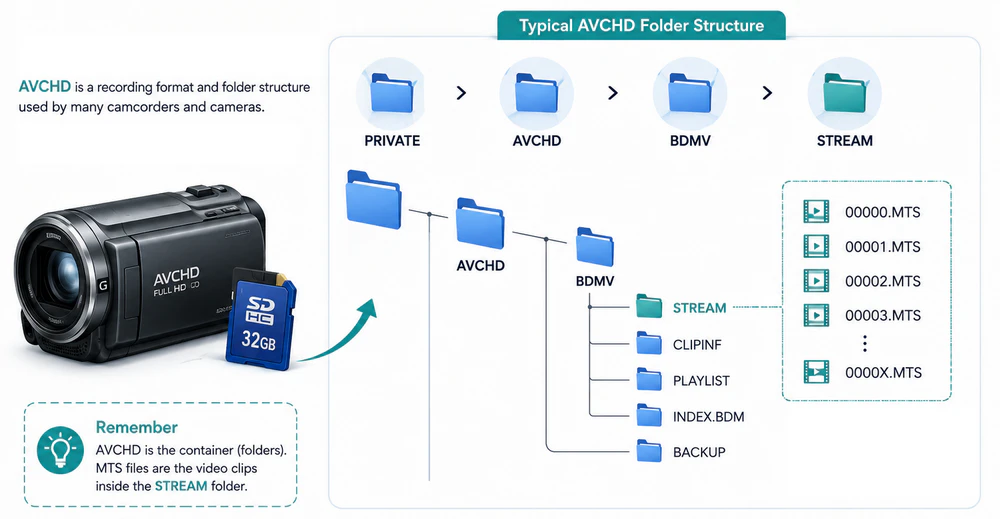
On a memory card, AVCHD usually appears as a folder tree rather than one standalone movie. A common structure looks like PRIVATE > AVCHD > BDMV. The actual video clips are normally stored in the STREAM folder as files ending in .MTS. Other folders can contain clip information, playlists, thumbnails, and management data.
This is why copying only the .MTS clips can be enough for simple playback, but keeping the whole AVCHD folder structure is safer when you plan to archive footage or import it into professional editing software. The extra metadata can help an editor recognize recording dates, clip relationships, and recordings that were split into multiple files by the camera.
WonderFox HD Video Converter Factory Pro can batch convert camera MTS/M2TS footage to MP4, MOV, MKV, H.264, HEVC, and hundreds of device presets for easier playback, editing, and sharing.
The easiest way to understand the relationship is to separate the recording system from the movie file:
AVCHD is the recording specification. It defines the supported video/audio formats and the directory and metadata structure used by compatible cameras and recording media.
MTS and M2TS are filename extensions used for MPEG transport stream video files. In an AVCHD workflow, those files normally carry the H.264 video and AC-3 or LPCM audio recorded by the camera.
So, when someone says "an AVCHD file," they usually mean an .mts or .m2ts video that contains AVCHD-compliant streams. Technically, however, the complete AVCHD recording can include much more than that single video file.
| Term | What It Is | Typical Use | Important Note |
|---|---|---|---|
| AVCHD | A camera recording specification and folder structure | HD camcorder/camera recording, AVCHD media, some Blu-ray-oriented workflows | Not a standalone file extension |
| MTS | A common extension for MPEG transport stream files | Frequently seen directly on AVCHD camera cards | Often contains the same AVCHD media as an M2TS file |
| M2TS | A common extension for BDAV/MPEG-2 transport stream files | AVCHD after software import, Blu-ray/BDMV content, and other transport-stream workflows | Not every M2TS file is AVCHD |
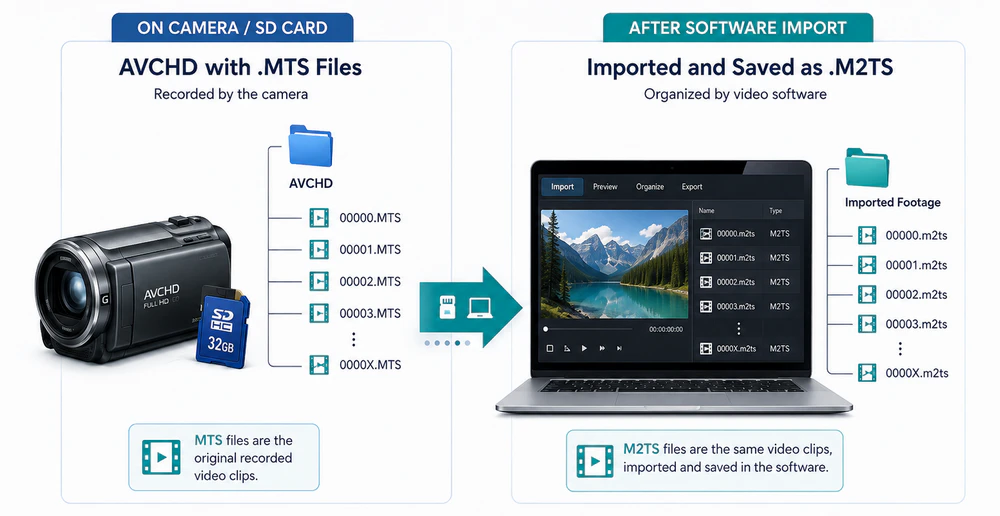
For AVCHD footage specifically, MTS and M2TS are much closer than many comparison charts make them sound. Sony states that there is no functional difference between MTS and M2TS files associated with AVCHD. A clip copied directly from a camera by drag and drop commonly keeps the .mts extension, while software used to import or manage AVCHD footage may save or present the same kind of clip with the .m2ts extension.
That means changing an AVCHD filename from 00001.MTS to 00001.M2TS usually does not change the video, audio, quality, or file size. It only changes the extension. Renaming can sometimes help an application recognize a file, but it is not video conversion and cannot fix an unsupported codec, damaged stream, interlacing issue, or other decoding problem.
The confusion comes from the fact that M2TS is also used outside AVCHD. Blu-ray Disc movie streams commonly use the .m2ts extension in a BDMV or BDAV structure. Those Blu-ray M2TS files are not limited to the exact same codec combinations used by AVCHD and may contain other video/audio formats permitted by the Blu-ray specification.
As a result, statements such as "MTS is for cameras and M2TS is for Blu-ray" are useful as a rough description of where you may encounter the extensions, but they are not a strict technical rule. An AVCHD camera workflow can contain either extension, while an M2TS file from a Blu-ray source may not be AVCHD at all.
The same caution applies to copy protection. M2TS itself is not an encrypted format. Commercial Blu-ray titles may be protected at the disc/content level, whereas normal camera-recorded MTS or M2TS clips are typically ordinary media files. The extension alone does not tell you whether a file is protected.
| Aspect | MTS | M2TS |
|---|---|---|
| Primary role | Commonly used for camera-originated AVCHD recordings | Used for imported AVCHD clips and widely used as a Blu-ray/BDAV/BDMV transport-stream file |
| Common source | Often copied directly from Sony, Panasonic, Canon, and other AVCHD cameras or memory cards | Often created by AVCHD import software, Blu-ray extraction, disc-authoring tools, or video-editing software |
| Common AVCHD context | Frequently found in the camera/card's AVCHD STREAM folder | Frequently seen after software import; the same AVCHD media may simply use the .m2ts extension |
| AVCHD video/audio | Typically H.264/AVC video with Dolby Digital (AC-3) or LPCM audio | Can contain the same AVCHD streams; Blu-ray M2TS can also contain other codecs allowed by the Blu-ray specification |
| Blu-ray menus / AACS | The .mts extension itself does not provide Blu-ray menus, BD-J, or AACS protection | The .m2ts file itself does not provide BD-J or AACS either; however, M2TS streams are commonly used inside Blu-ray structures where BD-J interactivity and AACS protection may be present at the disc/system level |
| Hardware playback | Normally works best in the originating AVCHD camera and AVCHD-aware devices; support for loose MTS files varies by player | Common in Blu-ray playback workflows, but support for a loose M2TS file still depends on the device and the codecs inside it |
| Editing support | Widely supported by modern NLEs such as Premiere Pro and Final Cut Pro; keeping the complete AVCHD folder can preserve metadata and spanned-clip information | Also supported by modern NLEs; a standalone Blu-ray M2TS file may not carry menu, chapter, or playlist context that lives elsewhere in the BDMV structure |
| Quality/file size | No inherent difference | No inherent difference when the underlying streams are the same |
| Can be renamed? | Usually yes for AVCHD clips | Usually yes for AVCHD clips; renaming does not convert or decrypt the media |
AVCHD and MP4 are often listed side by side in a camera's recording menu, but they solve different problems. AVCHD was designed around camcorder recording and AVCHD/Blu-ray-style playback workflows. MP4 is a general-purpose multimedia container that is easier to copy, upload, stream, and play on phones, browsers, TVs, and common editing apps.
Some comparisons claim that AVCHD always gives higher quality while MP4 always produces smaller files. That is not a reliable rule. Video quality and file size mainly depend on the codec, resolution, frame rate, bitrate, and encoder settings, not just whether the file ends in .mts, .m2ts, or .mp4. Some older cameras did offer higher-quality recording modes only under AVCHD, which is why that idea became common. On a modern camera, you should compare the actual recording modes rather than the container name alone.
| Aspect | AVCHD | MP4 |
|---|---|---|
| What it is | Camera recording specification + folder structure | General-purpose multimedia container |
| Typical extension | .mts / .m2ts | .mp4 |
| Video codec | MPEG-4 AVC/H.264 | Often H.264 or HEVC/H.265; other codecs are possible |
| Audio | Dolby Digital (AC-3) or Linear PCM | AAC is common; other audio formats are possible |
| Sharing/portable playback | Less convenient | Usually easier and more widely accepted |
| Blu-ray/legacy AVCHD workflow | Designed for it | Not the native AVCHD structure |
| Quality/file size | Depends on recording settings | Depends on recording settings |
Choose AVCHD when you specifically need an AVCHD-compatible camera/archive/Blu-ray workflow, want to preserve the camera's original AVCHD structure, or your camera offers a recording mode you need only under AVCHD.
Choose MP4 when you want a straightforward file for daily playback, transfer, editing, uploading, or sharing. For most everyday workflows today, MP4 is the more convenient option, provided the camera's MP4 recording mode offers the resolution, frame rate, bitrate, and audio features you need.
Many modern desktop players can open MTS and M2TS directly. VLC is a common free option. If a file shows video but no sound, stutters, or refuses to open, the problem may come from the audio codec, H.264 profile/level, interlaced video, damaged stream, hardware decoding, or device-specific support rather than the extension itself.
If your editor supports AVCHD natively, import the camera folder or AVCHD package instead of selecting random .MTS files whenever possible. This is especially useful for long recordings that the camera split into multiple clips. The metadata can help compatible software join or organize those clips correctly.
If your editor struggles with AVCHD, transcoding to a format it handles well is often more reliable. MP4/H.264 is convenient for general-purpose editing and sharing, while an intraframe or editing-oriented codec may be better for heavier post-production when your editor supports it.
If you want to preserve the camera original, back up the entire AVCHD directory before converting anything. A converted MP4 can be convenient for viewing, but it should not automatically replace the original camera structure if long-term preservation matters to you.
If your AVCHD clips already play and edit correctly, there is no requirement to convert them. But when a phone, TV, editor, presentation app, or website does not accept MTS/M2TS, WonderFox HD Video Converter Factory Pro provides a simple Windows workflow for batch conversion.
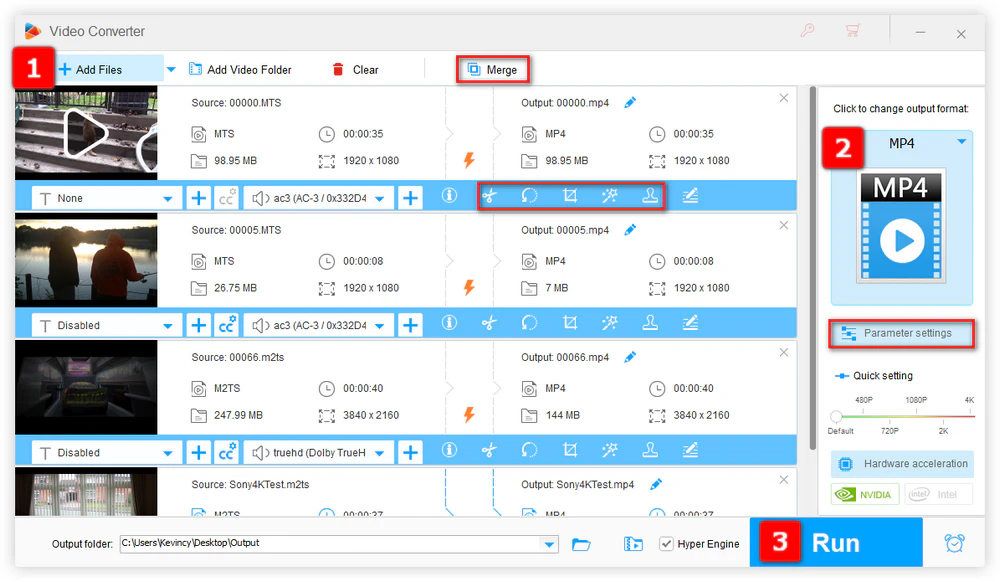
Step 1. DownloadDownload, install, and run this easy-to-use program on your Windows PC. Open the Converter module and add your .MTS or .M2TS files. You can also add a folder when you have many clips.
Step 2. Open the output format list. For general compatibility, choose MP4 with H.264. You can also choose MOV, MKV, HEVC/H.265, or a device preset depending on where the files will be used.
Step 3. Then choose an output folder and click Run.
💡 Keep the original resolution and frame rate when possible. If the source is interlaced and your target device or workflow prefers progressive video, enable deinterlacing deliberately rather than changing settings at random.
👉 The software also supports trimming, merging, cropping, rotating, compressing, subtitle/audio handling, and GPU-accelerated conversion. These extras can be useful when camera footage needs a little cleanup before sharing.
For AVCHD camera footage, they are functionally the same in most cases. Sony notes that AVCHD clips copied directly from a camera commonly use .MTS, while clips imported with software may use .M2TS. The media content can remain unchanged.
No. AVCHD commonly uses M2TS/MTS transport streams, but .m2ts is also widely used for Blu-ray/BDAV content and can contain streams that are not AVCHD-compliant. It is more accurate to say that AVCHD can use M2TS, but M2TS is broader than AVCHD.
Usually yes for normal AVCHD clips. Renaming changes only the file extension, not the underlying media. If an app cannot decode the video or audio, a simple rename may not help; use a compatible player or convert the file instead.
Not automatically. A camera may offer different quality modes under AVCHD and MP4, but the container name itself does not determine quality. Compare the actual codec, resolution, frame rate, bitrate, color sampling, and audio settings provided by your camera.
They are part of the AVCHD management structure. The .MTS files in STREAM contain the main video, while files in folders such as CLIPINF and PLAYLIST store clip information and playlist data. Compatible software can use this metadata when importing and organizing footage.
You can often still play the individual MTS files, but you may lose metadata and information used to manage split or related clips. For a camera-original backup, keep the full folder structure. Make separate converted files for everyday viewing if needed.
The simplest way to remember the relationship is this: AVCHD is the recording system; MTS and M2TS are common file extensions for the transport-stream video inside that workflow. In AVCHD use, MTS and M2TS normally do not differ in picture quality or functionality. M2TS, however, also appears in broader Blu-ray/BDAV contexts, so an M2TS file is not automatically an AVCHD recording.
Compared with AVCHD, MP4 is usually easier to move, edit, upload, and play across modern devices. Still, there is no need to convert your original MTS/M2TS footage if your current workflow supports it. Keep the original AVCHD folder for archival purposes, and create MP4 or another format only when compatibility or editing requirements make conversion useful.

Kevincy joined the WonderFox team in 2014 and has been a senior columnist ever since. With over two decades of experience in the video editing industry, he shares tutorials, tips, and how-to guides on video/audio processing and personal DVD backups. Family-oriented and passionate about helping others, he is dedicated to making video and audio processing easier for readers.


Kevincy joined the WonderFox team in 2014 and has been a senior columnist ever since. With over two decades of experience in the video editing industry, he shares tutorials, tips, and how-to guides on video/audio processing and personal DVD backups. Family-oriented and passionate about helping others, he is dedicated to making video and audio processing easier for readers.

WonderFox HD Video Converter Factory Pro
1. 500+ optimized presets for fast conversion in bulk.
2. Compress large-sized videos with no quality loss.
3. Trim, merge, crop, rotate, flip, watermark video.
4. Download HD/FHD/4K/8K videos from 1000+ sites.
5. Record live streams, gameplay, webcam, video call
6. Make animated GIFs from video or image sequence.
7. Make ringtones, extract subtitles & more...

Privacy Policy | Copyright © 2009-2026 WonderFox Soft, Inc. All Rights Reserved
