
DVD player shows no signal or picture on your TV? Your TV doesn’t recognize your DVD player? This article can help you troubleshoot different ‘DVD player not working on TV’ issues all at once.
WonderFox DVD Ripper Pro: Digitize Your DVDs for Easy Playback

Many of my friends and I still enjoy DVDs the traditional way: playing them on a TV via a DVD player. But sometimes, it’s not uncommon to run into problems when plugging in a DVD player to a TV.
I’ve personally experienced and seen others encounter DVD player not working issues on TVs like Samsung, TCL, Vizio and Roku. This is a persisting headache if not resolved properly. Therefore, in this article, I want to help whoever’s having this problem to solve the issue once and for all with my troubleshooting experience.
Let’s start!
Before getting down to the solutions, it’ll help to determine what type of issue you’re having so you can find the appropriate solution easier.
There are three main types of issues when playing DVDs on a TV via a DVD player, including
If your TV says an unknown device or doesn’t show any information when you connect your DVD player to the TV, it’s mainly because of a loose connection or a frayed cable. You need to tightly connect the DVD player to the TV using a working cable.
This is a common error that can be caused by several factors, including the wrong input source, incompatible DVD settings, mismatched video signals, outdated TV firmware, and more.
Your TV may also show you a black screen but play the sound. This is most likely related to connecting to the wrong video input port, especially if you’re using A/V cables or component cables. It could also be due to the improper settings of the DVD player.
I’d recommend everyone first do a power reset on devices with the problem. It will rule out some of the uncertainty and, with luck, fix the problem on the spot.
You may be wondering how to get your TV to recognize your DVD player. Well, the right connection between your DVD player and your TV is the key, and, in fact, the basis for all successful media playback.
While it’s easy to plug the cable into both your DVD player and TV, you might accidentally use the wrong port if multiple options are available.
On some smart TVs, there are different input ports for doing different things. But for hooking up a DVD player, you should look for an HDMI port for connecting with an HDMI cable, three-color sockets (red, white, yellow) for A/V cables, or five-color sockets for component cables.
Make sure that you connect your DVD player to the correct input, and if you’re using A/V or component cables, pay extra attention to matching them to the same colored inputs. Also, make sure the cable is securely connected to both devices so it won’t come off easily.
After setting the connection correctly, you’ll also need to select the correct input source.
Because many smart TVs can have different input sources, such as HDMI 1, HDMI 2, Video 1, Video 2, etc., you need to switch to the input that you use for your DVD player so that the signal from the DVD player can be detected and present to you.
You can do it on your remote. Just find the button labeled "Input", "Source", or "TV/VIDEO" to enter the input page, select the correct input, and press OK. If you forget what input you use, go check around the input port on the back or side of your TV, or test them one by one.
Try changing the cable if you suspect it is the cause of your TV not recognizing the DVD player.
As cable is very fragile, it can be easily broken by accident. You can test the cable with your other device and see if it still functions. If not, buy a new one. But keep in mind that the cable should be compatible with both your DVD player and TV.
After trying the above methods to no avail, I’d advise you to test a different disc in the DVD player to determine whether the problem comes from the disc. If only this disc won’t play, it may be damaged. So, check for scratches, dust, or fingerprints on the surface of the disc, clean it with a soft cloth, and try playing it again.
The DVD player itself may be the problem that causes it not to work on your TV. Just like testing the disc, you should also test the DVD player on another TV or computer and see if it is broken. If it is, it’s time to purchase a new DVD player.
Sometimes, outdated TV firmware can affect DVD playback. You can find instructions to update the firmware on the TV manuals or the manufacturer’s website. This will contribute to the overall compatibility and performance of the TV.
Check the resolution settings in your DVD player and make sure it does not output a resolution higher than what the TV can accept. For instance, in a case where your player outputs a 4K UHD signal yet your TV supports a maximum of 1080p FHD, you are likely to see "no signal".
Thus, you need to go to the player’s setup menu, find the video settings, and adjust the resolution accordingly.
As a reminder, mismatched video signals can also cause no signal on a DVD player. Since DVD players can output both interlaced and progressive video signals, it’ll require your TV to be set to the corresponding type of signal so that the TV can match and recognize it.
If you had no luck with the solutions above, maybe you should consider ripping the disc to a digital file and then playing it on your TV through a USB, Chromecast or Plex.
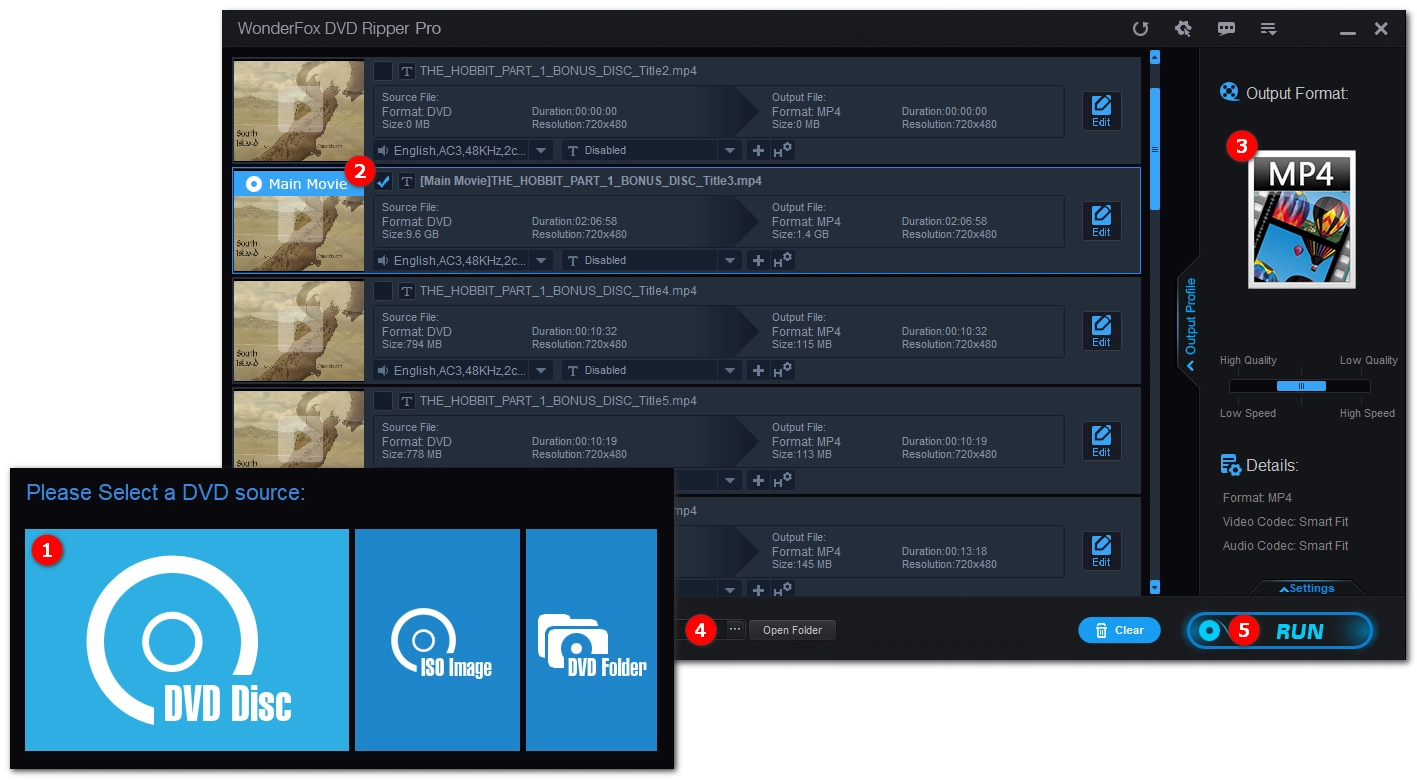
You can easily and quickly get your DVD collection digitized with a professional DVD ripping software like WonderFox DVD Ripper Pro. It supports both homemade and store-bought DVDs, and can convert them to many modern formats and devices for smooth playback without compatibility issues. Let’s see the simple steps to digitizing a DVD:
* The software can work on all Windows versions.
Step 1: Download Download the software and install it on your PC.
Step 2: Insert a DVD into the DVD drive of your computer and then launch the software.
Step 3: Click DVD Disc, select the DVD you just inserted and click OK to load the DVD into the software.
After loading, the main title/main movie is automatically selected. If you need other titles, you need to manually select them.
Step 4: Expand the output format page on the right. Under the Video tab, select your preferred video format. Alternatively, you can select a device that you want to play your DVD on.
* You can explore other categories to find the best format you want to rip to.
Step 5: Optionally, you can select the audio and subtitle tracks or edit the file as needed.
Step 6: Select an output folder at the bottom and click Run to start the ripping process. Depending on the DVD length and the output settings, the process can take about 5 to 30 minutes.
Several factors can prevent your DVD player from working on your TV. I’ve shared solutions above, and as a last resort, you can contact the manufacturer for further assistance. If it still doesn’t solve your problem, you can try ripping the DVD and playing the digital copy without a DVD player.
That’s all I want to share. I hope these solutions can help you. Thanks for reading and have a good day!
WonderFox
DVD Ripper Pro
Explore WonderFox DVD Ripper Pro, a trusted tool for effortlessly converting any DVD – homemade or commercial – into popular formats like MP4, MKV, MP3, and others. Edit and compress your DVD videos efficiently for optimal results. Download now for seamless conversion.
 Download for FreeDownload for Free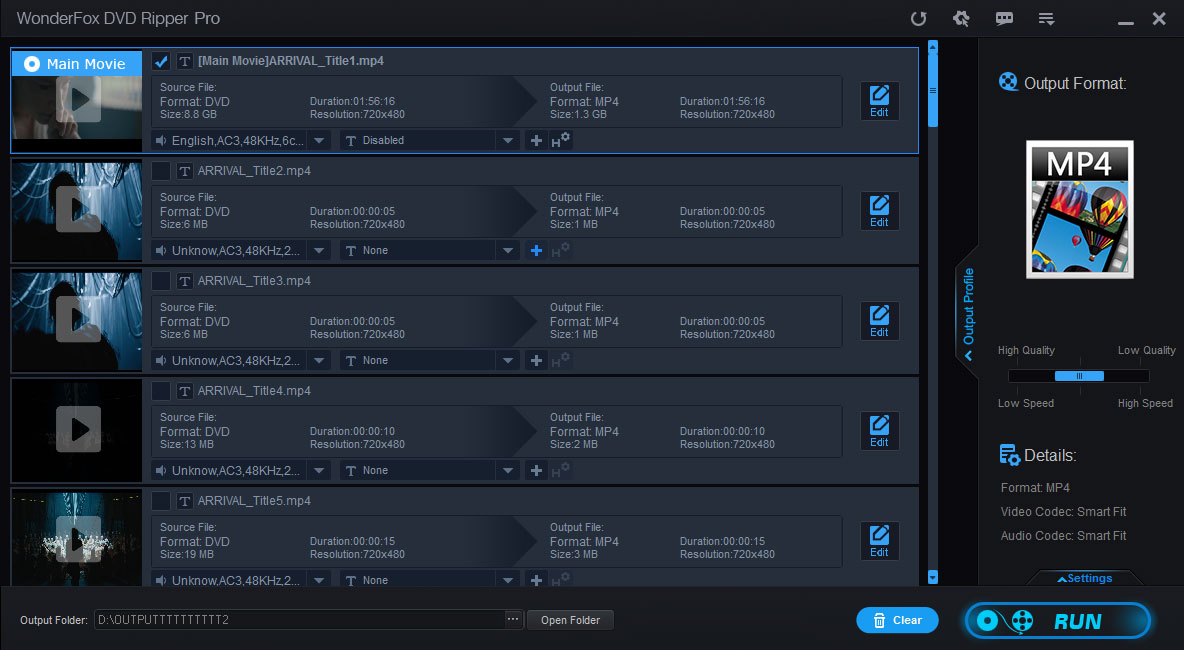

Terms and Conditions | Privacy Policy | License Agreement | Copyright © 2009-2026 WonderFox Soft, Inc. All Rights Reserved.



 Download for Free
