

 Michelle | Sep 24, 2026
To understand these terms, we must first separate compression methods from container formats.
A compression method is how data is compressed (encoded) via a specific algorithm.
MPEG4 is a compression method defined by the Moving Picture Experts Group. It is divided into multiple parts:
• MPEG-4 Part 2: contributes to older video coding formats like DivX and Xvid.
• MPEG-4 Part 10: also known as Advanced Video Coding (AVC/H.264), which is widely used across all modern video platforms.
• MPEG-4 Part 14: this is a bit different, as it's not a compression method, but the MP4 container format per se.
Unlike MPEG-4, formats like MP4, MOV, and MKV are containers.
To better understand, consider them as a box in which video and audio streams, as well as subtitles and other metadata, are stored using different compression methods.
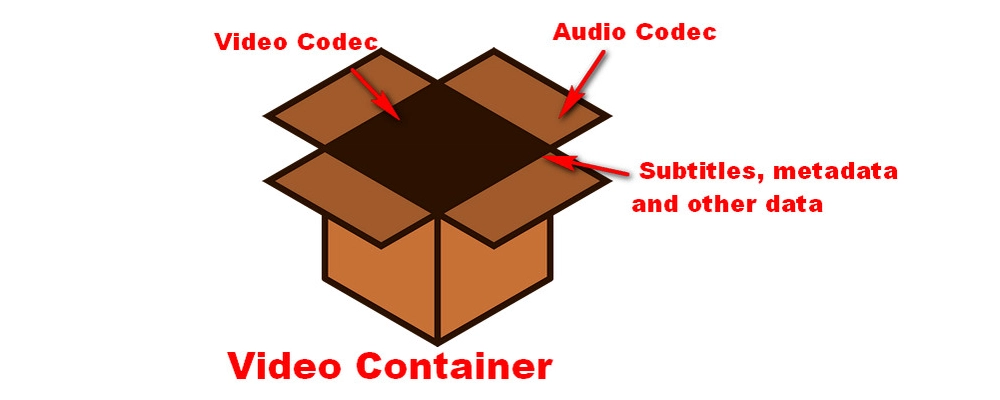
MP4 is actually the abbreviation of MPEG-4 Part 14, so quite a few people may confuse MP4 with MPEG4. Remember this: MPEG4 defines how data is encoded, while MP4 is one specific container built under the MPEG4 specification to store that data. Due to different functionalities and definitions, obviously MP4 and MPEG4 are not the same thing.
💡 Containers like MKV and MOV can also hold video data encoded by the MEPG4 method, but again, they are not the same.
Now that we know MP4, MOV, and MKV are all containers, here is a brief summary of their origins:
• MP4: The MPEG-4 Part 14 was originally extended from MPEG-4 Part 12 based on QuickTime MOV in 2001. The MP4 file format was later developed as an industry standard.
• MOV: MOV, or Apple QuickTime Movie, is a video file format developed by Apple for storing movies. It often uses advanced algorithms specially developed by Apple.
• MKV: MKV (Matroska) was specifically designed to be a universal container. It supports content using any compression method, which makes it an all-purpose container.
While MP4, MOV, and MKV all store multimedia data, they differ in many ways. And to judge which is better, it's easier to check out the comparison table below and decide on your own:
| MP4 | MOV | MKV | |
|---|---|---|---|
| Video Codec Support | H.264, H.265/HEVC, AV1, MPEG-4 | H.264, H.265, Apple ProRes, MPEG-4 | Almost All (H.264, H.265, VP9, AV1, ProRes, etc.) |
| Audio Codec Support | AAC, MP3, Opus, AC3 (Limited) | AAC, PCM, Apple Lossless (ALAC), MP3 | AAC, MP3, DTS, FLAC, PCM, AC3, TrueHD |
| Multi-Audio/Subtitle Track Support | Basic (limited soft subtitle formatting) | Yes | Yes (unlimited audio streams and soft subtitles, e.g., SRT, ASS, SSA, PGS) |
| Video Quality | Standard | Excellent | Excellent |
| File Size | Small | Large | Large |
| Compatibility | Universal | Mainly works on Apple devices | Poorer compared to MP4 and MOV |
| Primary Focus | Universal compatibility and web streaming | Apple ecosystem and video editing | Content preservation and archiving |
Keep in mind that quality depends on the video/audio encoder used within the container. Because MKV can contain higher-definition encoders like AVCHD, and MOV can use the perceptually lossless ProRes codec, these two can produce better image quality than MP4.
Besides, MKV can encapsulate lossless audio tracks like FLAC, Dolby TrueHD, and DTS-HD MA, and MOV can include PCM and Apple Lossless audio, they also beat MP4 in terms of audio quality, as MP4 only supports lossy encoding of video and audio.
• MKV: Usually larger than MP4 because it can store uncompressed data as well as multiple audio, video, and subtitle streams.
• MP4: Generally small because it always uses high compression methods.
• MOV: Usually larger than MP4, especially when created using the editing codec, ProRes.
MP4 wins. This industry standard is supported by almost all devices and players today.
MOV is still mainly used within the Apple ecosystem, and MKV often causes playback errors due to the internal complex codecs.
It can be seen from the above that one cannot simply say which one is better, it all depends on the different requirements of users for videos.
• When to choose MP4: If you want to play videos across multiple devices (Windows, Android, iPhone, Smart TVs), upload videos to social media, or stream content online without compatibility issues, MP4 will be your first choice.
• When to choose MOV: Depending on the media player or video editor you have, if you want to play videos on your Apple device or work them in Final Cut Pro or DaVinci Resolve, you should definitely choose MOV.
• When to choose MKV: If you are ripping DVDs/Blu-rays or storing movies with multiple language audio tracks and soft subtitles, go with MKV.
I believe we can all agree that MP4, MKV, and MOV are suitable for different cases. So sometimes, you may need to change the format to nip compatibility problems in the bud, to reduce file size, or to enhance the playback performance.
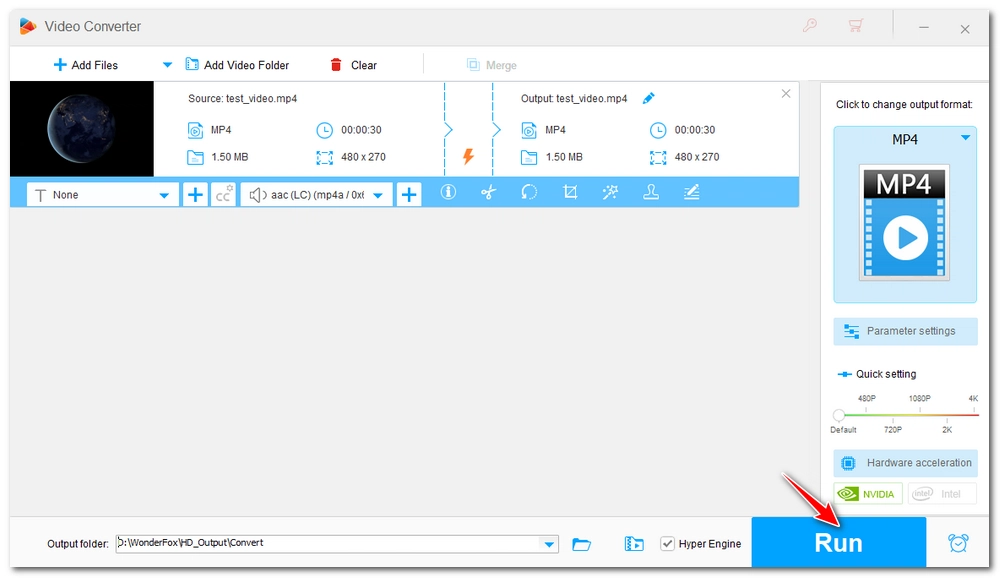
This can be easily achieved with a format converter like WonderFox HD Video Converter Factory Pro. It's powerful, requires no plug-ins, and supports 500+ output formats and devices. Here is how to perform video format conversion on your Windows PC.
Before start, please free downloadfree download the software.
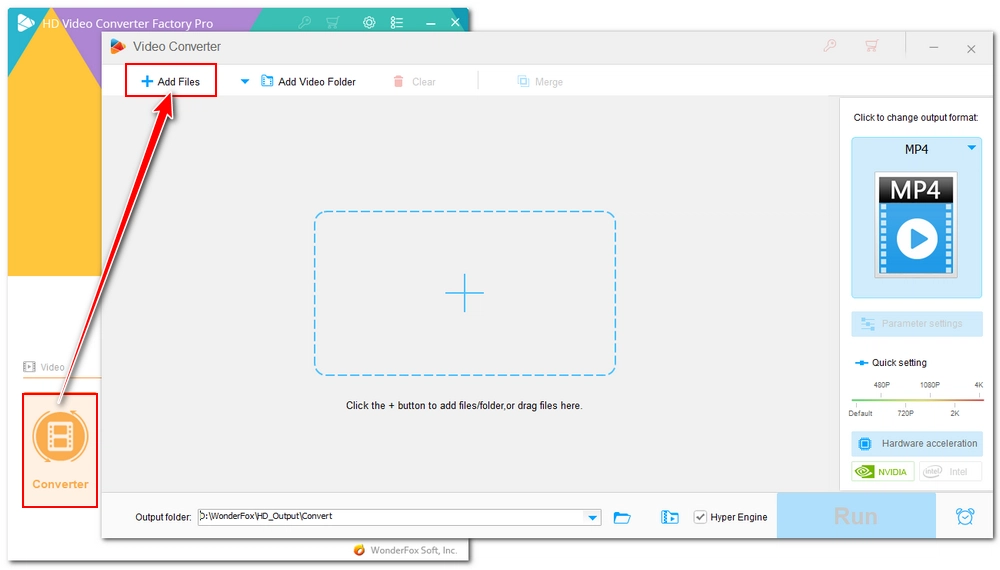
Launch the software and open Converter. Click on the Add Files button to load files into the program. Batch processing is supported.
At the bottom of the program, click ▼ to set an output path for your converted files in advance.
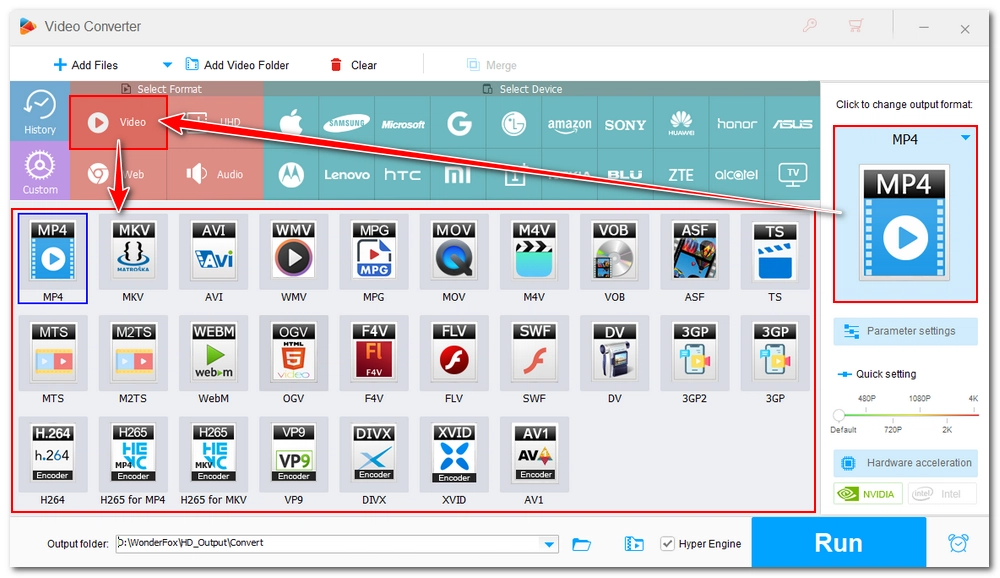
Click on the format section on the right side of the main interface. Under the Video tab, select MP4 for universal device playback, MKV for multi-track preservation, or MOV for Apple-compatible playback.
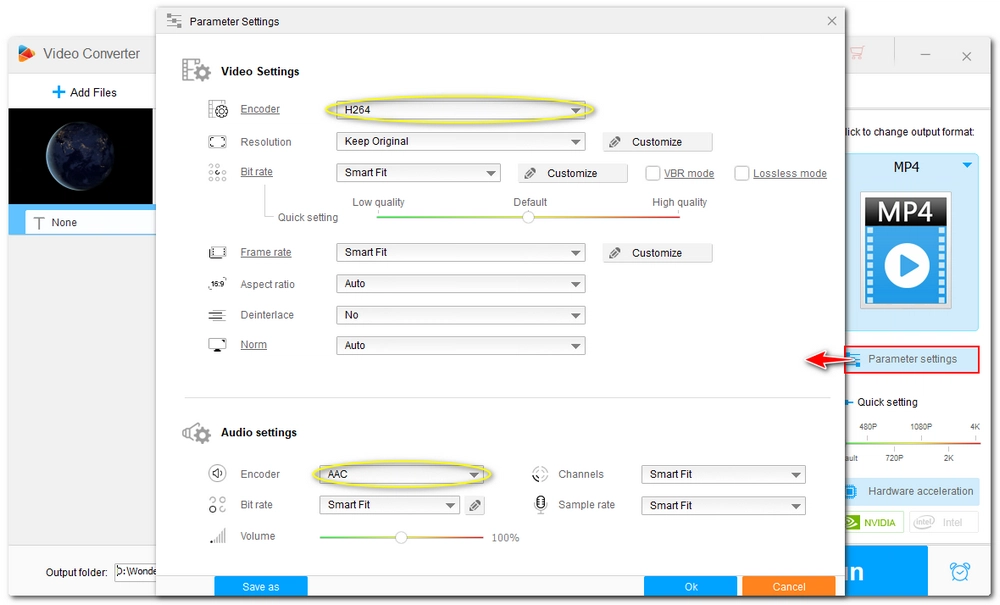
Optionally, you can customize parameters before conversion. Click Parameter settings to adjust the encoder (compression method), resolution, bitrate, frame rate, and volume as needed. For instance, you can choose the same encoder as used by the source video to avoid video re-encoding, hence achieving lossless conversion. Alternatively, you may select a specific compression format like H264 for optimal compatibility or H265 for higher compression efficiency.
You can also change the audio encoder to AAC to fix common playback issues like video plays without sound.
At last, click on the Run button to start the conversion.
If you're converting only the container format without changing the codec, such as H264 MKV to H264 MP4, then there is no loss in quality. But if you re-encode the video using another compression method, such as HEVC MKV to H264 MP4, there will be quality loss, though it may not be imperceptible to the eye if you keep a high bitrate.
Yes. MP4 is natively supported across all Windows versions without requiring additional codecs, whereas MOV files may not always play in native Windows applications if specific QuickTime codecs are missing.
An MP4 file is just a container. If the video inside is encoded with an unsupported codec (such as AV1 or high-profile HEVC) that your TV's built-in media player cannot decode, the file will fail to play despite having an .mp4 extension.

I write about multimedia topics, including video and audio conversion, compression, editing, and downloading. I joined WonderFox in 2020, and my goal is to help readers solve everyday tech problems more easily. In this article, I try to clear up the confusion about video formats including MKV, MP4, MOV, and MPEG4, and offer an efficient format conversion solution if you ever need one.


I write about multimedia topics, including video and audio conversion, compression, editing, and downloading. I joined WonderFox in 2020, and my goal is to help readers solve everyday tech problems more easily. In this article, I try to clear up the confusion about video formats including MKV, MP4, MOV, and MPEG4, and offer an efficient format conversion solution if you ever need one.

WonderFox DVD Ripper Pro
Explore WonderFox DVD Ripper Pro, a trusted tool for effortlessly converting any DVD – homemade or commercial – into popular formats like MP4, MKV, MP3, and others. Edit and compress your DVD videos efficiently for optimal results. Download now for seamless conversion.

Privacy Policy | Copyright © 2009-2024 WonderFox Soft, Inc.All Rights Reserved
