

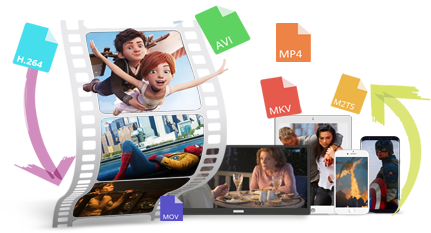
Have you ever encountered videos not playing on your iPad? You may have found that MKV, AVI, or some of your MP4 files cannot be opened or loaded. This is primarily because the iPad has strict requirements regarding playable video formats and codecs. So what iPad video formats are supported, and how can you fix these playback issues? This article will give you the answers.
💡 To fix issues with playing unsupported videos, you can download this dedicated iPad video converter to directly convert your videos into an iPad-compatible format: https://www.videoconverterfactory.com/download/hd-video-converter-pro.exehttps://www.videoconverterfactory.com/download/hd-video-converter-pro.exe
 Michelle | Updated on Aug 28, 2026
iPad plays video based on the container and encoding. Supported containers are MP4, MOV, and M4V. And formats such as MKV, WMV, or MPG do not play natively on iPad.
Support for encoding varies across device generations. Newer iPads have support for HEVC video, HDR10, and Dolby Vision, while older ones are quite limited. In other words, MP4 does not guarantee playback if its encoding settings fall outside of your iPad's support.
That said, what video format can all iPads play?
No worries. If you want your video to play on iPad without hassles, ensure it's encoded in the following way:
🔔 AVI is typically not supported by iPads, except for those legacy camera footages encoded with Motion JPEG (M-JPEG) video and ulaw or PCM stereo audio.
WonderFox HD Video Converter Factory Pro is a professional video converter that can help you quickly convert videos for iPad with high quality preserved. No more compatibility issues. Just give it a try!
If you find your video cannot be played on your iPad, the best solution is to convert the video to the safest iPad video format mentioned above.
WonderFox HD Video Converter Factory Pro is the perfect iPad video converter for the task. Equipped with various Apple presets, it can directly convert your videos to iPad, iPad Pro, iPad Air, and iPad mini in just a few clicks. Additionally, it can also easily change video encoding settings, such as encoder, resolution, frame rate, and more, and then you can play your videos on iPad smoothly.
Let's follow the guide below to convert a video to iPad video format now. Download this software to get ready:
Now, free downloadfree download the software and convert video format for iPad.
Launch HD Video Converter Factory Pro and open the Converter on the home interface. Click Add Files to import the source video. You can add multiple files to the software because it's able to convert videos in batches.
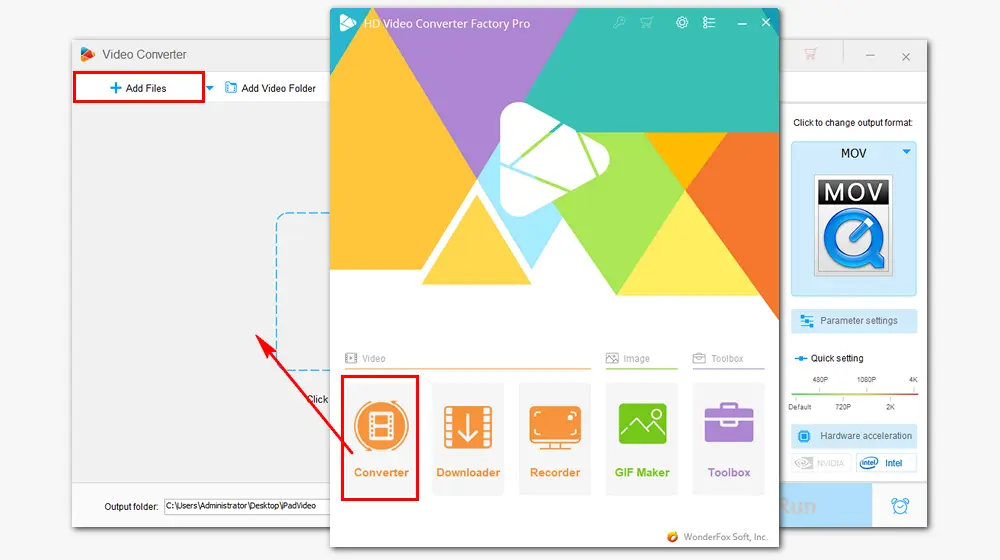
Click the format image on the right side of the converter.
In the Device section, click the Apple icon and choose the iPad model that you have as the output device.
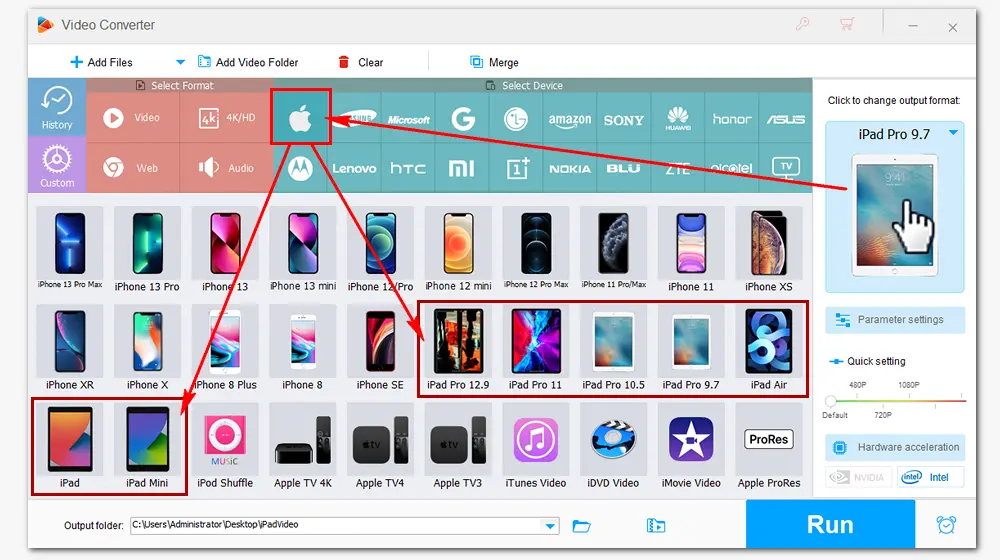
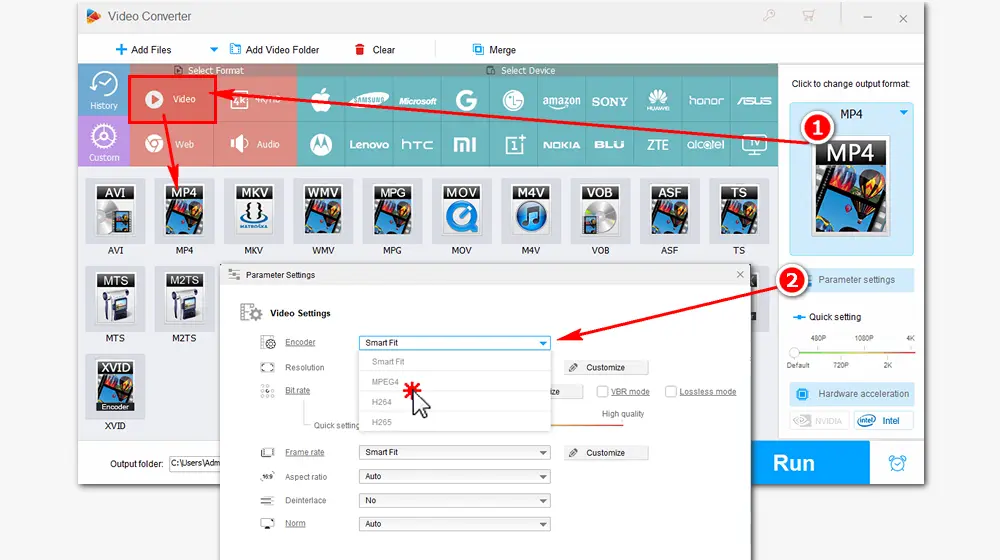
Or, in the Format section, go ahead to Video and select video formats supported by iPad such as MP4, MOV, and M4V. Then open Parameter settings under the format image to change the video encoder to H264 and audio encoder to AAC. Modify other settings as needed, and click Ok to save the changes.
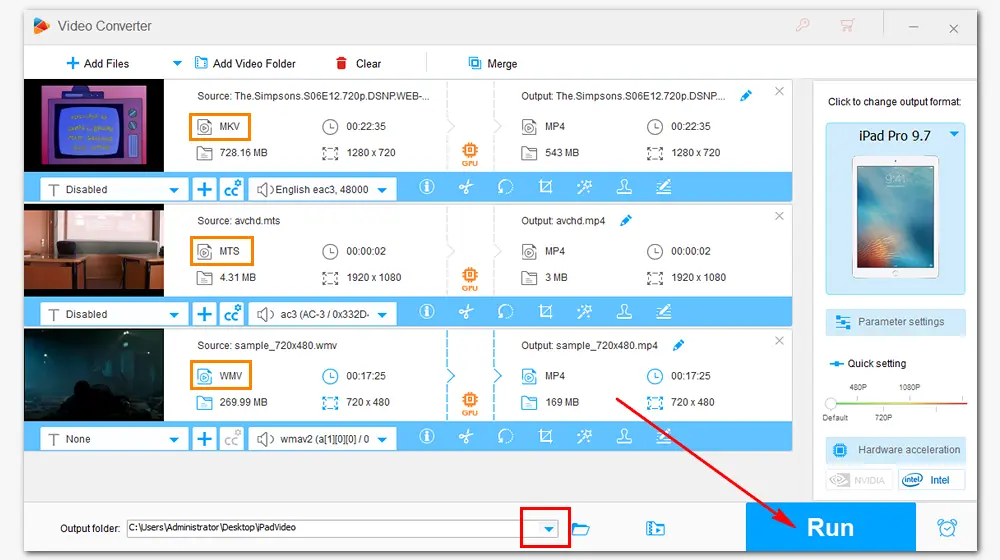
Click on the ▼ button at the bottom to specify an output path. Press Run to convert the source files to iPad video format immediately. Then you can transfer the converted videos to iPad for limitless playback.
💡 If your video contains subtitles, please select the subtitle track before converting to avoid losing them. Additionally, you can add external subtitles as needed, processing them as either embedded or hardcoded subtitles.
With this software, you can also convert your movies or music files to other formats to meet various needs, compress large videos, cut and merge files, and achieve more.
Video won't play: If the video fails to play, the format or encoding is likely unsupported. Please note that iPad has limited native format support, restricted to MP4, MOV, and M4V, and supported encoding standards vary by model.
Choppy playback: This may be caused by a video file that is too large for the iPad to process smoothly. Converting it to a lower resolution is recommended.
No sound: Ensure the iPad is not muted and the volume is turned up. If the issue persists, the audio encoding format may be unsupported. Converting the audio to AAC format often resolves this quickly.
Black screen but audio plays: This usually indicates an unsupported video encoding format. Converting the video to H.264 format instead.
Video plays but the image looks wrong: If the image appears distorted, the issue may lie with the video's aspect ratio. Using the tool mentioned above allows you to effectively adjust the aspect ratio.
Video fails to load or play online: This is usually due to an unstable Wi-Fi connection, limited cellular data, or an active VPN/proxy service. Reconnecting to the network or temporarily disabling the proxy usually resolves this.
Video stops abruptly during the middle of playback: It may be due to insufficient storage, like heavy app caches, junk files, and downloaded files. Clearing browser and app caches or freeing up storage space can solve this issue immediately.
All videos won't play on iPad: The most likely cause is outdated firmware. Updating your iPadOS to the latest version can fix known software bugs.
Remember that iPad can only play files with .mp4, .mov, or .m4v extensions, and whether your iPad will play your videos also depends on how your videos are encoded. Even if you have an MP4 video, it may still not play if it's encoded with HEVC, yet your device does not support it. In such a case, using WonderFox HD Video Converter Factory Pro to convert your video to your iPad device is the best solution.
That's all I wanted to share about the video formats supported by iPad and how to convert movie to iPad format. Thanks for reading!
MP4 format is compatible with all models of iPad. But it may not play your MP4 videos if they're encoded in an unsupported codec. For example, old models do not support MP4 encoded with the HEVC/H265 codec.
Generally, it's not supported. iPad makes an exception for only one specific type of AVI file: those using M-JPEG video encoding paired with u-law or PCM stereo audio (typically videos from early digital cameras). Even then, playback may still fail due to unsupported video bitrates, resolutions, or frame rates, not to mention most AVI files downloaded from the internet use DivX or Xvid encoding.
No, iPad does not support MKV format.
Yes, but only when the subtitles are embedded in the video (MP4, MOV, or M4V). It does not support external subtitles, subtitles in .ssa/.ass format, or SRT in MKV files.

I write about multimedia topics, including video and audio conversion, compression, editing, and downloading. I joined WonderFox in 2020, and my goal is to help readers solve everyday tech problems more easily. In this article, I have shown you the best iPad video format and how to convert your videos to it for smooth playback on your iPad.


I write about multimedia topics, including video and audio conversion, compression, editing, and downloading. I joined WonderFox in 2020, and my goal is to help readers solve everyday tech problems more easily. In this article, I have shown you the best iPad video format and how to convert your videos to it for smooth playback on your iPad.
WonderFox HD Video Converter Factory Pro
1. Convert video files for iPad, iPhone, Apple TV, etc.
2. Download videos from 1000+ websites.
3. Record live streams, gameplays... without lag.
4. Trim/crop/merge, add special effects/subtitles.
5. Make GIFs, extract audio, create ringtones & more.

Privacy Policy | Copyright © 2009-2026 WonderFox Soft, Inc. All Rights Reserved
