

QuickTime Player may refuse to open a video, show a black screen, play without sound, or stutter even when the file extension looks familiar. This guide explains the most common QuickTime playback problems, how to identify the real cause, and which fix to try first.
 Kevincy | Updated on Sep 15, 2026
Table of Content
Common QuickTime Playback Problems and What They Usually Mean
Fix 1: Check the File Before Changing QuickTime
Fix 2: Convert Media QuickTime Cannot Decode
Fix 3: Solve Black Screen, No Sound, or Wrong Audio
Fix 4: Reduce Stuttering, Freezing, and Slow Seeking
Fix 5: Deal with Damaged, Incomplete, or Protected Files
Fix 6: When QuickTime Player Itself Is the Problem
QuickTime Player is built into macOS and handles many everyday video and audio files without extra setup. Still, a familiar file extension does not guarantee that the media inside is compatible. A container such as MOV, MP4, or AVI can hold different video and audio codecs, and QuickTime may support one combination but not another.
That is why two files with the same extension can behave differently. One may open normally while another returns “The file isn't compatible with QuickTime Player”, shows only audio, or refuses to play at all. The issue can also come from an incomplete download, damaged file, incorrect audio output, very demanding video, or a temporary macOS/QuickTime glitch.
Here are the symptoms you are most likely to see:
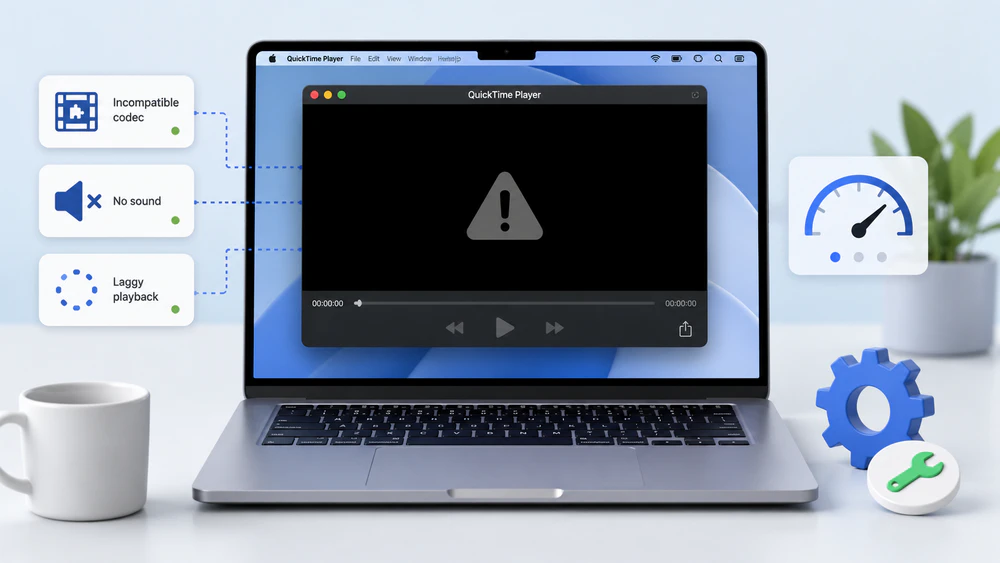
Start with a quick diagnosis. It can save you from reinstalling software or converting a video that is actually fine.
1. Open another known-good video in QuickTime. If other files play normally, the problem is probably limited to the troublesome file. If nothing opens, skip ahead to Fix 6.
2. Try the same file in another player. VLC is a useful test because it supports many codecs that QuickTime does not. If VLC can play the file but QuickTime cannot, compatibility is the likely cause. If several players fail at the same point, suspect file damage or an incomplete copy.
3. Make sure the file is fully available on the Mac. If it is still downloading from iCloud, a browser, a camera, a phone, or a network drive, wait for the transfer to finish. For troubleshooting, copy the file to a local folder and play that copy.
4. Check what is actually inside the file when QuickTime can open it. Choose Window > Show Movie Inspector (or press Command-I). The inspector can show details such as the compression format, resolution, frame rate, data rate, and audio format. This is useful when a familiar container opens but one track behaves unexpectedly.
5. Do not rename the extension as a “conversion.” Changing a filename from one extension to another does not change the codecs inside. If the media itself is incompatible, it needs to be properly converted or opened with a player that supports it.
If the file is healthy and plays in another app, but QuickTime reports that it is incompatible or opens only part of the media, conversion is usually the cleanest fix. This can happen even with a familiar container such as MOV or MP4 because the video or audio track inside may use a codec, profile, or feature that QuickTime cannot decode on that Mac.
For broad compatibility, H.264 video with AAC audio is a practical target in many situations. The important point is to convert the actual video/audio codecs, not simply rename the filename extension.
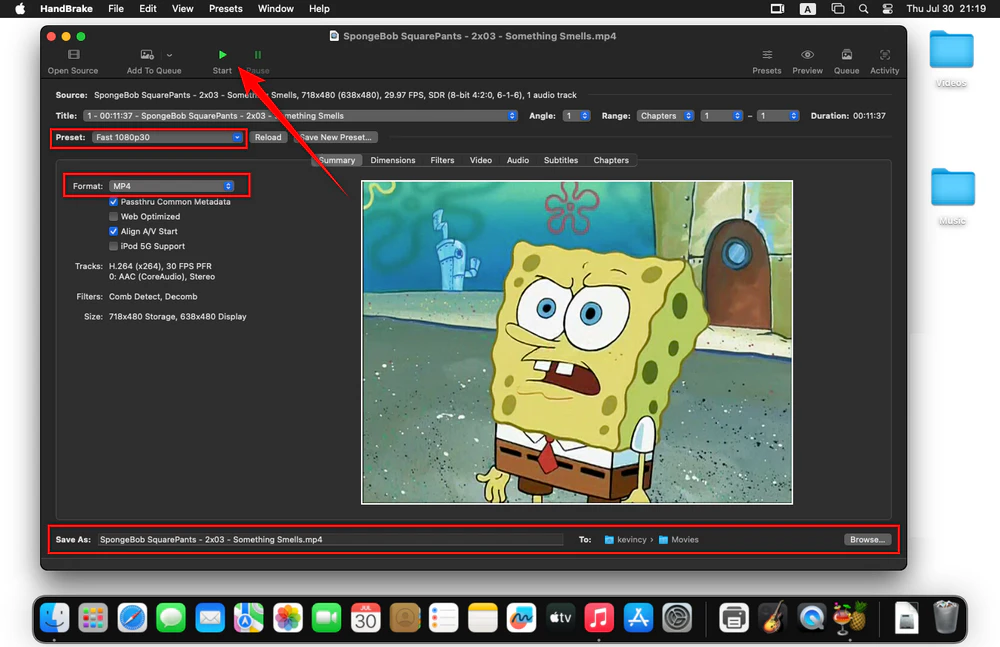
HandBrake is a good fit here because it runs directly on macOS and can convert many common video files without changing the overall Mac-focused workflow of this guide. If HandBrake cannot open the source, try VLC to confirm whether the file is playable at all.
Step 1. Download and install HandBrake, open it, and select the video that QuickTime cannot play.
Step 2. Choose a preset suitable for the source video. For a typical file, a preset from the General category is a good starting point. Then open the Summary tab and choose a common output container.
Step 3. Under Video, use H.264 for the widest QuickTime compatibility. Under Audio, make sure the output track uses a widely supported codec such as AAC. You can keep the original resolution and frame rate when possible to avoid unnecessary changes.
Step 4. Choose where to save the new file and click Start Encode. When HandBrake finishes, open the converted copy in QuickTime Player.
If you do not specifically need QuickTime Player, converting is optional. A maintained player such as VLC media player supports many codecs and containers that QuickTime does not. This is often the fastest workaround when the file is healthy and you simply want to play it.
This usually means the audio track is readable but the video track is not. Test the file in another player. If the picture appears there, convert the video track to a more compatible codec. If the picture is missing in every player, the source may be damaged.
First check the Mac volume and current output device in System Settings > Sound. If the movie contains multiple soundtracks, QuickTime can let you choose another track from View > Languages or the soundtrack menu in the playback controls.
On a Mac with Apple silicon connected to a compatible receiver by HDMI, QuickTime also offers View > Audio > Prefer Passthrough for supported Dolby audio. If you are using the Mac's built-in speakers, keep passthrough turned off. If the audio track itself uses an unsupported codec, convert the media to a more common audio codec.
Look for another embedded soundtrack before converting the file. Choosing the correct track is faster and avoids unnecessary re-encoding.
A file can be technically compatible and still play poorly. Very high resolution, high bitrate, demanding compression, slow storage, or heavy background activity can make playback choppy.
Try a local copy first. Move the video from a network share, cloud-synced folder, camera card, USB drive, or slow external disk to the Mac's internal storage. If the local copy plays smoothly, the bottleneck was probably data delivery rather than QuickTime decoding.
Close heavy apps and restart the Mac. Large browser sessions, editors, games, virtual machines, or other media jobs can compete for CPU, GPU, memory, and disk bandwidth.
Update macOS. QuickTime Player is part of macOS, so system updates are the normal way to receive QuickTime-related fixes and media support changes.
Create a lighter playback copy. If an older Mac struggles with a very demanding file, transcoding to a lower resolution, lower bitrate, or more broadly supported codec can improve playback. Keep the original file for archiving if quality matters.
If the same video fails in QuickTime and several other players, conversion may not be the real solution. Go back to the source and check the file itself.
Re-download or re-copy it. An interrupted browser download, failed camera transfer, disconnected phone, or unstable drive can leave you with a file that has the right name but incomplete media data.
Compare the file size with the source. A suspiciously small file is a simple sign that the transfer did not finish.
Keep the original before attempting repair. Some repair tools can reconstruct certain damaged videos, especially when a healthy reference recording from the same device is available, but recovery is not guaranteed. Work on a duplicate so you do not make the only copy worse.
Protected media is different from broken media. If a file is DRM-protected or tied to a particular service/account, it may need to be played through the authorized app or account. Converting the extension will not remove that restriction.
If multiple known-good files suddenly stop playing, treat it as an app or system problem.
1. Quit and reopen QuickTime Player. If it is unresponsive, use Option + Command + Esc to force quit, then launch it again.
2. Restart the Mac. This clears many temporary audio, graphics, memory, and process problems.
3. Install available macOS updates. QuickTime Player is included with macOS, so current fixes and media-support changes arrive through macOS updates rather than a separate QuickTime updater. Avoid updating or reinstalling modern QuickTime Player from a standalone installer.
4. Test the file in another Apple app or a third-party player. Apple notes that an older or specialized media format may not work when the device, operating system, or app does not support it. If only QuickTime fails after an update, another player can be a practical temporary workaround while you keep the original file intact.
QuickTime 7.7.9 for Windows is a legacy, unsupported product. Apple says QuickTime 7 for Windows is no longer supported, and its old download page lists Windows Vista and Windows 7 as the intended systems. It should not be treated as a current media player for modern Windows.
If you still have QuickTime 7 on an older PC and a file will not play, a simpler option is to open the file with a maintained third-party player such as VLC media player. On a current Windows PC, using a maintained player is preferable to installing legacy QuickTime just for playback.
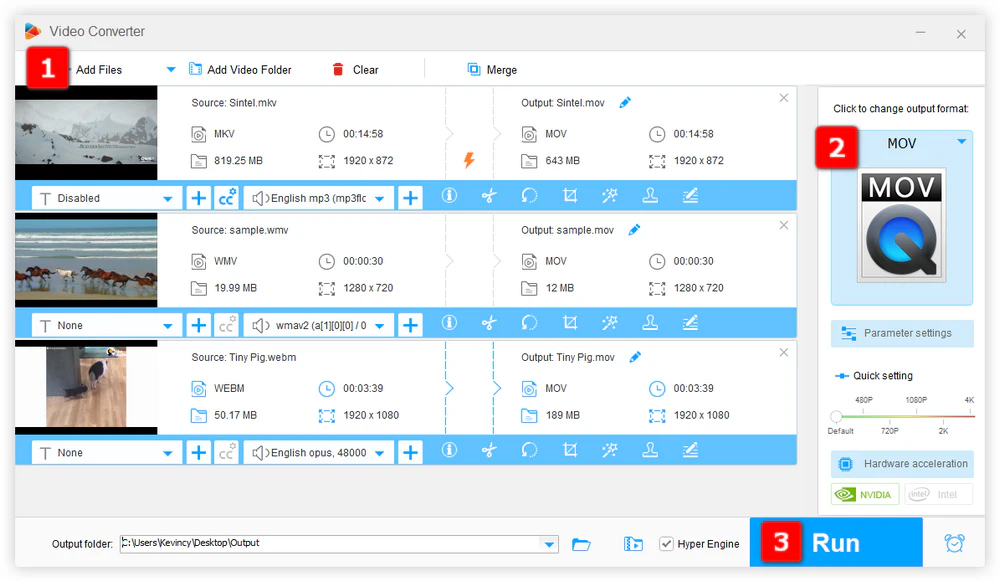
If you specifically need a QuickTime-friendly copy for an old workflow, another option is WonderFox Free HD Video Converter Factory. Convert the problem video to a more compatible video/audio codec combination, then use the converted copy in your project.
Basic steps: open the free converter, add the incompatible file, choose a common output profile, and start the conversion. For QuickTime compatibility, H.264 video with AAC audio is a practical choice in many cases.
The extension describes the container, not every video/audio codec inside it. Two MOV, MP4, or other files with the same extension can contain different codecs, profiles, tracks, or metadata, so compatibility can differ.
For current macOS, it is usually better to update macOS, use another maintained player, or convert the problem media. Old QuickTime plug-in/component advice from the QuickTime 7 era is not a good default for modern Macs.
Some legacy media needs to be converted to a format supported by current macOS before it can be played or edited normally. If the original is important, keep it and work from the converted copy.
Current QuickTime Player on Mac exports movie copies as QuickTime movies (.mov) using H.264 or HEVC at available resolutions. Apple's user guide notes that QuickTime Player does not export movies as MP4 videos. If you specifically need an MP4 file, use another converter or editor.
When QuickTime Player will not play a file, start by separating a file problem from a player problem. If other videos work in QuickTime and the troublesome file plays in VLC, compatibility is the most likely explanation and conversion is a sensible fix. If every player fails, check the transfer and file integrity. If every file fails only in QuickTime, restart the app/Mac and update macOS before changing your media.
The same logic applies across many common media containers without treating the filename extension as the root cause. In practice, the codec, file condition, system support, and playback environment matter much more.

Kevincy joined the WonderFox team in 2014 and has been a senior columnist ever since. With over two decades of experience in the video editing industry, he shares tutorials, tips, and how-to guides on video/audio processing and personal DVD backups. Family-oriented and passionate about helping others, he is dedicated to making video and audio processing easier for readers.


Kevincy joined the WonderFox team in 2014 and has been a senior columnist ever since. With over two decades of experience in the video editing industry, he shares tutorials, tips, and how-to guides on video/audio processing and personal DVD backups. Family-oriented and passionate about helping others, he is dedicated to making video and audio processing easier for readers.

Privacy Policy | Copyright © 2009-2026 WonderFox Soft, Inc. All Rights Reserved
