

Vegas Pro (also called Sony Vegas) supports many video types, but when importing and editing some video files, such as MOV, AVI, FLV, and H.264, you may receive errors like "the file is an unsupported format", "the file has no audio or video streams", "32-bit QuickTime support ending / QuickTime plugin error", Vegas Pro crashes or the file wouldn't play correctly. In this post, we'll delve into the main cause and offer you a reliable solution to solve Vegas Pro import issues once and for all.
👉 Ultimate Solution: Transcode your video to a Vegas Pro-friendly format for error-free editing with this powerful video converter: https://www.videoconverterfactory.com/download/hd-video-converter-pro.exehd-video-converter-pro.exe
 Michelle | Jul 31, 2026
Whether you're importing downloaded videos or camera footage, if Vegas Pro refuses to take them, it's most likely that they are unsupported file types.
For your reference, here are the video and audio files supported by Vegas Pro:
| Media Type | Supported Formats and Codecs |
|---|---|
| Video | Containers: .mp4, .m4v, .avi, .wmv, .mpeg, .mxf, .mov Codecs: HEVC/H.265, AVC/H.264, MPEG-2, MPEG-1, Apple ProRes, Apple ProRes RAW, Blackmagic RAW, RED RAW, DV, HDV Camera formats: Sony XAVC, XAVC-S, XDCAM EX, XDCAM HD 422, HDCAM SR, MPEG IMX, Panasonic P2 |
| Audio | PCM (.wav, .aiff), AAC (.m4a), MP2, MP3, OGG Vorbis, WMA, FLAC |
🔔 Note: A video file consists of a container and one or more codecs. The container is the extension you see, such as .mov or .avi, while the codec is stored inside the container and determines how the video or audio is compressed, such as H.264 or AAC.
As you can see, Vegas Pro supports many common containers and codecs. But a file extension alone does not determine compatibility, and import errors often happen when Vegas Pro supports the container but does not support the codec.
For example, an MOV file might contain H.264 video and AAC audio, while another MOV file might contain HEVC video and unsupported audio. In this case, the MOV with unsupported audio would lose sound or could not be imported at all.
Additionally, a broken video, software issues, or a corrupt graphics card can also lead to Vegas Pro import failures.
1. If the video is damaged or encrypted
You can import the problematic file into a media player to see if it plays properly. If not, the file can be corrupted or encrypted, and you need to repair it or decrypt the file first.
2. If the video format and its internal codecs are supported
You can use MediaInfo to view the details of your video file, and then compare them to the above format table.
3. If the video has variable frame rate.
This is often overlooked, but is the frequent cause of various import errors (e.g., import failures or audio-video desynchronization) in editing software like Vegas Pro. Tools like MediaInfo will show you what frame rate your video uses.
Before we dive into the core solution, it's recommended to run these steps real quick:
As stated earlier, an unsupported file type is the main reason for the importing issue in Vegas Pro. The best solution is to convert the video to be Vegas Pro-compatible.
To do this, a professional yet easy-to-use converter like WonderFox HD Video Converter Factory Pro is recommended. It supports almost all types of videos and audio files, and offers over 500 output options, including presets that will work in editing programs like Vegas Pro. Plus, you can freely adjust the video codec, resolution, or frame rate as needed. As an HD video converter, it always keeps output quality as high as possible, so no need to worry about quality.
The program supports batch processing, so you can convert multiple files at a time to save effort. The entire process takes just a few clicks. Download and install Download and install the software now to get started:
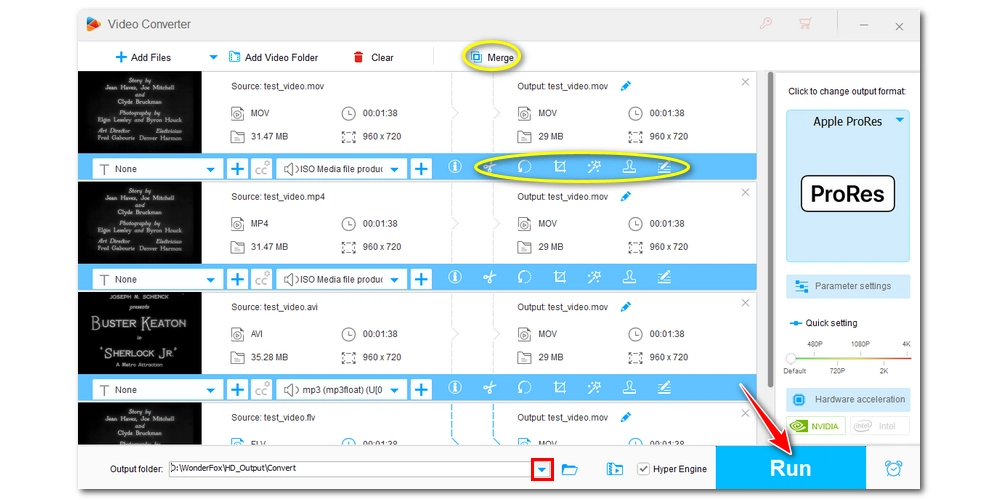
Run HD Video Converter Factory Pro and click Converter. Click + Add Files to import the videos you failed to import, or you can simply drag them into the program.
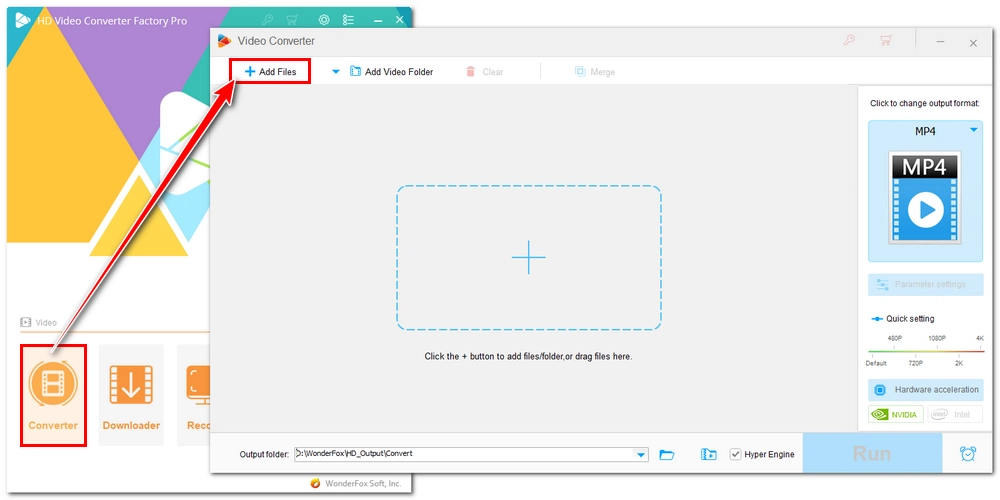
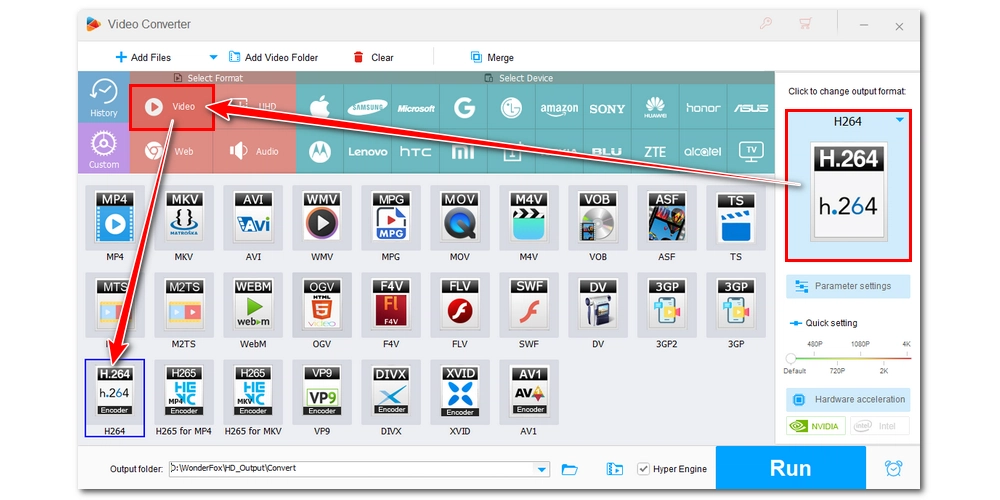
Open the Output Format section on the right. Under Video, you can select H264 as the output profile. It will turn your files into MP4 with H264 video and AAC audio, which ensures compatibility across most devices and platforms, and is supported natively by Vegas Pro. But also note that H264 is a highly compressed format, Vegas Pro will take more computing power to edit H264 videos.
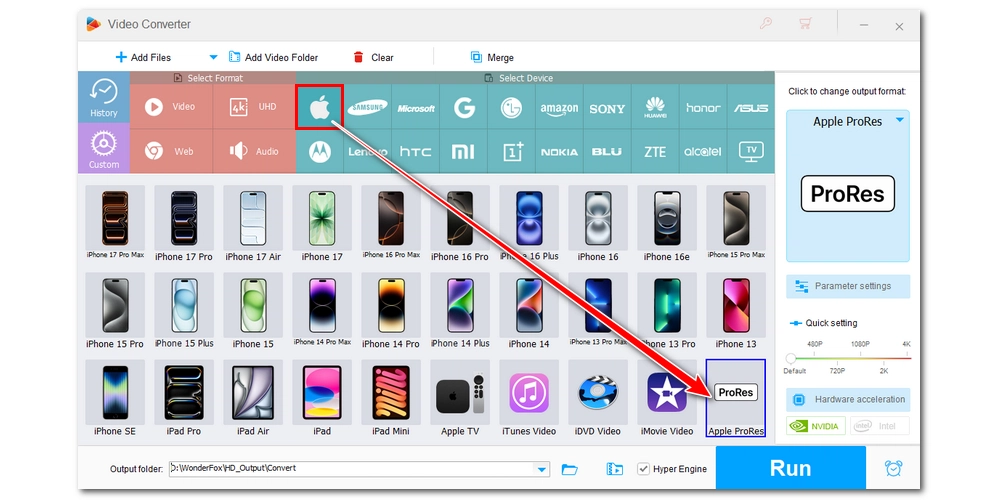
For a smoother editing experience, it's also recommended to select Apple ProRes under the Apple tab.
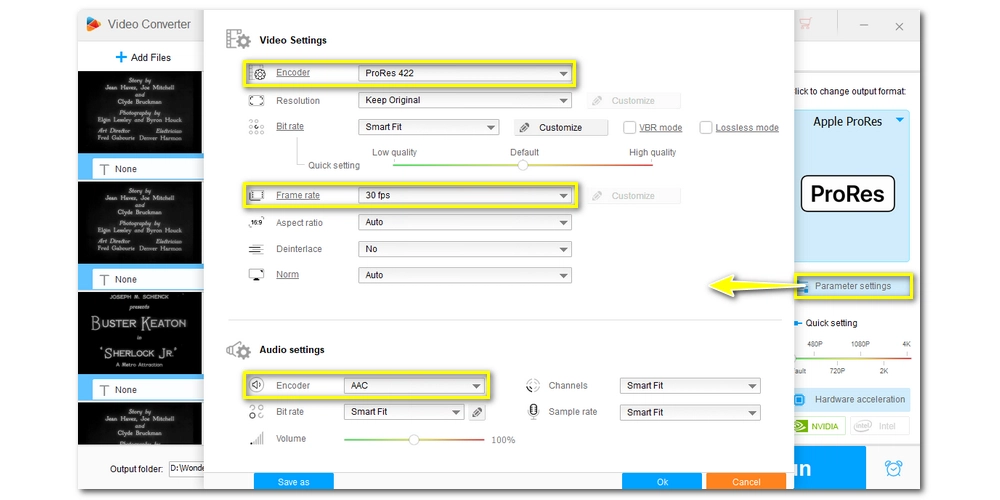
💡 You can open Parameter settings and control the parameters to your liking. For example, if you choose Apple PreRes, you can set the video encoder to ProRes 422, which is great for general editing. You can also change the audio codec of the video manually.
One more thing: the software converts every video to constant frame rate automatically, so just select the desired frame rate, and you're good to go.
Click the ▼ icon to choose an output folder. Then click Run to start the conversion. Once you get the converted files, see if they can be successfully imported into Vegas Pro.
💡 The software also includes built-in editing tools that can help you trim, crop, rotate, merge, apply filters, and add watermarks when needed.
HD Video Converter Factory Pro can also compress large video and audio files, download songs or videos online, record computer screen with audio, make GIFs and ringtones, extract subtitles, and plenty more. Explore it now!
If, unfortunately, the conversion method fails, try these system and software configurations:
If the import error happens with a .mov or a .mp4 file, try renaming the file extension from .mov to .mp4 or vice versa. This method sometimes magically helps, but isn't guaranteed to work. Also, remember to back up your original files before renaming the file extension.
As Vegas Pro may lack the codecs to recognize your files, you can try installing the missing codecs or plug-ins to expand its format reading capabilities.
It's recommended to install official codecs from the camera manufacturer if you're importing camera footage. You can also go to the Microsoft Store to get HEVC extensions and other available video formats to empower your Vegas Pro with support for these specific formats.
While there are third-party codec packs, it's best to avoid them because they sometimes cause conflicts.
Too many media cache files in the database can affect the overall performance of Vegas Pro. You can delete them and re-import your files:
Step 1: Close Vegas Pro.
Step 2: Press and hold the Ctrl and Shift keys, and double-click the Vegas Pro shortcut at the same time.
Step 3: A window will pop up asking if you want to reset preferences. Check the box for Delete all cached application data and confirm.
⚠️ Note: This will reset all your customized settings.
Outdated or malfunctioning GPU drivers will affect hardware video decoding. Make sure you use the latest version or update it:
Step 1: Type Device Manager in your Windows search box and open it.
Step 2: Expand Display adapters.
Step 3: Right-click on the driver name and click Update driver.
Step 4: Click Search automatically for updated driver software. It will start searching and downloading the latest driver available.
Alternatively, you can go to the graphics card manufacturer's website to download the latest version.
You can force Vegas Pro to read your files solely through its software decoders instead of your computer's hardware decoder and see if it helps:
Step 1: Go to Options > Preferences > File I/O.
Step 2: Uncheck Enable hardware decoder for supported formats.
Step 3: Set the Hardware Decoder to Use option to Off.
Step 4: Click Apple and then OK.
Vegas Pro import errors still persist? Try contacting the official support for help!
Usually, it's because the video is unsupported:
Editing format like ProRes is best for editing software like Vegas Pro because it's easy to decode, so you can have a smoother editing experience.
Typically, you won't be able to add your MOV files into Vegas Pro if:
Unfortunately, Vegas Pro does not natively support the FLV format. You need to convert FLV to MP4 or ProRes before importing.
This error means that the AVI file is using a third-party codec, like DivX or XviD, that is not installed on your system. You can either install a matching codec or convert the AVI file to standard MP4.

I write about multimedia topics, including video and audio conversion, compression, editing, and downloading. I joined WonderFox in 2020, and my goal is to help readers solve everyday tech problems more easily. This guide explains everything you need to know about how to correctly import video files into Vegas Pro. Hope you find it useful!


I write about multimedia topics, including video and audio conversion, compression, editing, and downloading. I joined WonderFox in 2020, and my goal is to help readers solve everyday tech problems more easily. This guide explains everything you need to know about how to correctly import video files into Vegas Pro. Hope you find it useful!

WonderFox DVD Ripper Pro
1. Convert DVD to MP4, MKV, and other digital videos;
2. Rip audio files from DVD to MP3, WAV, FLAC, etc.
3. Bypass any kind of DVD copy protection;
4. 1:1 quick copy to ISO image and DVD folder;
5. Cut, rotate, add subtitles, add effects, and more...
* This software is designed for personal fair use only.

Privacy Policy | Copyright © 2009-2026 WonderFox Soft, Inc.All Rights Reserved