

As an industry-standard motion graphics and visual effects program, Adobe After Effects can process many types of videos. But sometimes, you may receive an error message when importing videos that should be supported, such as AVI, MOV, or MXF. Wonder why this happens? Don't worry. This article will explain the causes clearly and teach you four proven ways to fix After Effects import failures on Windows. Read on!
👉 This video converter software can easily and quickly resolve most After Effects import errors: https://www.videoconverterfactory.com/download/hd-video-converter-pro.exehd-video-converter-pro.exe
 Michelle | Jul 31, 2026
📌 Quick Summary: Supported Import Video Formats & Codecs in After Effects
Why You Can't Import Videos into After Effects
How to Fix After Effects Video Import Failures
Solution 1: Rename the File Extension
Solution 2: Convert the Unsupported File (Ultimate Solution)
Solution 3: Install Third-party Plug-ins
| Audio: | Video: |
|---|---|
| MPEG-1 Audio Layer II (.mp2, mpa) Advanced Audio Coding (.aac, .m4a) Audio Interchange File Format (.aif, .aiff) MP3 (.mp3, .mpeg, .mpg, .mpa, .mpe) Waveform (.wav, .bwf) | HEVC (.mov) 3GPP (.3gp, .3g2, .amc) Adobe Flash Player (.swf) [no interactive content] Adobe Flash Video (.flv, .f4v) Apple ProRes codec (.mov) AVCHD (.m2ts) DV (.mov, .avi) H.264 (.m4v) Media eXchange Format (.mxf) MPEG-1 (.mpg, .mpe, .mpa, .mpv, .mod) MPEG-2 (.mpg, .m2p, .m2v, .m2a, .m2t) [.vob is not supported, you can change the file extension to .mpg] MPEG-4 (.mp4, .m4v) QuickTime (.mov) Windows Media (.wmv, .wma. asf, .asx) [Windows only] XDCAM HD and XDCAM EX (.mxf, .mp4) |
* Note that the actual supported file types vary by software versions.
* The part outside the parentheses is the codec, and the part inside is the video format, or, more specifically, the container.
WonderFox HD Video Converter Factory Pro offers the easiest way to convert videos into the best format supported by After Effects. The process is simple and fast. Try it now!
If you can't import a video into After Effects, but it plays fine in your media player, it's likely because of:
You can refer to the quick summary above to learn about the video and audio formats supported by After Effects. You may notice that After Effects does support a wide range of formats, from 3GP to MOV, but still lacks support for common one like MKV and WebM.
Keep in mind that the video format is only a container, where video and audio codecs are used inside. After Effects will only recognize your media when the video format and codecs are both supported at the same time.
Take AVI as an example. After Effects usually accepts AVI encoded with the DV codec. However, most compressed AVIs use DivX, Xvid, or H.264 codec, which would consequently fail to import into the program.
The safest video specs for editing in After Effects is ProRes in MOV format.
Your video may not display correctly in After Effects if it uses a variable frame rate (VFR). VFR is commonly found in screen recordings and footage shot on smartphones to save storage space. But it's also a frequent cause of video and audio out-of-sync issues.
In many cases, old media cache conflicting with the current project can also prevent a normal media import in After Effects.
As a first attempt, you can simply try renaming your file extension, like from mov or .m4v to .mp4, .vob to .mpg, or .m2ts to .mts. The rules are simple:
Note that doing this might break the file, so keep a backup of the original files in advance.
💡 Tip: If your file uses a weird lengthy name, shortening the filename and removing special characters can sometimes also help.
This is the most reliable solution for fixing unsupported media files. To do this, a professional video converter like WonderFox HD Video Converter Factory Pro is a must.
This Windows-based video converter is capable of various video and audio conversions. It can not only change video formats, but also transcode videos with different codecs, resolutions, frame rates, and more. To fix your video import error in After Effects, it can convert your files to After Effects' favorite format, ProRes, for smooth import and editing. Plus, it supports batch conversion. Here is how to perform the conversion, and you can download and installdownload and install the software to get started:
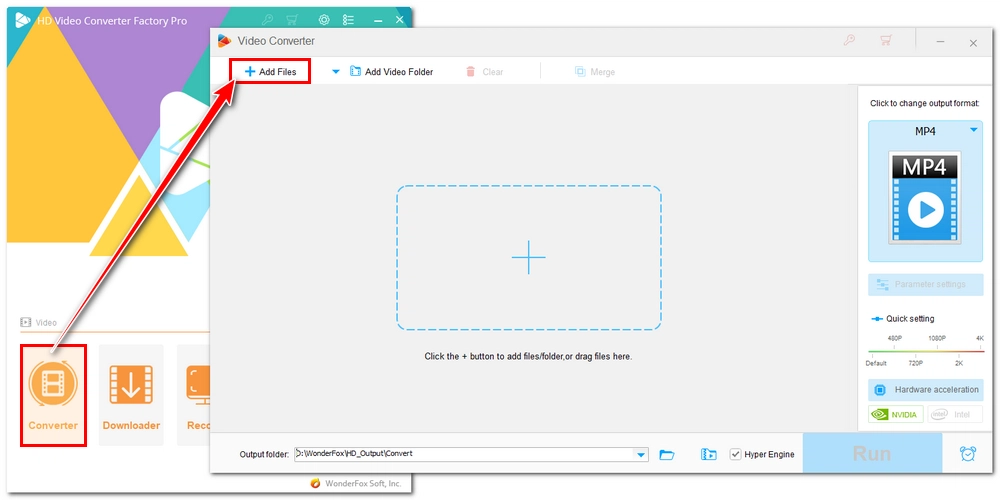
Step 1: Launch HD Video Converter Factory Pro and open the Converter. Then, click +Add Files to load your unsupported video files. Alternatively, you can directly drag and drop them into the software.
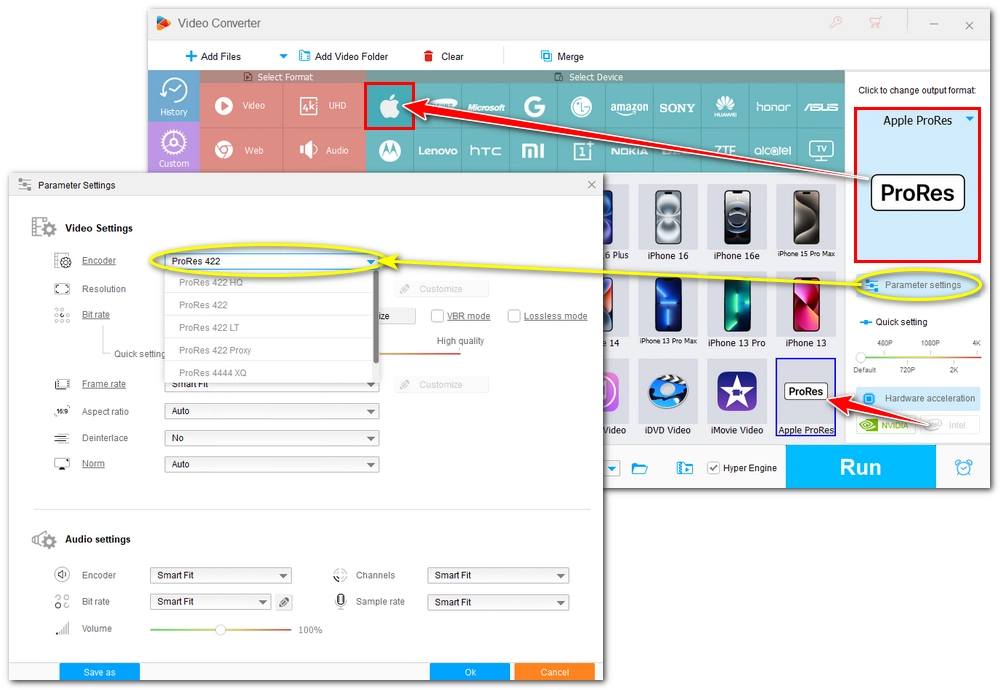
Step 2: Click the format image on the right side of the software to enter the Output Format panel. Click the Apple device section and select Apple ProRes (.mov).
Next, open Parameter settings and set the video encoder to ProRes 422, which is great for general editing. Click OK to save the settings.
(By default, the program will automatically convert a variable frame rate video to a constant frame rate, so no need to adjust the frame rate.)
💡 Tip: While After Effects supports compressed formats like HEVC and H264. They are not easy to handle because it takes much more processing power to decode the file. Using an intermediate codec like ProRes is what After Effects really likes.
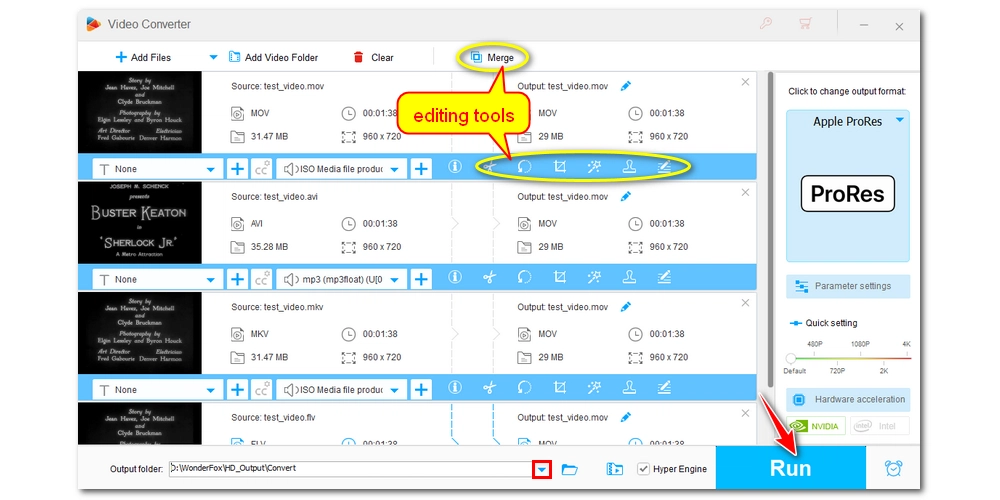
Step 3: Click the ▼ icon at the bottom of the interface to choose an output destination. Then click Run to start the conversion process.
Once the conversion is complete, a window will pop up and you can open the Output Folder to see the converted files. Try importing the file again to see if the import problem is resolved.
💡 Tip: For casual editing, you can also use its built-in editing tools to trim, merge, crop, rotate, and apply filters to your videos.
Besides converting the media files, you can also expand your After Effects capabilities to read more formats and codecs by installing third-party importer plug-ins. These plug-ins are software that reads files that After Effects cannot handle natively, and you can get them from the official Adobe Exchange, the developer hubs, or your camera manufacturer's websites. After getting the plugin file (.aex or .plugin), you can follow these steps to empower your After Effects:
Step 1: Close After Effects completely.
Step 2: Go to the Adobe MediaCore folder at the following path: C:\Program Files\Adobe\Common\Plug-ins\7.0\MediaCore
Step 3: Place the .aex file in the folder.
Step 4: Restart After Effects and try importing a file.
Corrupted metadata indexes could mess up with media file import, so it's wise to clear the media cache for a fresh start.
Clear Media Cache:
Step 1: Go to Edit > Preferences > Media & Disk Cache.
Step 2: Under Disk Cache, click Empty Disk Cache and then OK to confirm.
Step 3: Under Conformed Media Cache, click Clean Media Cache.
Step 4: Click OK to all windows and then restart After Effects.
GPU decoding is designed to offload work from your CPU for smoother performance, but it can sometimes be unstable when handling compressed MP4 and MOV files. You can try disabling GPU decoding so that After Effects can process the import on its own:
Disable Hardware Decoding in Preferences:
Step 1: Go to Edit > Preferences > Import.
Step 2: Uncheck Enable hardware-accelerated decoding.
Step 3: Click OK and restart After Effects.
Want more specific help? You can go to Adobe communities or contact the official support.
Professional camera formats (Sony XDCAM, Panasonic P2, Canon XF) have a specific folder structure (e.g., CONTENTS/CLIP). If you move individual .mxf files out of their parent folder, After Effects loses the metadata necessary to stitch clips together. So you should always import the whole camera folder as is or convert the MXF files with HD Video Converter Factory Pro.
This is often the case on Windows when a MOV file contains HEVC (H.265) video or legacy 32-bit QuickTime codecs. You can install the official HEVC Video Extensions from the Microsoft Store or transcode the MOV file to Apple ProRes or H.264 MP4.
Older AVI files created with 32-bit codecs often run into the legacy 2GB or 4GB file-size limit, causing After Effects to freeze when parsing the header. You can solve this right away by converting the AVI file to a format that works with 64-bit, like MP4 or ProRes MOV.
No. After Effects does not support MKV or WebM out of the box. You will need to install a third-party importer plug-in (e.g. fnordware WebM plugin or Autokroma Influx) or transcode the file into a supported format like MP4 or ProRes.

I write about multimedia topics, including video and audio conversion, compression, editing, and downloading. I joined WonderFox in 2020, and my goal is to help readers solve everyday tech problems more easily. In this guide, you will learn what media file types are supported by After Effects and how to fix errors if you can't import an AVI, MOV, or MXF into After Effects. Hope you find it useful!


I write about multimedia topics, including video and audio conversion, compression, editing, and downloading. I joined WonderFox in 2020, and my goal is to help readers solve everyday tech problems more easily. In this guide, you will learn what media file types are supported by After Effects and how to fix errors if you can't import an AVI, MOV, or MXF into After Effects. Hope you find it useful!

WonderFox HD Video Converter Factory Pro
1. Batch convert AVI, MP4, MKV, etc., to 500+ formats.
2. Download videos from YouTube and 1000+ sites.
3. Screen record on PC in HD (with audio).
4. Edit videos and change parameter settings.
5. Compress audio/video files while keeping good quality.
6. Make GIFs, make ringtones, extract subtitles, and more.

Privacy Policy | Copyright © 2009-2026 WonderFox Soft, Inc.All Rights Reserved
