

WonderFox DVD Video Converter, DVDFab, MakeMKV, HandBrake, and VLC can all be involved in a DVD-to-digital workflow. This guide compares what each program actually does so you can choose a practical workflow instead of installing software with overlapping names but very different purposes.
 Kevincy | Sep 29, 2026
The biggest source of confusion is that all five programs can touch DVD video in some way, yet their core jobs differ.
That difference in purpose explains most of the practical differences in output quality, file size, speed, disc support, and ease of use.
| Feature | WonderFox DVD Video Converter | DVDFab DVD Ripper | MakeMKV | HandBrake | VLC |
|---|---|---|---|---|---|
| Main purpose | DVD ripping + video/audio conversion | Feature-rich DVD ripping | Lossless disc-to-MKV remuxing | Video transcoding/compression | Playback + occasional conversion |
| Platforms | Windows | Windows, macOS | Windows, macOS, Linux | Windows, macOS, Linux | Windows, macOS, Linux and more |
| DVD disc / ISO / folder input | Yes | Yes | DVD and supported disc/image sources | Yes for readable, unprotected sources | DVD/disc playback and conversion are available |
| Protected commercial DVD support | Built in | Built in | Built in for supported discs | No native circumvention | Varies by disc, drive, system, and libraries |
| Blu-ray | No | Separate Blu-ray Ripper module | Yes | Can open readable/unprotected Blu-ray sources | Limited; not a dedicated Blu-ray ripping solution |
| Output formats | 500+ format/device presets | 1000+ video/audio profiles | MKV only | MP4, MKV, WebM, MOV | Multiple common containers/codecs via profiles |
| No video re-encoding option | Yes, e.g. MPG quick copy | Yes, e.g. MKV Passthrough | Yes; this is its main workflow | No; video is encoded | Possible in remux workflows |
| Compress file size | Yes | Yes | No | Yes; one of its strengths | Yes, with transcoding profiles |
| Editing/filters | Basic editor | Built-in editor | No real editor | Cropping, filters, deinterlace, subtitles, chapters, etc. | Filters are available, but editing is not its main focus |
| Hardware encoding | NVIDIA NVENC / Intel QSV | GPU acceleration on supported hardware | Not needed for remuxing | Supported on compatible hardware | Hardware acceleration support varies by codec/platform |
| Cost model | Commercial, trial available | Commercial, 30-day trial + limited free functions | Beta/freeware + shareware functionality | Free and open source | Free and open source |
Note: Disc-reading results can vary with the exact disc edition, optical drive, region settings, software version, and disc condition. Laws concerning copying protected discs also vary by country and circumstance. Use these tools only for media you own or are authorized to process, and follow applicable law.
WonderFox DVD Video Converter can load DVD discs, ISO images, and VIDEO_TS folders, convert video/audio files, preserve selected tracks, and provide 500+ format/device presets in a beginner-friendly Windows interface.
WonderFox DVD Video Converter is the most all-in-one option in this comparison for Windows users who need both DVD processing and ordinary video conversion. It can load a physical DVD, ISO image, or VIDEO_TS folder, detect main titles or episodes, and convert the content to MP4, MKV, MOV, AVI, H.264, H.265, AV1, audio formats, and many device-oriented presets. For supported output types, you can keep multiple audio/subtitle tracks or choose only the tracks you need.
For commercial DVDs, the program includes built-in DVD decryption and region-handling technology. It also provides 1:1 copy choices when you want to preserve the disc without shrinking it, while normal conversion profiles can reduce file size and improve compatibility with phones, tablets, TVs, consoles, media servers, and editing software.
Its extra value comes from the non-DVD tools. The same program can convert regular video/audio files, download supported online media, trim, crop, rotate, flip, merge, add effects, and adjust codec, bitrate, resolution, frame rate, audio channels, and other parameters. NVIDIA NVENC and Intel QSV hardware encoding are available on compatible Windows PCs.
📌 Main trade-offs: it is Windows-only and does not rip Blu-ray discs. If your library includes both DVD and Blu-ray, MakeMKV or the appropriate DVDFab Blu-ray module covers a wider range of optical media.
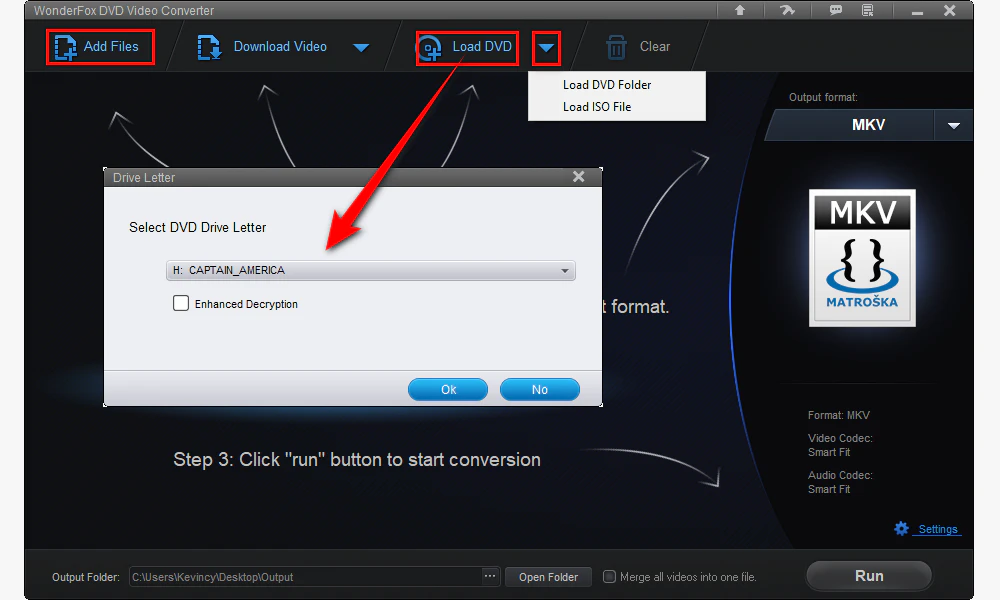
Insert the DVD into your drive and launch the program. Click Load DVD and choose the disc, ISO image, or DVD folder. After analysis, check the movie or episode titles, audio tracks, and subtitles you want to keep.
For non-DVD conversion, click "Add Files" to import your video or audio files.
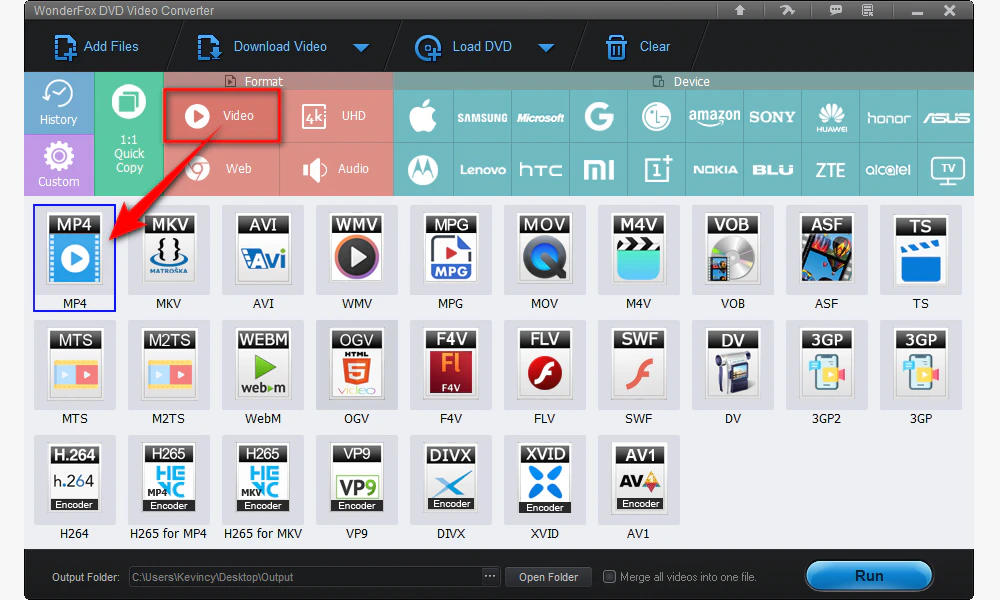
Open the output profile list. Pick a common format such as MP4 for broad compatibility, MKV when you want flexible audio/subtitle handling, or a device profile for a phone, TV, console, or tablet. If you want to preserve the DVD source without normal transcoding, use an available 1:1 quick-copy option instead.
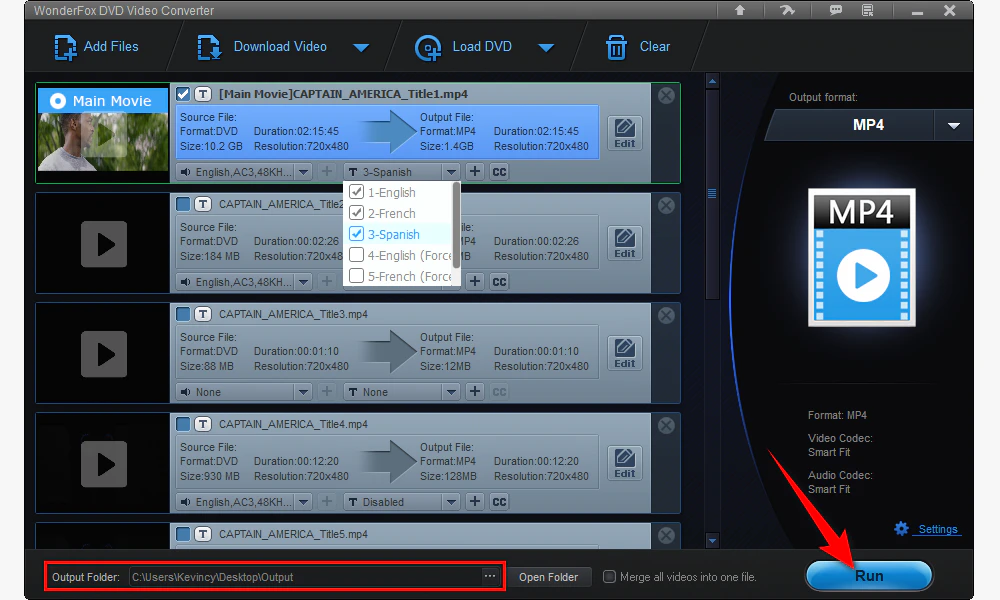
Choose the destination folder, make any optional parameter or editing changes, and click Run. Hardware acceleration can be used for supported codecs when compatible NVIDIA or Intel graphics hardware is available.
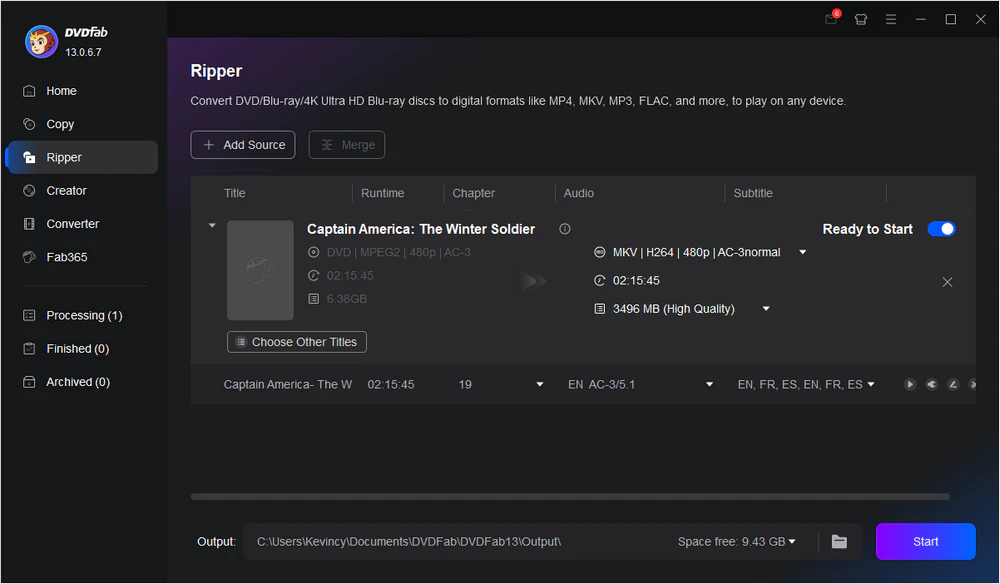
DVDFab DVD Ripper is the DVD-to-file module in the wider DVDFab ecosystem. It can read physical DVDs, ISO images, and VIDEO_TS folders, including many commercial discs with copy protection, then export them to a large profile library covering common video/audio formats and devices.
Compared with MakeMKV, DVDFab gives you far more control over compression and output format. You can use an MKV Passthrough profile when you want to avoid normal video compression, or choose an encoded profile when you prefer a smaller file. Audio/subtitle selection, parameter controls, GPU-assisted encoding, task queues, and a built-in editor make it closer to a full production tool than a simple remuxer.
One important distinction is often missed: DVDFab is modular. DVD Ripper is for converting DVD content to media files. If you want disc-to-disc copying, DVD-5/DVD-9 compression, or full disc/ISO/folder copy modes, those functions belong mainly to the separate DVDFab DVD Copy module. Blu-ray ripping also uses a separate Blu-ray Ripper module.
📌 Main trade-offs: the interface exposes many profiles and options, which can feel busy to occasional users, and full functionality requires a paid license after the trial. Some free functions remain in the shared DVDFab installer, but they are more limited than the paid Ripper module.
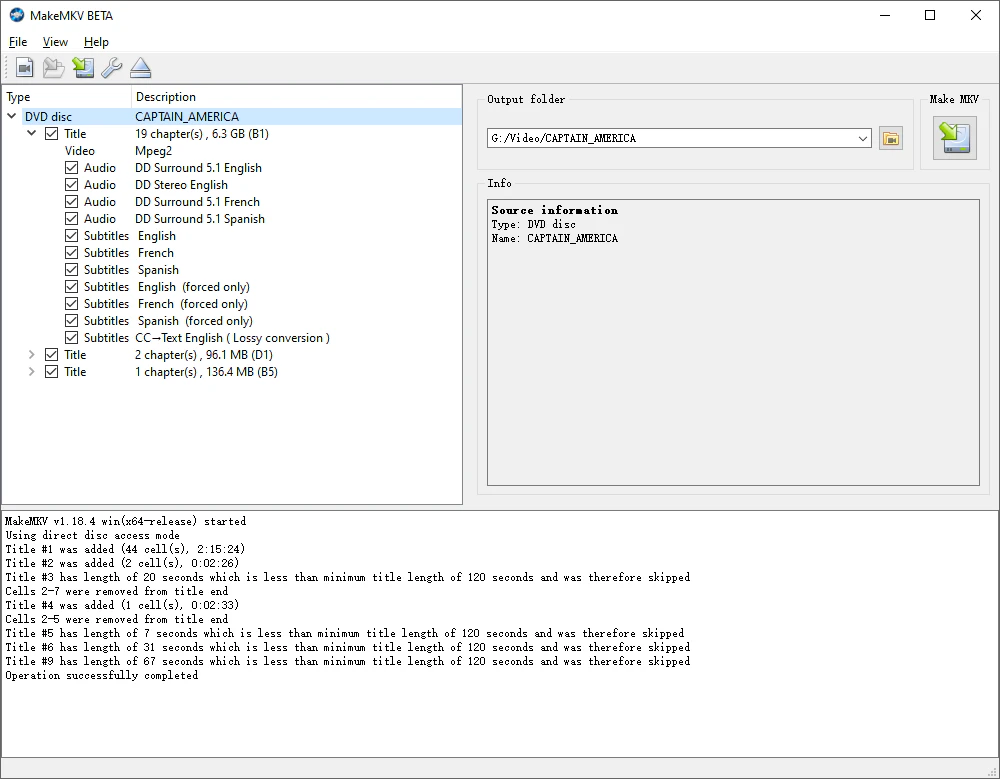
MakeMKV takes a very different approach. It reads supported DVD and Blu-ray sources and places the selected video, audio, subtitle, chapter, and metadata streams into an MKV container without re-encoding the video. That means the picture quality stays at the source level and the process is generally limited more by disc-reading speed than by video encoding speed.
The benefit is simplicity and preservation. There is no need to choose CRF values, bitrates, encoder presets, or output resolutions. The drawback is equally clear: MakeMKV does not shrink the video the way HandBrake or other encoders do, so a feature-length movie may still occupy several gigabytes, and MKV is the only normal output container.
MakeMKV is available for Windows, macOS, and Linux. It can read both DVDs and Blu-rays, including supported encrypted discs. As of September 2026, the project remains in beta and version 2.0.0 is current. It is worth checking the current license information on the official site when installing.
📌 Main trade-offs: no compressed MP4 output, no real video editor, and large files. It is best understood as a high-fidelity extraction/remux tool, not a general converter.
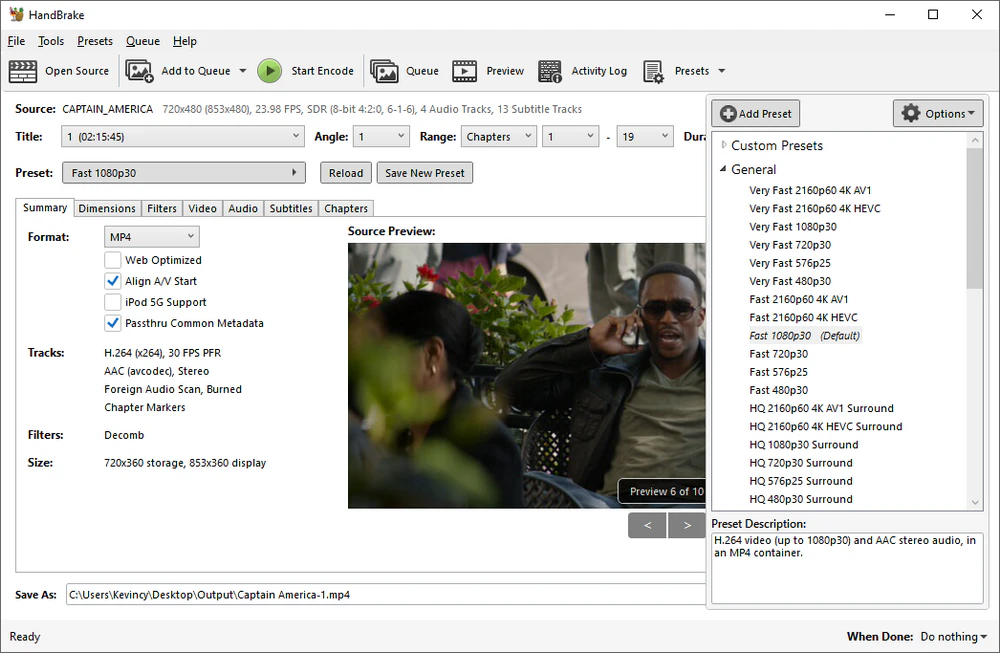
HandBrake is a free, open-source transcoder for Windows, macOS, and Linux. It can open many video files and readable DVD/Blu-ray sources, then re-encode them with modern codecs and presets. It is especially useful when your goal is to reduce a large source to a practical file size while controlling quality, resolution, frame rate, filters, audio tracks, subtitles, and chapters.
Unlike MakeMKV, HandBrake always encodes the video, so it is not a video passthrough/remux tool. With sensible quality settings, the difference can be visually small, but the output is still newly encoded. This is why HandBrake can create much smaller files than MakeMKV but usually takes longer to finish.
Current HandBrake releases support MP4, MKV, WebM, and MOV. It also supports software and hardware encoders on compatible systems and includes useful filters such as cropping, scaling, deinterlacing/decomb, denoise, and subtitle handling.
📌 Copy protection is the key limitation: HandBrake's own documentation states that it does not defeat or circumvent copy protection. It works well with unprotected discs and with disc backups or MKV files created by a separate tool, but it should not be presented as a native protected-DVD ripper.
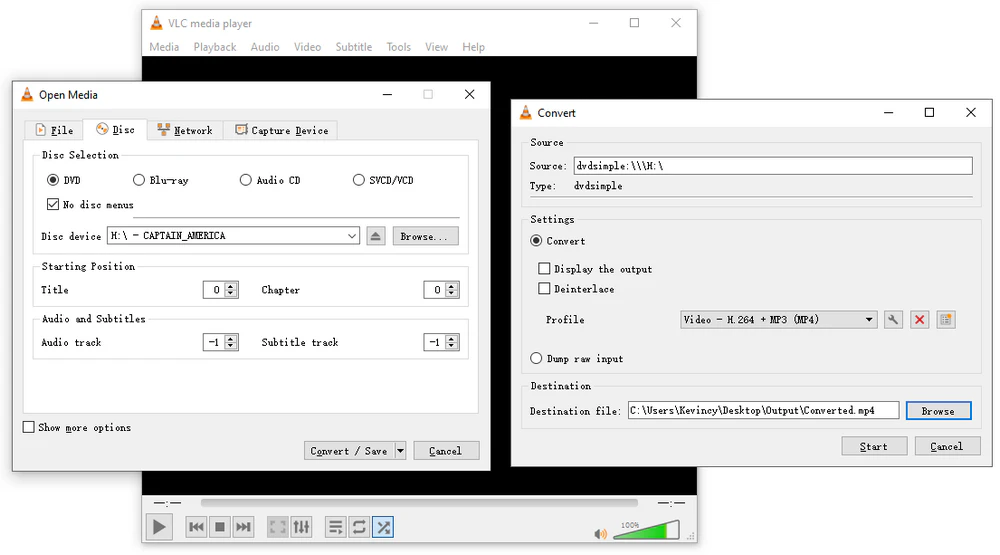
VLC Media Player is best known as a free, open-source media player, but its Convert/Save and stream-output features can also transcode or remux media. It runs on Windows, macOS, Linux, and many other platforms, and it can play DVDs as well as a very wide range of file formats.
Compared with HandBrake, VLC is less specialized as an encoder. HandBrake organizes conversion around presets, quality controls, filters, queues, subtitles, and device-oriented encoding workflows. VLC exposes a smaller set of conversion profiles in the GUI, while many advanced transcoding/remuxing options live in its stream-output system and command-line syntax. That makes VLC useful for occasional conversion but less convenient for repeated DVD archiving.
VLC can sometimes access encrypted DVDs through libdvdcss, but the result depends on the optical drive, disc region/protection, operating system, and library setup. It is therefore not as predictable as a dedicated DVD ripper for protected commercial discs. For unprotected home DVDs or a quick one-off conversion on a computer where VLC is already installed, it can still be handy.
📌 Main trade-offs: DVD title/track selection and conversion settings are not as purpose-built as the dedicated ripping tools above, and troubleshooting protected discs can require more technical knowledge.
You are on Windows and want one approachable program for protected DVD ripping, normal video/audio conversion, device presets, compression, track selection, basic editing, and online video downloading. It fits users who would rather not chain a disc ripper and a separate converter together.
You want a highly configurable commercial DVD ripping workflow, broad profile support, passthrough and compressed outputs, GPU acceleration, task queues, and access to a larger disc-tool ecosystem. Remember that DVD Copy and Blu-ray Ripper are separate modules for different jobs.
You want to preserve the original video/audio streams in MKV with minimal setup and do not mind large files. It is also a useful first stage before HandBrake when you need a clean disc extraction and then want to compress it later.
You already have an unprotected disc, disc backup, or MakeMKV file and want a free, powerful way to compress it, change codecs, resize it, filter it, or create device-friendly MP4/MKV/WebM/MOV output.
You mainly need a player and only occasionally need to convert, remux, stream, or extract media. It is the least dedicated DVD-conversion interface here, but it is convenient when it is already part of your everyday playback setup.
HandBrake vs VLC: both are free and cross-platform, but HandBrake is the more structured transcoder while VLC is the broader media player/framework. VLC can remux without re-encoding in suitable workflows; HandBrake always encodes video.
HandBrake vs MakeMKV: MakeMKV preserves the original streams and therefore quality and file size; HandBrake re-encodes to trade some source fidelity for a smaller, more compatible file. A common two-stage workflow is MakeMKV first, HandBrake second.
MakeMKV vs DVDFab: MakeMKV is intentionally narrow and outputs MKV without normal video compression. DVDFab DVD Ripper offers many more encoded profiles, editing and performance options, but it is a commercial module. Also, full disc copying and Blu-ray ripping in DVDFab belong to separate modules, so the word "DVDFab" should not be treated as one single ripper with every feature enabled by default.
Yes. For normal disc ripping, MakeMKV remuxes the existing compressed streams into MKV without re-encoding the video, so the video stream is preserved. HandBrake encodes video to a new stream. With a high-quality HandBrake setting, the visible difference can be very small, but it is still a re-encode.
No. HandBrake officially states that it does not defeat or circumvent copy protection. Use it with unprotected media or with a disc backup/MKV that another permitted workflow has already made readable.
Not normally. Its main purpose is to preserve the source streams, so the resulting MKV remains relatively large. Use HandBrake, WonderFox DVD Video Converter, DVDFab, or another encoder if smaller output is the priority.
MakeMKV supports DVD and Blu-ray in one application. HandBrake can open readable/unprotected DVD and Blu-ray sources but does not bypass protection. DVDFab offers DVD and Blu-ray ripping through separate modules. WonderFox DVD Video Converter is focused on DVD rather than Blu-ray.
These five programs overlap, but their ideal jobs are different. WonderFox DVD Video Converter combines DVD ripping and everyday media conversion in one Windows program. DVDFab DVD Ripper provides deeper commercial ripping options within a modular suite. MakeMKV is the straightforward choice for preserving disc streams in MKV. HandBrake is built for re-encoding and compression, while VLC remains primarily a player with useful conversion tools on the side.
Instead of asking which program is universally "best," start with the output you actually want: an untouched MKV, a smaller MP4, a device preset, a full disc-style backup, or simply occasional playback/conversion. Once that is clear, the differences above become much easier to use in practice.

Kevincy joined the WonderFox team in 2014 and has been a senior columnist ever since. With over two decades of experience in the video editing industry, he shares tutorials, tips, and how-to guides on video/audio processing and personal DVD backups. Family-oriented and passionate about helping others, he is dedicated to making video and audio processing easier for readers.


Kevincy joined the WonderFox team in 2014 and has been a senior columnist ever since. With over two decades of experience in the video editing industry, he shares tutorials, tips, and how-to guides on video/audio processing and personal DVD backups. Family-oriented and passionate about helping others, he is dedicated to making video and audio processing easier for readers.
WonderFox DVD Video Converter
1. Load DVD discs, ISO images, and DVD folders.
2. Convert DVD/video/audio to 500+ presets.
3. Handle supported DVD protections and regions.
4. Keep multiple audio/subtitle tracks when supported.
5. Trim, merge, crop, rotate, flip, and add effects.
6. Use NVIDIA NVENC and Intel QSV acceleration.
7. Download online video and audio from 1000+ sites.

Privacy Policy | Copyright © 2009-2026 WonderFox Soft, Inc. All Rights Reserved
