

A subtitle file may contain simple text, HTML-like markup, frame-based timing, or even bitmap images. That is why changing the filename extension alone rarely works. This guide explains reliable ways to convert subtitle formats while keeping the text and timing as accurate as possible.
 Kevincy | Aug 4, 2026
Most subtitle files fall into two groups. Text-based subtitles store captions and timecodes as readable text. Common examples include SRT, VTT, SBV, SMI/SAMI, ASS/SSA, TTML, and several kinds of SUB. They can usually be converted without OCR.
Image-based subtitles store each caption as a picture. VobSub files from DVDs commonly appear as a paired .sub + .idx set. PGS/SUP is another image-based type. To turn these files into editable SRT or VTT text, a subtitle program must recognize the images with OCR, and the result should be proofread.
The .sub extension deserves extra attention because it does not describe one single format. A .sub file may be a readable MicroDVD or SubViewer text file, or it may be the bitmap part of a VobSub pair. Open a copy in a text editor first. Readable text and timecodes mean it is text-based. Unreadable binary data or a matching .idx file usually means it needs OCR.
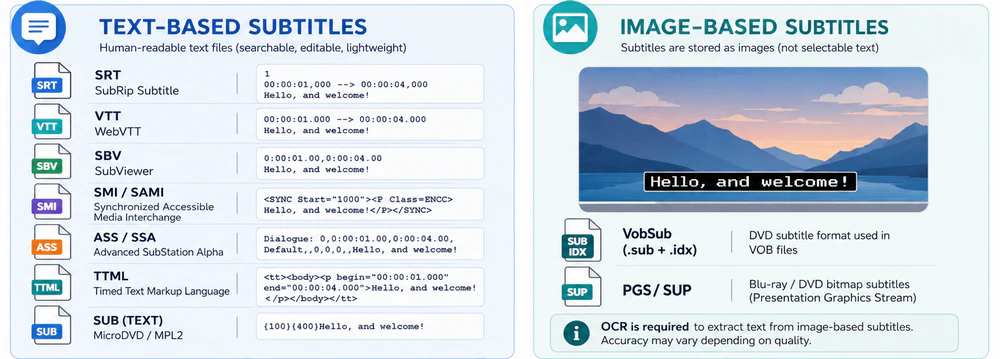
SRT is usually the safest choice for media players, TVs, editors, and general sharing. It keeps basic caption text and timing but not advanced layout or styling.
VTT is designed for web video and the HTML <track> element. It can also store cue positioning and other web-oriented information.
ASS/SSA is more suitable when fonts, colors, positioning, karaoke effects, or detailed styling matter. TTML/XML may be required by a streaming, accessibility, or professional delivery workflow. Older formats such as SBV or SMI are best kept only when the target platform specifically asks for them.
Make a backup before conversion. For text subtitles, UTF-8 is the best default encoding, especially when the captions contain accented letters, Asian characters, or multiple languages.
WonderFox HD Video Converter Factory Pro can add an external subtitle file to a video as a selectable closed-caption track or permanent hard subtitles. It also converts the video when the original format is not compatible with your device.
Subtitle Edit is a free, open-source program for opening, editing, converting, synchronizing, and checking subtitle files. It can directly process many text-based formats and use OCR to turn supported image subtitles into editable text. The latest interface also includes a batch conversion tool for handling multiple files together.
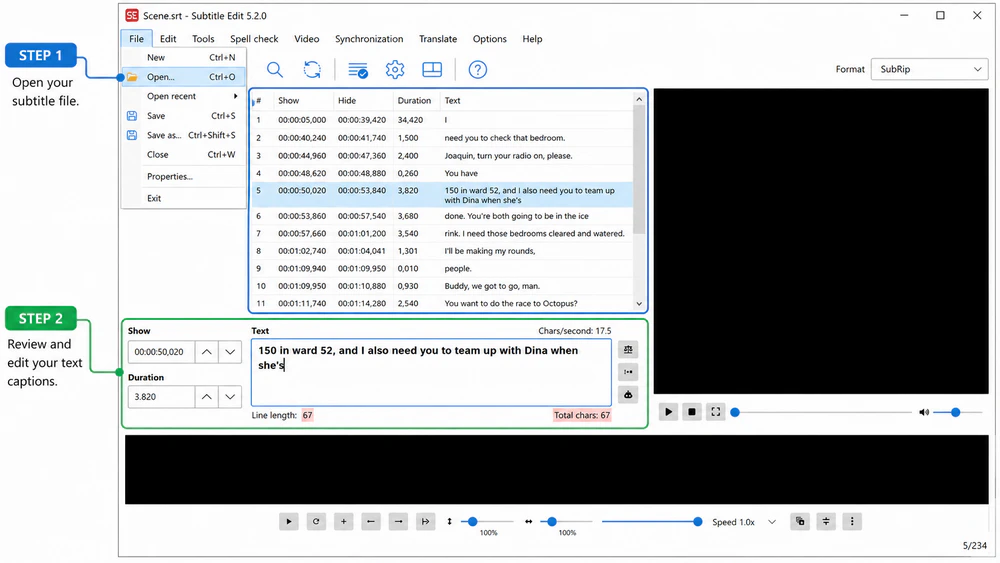
Step 1 - Open the source subtitle. Launch Subtitle Edit and click File > Open to select one subtitle file. An easier option is to drag the file directly into the blank workspace.
Step 2 - Review a text-based subtitle. When the source is a text subtitle such as SRT, VTT, SBV, SMI, ASS, or a readable text-based SUB file, Subtitle Edit displays its start time, end time, duration, and caption text in the main list. Click any row to correct the wording, line breaks, timing, or other simple errors before conversion.
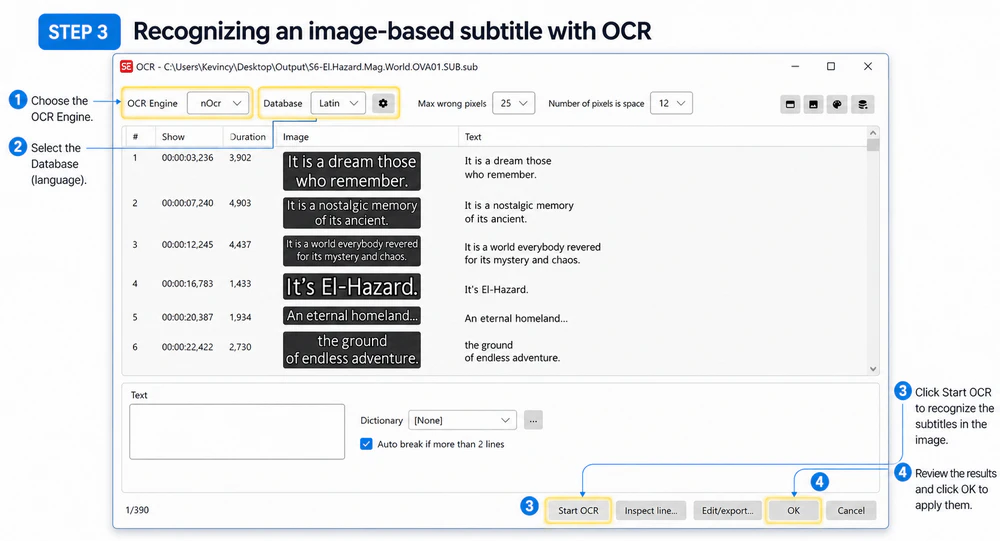
Step 3 - Recognize an image-based subtitle with OCR. When you import a supported image subtitle, such as a VobSub .sub file with its matching .idx file, Subtitle Edit opens the OCR window. Choose an OCR Engine, select a suitable Database, and adjust other recognition settings when necessary. Subtitle Edit includes several OCR engines, although some of them need to be downloaded separately.
Click Start OCR to recognize the subtitle images. Review and edit the recognized text, especially unclear letters, numbers, punctuation, and line breaks. When the result looks correct, click OK to add the captions to the main editing interface.
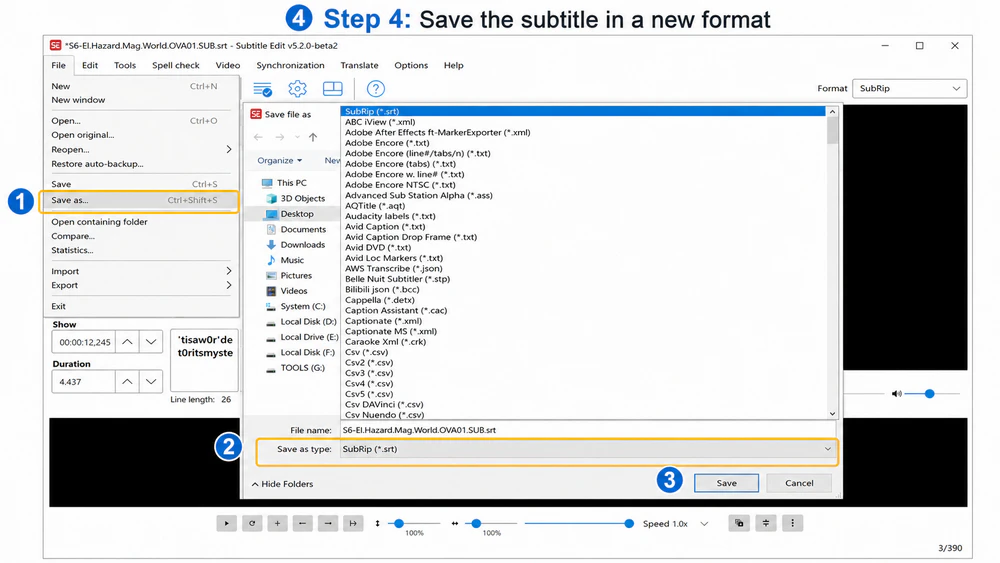
Step 4 - Save the subtitle in a new format. Click File > Save as. Rename the file, choose the required option from the Save as type list, such as SubRip (.srt), and click Save. Unless a device or service requires another character set, UTF-8 is usually the safest encoding for multilingual subtitles.
Step 1. Open Tools > Batch convert.
Step 2. In the Batch convert window, click the + button to import subtitle files. You can also drag and drop multiple files directly into the file list.
Step 3. Open the Target format list and select the output subtitle format.
Step 4. Click the gear icon to configure options such as character encoding, output directory, OCR engine, and OCR database.
Step 5. Click Convert at the bottom to start the batch conversion.
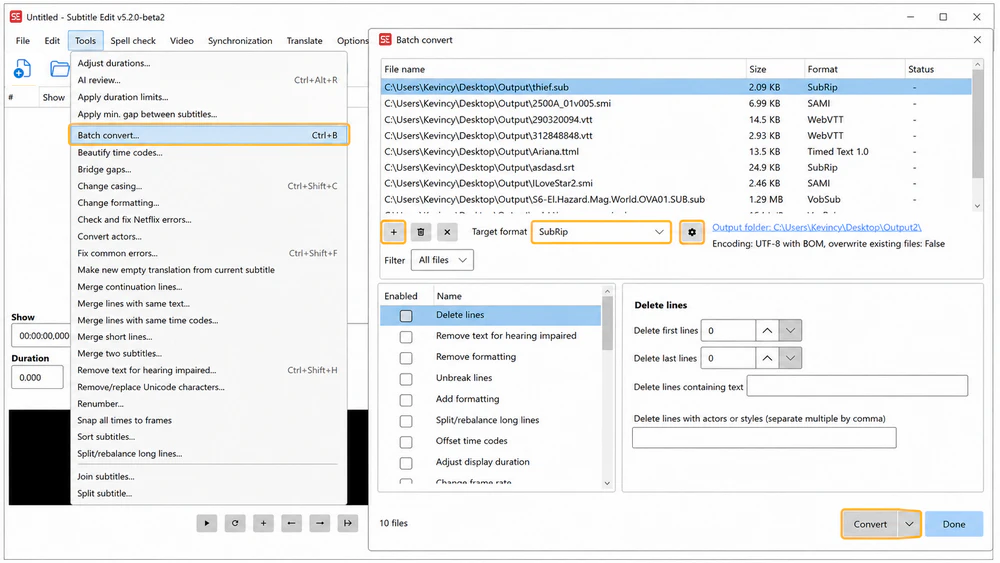
Text-based subtitle conversion is generally straightforward. Image subtitles depend heavily on OCR accuracy, so it is better to convert them separately when possible. Inspect each unclear caption and manually match blurred or easily confused characters such as I/l/1, O/0, and punctuation marks before saving the final file.
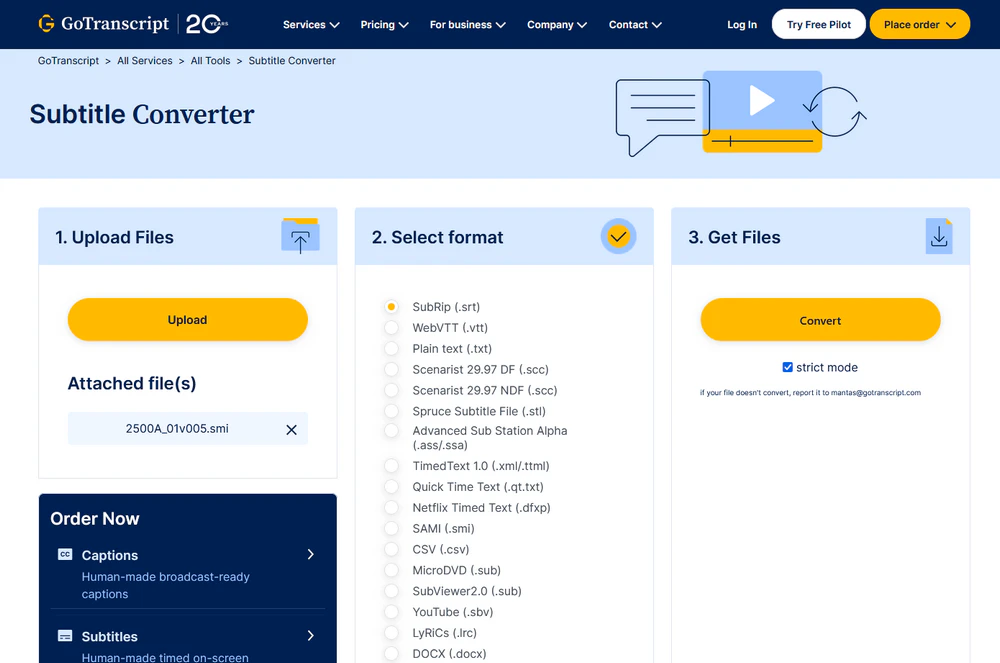
An online converter is convenient for a small, non-confidential text subtitle when you do not want to install software. GoTranscript Subtitle Converter currently accepts many text formats, including SRT, VTT, SMI, SBV, MicroDVD SUB, SubViewer SUB, ASS/SSA, TTML, and more.
Step 1. Open the subtitle converter and upload the source file.
Step 2. Select the target format you need.
Step 3. Start the conversion and download the new subtitle file.
Step 4. Open the result in a text editor or subtitle editor. Check special characters, line breaks, styling, and timing against the video.
This method is intended for text-based files. A bitmap VobSub .sub file cannot be reliably turned into text unless the service performs OCR. Also avoid uploading private, unreleased, or sensitive captions to a third-party site.
Manual editing is reasonable only for a short, simple text subtitle. It helps when the source and target structures are very similar, but it is easy to damage timecodes or remove useful metadata. Always work on a duplicate.
Remove the WEBVTT header, VTT comments, metadata blocks, and cue settings that SRT cannot store. Add sequential cue numbers if they are missing. Change the millisecond separator in each timestamp from a period to a comma, and keep a blank line between cues.
VTT timing:00:00:01.250 --> 00:00:03.800 line:90%
SRT timing:1
00:00:01,250 --> 00:00:03,800
The reverse process requires the WEBVTT header and period-based milliseconds. Advanced SRT tags may not have an exact WebVTT equivalent, and VTT positioning can be lost when converted to SRT.
SBV places the start and end times on one line separated by a comma. SRT uses an arrow between them, pads the hour field to two digits, uses commas for milliseconds, and numbers every cue.
SBV timing:0:00:00.599,0:00:04.160
SRT timing:1
00:00:00,599 --> 00:00:04,160
SMI/SAMI uses HTML-like tags and <SYNC Start=...> markers. End times may be inferred from the next cue, and language classes or legacy encodings can complicate the file. MicroDVD SUB uses frame numbers instead of normal timestamps. VobSub SUB stores images. For these cases, a real subtitle converter is safer than search-and-replace.
The source file probably uses a different character encoding. Reopen it with the correct encoding, then export as UTF-8. Do not overwrite the only copy until the text displays correctly.
This often happens when a frame-based subtitle is converted with the wrong FPS. Check whether the original video is 23.976, 24, 25, 29.97, or another frame rate, then convert again or apply a synchronization correction.
The target format may not support the same styling. SRT is intentionally simple. Convert to ASS/SSA or keep the original VTT/TTML file when layout and styling are important.
The file may be VobSub bitmap data rather than MicroDVD or SubViewer text. Look for a matching .idx file and use OCR in Subtitle Edit instead.
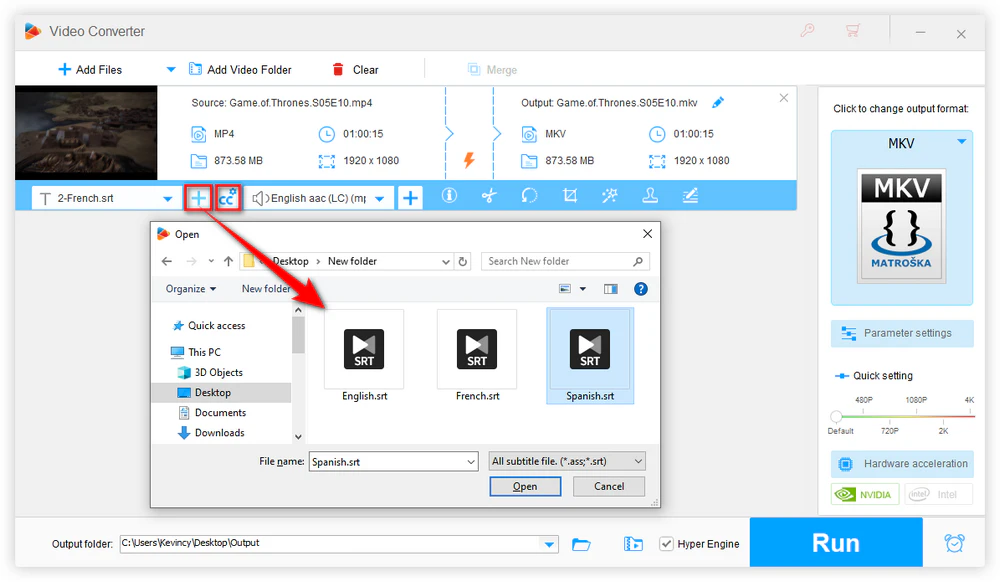
After converting the subtitle to a compatible format such as SRT or ASS, you can load it as an external track or burn it into the picture. WonderFox HD Video Converter Factory Pro offers both options on Windows.
Launch the program, open Converter, and click Add Files to import the video.
Select a suitable output format. MP4, MKV, and MOV are practical choices when you want to keep a soft subtitle track, while hard subtitles can be rendered into any supported output video.
Click the + button next to the subtitle option and choose the converted file. Open the subtitle settings and select CC for a selectable soft subtitle or H for permanent hard subtitles.
Set the output folder and click Run.
No. The extension tells an app what structure to expect. Renaming .vtt to .srt, for example, does not change the header, timecode punctuation, cue settings, or numbering inside the file.
SRT is the most practical default because it is simple and widely supported. Choose VTT for web pages, ASS/SSA for advanced styling, or a platform-specific format when required.
Text and timing can usually be preserved, but unsupported styling, positioning, metadata, or language information may be removed. OCR conversion can also introduce recognition mistakes.
A VobSub .sub file stores bitmap caption images, while the .idx file supplies timing, language, palette, and indexing information. Keep the pair together when importing it for OCR or playback.
The safest way to convert subtitle formats is to identify whether the source is text or image based before choosing a tool. Subtitle Edit is the better all-around option for local conversion, correction, and OCR. An online converter is useful for a quick text-format change, while manual editing should be limited to short and simple files. After conversion, test the result with the full video to catch encoding, timing, and styling problems.

Kevincy joined the WonderFox team in 2014 and has been a senior columnist ever since. With over two decades of experience in the video editing industry, he shares tutorials, tips, and how-to guides on video/audio processing and personal DVD backups. Family-oriented and passionate about helping others, he is dedicated to making video and audio processing easier for readers.


Kevincy joined the WonderFox team in 2014 and has been a senior columnist ever since. With over two decades of experience in the video editing industry, he shares tutorials, tips, and how-to guides on video/audio processing and personal DVD backups. Family-oriented and passionate about helping others, he is dedicated to making video and audio processing easier for readers.

WonderFox HD Video Converter Factory Pro
1. Add external subtitle files to common videos.
2. Choose selectable closed captions or hard subtitles.
3. Convert video and audio with 500+ output presets.
4. Trim, merge, crop, rotate, flip, and compress video.
5. Adjust resolution, bitrate, frame rate, and audio settings.
6. Download online media and record screen activities.
7. Extract supported subtitle tracks from video files.

Privacy Policy | Copyright © 2009-2026 WonderFox Soft, Inc. All Rights Reserved
