

 Michelle | Updated on Aug 7, 2026
Finding the best video editing software for Windows 11 is not always easy. Some programs are designed for beginners who only need to trim and merge clips. Others are built for gamers, drone video editors, or advanced creators working on 4K projects. Some run smoothly on low-end PCs, while others require more powerful hardware.
To help you choose the right one, we've rounded up the best video editing software for Windows 11 for different needs and skill levels. Whether you want a simple free editor, a beginner-friendly all-rounder, or a professional-grade video editing suite, you'll find a suitable option here.
Price: Free
Best for: Entry-level editing
Watermark: No
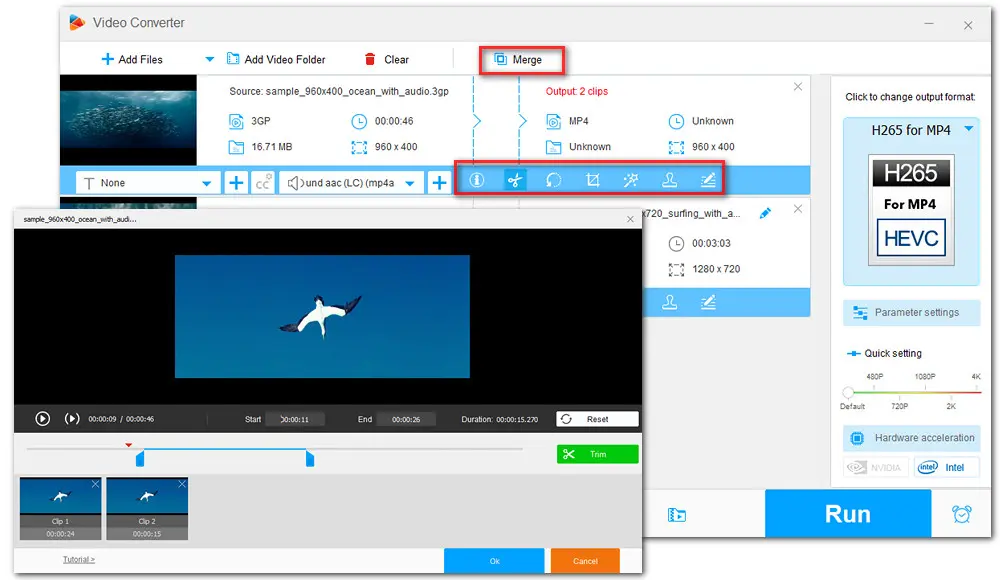
If you are completely new to video editing, Free HD Video Converter Factory might be a good place to start. You can use it to trim, split, crop, rotate, merge, apply filters and watermark, or replace the audio track, add subtitles, and more. After editing, you can convert the edited video to a popular format, device, or social platform. Additionally, you can use it to download video from YouTube, Facebook, Dailymotion, X, and 500 more websites.
Some of WonderFox's best features include:
Check out more about Free HD Video Converter Factory
👉 Download the free video editor and jump to the tutorial to learn how to edit videos with it:
Price:
Free version
$11.99/month
Best for: Beginner and intermediate editor
Watermark: No
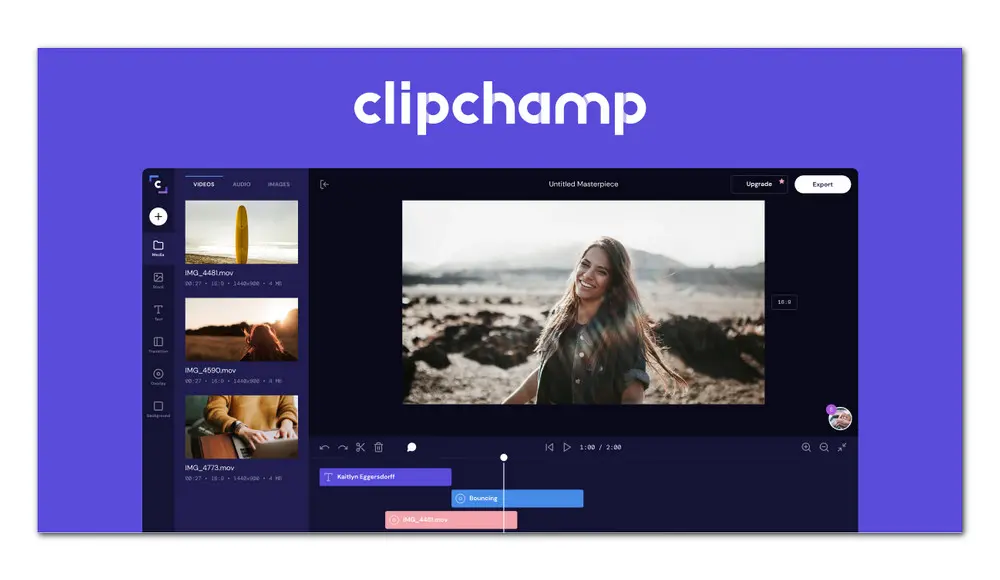
Clipchamp is a web-based video editor capable of editing clips of all sizes directly in browser without the hassle of inconvenient uploads. It has been acquired by Microsoft as default editing app for Windows 11, and you can consider it the iMovie equivalent for Windows. Thanks to its self-explanatory interface, novices can use it to trim, crop, or add filters and transitions easily. Moreover, after connecting Clipchamp with your Microsoft account, you can edit, save and share files seamlessly while using Clipchamp alongside other Microsoft services, such as OneDrive.
Some of Clipchamp's best features include:
Price: Free
Best for: Beginners, Youtuber, small businesses for their footage editing
Watermark: No
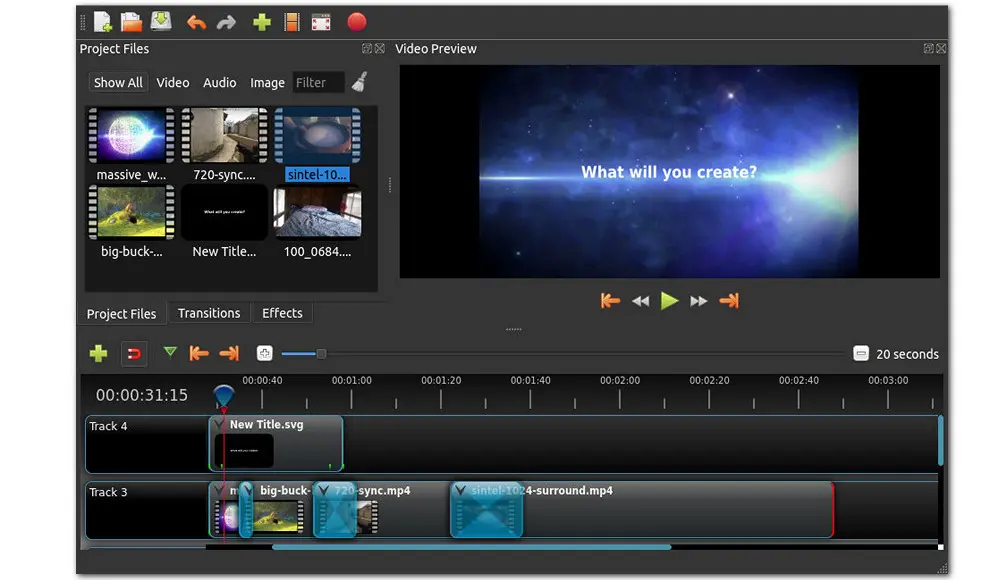
OpenShot is a open-source, free video editor for Windows 11. It provides rich features, including unlimited tracks and layers, title templates, advanced timeline. Also included are basic features like cropping, resizing, rotating, and adjusting brightness and contrast. Besides, it shows real-time previews when you create transitions between clips. However, the novices need to go on a learning curve to grasp the workflow as soon as possible.
Some of the OpenShot's best features include:
Price: Free
Best for: Small business, intermediate editors
Watermark: No
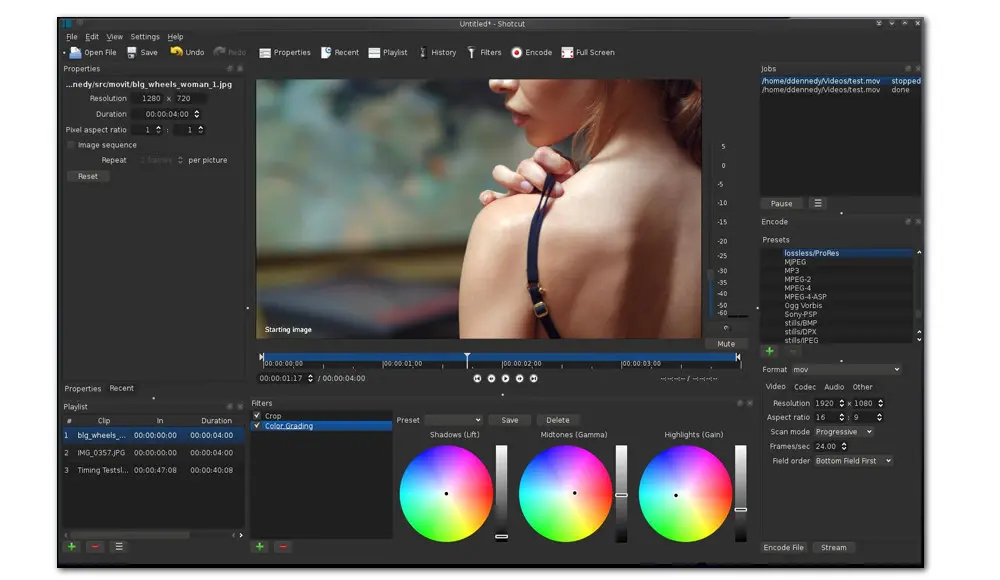
Thanks to FFmpeg, a leading multimedia framework, Shotcut supports a wide range of video formats. It comes with both basic and advanced editing features. For example, the multi-format timeline, making it easier to mix and match resolution and frame rates within a project. These features are accessible for all users once you download it, making it one of the best free video editing software for Windows 11.
Some of the Shotcut's best features include:
Price:
Monthly plan: $19.95/month
Annual plan: $69.95/year
Lifetime license: $94.95/one-time
Best for: Content creators, intermediate editors
Watermark: No
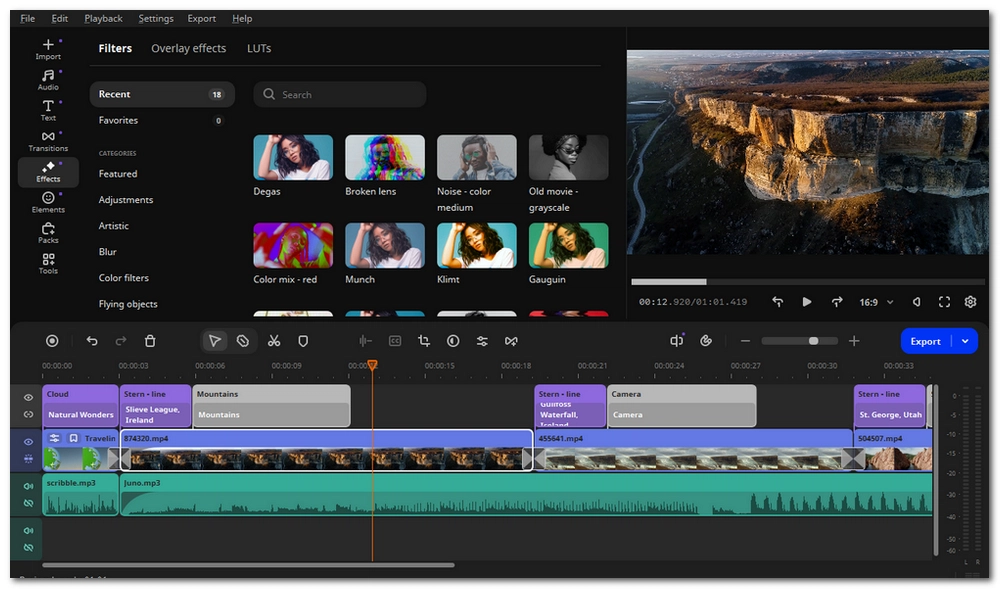
Movavi Video Editor helps when you need an easy drag-and-drop workflow with lost of visual effects and solid choice of advanced tools. In this Windows 11 video editor, you can do basic cuts, add transitions, filters, titles, and work with AI to create stunning video content. It also supports export in popular formats and offers presets for various devices and platforms.
Some of the Movavi Video Editor's best features include:
Price: Free
Pro Version: $19.99
Best for: Both beginners and advanced users
Watermark: No
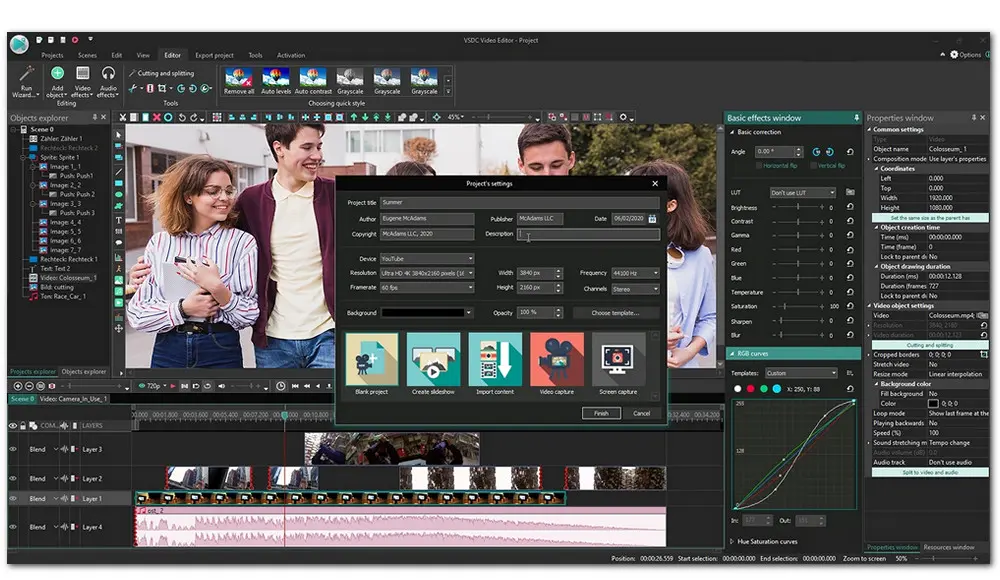
If you're looking to create engaging videos for your business without watermark, VSDC Free Video Editor could be a good option. This non-linear editing app can deal with high-definition videos and equipped with VSDC's full multimedia suite. It contains a large set of trendy video effects, filters and transitions, offers a powerful Chroma Key tool to remove green background, and also provides advanced tools like zoom, 360 video editing, and color correction.
Some of the VSDC Free Video Editor's best features include:
Price:
Free (non-commercial)
Home Edition: $79.99
Master Edition: $139
Best for: Home users, beginners, content creators
Watermark: No (paid version)
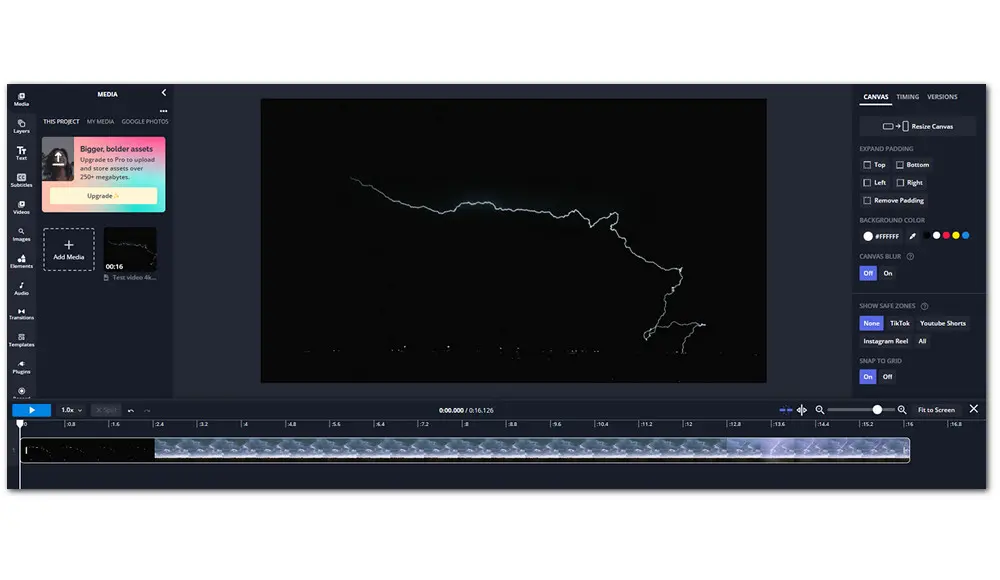
VideoPad Video Editor, developed by NCH Software, is one of the most beginner-friendly desktop video editors available for Windows 11. Its clean and straightforward interface lets you import footage and start editing within minutes, without any prior experience required. VideoPad also shines when it comes to export flexibility. It lets you output videos to a wide variety of formats optimized for DVD, Blu-ray, YouTube, Vimeo, mobile devices, and more.
Some of VideoPad Video Editor's best features include:
Price:
Free
Lightworks Create: $12.99/month
Lightworks Pro: $24.59/month
Best for: Intermediate editors and lite-level editors
Watermark: No
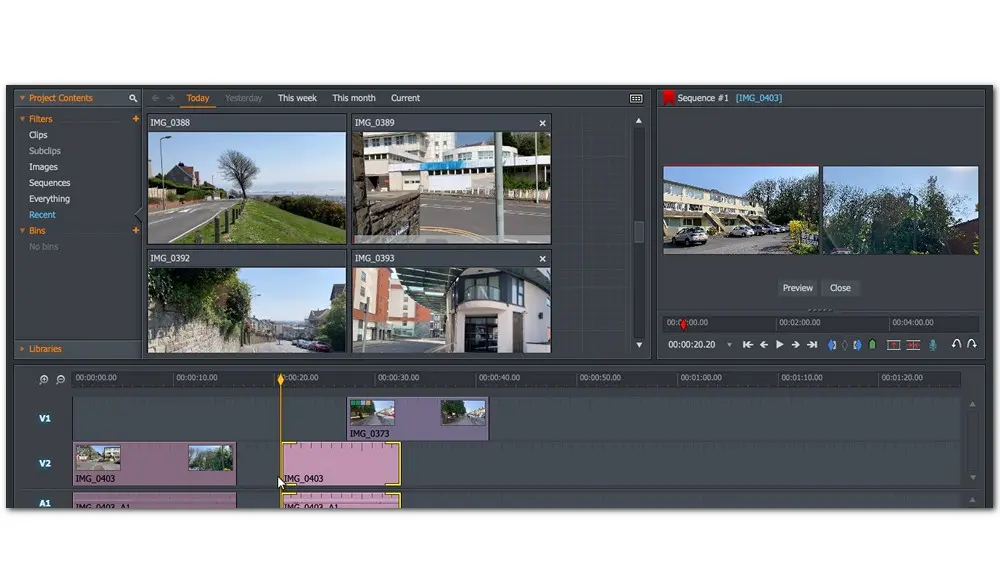
Lightworks is a full-featured and cross-platform video editing program. It supports any frame rate file and play it at its original resolution and shape. You can also use it to trim video, change video speed, adjust the brightness, contrast, saturation. Besides, it lets you apply video effects, and add text to video. Simply drag the new content to your sequence and start editing. It is qualified to be one of the best free video editing software for Windows 11, despite of its maximum 720p export limits.
Some of the Lightworks's best features include:
Price:
Free version
HitFilm Express for creator: $12.99/mon
HitFilm Express for pro: $19.99/mon
Best for: Experienced editors
Watermark: No
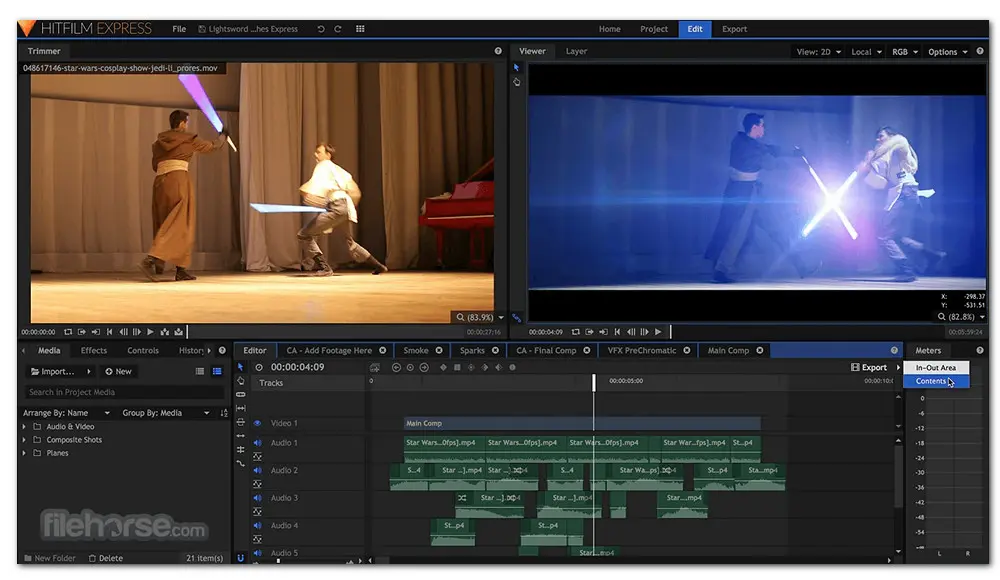
HitFilm Press is packed with professional-grade visual effects(VFX) tools. You can work with the inbuilt color adjustments, keying effects, lens flares, and light swords to create stunning visual content. It can also track the movement of moving objects in your video so that you can add new objects that follow the same motion pattern. Other advanced features include custom video masks, green screen chroma keys, and 3D compositional features.
Some of the HitFilm Express's best features include:
Price:
Monthly plan: $19.99/month
Annual plan: $54.99/year
Best for: Both beginner and advanced video editors
Watermark: No
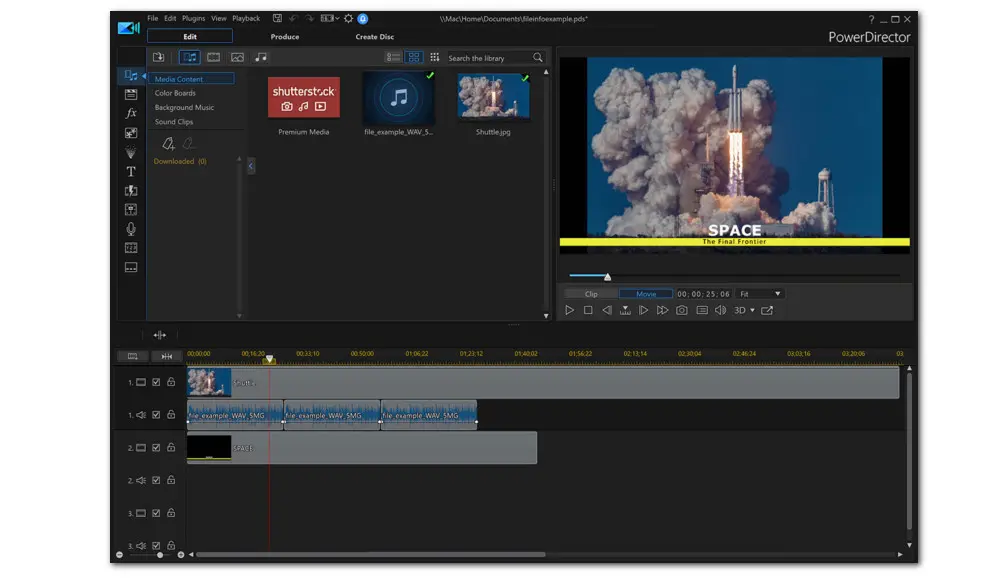
CyberLink's PowerDirector 365 video editing software features a simpler interface and more affordable price than some of the professional editors, such as Premiere Pro and Final Cut Pro X. Besides basic editing features, it is loaded with a 100-track timeline, striking effects, enhance options for audio and video denoising, video templates, and so forth, making it one of the best video editing software for Windows 11/10.
Some of the CyberLink PowerDirector 365's best features include:
Price: Free
Best for: Starters and experienced users
Watermark: No
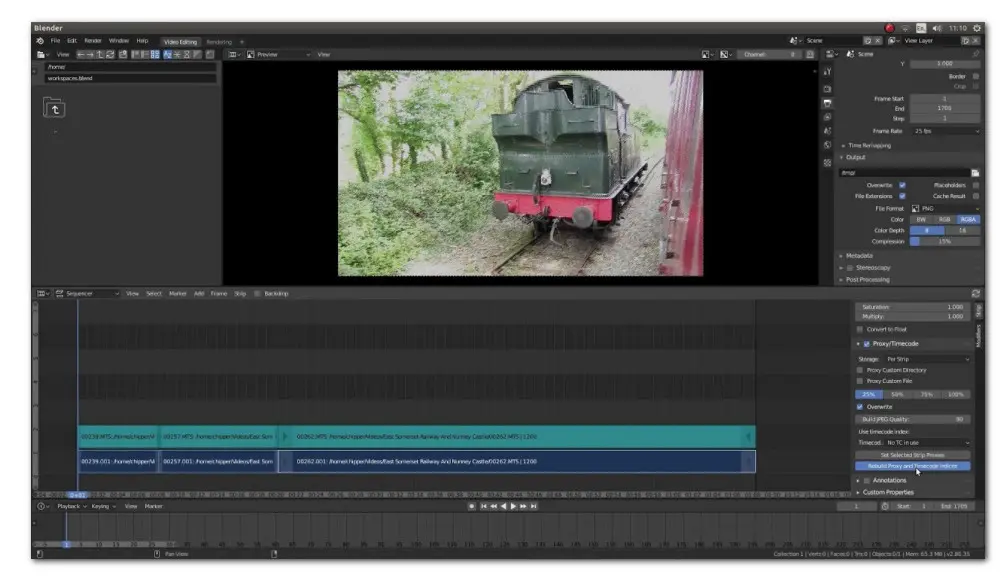
Blender is free, open-source software mainly used for 3D modeling and animation. But it also comes with a powerful Video Sequence Editor built-in. This Video Sequence Editor, also named Sequencer, includes a wide variety of tools used for video cutting and splicing, as well as some complex tasks like video masking or color grading. You can insert fades and transitions, change playback speed, adjustment layers, transitions, keyframes, filters, and more!
Some of the Blender's best features include:
Price:
DaVinci Resolve: Free
DaVinci Resolve Studio: $295
Best for: Lite-level users
Watermark: No
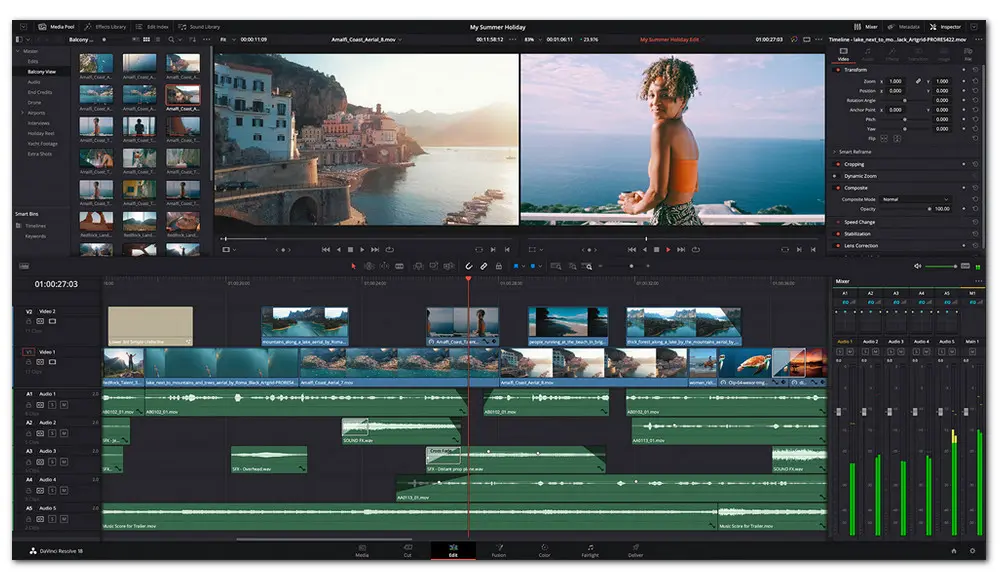
DaVinci Resolve offers everything you could ever need and much more in a single program. It is one of the most comprehensive and best video editing software for Windows 11. It supports cloud-based workflows which make remote collaboration easier. You can use it to handle large projects without hassle. Anyway, for many professional editors of films, television shows, and commercials, DaVinci Resolve is a convincing option.
Some of the DaVinci Resolve's best features include:
Price:
Premiere Pro plan: $20.99/month
Best for: Professional editors
Watermark: No
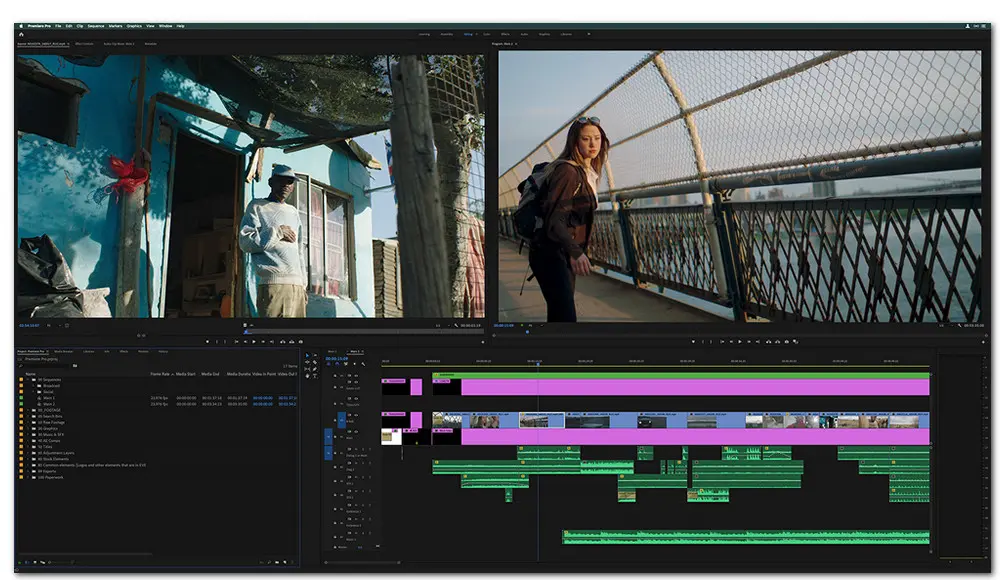
When searching for the best video editing software for Windows 11, you can't get very far without running into Adobe Premiere Pro. Actually, we rate Premiere Pro as a top-of-the-line Windows 11 video editor. With a simple interface, this industry-leading video editor aims to enhance productivity and deliver quality results with advanced tools and fastest editorial workflows. It's not simple nor easy to use, making for a steep learning curve. It is overkill for beginners. Luckily, there are lots of detailed tutorials.
Some of the Adobe Premiere Pro's best features include:
Price:
Starter: $39/year
Essentials: $179.88/year
Create: $249/year
Pro: $599/year
Best for: Educators, trainers, tutorial creators
Watermark: Starter Plan has watermark
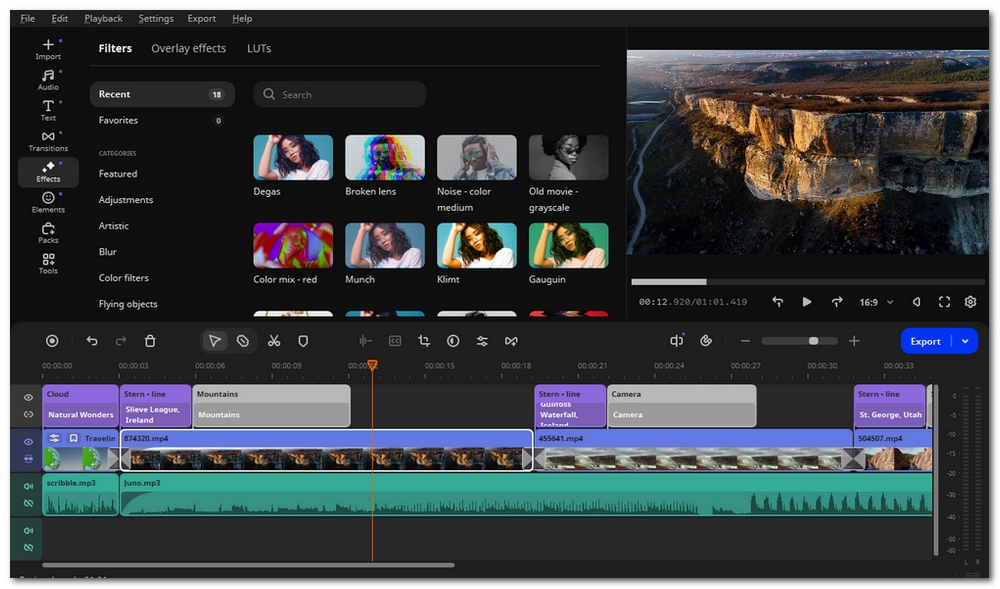
Camtasia, developed by TechSmith, is a uniquely powerful all-in-one screen recording and video editing solution for Windows 11. Unlike general-purpose video editors, Camtasia seamlessly blends screen capture capabilities with a full-featured video editor — meaning you can record your screen, webcam, and audio simultaneously, then polish the footage all within a single tool. Its library of pre-built assets, intro templates, and royalty-free music makes it easy to produce polished, professional-looking tutorials without design skills.
Some of the Camtasia's best features include:
If you are interested in Free HD Video Converter Factory and want to know how to edit videos with it, you just need download it and check out the guide below.
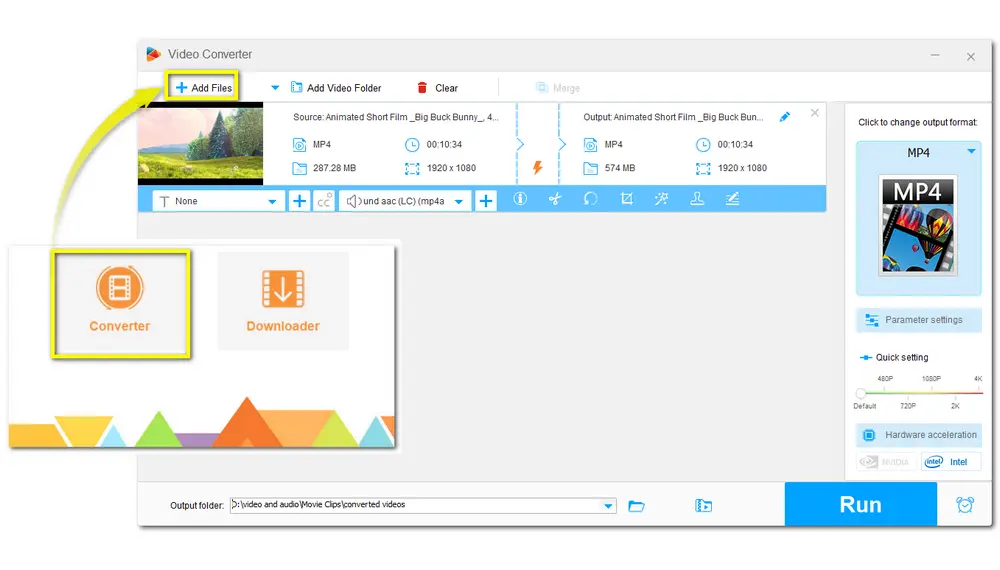
Step 1: DownloadDownload and install Free HD Video Converter Factory on your PC. Launch it and enter the Converter window. Then add your videos by dragging and dropping, or you can click the upper-left + Add Files button.
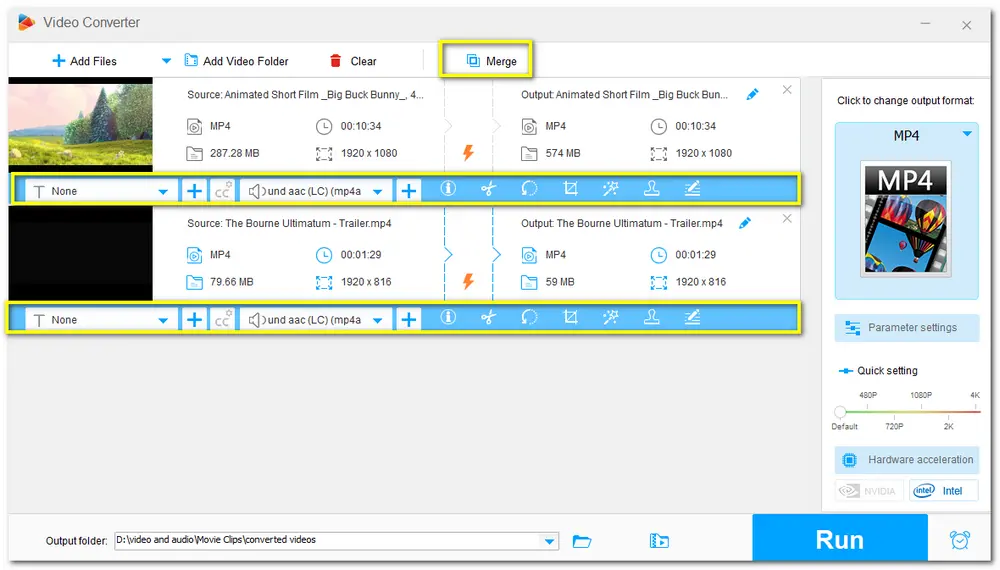
Step 2: After importing the videos, you will see a toolbar below the video. Click each icon to enter the specific video editing window and start cutting, cropping, rotating, merging, and do more with your videos.
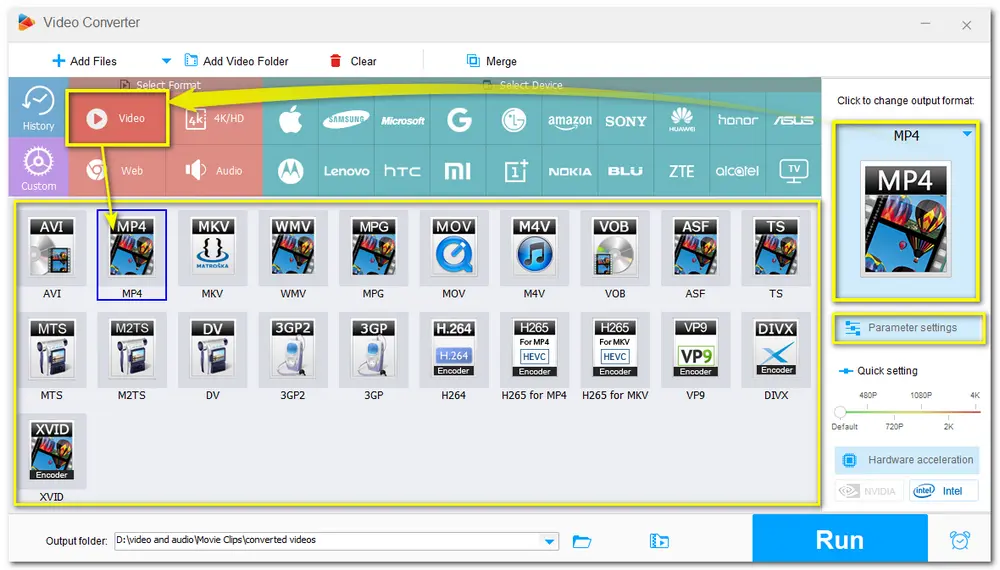
Step 3: Click the format icon on the right side of the interface and choose a video format or device straightly. You can also customize the video parameters in the Parameter settings window.
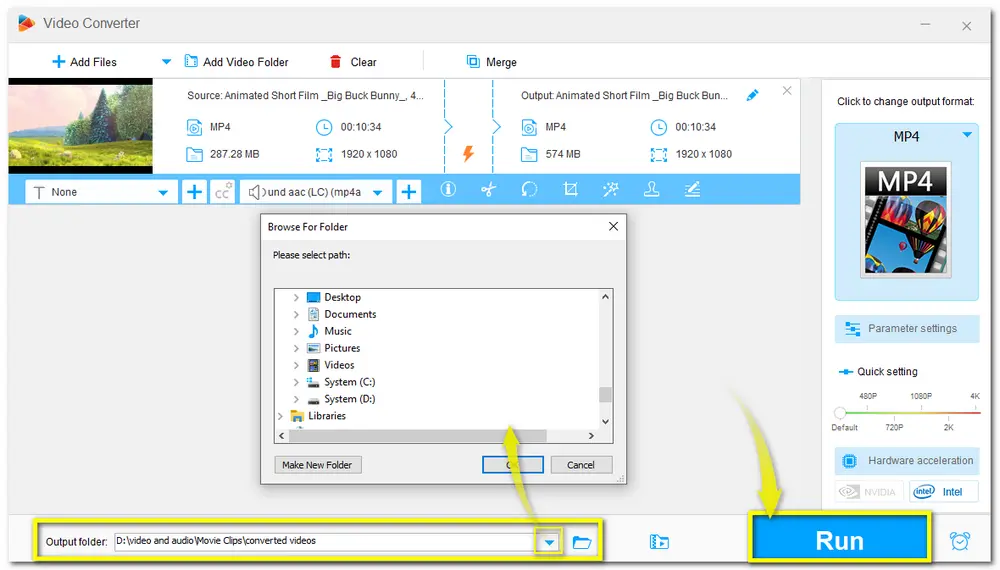
Step 4: Once everything is ready, you can select an output folder and then press Run to start exporting the final videos.
Before selecting a video editor, consider:
1. Skill level: Beginners benefit from clean interfaces and simple workflows, while advanced users may need professional tools with keyframes, color grading, and multi-track editing.
2. PC performance: Lightweight editors work on low-end machines; advanced editors require more CPU/RAM and GPU.
3. Editing purpose: Home videos, gaming, drone footage, or professional projects require different feature sets.
4. Features you need: Trimming, cropping, merging, subtitles, transitions, and format conversion cover most basic needs.
5. Budget: Free editors handle many tasks; paid tools offer smoother workflows, advanced templates, and AI-assisted features.
👉 Generally, here's a quick overview of the best video editing software for reference:
A: VSDC Free Video Editor and WonderFox Free HD Video Converter Factory can run perfectly on low-end machines.
A: Some older tools like WonderFox HD Video Converter Factory Pro, OpenShot, VLC, Nero Video, and Clipify may still work, but newer software is optimized for Windows 10/11.
A: For gaming videos, Camtasia and PowerDirector are both strong options. Camtasia is especially convenient for recording-based workflows, while PowerDirector offers more editing flexibility.
A: If you only need simple trimming, merging, or format adjustment, beginner-friendly tools may be enough. But for more advanced drone footage editing, especially 4K video and color correction, DaVinci Resolve and Adobe Premiere Pro are better choices.
A: Yes. If you are editing on Mac instead of Windows, Final Cut Pro and iMovie are two of the most common Apple-side options.
The best video editing software for Windows 11 depends less on hype and more on what kind of editing you actually do.
If you just need quick edits, go with a beginner-friendly option like WonderFox Free HD Video Converter Factory. If you create gaming videos or tutorials, choose a tool that fits recording-heavy workflows. If you edit drone footage or more advanced 4K projects, step up to software built for serious post-production.
Start with the editor that matches your current needs, not the most complicated one on the market. That is usually the fastest way to get better results.

I write about multimedia topics, including video and audio conversion, compression, editing, and downloading. I joined WonderFox in 2020, and my goal is to help readers solve everyday tech problems more easily. In this guide, I have shared with you 14 excellent video editing software that you can use on Windows 11 to perform various video edits. Choose your preferred tool and happy editing!


I write about multimedia topics, including video and audio conversion, compression, editing, and downloading. I joined WonderFox in 2020, and my goal is to help readers solve everyday tech problems more easily. In this guide, I have shared with you 14 excellent video editing software that you can use on Windows 11 to perform various video edits. Choose your preferred tool and happy editing!
WonderFox HD Video Converter Factory Pro
1. 500+ optimized presets for fast conversion in bulk.
2. Compress large-sized videos with no quality loss.
3. Trim, merge, crop, rotate, flip, watermark video.
4. Download HD/FHD/4K/8K videos from 1,000+ sites.
5. Record live streams, gameplay, webcam, video call
6. Make animated GIFs from video or image sequence.
7. Make ringtones, extract subtitles & more...

Privacy Policy | Copyright © 2009-2026 WonderFox Soft, Inc. All Rights Reserved
