
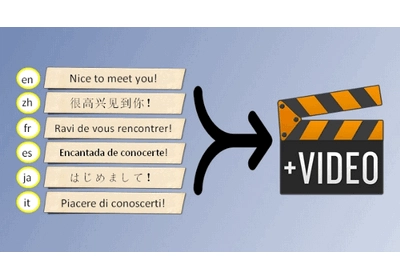
Want to create an international video with multiple language audio tracks? This guide shows you how to add extra audio tracks using a handy video converter on a Windows PC. The steps are simple — even if you’re not a tech expert.
Try WonderFox HD Video Converter Factory Pro:
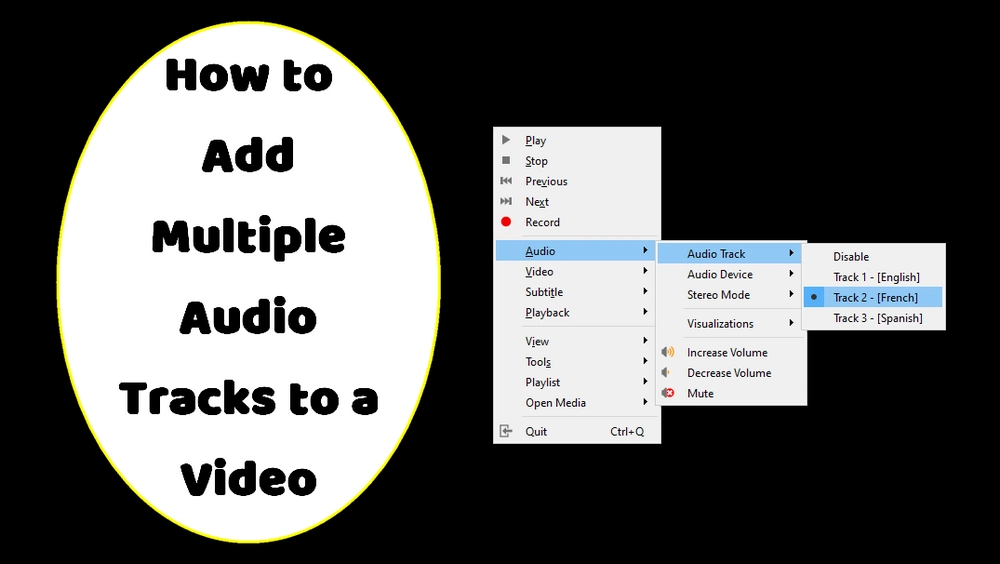

If you’re a content creator or a movie buff, you know that multiple language audio tracks will perfect a video, whether for gaining international views or making whole of a classic film.
Are you planning to add two or more audio tracks to your video? If so, this article is for you.
Below, I’ll share a fast way to help you achieve your goal on a Windows computer. It’s fine if you’re not very tech-savvy, as the instructions are simple and easy to follow. Let’s start!
Knowledge base:
The tool we’re going to use is WonderFox HD Video Converter Factory Pro. This is a feature-rich software program for Windows with a primary focus on video and audio conversions.
It provides advanced functions besides basic format conversion, including options to adjust a video's audio tracks.
With it, you can easily add, replace, or delete audio tracks in any video. To add multiple audio tracks, just make sure the output format is set to MKV, MP4 or MOV. Similarly, you can also modify the subtitle tracks as needed.
The program can handle the process losslessly without re-encoding the video, if the video settings are kept as the original. Moreover, it supports hardware acceleration that can boost the conversion speed by up to 30x.
Next, follow the instructions below to add multiple audio tracks to your video.
Click the download button here to install HD Video Converter Factory Pro on your PC.
* The trial version lets you process five minutes of each file for free. You can test the software before getting a full version.
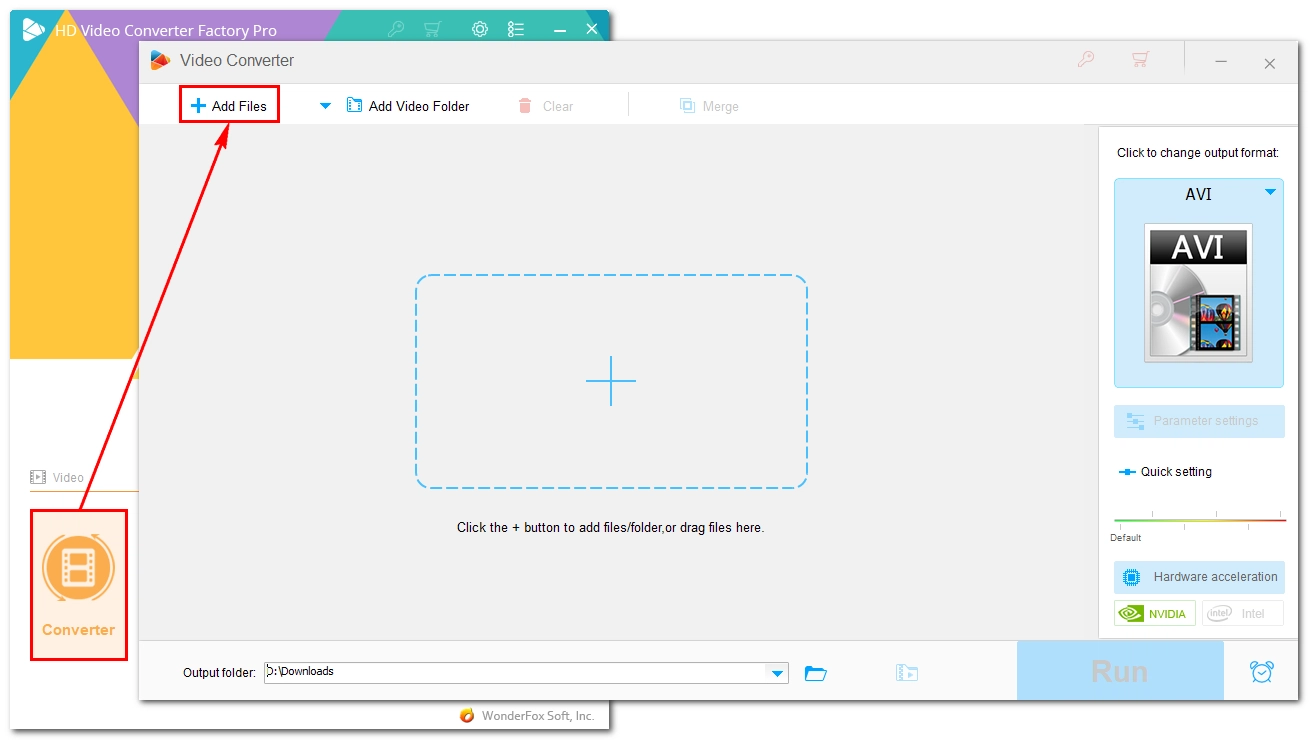
Launch the software and enter the Converter module. Click + Add Files to import a video into the program. You can also drag and drop the file into the interface.
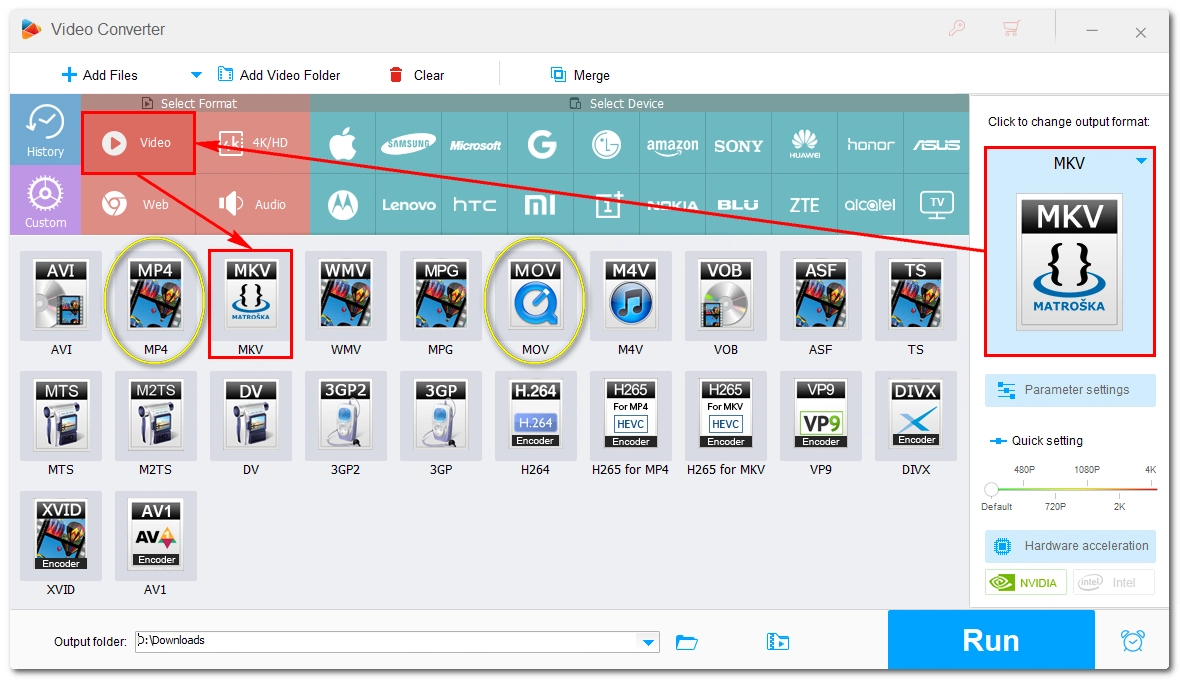
Expand the format panel on the right and select MKV, MP4, or MOV under the Video tab.
💡 It’s recommended to select MKV for versatility, MP4 for compatibility, or MOV for Apple-friendly use.
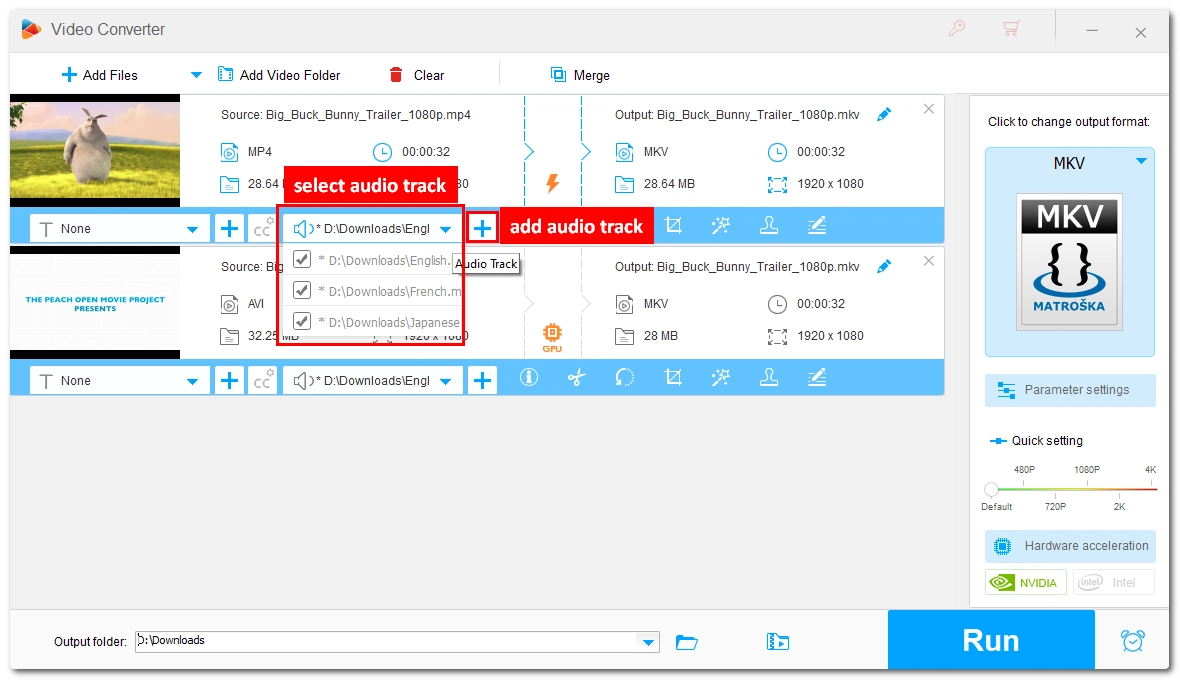
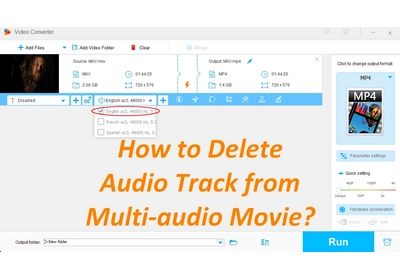
Click the button next to the Audio Track option to add multiple audio files as needed. Then unfold the Audio Track and make sure all tracks are selected.
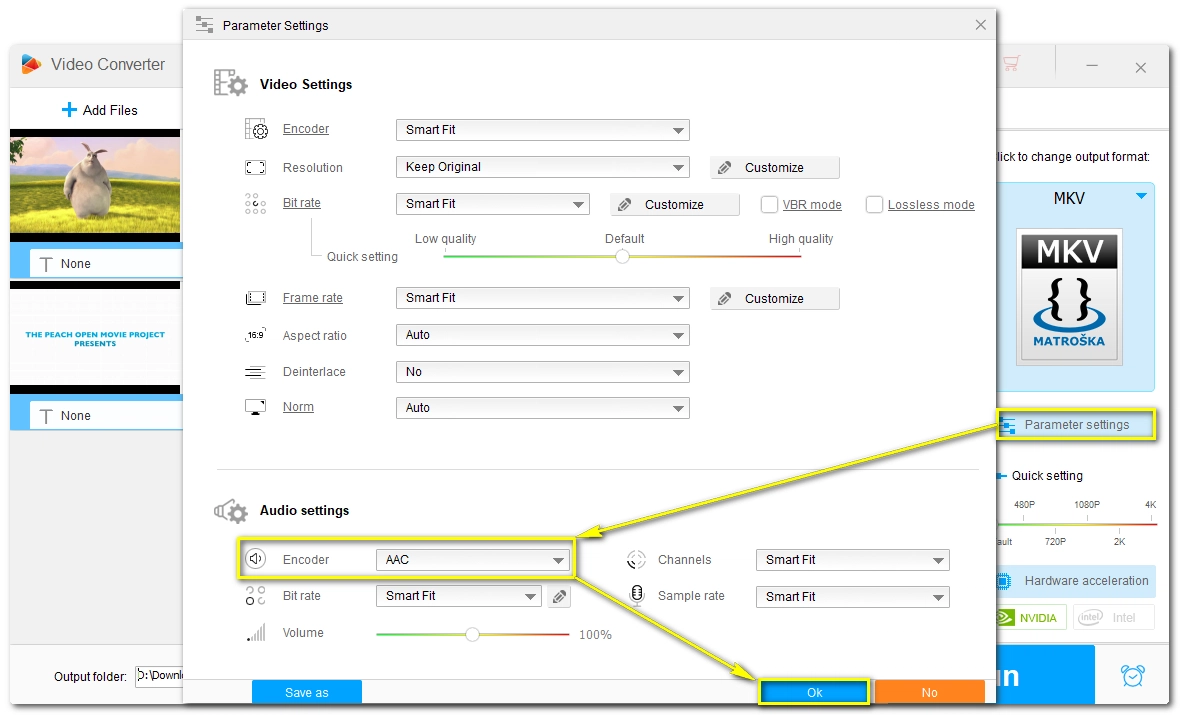
To ensure that all your audio tracks can be played back normally, you can open Parameter settings and change the audio encoder to AAC, a universal audio format that can be played on various devices and software.
Click the ▼ button at the bottom to set an output folder. Finally, click Run to start the process.
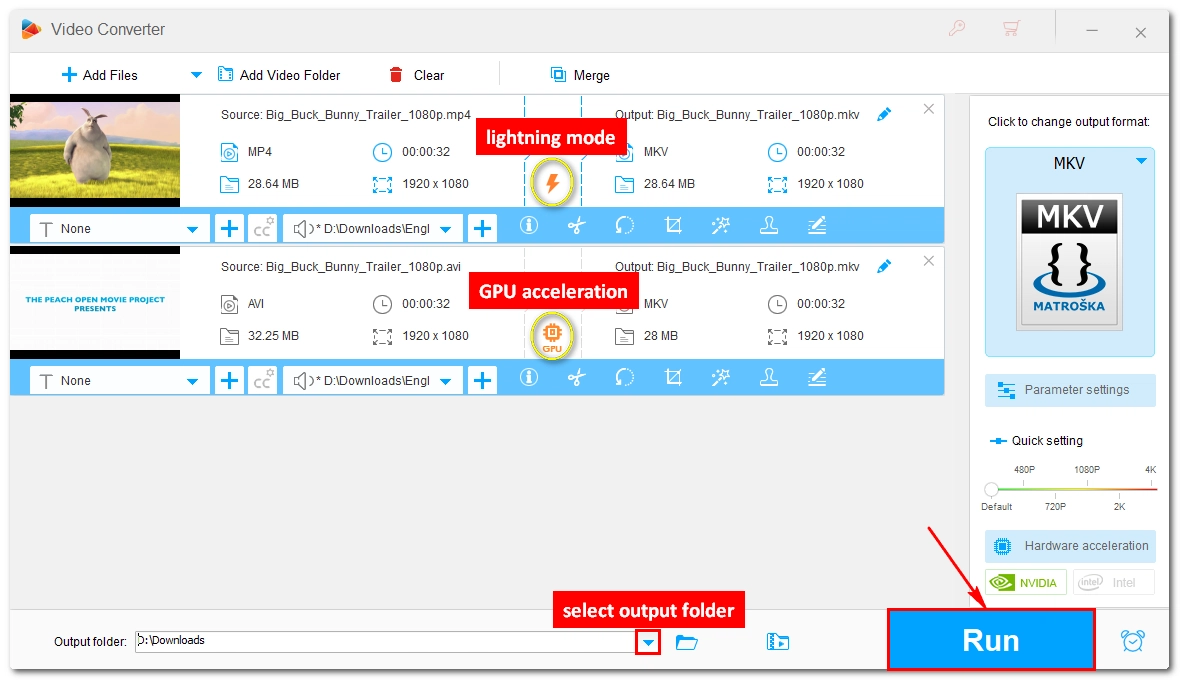
💡 If the video settings are unchanged, a lightning icon ⚡ will appear in the middle of the task, indicating that the process will be instant and lossless.
💡 If your computer comes with a compatible graphics card (Intel QSV or Nvidia NVENC), the GPU acceleration will also speed up the process. The performance depends on your hardware model.
When adding multiple audio to a video file, there are a few things to keep in mind for the best results:
📌 Adjust the length of the audio tracks.
To avoid issues with out-of-sync audio, you need to first align the audio tracks with the video, making sure they are the same length and that the audio matches what is being said in the video. You can adjust these using an audio editing program like Audacity.
📌 Name each audio track beforehand.
You can name each audio track by language (e.g., English, Spanish) so that you and your viewers can easily distinguish them.
📌 Set the correct audio format.
Not every audio format can be played on all devices. For universal playback, it’s recommended to set the audio track to AAC format.
📌 Review the final result.
Adding multiple audio tracks to a video is a valuable skill to master. With the software introduced above, you can now easily add audio tracks to MP4 or add audio tracks to MKV according to your needs.
By the way, the same software also lets you compress large videos, edit video and audio files, download online movies and music, and achieve more. You can download the software and explore more features:
That’s all I want to share in this article. Hope it’s useful! Thanks for reading. Have a nice day!
You can add multiple audio tracks to a video with the help of WonderFox HD Video Converter Factory Pro:
Unfortunately, HD Video Converter Factory Pro does not allow you to mix all audio tracks into one. You may need video editing software like Premiere Pro to do that.
MKV, MP4, and MOV formats support multiple audio tracks.
Yes. HD Video Converter Factory Pro lets you add multiple audio tracks without converting the video as long as the output video settings are the same as the original.
WonderFox
DVD Ripper Pro
 Download for FreeDownload for Free

Terms and Conditions | Privacy Policy | License Agreement | Copyright © 2009-2026 WonderFox Soft, Inc. All Rights Reserved.



 Download for Free
