

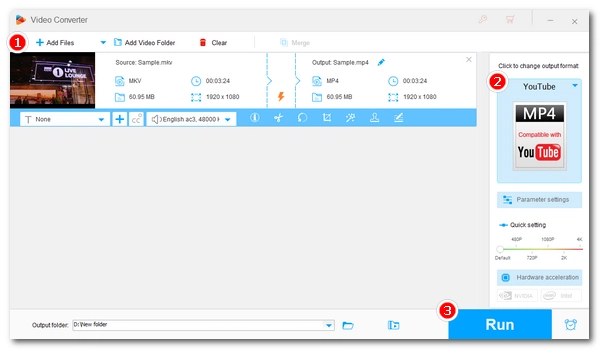


As a content creator, you may have created a video that you want to upload to YouTube, only to find that the video has an invalid file format or stuck on processing. This is a bummer, but easy to fix: just convert the video to the right YouTube format.
I will introduce a simple video converter below to show you how to convert your video to the best video format for YouTube upload. Read on.
While YouTube supports many formats, using these specific settings can help you get the fastest processing and best quality:
| Feature | Recommended Setting | Supported Alternatives |
|---|---|---|
| Container | MP4 | MOV, MPG, AVI, WMV, FLV, 3GPP, WebM |
| Video Codec | H.264 | HEVC (H.265), VP9, AV1, VP8, MPEG-1, MPEG-2, MPEG4, MPEGPS, DNxHR, ProRes, CineForm |
| Audio Codec | AAC-LC | MP3, PCM, Opus, FLAC |
| Aspect Ratio | 16:9 (Standard); 9:16 (Shorts) | 1:1 (Square) |
| Length | < 60 seconds (Short) | YouTube now supports Shorts up to 3 minutes |
| Frame Rate | 24, 25, or 30 fps | Up to 60 fps |
💡 YouTube now supports HEVC, VP9, and AV1 uploads, which offers high quality at smaller file sizes. But all videos are re-encoded after upload. H.264 in MP4 remains the most compatible for quick processing in general cases.
WonderFox HD Video Converter Factory Pro is a powerful video converter that can meet various conversion needs.
It supports common formats and includes ready-made YouTube presets, so you can convert videos to upload-ready files in a few clicks without adjusting technical settings. There is also a set of editing tools for convenient use. For example, you can trim and resize your video to YouTube shorts.
WonderFox has excellent output quality and fast conversion speed backed by hardware acceleration. The whole process is simple. You can free download free download the program and follow the steps to convert video for YouTube upload now.
✅ Support any video and audio.
✅ One-click conversion with optimized YouTube presets.
✅ Customizable settings for high-quality output.
✅ Hardware acceleration.
✅ Compress and edit videos at will.
 Download for Free
Download for Free
Download for Free
* The unregistered version limits you to converting only five minutes of each file.
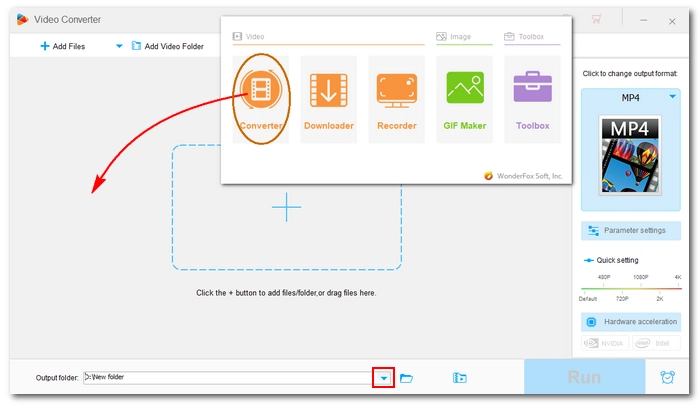
Run the video to YouTube converter on your PC and open the Converter module. Next, drag your videos into the program directly, or import files through the Add Files button.
Open the output format list on the right and click the Web category.
For Standard Videos: Select the YouTube PC (MP4 H264) profile. This automatically optimizes files like WMV and MKV for the best balance of speed and quality.
💡
1. YouTube re-encodes every video after upload, so an encoding method that requires less decoding power is recommended, such as H264. It’s the standard if you want faster uploading speed.
2. If your video is already encoded with AV1, VP9, or VP8, you can keep the original codec to avoid unnecessary re-encoding before upload. This may result in longer processing time, though.
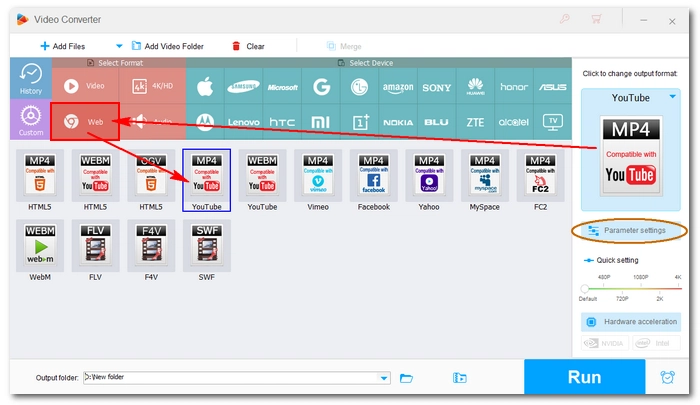
For High-Res Footage (MXF, AVCHD, ProRes): If you are converting professional high-res camera footage, use the H265 for MP4 preset under the Video tab to prepare the video in smaller size for faster upload, as well as maintaining maximum detail before YouTube's own compression takes over.
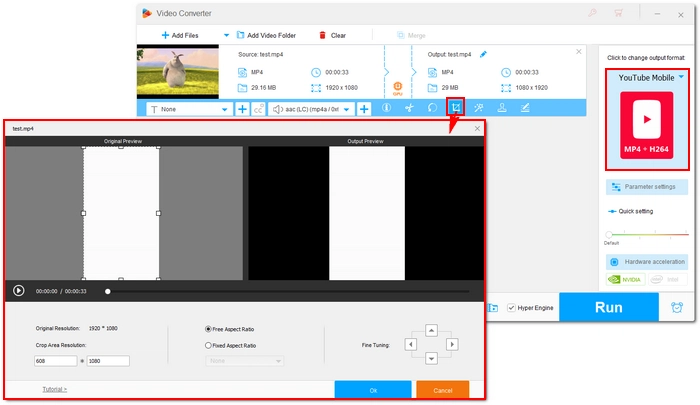
For YouTube Shorts: Use the YouTube Mobile (MP4 H264) profile.
If you want to convert a horizontal video to a Short, you’ll need to resize the video first using the Crop feature, keeping the aspect ratio as 9:16 or 1:1. Also, use the Trim option if needed to ensure your video is under 3 minutes to be categorized as a Short.
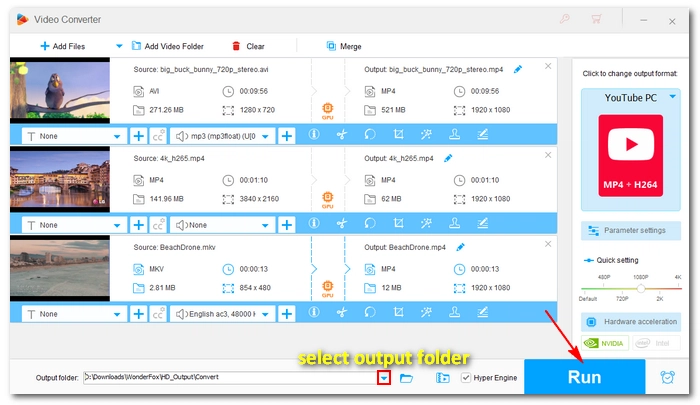
Click the ▼ button to specify an output path or leave it as default.
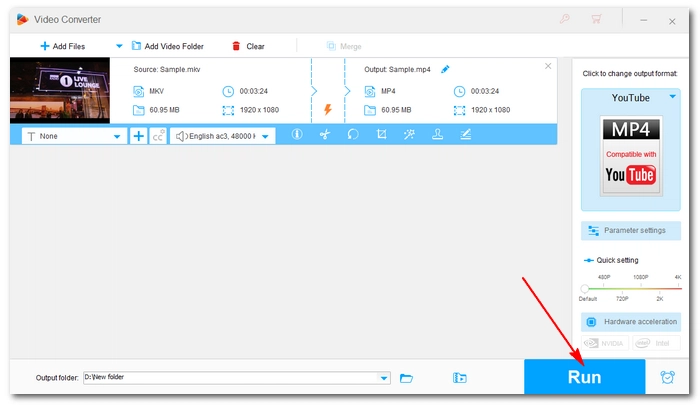
Finally, click the "Run" button to convert the video for YouTube upload.
After the conversion, you can open YouTube, click on Create > Upload Video, then select the converted video and upload it to YouTube.
💡
1. If your computer comes with the latest version of Intel QSV or Nvidia NVENC graphics card, you can utilize GPU acceleration to boost the conversion speed for H264 or H265 encoding.
2. If you’re changing the container only (e.g., H.264 MKV to H.264 MP4), it will trigger the Lightning Mode, which can remux files without re-encoding, resulting in very fast conversion.
3. Besides converting video to YouTube, the program can also convert video to other platforms like TikTok, Facebook, Instagram, X, etc.
Even with the right format, large files can take hours to upload. Use these tips to optimize your workflow:
That’s how you convert video to YouTube format with the YouTube format converter. Simple, right?
By the way, with the same program, you can also handle other multimedia tasks, including downloading videos from YouTube. There are more features to explore. If you’re interested, download the program and try it now:
Download for Free
Download for Free
Hot Search: Convert Video for Twitter

WonderFox DVD Ripper Pro
WonderFox DVD Ripper Pro is a professional DVD ripping program that can easily rip any DVD, be it homemade or commercial, to all popular formats including MP4, MKV, MP3, WAV, H264, H265, Android, iPhone, etc. without a hitch. It also lets you edit and compress DVD videos at high efficiency. Download it to enjoy fast and trouble-free DVD ripping experience.
Download for Free
Download for Free
You can convert a video to the YouTube format using a video converter tool such as WonderFox HD Video Converter Factory Pro. Here's how:
If your upload fails or gets stuck, it is usually due to one of these four common reasons:
Yes, YouTube accepts both. However, MKV files often contain multiple audio tracks or "soft" subtitles that YouTube can't read, and WMV is an older format that takes longer to process. Converting them to MP4 is the best way to achieve the balance between quality and speed.
The best file format to upload to YouTube:

Terms and Conditions | Privacy Policy | License Agreement | Copyright © 2009-2026 WonderFox Soft, Inc.All Rights Reserved