

Windows 11, Windows 10, Windows 8.1, and Windows 8 do not include built-in DVD movie playback like older Windows versions did. So, after upgrading your system or buying a new laptop, you may find that a movie DVD is detected by the drive but cannot be played directly. This guide explains the practical ways to play DVDs on Windows 11/10/8.1/8.
For long-term use, you're recommended to install this DVD ripper to digitize your DVDs for hassle-free playback: https://www.videoconverterfactory.com/download/dvd-ripper.exehttps://www.videoconverterfactory.com/download/dvd-ripper.exe
 Kevincy | Updated on Jul 1, 2026
DVDs are still useful if you keep movie collections, TV series, concert discs, home videos, or old training discs. The problem is not the disc itself in many cases. Since Windows 8, Microsoft has removed the native DVD-Video playback feature from Windows, and Windows 10 and Windows 11 continue this change. That means the built-in Windows Media Player or the new Media Player app may not open a movie DVD out of the box.
Besides the missing DVD playback component, many new Windows 11 and Windows 10 laptops do not include an optical drive. You may need an internal DVD-ROM drive or an external USB DVD drive first. If the drive can read the disc but Windows still cannot play the movie, you can use one of the two workable methods below: a third-party DVD player for quick watching, or a DVD ripper for building a personal digital library.
A powerful, smart yet easy-to-use Windows DVD ripper that helps digitize and convert physical DVD discs for hassle-free playback and backup on Windows 11, Windows 10, Windows 8.1, and Windows 8.
The official Windows DVD Player app is still available from Microsoft Store, but it is a paid and basic option, and it does not play Blu-ray discs. If you only need to watch a DVD occasionally and prefer a Microsoft app, you can check its current price and compatibility in the Store first.
For most users, a free third-party player is easier to try. VLC media player is a common choice because it can open and play DVD discs, DVD folders, ISO images, and many video/audio files without extra codec packs. MPC-HC, PotPlayer, Kodi, KMPlayer, and PowerDVD are also possible options depending on your preference.
The basic steps are similar in these programs. Insert the DVD, open the player, and select the disc source. In VLC, go to Media > Open Disc, choose the DVD drive, and click Play. In MPC-HC, choose File > Open Disc. In PotPlayer, right-click the player window and choose Open > Open DVD. In Kodi, insert the disc and choose the Disc option when it appears.
This method is fast and free, but it can still fail when the disc is badly scratched, the DVD drive region does not match the disc, or the disc uses newer or unusual copy protection. If you want to play your own DVDs without depending on a DVD player app every time, try Method 2.
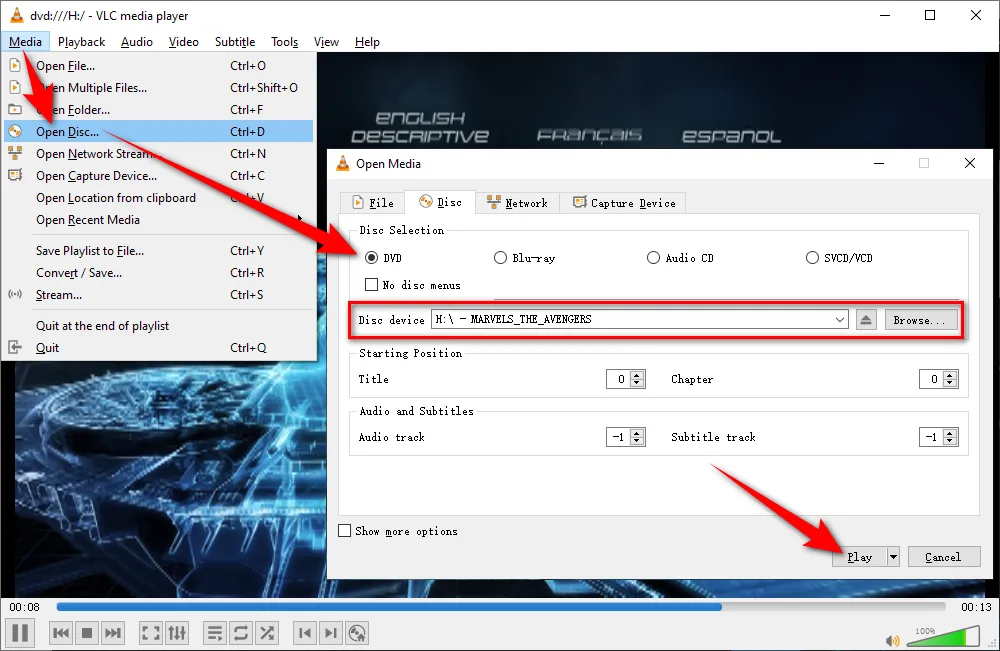
Sometimes, even with a DVD player app installed, the DVD still may not play normally on Windows 11, 10, 8.1, or 8. Here are the common causes and fixes:
Make sure the optical drive is connected and working. Try another DVD, reconnect the external USB DVD drive, or check whether the drive appears in File Explorer and Device Manager. If no disc can be read, the issue is more likely related to the drive, cable, USB port, or driver.
A dirty, scratched, or aging disc can cause skipping and freezing. Clean the disc gently with a soft cloth from the center outward, then try again. You can also close heavy background programs or copy/rip the DVD to a local drive for more stable playback.
Check the Windows audio output device, system volume, and the volume inside the DVD player. If the DVD contains uncommon audio tracks, switch to another audio track in the player or convert the DVD to a more compatible format with AAC or AC3 audio.
Many commercial DVDs are region-locked. If the disc region is different from the DVD drive region, playback may be blocked. Windows allows only a limited number of DVD drive region changes, so do not change it casually. A region-free DVD drive or a DVD converter that can handle region codes may be more practical.
Some players work well for homemade DVDs, but fail with commercial discs because of copy protection, region restrictions, or missing DVD components. Instead of installing random codec packs, you can try a player with built-in DVD support first. If that still fails, move to Method 2.
If all else fails, converting the DVD to a regular video file is usually the cleaner solution.
Disclaimer: WonderFox doesn't advocate any copyright infringement, all information provided in this article is presented to make digital copies of personal DVDs for fair-use only. Figure out if it is legal to rip a DVD in your country beforehand.
If you have a large DVD collection, converting discs to digital files is more convenient than opening a disc every time. You can save movies, TV episodes, anime, concerts, music videos, and home recordings on a Windows 11/10/8.1/8 hard drive, external drive, NAS, Plex, Kodi, or media server, then play them with regular media players.
WonderFox DVD Ripper Pro is a professional DVD ripping application that can read homemade DVDs, commercial DVDs, ISO images, and Video_TS folders, select the main title automatically, and convert DVD to MP4, MKV, AVI, MPG, MOV, MP3, and 300+ video/audio presets. It also supports DVD region code, CSS, RCE, UOPs, Sony ARccOS, and Disney X-Project DRM removal for personal fair-use backup. Here's how to use it.
Preparation: Insert a homemade or copy-protected DVD into the DVD-ROM drive connected to your Windows 11, 10, 8.1, or 8 PC.
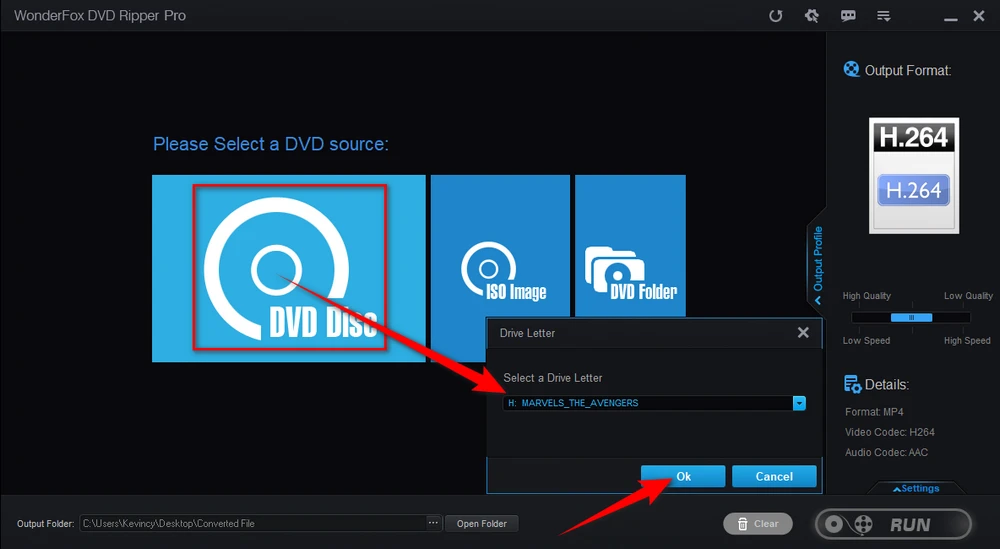
DownloadDownload, install, and run WonderFox DVD Ripper Pro. Click "DVD Disc", select a DVD drive letter, and click "OK" to auto-scan the current DVD disc.
After that, it will intelligently select the main title for a DVD movie, or select all the right titles for a DVD with multiple episodes. You can click the small play button to preview the title before conversion.
💡 In addition to the physical disc, this program also allows you to load a DVD ISO image file or an entire Video_TS folder consisted of multiple .vob, .bup, and .ifo files.
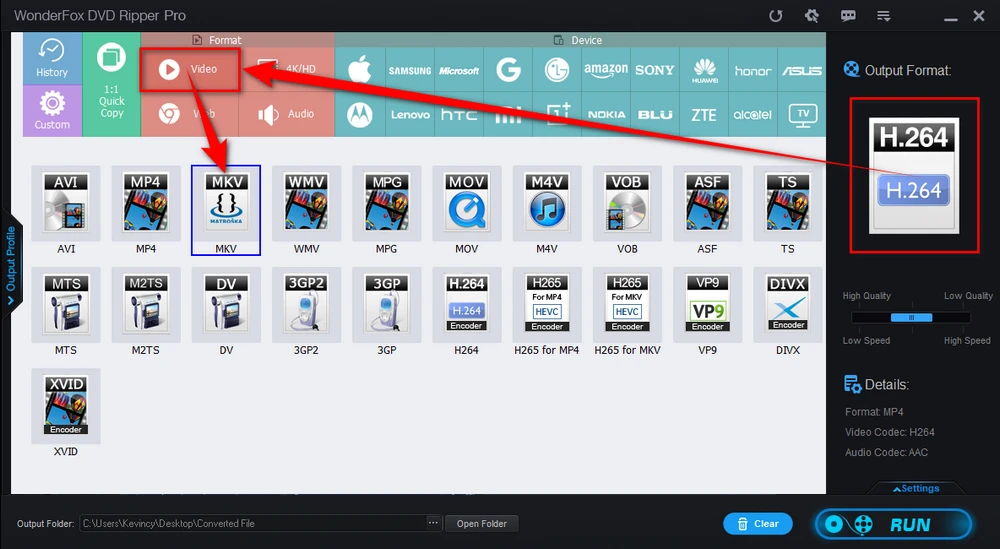
Open the format library on the right side of the app. It comes with 300+ presets grouped by different categories. Go to the "Video" category:
💡 If you're inclined to a complete DVD to DVD copy with all content preserved, switch over to "1:1 Quick Copy" category and choose "ISO" or "DVD Folder" profile for later DVD burning work.
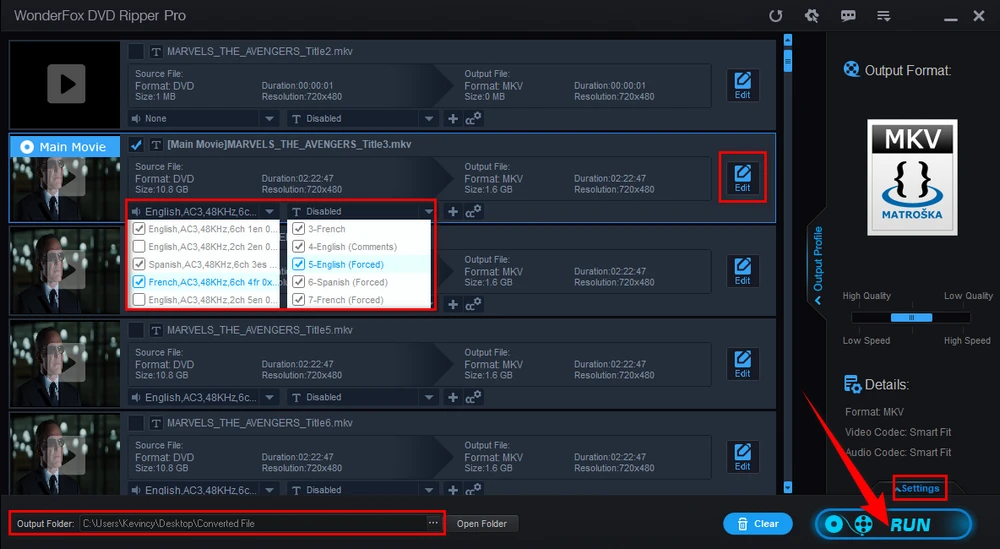
Specify a destination on the bottom to save the output digital file. Lastly, hit the "RUN" button to digitize DVD onto your Windows computer at a fully hardware accelerated ripping speed. After it is done, you can play the DVD movie on Windows 11/10/8.1/8 as a regular video file.
💡 Before the process, you can also choose the audio track, keep soft subtitles, add external subtitles, trim a specific segment from the DVD, or open the "Settings" column to change parameters like DVD resolution, bit rate, frame rate, deinterlace DVD, encoder, and more.
No. Windows 11 does not include native DVD-Video playback. You need a DVD player app, such as VLC, PotPlayer, Kodi, PowerDVD, or the official Windows DVD Player app, or you can convert the DVD to a common video file.
Not reliably. Windows 8, 8.1, 10, and 11 removed the built-in DVD playback component. Some codec packs or DVD decoders may help with simple discs, but they are not a universal solution for commercial DVDs, region-locked discs, or protected discs.
For quick playback, VLC is usually the first free player to try. MPC-HC, PotPlayer, and Kodi are also worth trying. If one player cannot read the disc, test another player or convert the DVD to MP4/MKV for easier playback.
You need a DVD drive to read the physical disc first. If your laptop has no built-in drive, connect an external USB DVD drive. After converting the disc to a digital file, you can play the converted video without the DVD drive.
If you only watch a disc once, a DVD player app is enough. If you own many DVDs, want to avoid repeated disc loading, or need playback on Plex, Kodi, tablets, phones, USB drives, or TVs, converting DVDs to digital files is more convenient.
That’s all! Windows 11, Windows 10, Windows 8.1, and Windows 8 do not play DVD movies natively, but the fix is not complicated. For occasional playback, install a trusted DVD player app and open the disc from the player.
For long-term use, it is more convenient to build your own DVD digital library on a Windows PC, external hard drive, Kodi, Plex, media server, NAS, cloud storage, USB drive, or TV.
DownloadDownload WonderFox DVD Ripper Pro to convert your DVDs to MP4, MKV, MPG, or other common formats for easier playback and personal backup.
Hopefully, this post helps you choose the right way to play DVDs on Windows 11/10/8.1/8. Cheers!.

Kevincy joined the WonderFox team in 2014 and has been a senior columnist ever since. With over two decades of experience in the video editing industry, he shares tutorials, tips, and how-to guides on video/audio processing and personal DVD backups. Family-oriented and passionate about helping others, he is dedicated to making video and audio processing easier for readers.


Kevincy joined the WonderFox team in 2014 and has been a senior columnist ever since. With over two decades of experience in the video editing industry, he shares tutorials, tips, and how-to guides on video/audio processing and personal DVD backups. Family-oriented and passionate about helping others, he is dedicated to making video and audio processing easier for readers.
WonderFox DVD Ripper Pro
Rip DVD/ISO/Video_TS to MP4, MKV, and 300+ presets.
Decrypt DVD protections like region code, CSS...
Fast digitize DVD to MPEG-2 MPG within 5 mins.
Make a 1:1 intact digital copy (VIDEO_TS or ISO).
Compress 8 GB DVD to 1-2 GB digital video file.
Support multiple audio tracks, hard/soft/forced subs.
Basic editing features and customize output parameters.

Privacy Policy | Copyright © 2009-2026 WonderFox Soft, Inc. All Rights Reserved
