

MIDI conversion can mean two very different things. You may want to render a MIDI/MID file into real audio such as MP3 or WAV, or you may want to analyze an audio recording and turn its notes into MIDI. This guide explains what MIDI actually stores, why the two directions work differently, and which practical tools can handle each job.
 Kevincy | Sep 20, 2026
MIDI stands for Musical Instrument Digital Interface. A standard MIDI file, usually ending in .mid or .midi, does not store a recorded sound wave like MP3, WAV, FLAC, or M4A. Instead, it stores musical events and instructions: which notes are played, when they start and stop, their velocity, instrument/program information, control changes, tempo data, pitch bends, and more.
That difference explains why a MIDI file is usually tiny and easy to edit, but may sound different on another computer. The final sound depends on the synthesizer, virtual instrument, or sound bank used to interpret those instructions.
It also explains why the two conversion directions are not equivalent.
The second task is much harder and is never as predictable as ordinary audio format conversion.
WonderFox Free HD Video Converter Factory makes everyday media tasks simple. Download online videos and audio, convert common media formats, and handle basic editing such as trimming, cropping, merging, and more in one beginner-friendly free program.
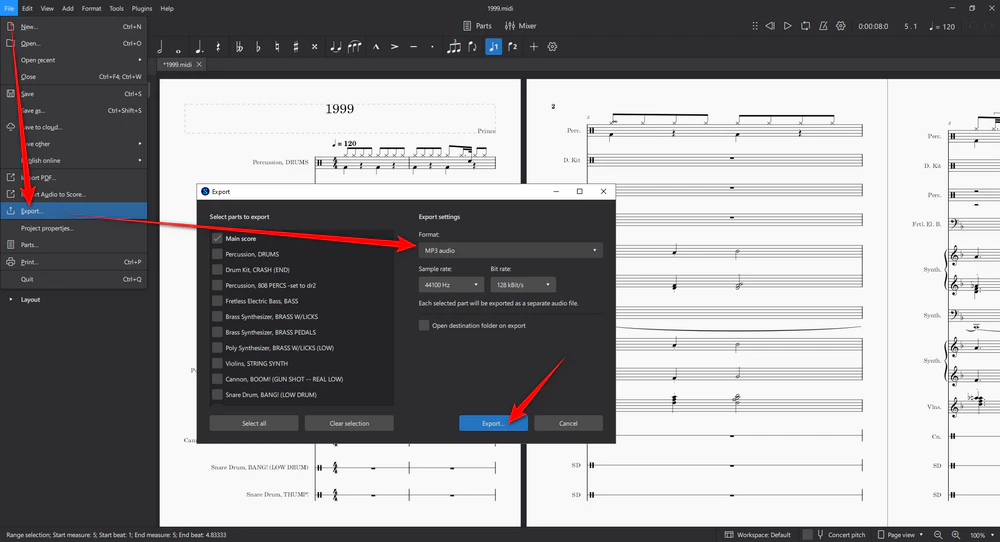
If you want to inspect the notes or change instruments before exporting, MuseScore Studio is a useful free option for Windows, macOS, and Linux. It can import MIDI and export scores as audio formats including MP3, WAV, FLAC, and OGG.
Step 1. Download MuseScore Studio from musescore.org, install it, and open your MIDI file.
Step 2. Check the imported parts and playback. If necessary, change the assigned instruments or sounds. MIDI does not contain one fixed recording, so this choice directly affects what the exported audio will sound like.
Step 3. Go to File > Export, choose MP3, WAV, FLAC, or OGG, and export the rendered audio.
Tip: If the MIDI contains unusual instruments, custom sound banks, or controller data, the same file can sound noticeably different in different programs. For consistent results, render it with the exact virtual instruments or SoundFont you want to use.
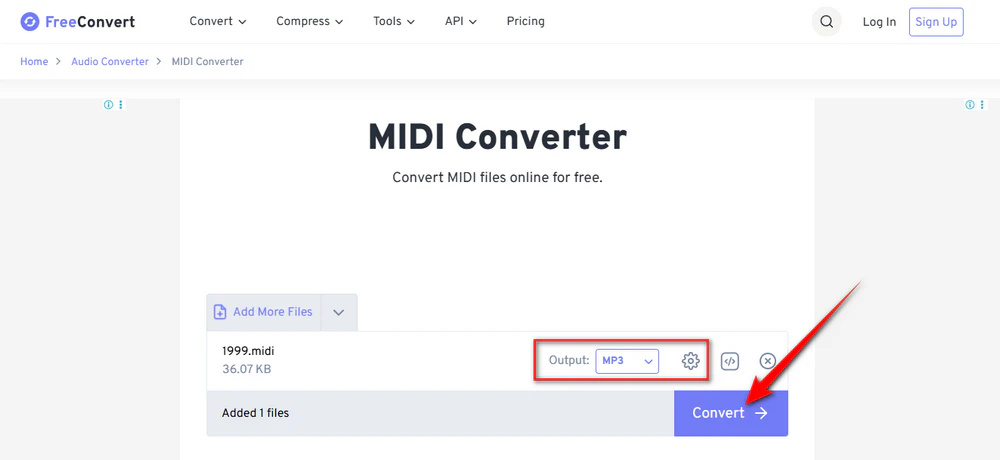
If you only need a quick conversion and do not want to install software, FreeConvert can process MIDI files directly in a web browser. It provides dedicated MIDI-to-audio conversions for MP3, WAV, FLAC, M4A, OGG, AAC, AIFF, and several other formats.
Step 1. Open the MIDI Converter page and click Choose Files to upload your MIDI/MID file from your device or a supported cloud source.
Step 2. Select the audio format you need. Choose MP3 for convenient playback and sharing, or WAV/FLAC when you want a higher-quality file for further editing.
Step 3. Start the conversion. When it finishes, download the rendered audio file to your device.
Note: Because this is an online service, your MIDI file has to be uploaded for processing. For private projects or when you want more control over instruments and playback, use MuseScore Studio instead.
Converting recorded audio to MIDI is also called automatic music transcription. A converter has to estimate pitches, note starts and ends, velocities, and sometimes pitch bends from the waveform. For this reason, an MP3-to-MIDI or WAV-to-MIDI result is best treated as a starting point that may need manual correction.
This is also why changing a file extension from .mp3 to .mid, or sending an audio file through a normal MP3/WAV converter, cannot create a real MIDI sequence.
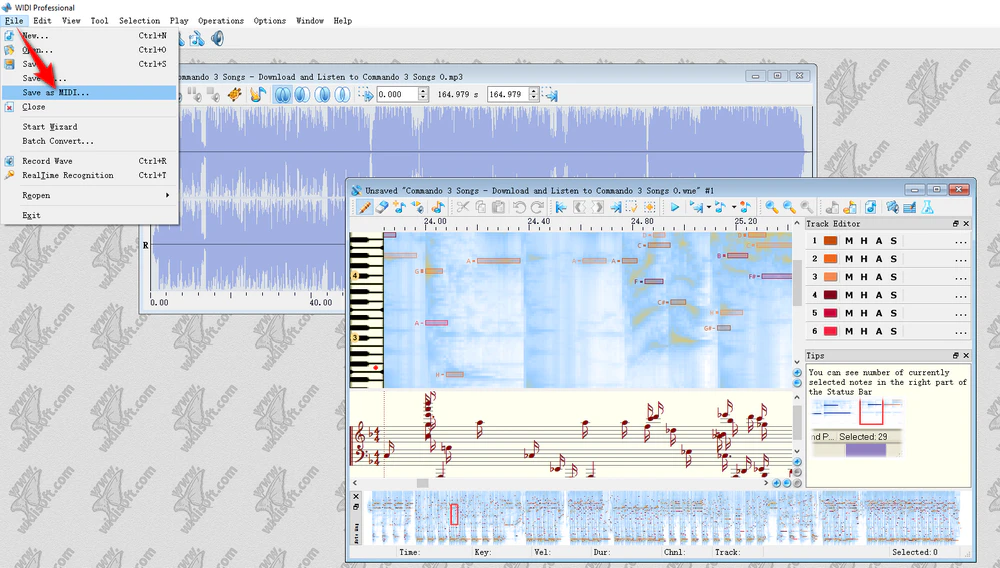
WIDI Recognition System is dedicated transcription software for Windows and macOS that accepts recordings such as MP3, WAV, and AIFF and saves recognized music as MIDI. Its Professional edition also includes the TrueTone Editor, where you can compare the detected notes with the audio spectrum and correct transcription errors.
Step 1. Download the trial from WIDISOFT and choose the option to transcribe a pre-recorded audio file.
Step 2. Import the recording, choose a recognition preset, and adjust the recognition settings if the automatic result needs improvement.
Step 3. Run the transcription, review the detected notes, and correct obvious mistakes. In WIDI Professional, the spectrum-backed TrueTone Editor is especially useful for this step.
Step 4. Save the finished transcription as a MIDI file.
The WIDI trial is limited, so it is better suited to testing the workflow before purchase. WIDISOFT also provides a simple online MP3-to-MIDI service, but its daily-use and file-size limits make it more appropriate for short tests than regular projects.
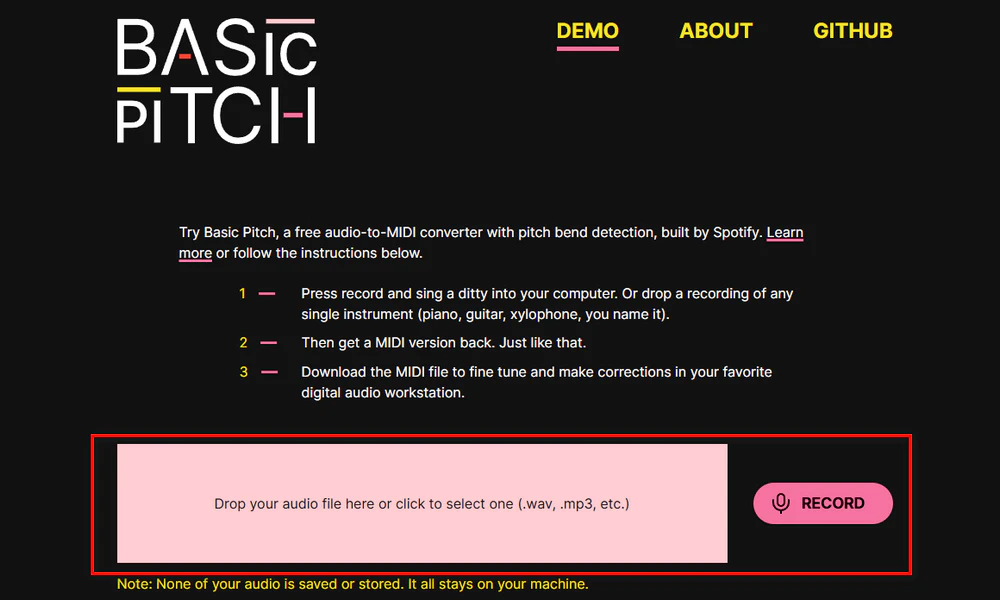
Basic Pitch is a free audio-to-MIDI tool created by Spotify. You can drop in a recording such as MP3 or WAV and get a downloadable MIDI file. It supports polyphonic material and pitch-bend detection, although Spotify notes that it works best when the recording focuses on one instrument at a time.
Step 1. Open the Basic Pitch demo page and upload your audio file, or record a short performance directly.
Step 2. Let Basic Pitch analyze the recording and generate the note transcription.
Step 3. Preview the result and download the MIDI file. Then open it in a DAW or notation program to fix missed, extra, or badly timed notes when needed.
Sometimes the file you want to transcribe is inside a video, uses an inconvenient audio format, or contains a long section you do not need. In that case, you can first use WonderFox Free HD Video Converter Factory to extract the audio, convert it to a common format such as WAV or MP3, and trim the recording to the part you actually want to analyze.
This preparation step can make the workflow easier, but it is important to keep the roles separate: ordinary audio conversion does not create MIDI notes. You still need a transcription tool such as Basic Pitch or WIDI for the audio-to-MIDI step.
Start with one clear instrument when possible. A solo piano, guitar, bass, or melody line is usually easier to transcribe than a full mastered song with vocals, drums, bass, effects, and several overlapping instruments.
Use a clean recording. Heavy reverb, distortion, background noise, clipping, and low-volume notes can confuse pitch and onset detection. A high-quality MP3 may work fine, but WAV or FLAC avoids adding another layer of lossy compression.
Test a short section first. Before processing a whole song, try a representative passage. This lets you see whether the tool understands the instrument and playing style well enough.
Expect to edit the MIDI afterward. Automatic transcription may produce extra notes, miss quiet notes, split sustained notes, or place note starts slightly early or late. A DAW, piano-roll editor, or notation program is useful for cleanup.
Do not expect the original production to be recovered. MIDI can represent notes and performance controls, but it cannot reconstruct the exact microphone sound, room ambience, effects chain, mastering, or original virtual-instrument patch from a finished recording.
Yes, but it is transcription rather than ordinary file conversion. Software analyzes the MP3 and estimates the notes to build a new MIDI sequence. The result may need correction, especially with dense multi-instrument music.
A MIDI file normally contains performance instructions, not one fixed recording. Different synthesizers, SoundFonts, virtual instruments, and instrument mappings can render those instructions with different tones and balances.
Audacity can work with MIDI note tracks in limited ways, but it is not an automatic audio-to-MIDI transcription program. For MP3/WAV-to-MIDI conversion, use a dedicated transcription tool such as Basic Pitch or WIDI.
A useful MIDI converter depends on which direction you are going. For MIDI to audio, you are rendering note instructions into a real waveform, so a converter or notation program can save the result as MP3, WAV, FLAC, and more. For audio to MIDI, the software has to transcribe what it hears, so the quality of the source and the complexity of the music matter much more. Basic Pitch is convenient for quick free transcription, while WIDI gives you more dedicated recognition and correction tools. Whichever method you use, treat automatically generated MIDI as editable musical data rather than a perfect copy of the original recording.

Kevincy joined the WonderFox team in 2014 and has been a senior columnist ever since. With over two decades of experience in the video editing industry, he shares tutorials, tips, and how-to guides on video/audio processing and personal DVD backups. Family-oriented and passionate about helping others, he is dedicated to making video and audio processing easier for readers.


Kevincy joined the WonderFox team in 2014 and has been a senior columnist ever since. With over two decades of experience in the video editing industry, he shares tutorials, tips, and how-to guides on video/audio processing and personal DVD backups. Family-oriented and passionate about helping others, he is dedicated to making video and audio processing easier for readers.

WonderFox HD Video Converter Factory Pro
1. 500+ optimized presets for fast conversion in bulk.
2. Compress large-sized videos with no quality loss.
3. Trim, merge, crop, rotate, flip, watermark video.
4. Download HD/FHD/4K/8K videos from 1000+ sites.
5. Record live streams, gameplay, webcam, video call
6. Make animated GIFs from video or image sequence.
7. Make ringtones, extract subtitles & more...

Privacy Policy | Copyright © 2009-2026 WonderFox Soft, Inc. All Rights Reserved
