

Want to convert your DVD to MP4 files? This guide covers two methods to do that for free on Windows.
👇 For an easier solution, we also recommend this straightforward DVD-to-MP4 converter
https://www.videoconverterfactory.com/download/dvd-ripper.exe
dvd-ripper.exe
 Michelle | Updated on Nov 20, 2025
When it comes to converting DVDs to MP4, there are plenty of DVD converters out there. The problem is that most of them are paid tools, and it’s hard to find a full-version DVD-to-MP4 ripper that does everything for free.
The good news is that you can still get the job done at no cost by using a couple of reliable free tools. WonderFox DVD Ripper Speedy can convert your DVD to MPG, and MakeMKV can copy your DVD to MKV. After that, you can use a free video converter to turn the file into MP4. The whole process has two steps, and while it may look a bit longer, it works smoothly and lets you create MP4 copies of your DVDs for free.
In the following sections, we’ll walk you through each step so you can easily convert your DVD to MP4 without paying anything. Just read on and follow the instructions.
💡 Are you converting your homemade DVD to MP4? In this case, HandBrake is the best free DVD converter to MP4 to help you rip DVD to MP4 in a few clicks. Check out this article for more details: How to Convert DVD to MP4 with HandBrake?
DVD Ripper Speedy and Free HD Video Converter Factory are WonderFox products, and they are completely free for use. With DVD Ripper Speedy, you can convert a 2-hour long DVD to MPG within five minutes while preserving the quality. After that, you can use Free HD Video Converter Factory to convert (and compress) MPG to MP4 for free.
Now, follow the instructions to start your free DVD to MP4 conversion.
👉 Download WonderFox DVD Ripper Speedy Download WonderFox DVD Ripper Speedy
👉 Download WonderFox Free HD Video Converter Factory Download WonderFox Free HD Video Converter Factory
* Please insert a DVD into your computer’s DVD drive first.
Launch DVD Ripper Speedy on your PC and click “DVD Disc” to load your DVD videos. The program will auto-mark the main movie/main title. If you want to keep other videos, you can manually select them.
You can also load DVDs from the ISO image or VIDEO_TS Folder.
💡 You can enable Enhanced Decryption for a smoother ripping process. But this may take longer.
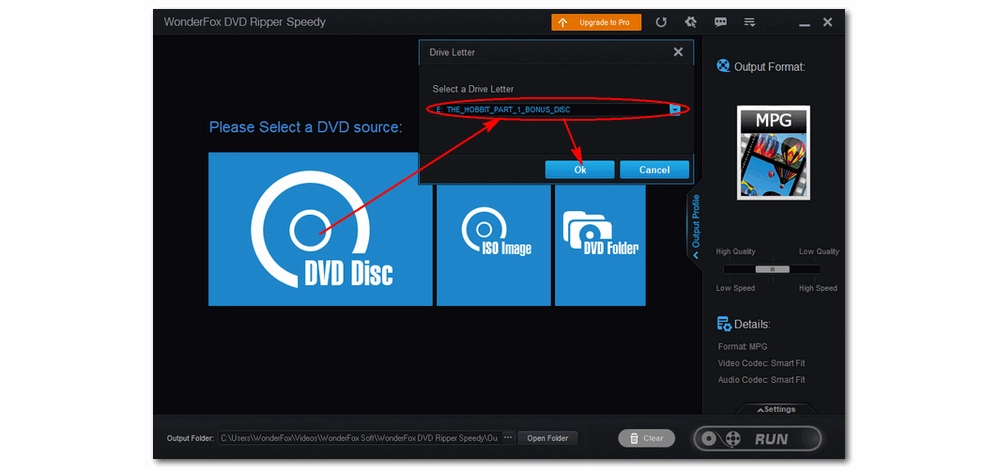
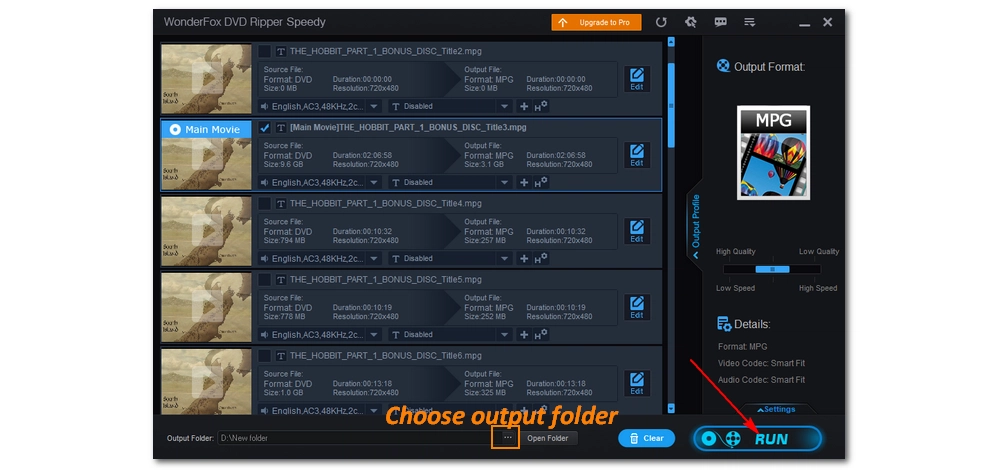
The program has MPG as the output format by default. You just need to set an output folder and click “RUN” to convert DVD to digital. But, if you want, you can modify the audio and subtitle track or edit the DVD video before conversion.
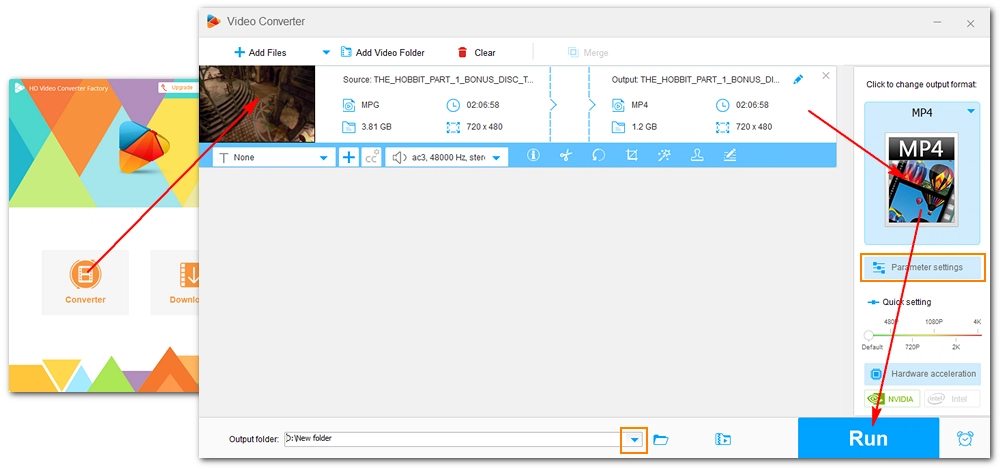
Open Free HD Video Converter Factory and enter the “Converter” module. Drag the digital DVD video into the workspace.
Next, click the right-side format image to open the output format list. Head to the “Video” category and choose “MP4” as the output format.
Finally, set an output path and click “RUN” to finish the DVD to MP4 conversion process.
💡 Before conversion, you can open the “Parameter settings” to change the codecs, bitrate, frame rate, aspect ratio, etc.
Disclaimer: WonderFox does not advocate any illegal duplication and distribution of DVDs and all information provided in this article is presented for personal fair use only. Please refer to the DVD copyright laws in your country before you rip any DVDs.
MakeMKV and HandBrake are free, open-source software often used together to convert DVD to MP4 with small size. Users would rip the DVD to MKV with MakeMKV and then compress the MKV file to MP4 with HandBrake. The next tutorial shows you how to rip DVD to MP4 with them in detail.
* Please insert a DVD into your computer’s DVD drive first.
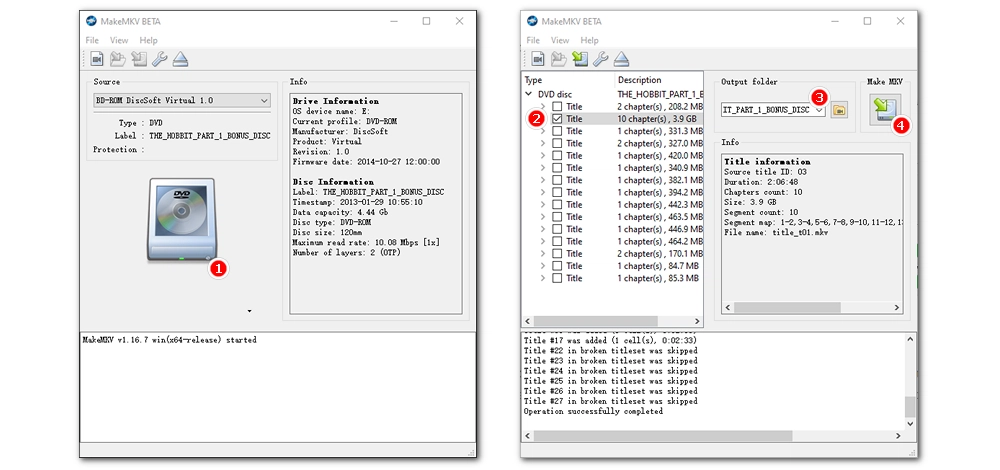
Step 1: Start MakeMKV on your Windows. It will auto-detect the disc and display the disc information.
Step 2: Click the DVD image to scan and load all the titles on the disc.
Step 3: Select your needed titles (usually, the main title is the one with the biggest size) and choose an output folder.
Step 4: Click “Make MKV” to save the selected titles as MKV.
🌟 Hot Search: How to Use MakeMKV?
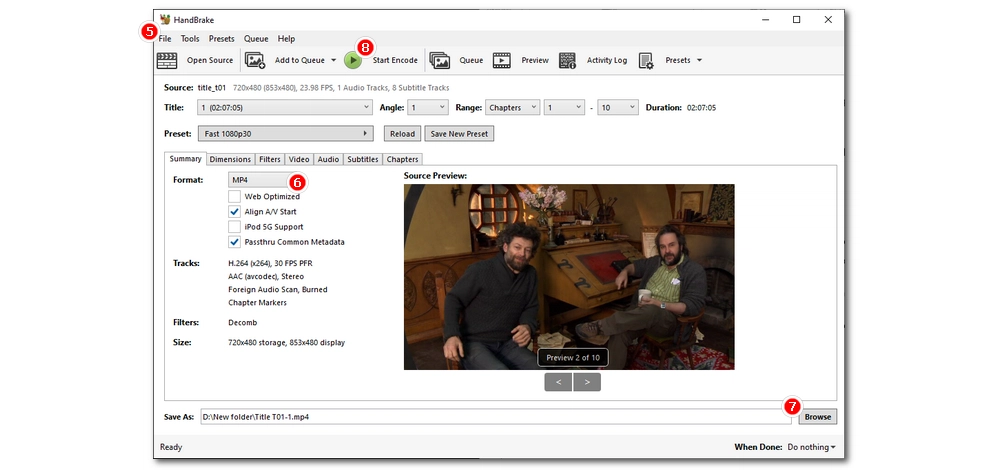
Step 5: Open the ripped DVD content with HandBrake.
Step 6: Navigate to the “Summary” tab below and choose “MP4” as the output format.
💡 You can continue to customize other settings like video codec, FPS, subtitles, audio codec, etc. in other tabs.
Step 7: Click the bottom “Browse” button to specify an output path. Also, make sure that the file ends with the .mp4 extension.
Step 8: Finally, hit the top green “Start Encode” button to begin the conversion.
🌟 Hot Search: More HandBrake Tutorials
Finding a free DVD-to-MP4 tool can be tough, but the two workarounds above will let you convert your DVDs without trouble. I hope they come in handy. Thanks for reading!

• Convert between all mainstream video/audio formats;
• Download movies and music from 1000+ websites;
• Batch compress large video files at once;
• Record meetings, gameplay, streaming content…;
• Fast join multiple video clips into one file;
• Trim, split, crop, rotate videos at will.

Privacy Policy | Copyright © 2009-2026 WonderFox Soft, Inc.All Rights Reserved
