

Want to save TikTok videos for offline viewing or keep some of your favorite clips for later? This guide introduces six simple ways to download TikTok videos on iPhone, Android, Windows, Mac, and other devices, so you can choose the method that works best for you.
 Kevincy | Jul 30, 2026
TikTok has a built-in download option, but it is not available for every post. According to TikTok, if you open a video, tap Share, and do not see Save video, the creator does not allow downloads for that post. TikTok also turns video downloads off by default for private accounts and accounts belonging to users under 16.
If the Save video button is visible but the download fails, check your connection, free storage space, TikTok app update, and the app's permission to save media to your device. Restarting TikTok or the phone can also clear a temporary glitch.
Disclaimer: This guide is for instructional purposes only and is limited to personal fair use. It's illegal to download copyrighted materials from TikTok for distribution without the copyright holder's consent. We don't endorse or encourage copyright infringement in any way. Stay on the right side of the law, folks!
For public TikTok videos, WonderFox Free HD Video Converter Factory provides a simple desktop downloader. Paste a link, analyze the available media, and save it locally without using a command line.
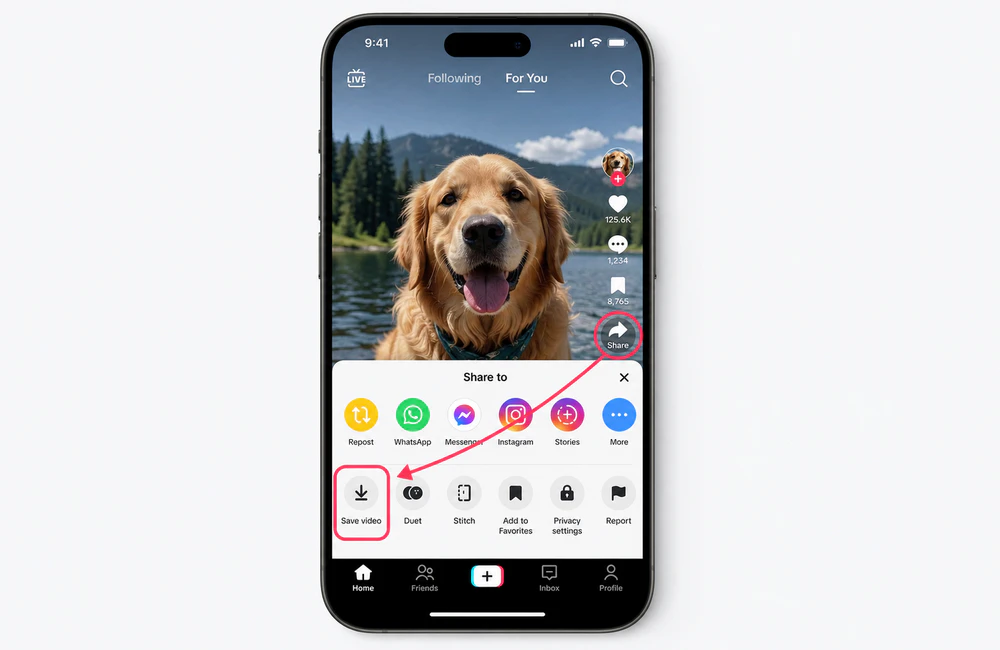
The official TikTok option is the simplest method on iPhone and Android when the creator allows downloading. You do not need another app, website, or account login outside TikTok. The saved video includes the TikTok watermark.
Step 1. Open TikTok and go to the video you want to save.
Step 2. Tap the Share button on the side of the video.
Step 3. Tap Save video. TikTok will save the file to your device with the TikTok watermark. If that option is missing, downloading has been disabled for the post.
If you are saving your own content, TikTok also recommends keeping an offline copy before posting. On the Post screen, open More options and turn on Save to device.
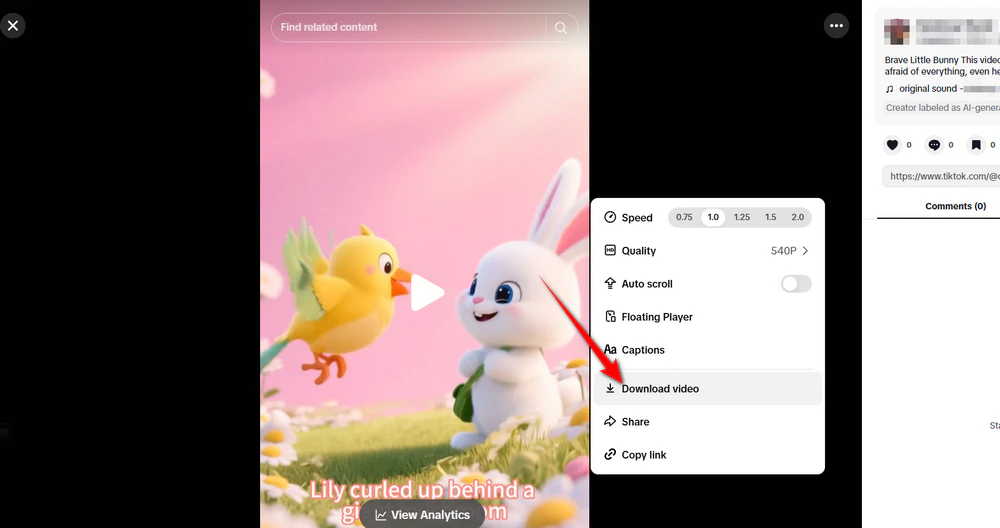
If you are watching TikTok on a desktop browser, you can also save a downloadable public video directly from the website. This is convenient because it does not require extra software, but the downloaded file includes the TikTok watermark, just like the app's Save video option.
Step 1. Open the TikTok video in your web browser.
Step 2. Right-click the video and choose Download video.
Step 3. Choose where to save the file if your browser asks. If Download video is not available, use one of the watermark-free methods below.
WonderFox Free HD Video Converter Factory includes a built-in downloader for Windows. It is useful when you prefer saving a public TikTok video directly to a PC without the TikTok watermark, and then want to convert, trim, compress, or merge the downloaded file afterward.
Because video sites change their delivery systems regularly, no third-party downloader can guarantee that every TikTok link will analyze forever. Private, removed, region-restricted, login-only, or otherwise inaccessible posts may not work. For public posts that can be analyzed, the workflow is straightforward.
Get the Windows freeware and follow the steps below.
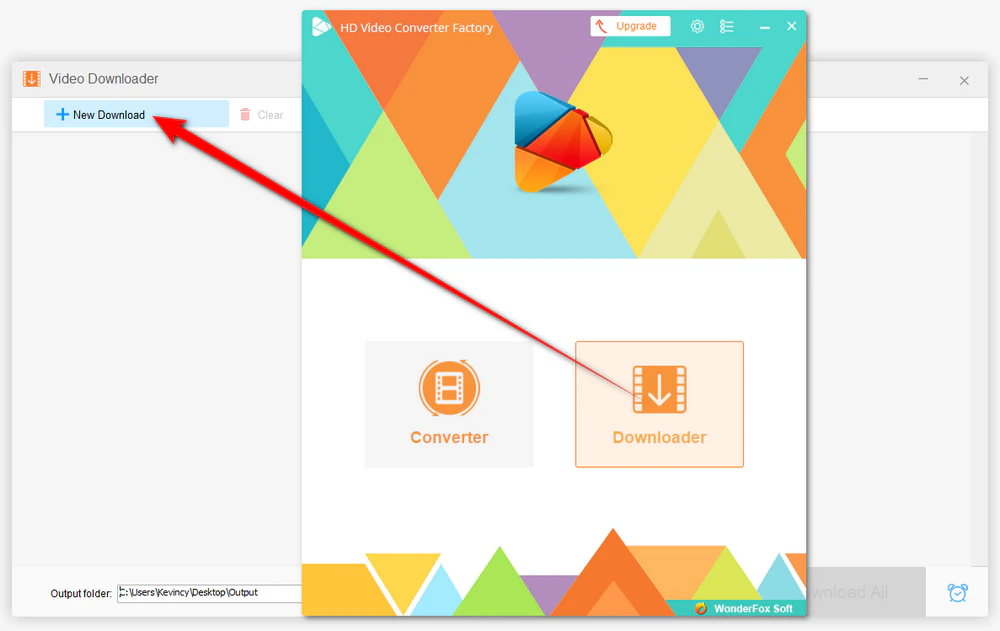
DownloadDownload, install, and launch Free HD Video Converter Factory on your Windows PC. Choose Downloader on the home screen, then click + New Download.
Open the TikTok post in the app or your browser. Tap or click Share and choose Copy link. Return to the downloader, paste the URL into the analysis window, and click Analyze.
After analysis, select one of the available video options. For supported public TikTok links, the downloader can save the video without the TikTok watermark. The exact resolution, format, and audio options depend on what TikTok currently provides for that post.
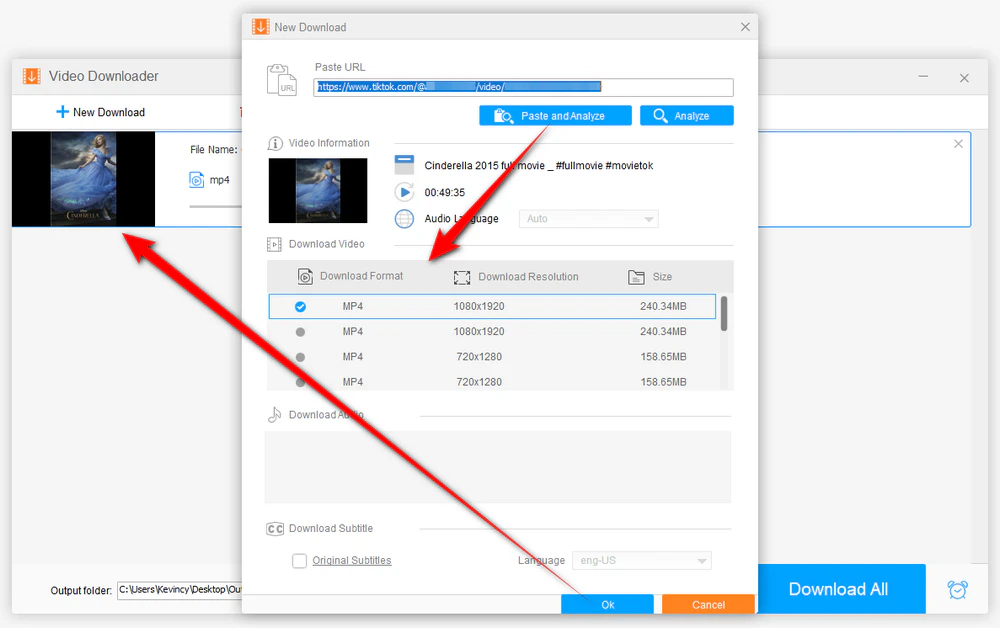
Click OK to add the task. Choose a destination folder at the bottom, and then press Download All. You're able to add multiple TikTok video links for batch downloads.
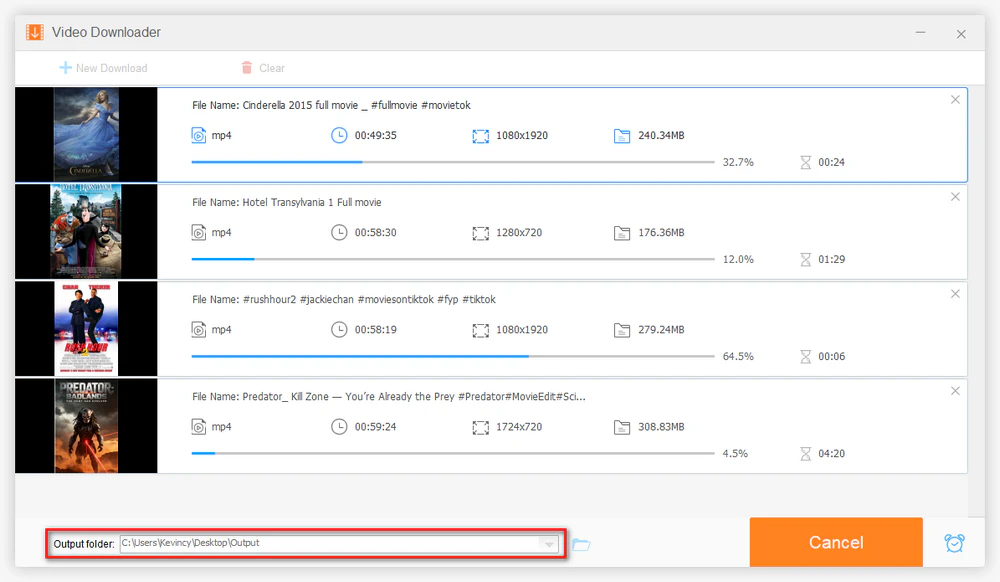
If you need a different file type or a shorter clip, open the Converter module afterward. You can convert the saved video to a common format, trim unwanted parts, crop the frame, merge clips, add subtitles, or compress the file for easier sharing.
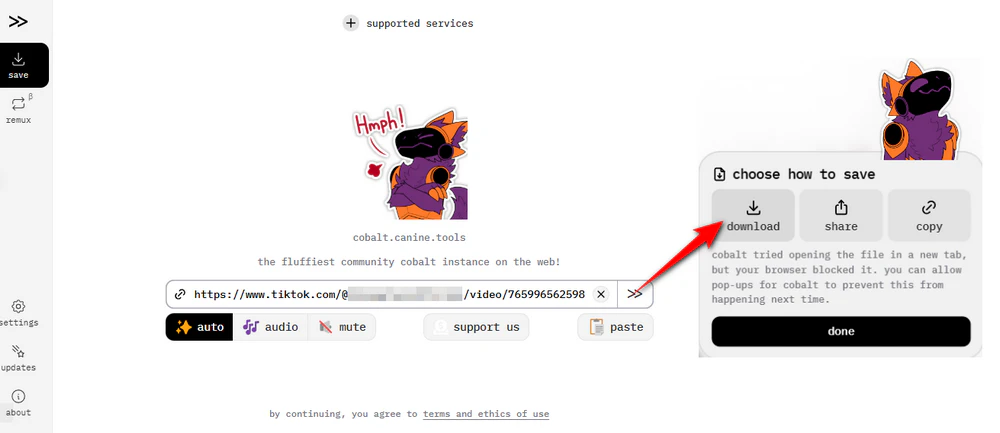
If you do not want to install desktop software, a browser-based downloader is the most convenient cross-platform option. Cobalt is an open-source web app that supports public TikTok videos, TikTok image slideshows, and audio. It runs in a browser, so the same basic method works on Windows, macOS, Linux, iPhone, iPad, and Android. For supported TikTok posts, it can download the video without the TikTok watermark.
Step 1. In TikTok, open the public post you are allowed to save and choose Share > Copy link.
Step 2. Open Cobalt in your browser and paste the TikTok URL.
Step 3. After the analysis, save the TikTok video to your device. On iPhone or iPad, the file may first appear in Safari's Downloads/Files area; on Android, check the browser's download folder.
Note: Online downloaders are convenient, but websites can change or stop supporting a platform at any time. Avoid services that ask for your TikTok password, install unknown browser extensions, or push suspicious downloads. For private or restricted posts, use TikTok's own access and download options instead of attempting to work around the post's privacy settings.
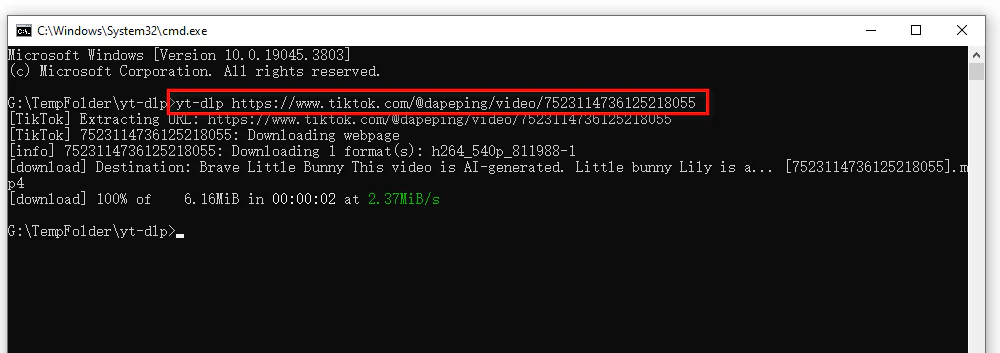
yt-dlp is a command-line media downloader for Windows, macOS, and Linux. Its current extractor list includes TikTok, although its own documentation notes that site support can break when websites change. For supported public posts, it can save the video without the TikTok watermark. This method is best for experienced users who are comfortable with Terminal, Command Prompt, or PowerShell.
After installing yt-dlp from its official project, copy the URL of a public TikTok post you are permitted to save. Then run:
yt-dlp "TIKTOK_URL"
yt-dlp will inspect the public URL and download the best media it can access. If the extractor suddenly stops working, first update yt-dlp and try again later. Avoid adding account cookies or other authentication data unless you fully understand what you are sharing and are only accessing content you are authorized to use.
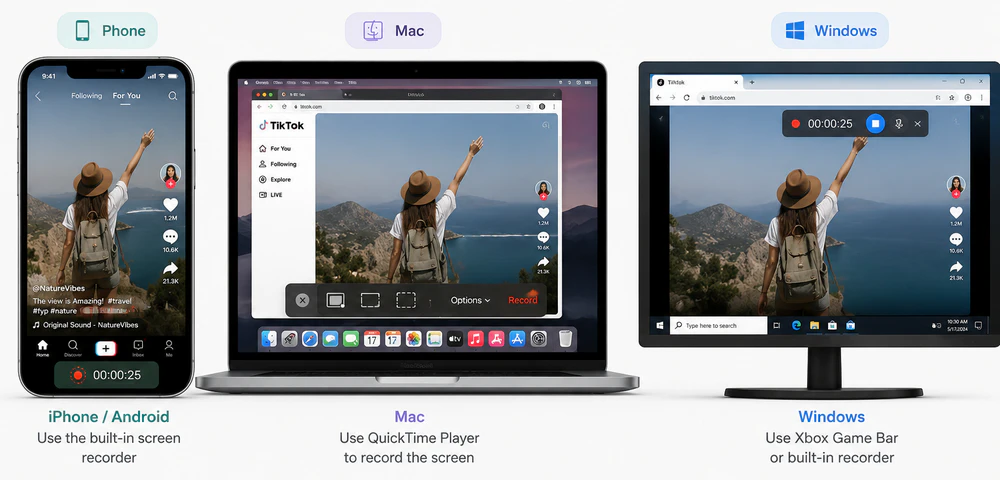
Screen recording does not download the original TikTok file, but it can be a practical watermark-free fallback for your own content or a video you have permission to capture when a link analyzer fails. It is also especially useful for TikTok LIVE when you want to keep an authorized recording of a live session. The tradeoff is that you may need to crop the result, hide on-screen controls, and accept lower quality than a direct download.
iPhone/iPad: Add Screen Recording to Control Center if needed, start recording, play the TikTok in full screen, and stop when the clip ends. Trim the beginning and ending in Photos.
Android: Many current Android phones include Screen recorder in Quick Settings. Start recording, select device audio if your phone offers that option, play the TikTok, then stop and trim the recording in Gallery/Photos.
Mac: Press Shift + Command + 5 to open the macOS screen capture controls. Choose a recording mode, start recording, play the video in your browser, and stop from the menu bar.
Windows: Windows 11 includes screen recording in Snipping Tool on supported versions. If you need more control over the recording area and audio sources, HD Video Converter Factory Pro also includes a screen recorder for full-screen, custom-region, gaming, and audio-focused capture.
HD Video Converter Factory Pro combines a converter, downloader, and screen recorder with compression and basic editing tools. It is a handy application for beginners to deal with video and audio files on Windows.
TikTok's Save video: Best for the simplest official download on iPhone or Android when the creator allows it. Watermark: Yes.
TikTok web Download video: Best when you are already watching the video in a desktop browser and the right-click option is available. Watermark: Yes.
Free HD Video Converter Factory: Best for Windows users who want a visual desktop downloader and may also convert or edit the saved file. Watermark: No.
Cobalt: Best for a quick browser-based workflow on Mac, phone, tablet, Linux, or a computer where you cannot install software. Watermark: No.
yt-dlp: Best for advanced users who prefer command-line tools and want a cross-platform workflow. Watermark: No.
Screen recording: Best when direct downloading is unavailable and especially useful for authorized TikTok LIVE capture. It does not add TikTok's download watermark, although any visible app controls or overlays may be recorded. Watermark: No.
If convenience matters most, TikTok's in-app Save video and the website's right-click Download video are the fastest choices, but both keep the TikTok watermark. If you want a watermark-free copy of your own or permitted public content, Free HD Video Converter Factory offers an easy Windows workflow, Cobalt works in a browser across platforms, and yt-dlp is useful for advanced users. Screen recording is another watermark-free fallback and is particularly useful for authorized TikTok LIVE recording.
Most importantly, treat the creator's download and privacy choices as part of the content. Save, reuse, and share TikTok videos only when you have the appropriate permission or rights.

Kevincy joined the WonderFox team in 2014 and has been a senior columnist ever since. With over two decades of experience in the video editing industry, he shares tutorials, tips, and how-to guides on video/audio processing and personal DVD backups. Family-oriented and passionate about helping others, he is dedicated to making video and audio processing easier for readers.


Kevincy joined the WonderFox team in 2014 and has been a senior columnist ever since. With over two decades of experience in the video editing industry, he shares tutorials, tips, and how-to guides on video/audio processing and personal DVD backups. Family-oriented and passionate about helping others, he is dedicated to making video and audio processing easier for readers.

WonderFox HD Video Converter Factory Pro
1. 500+ optimized presets for fast conversion in bulk.
2. Compress large-sized videos with no quality loss.
3. Trim, merge, crop, rotate, flip, watermark video.
4. Download HD/FHD/4K/8K videos from 1000+ sites.
5. Record live streams, gameplay, webcam, video call
6. Make animated GIFs from video or image sequence.
7. Make ringtones, extract subtitles & more...

Privacy Policy | Copyright © 2009-2026 WonderFox Soft, Inc. All Rights Reserved
