
Convert Videos to HTML5-Compatible MP4, WebM, OGV and More.
 Recommended by the author
 How to & Tips
 Convert Video

 by Kevincy
Updated on Sep 1, 2026
HTML5 video is not a special file extension. It usually refers to web-ready videos embedded with the <video> tag, commonly in MP4, WebM, or OGV format. If your source file is MOV, FLV, SWF, AVI, MKV, or an incompatible MP4, you can follow the tutorials below to convert video to HTML5-compatible MP4, WebM, or OGV, or convert downloaded HTML5 videos to MP4 and other 500+ formats and devices.
After Adobe Flash Player was retired, HTML5 video became the standard way to display videos on a webpage without extra plug-ins. Modern browsers can play videos through the <video> element, but the actual file still needs to use a browser-friendly container and codec. In practice, MP4 and WebM are the most common choices for HTML5 pages, while OGV can still serve as an additional fallback (see Part 3 for details).
That is why a MOV file from QuickTime or iPhone, an old FLV file from Flash video sites, a legacy SWF file, or a video with an unsupported codec may fail to play after you upload it to a webpage. The practical solution for ordinary video or non-interactive animation is to convert the media to HTML5-compatible MP4, WebM, or OGV. Likewise, if you have downloaded a web video in WebM/OGV format, you can convert it to MP4, AVI, MKV, and other common formats for offline playback or editing.

The All-in-One HTML5 Video Converter
1. Convert any videos to HTML5-compatible MP4, WebM, or OGV.
2. Convert downloaded HTML5 videos to MP4 and other formats.
3. Support batch conversion mode for saving a lot of time.
4. Compress videos to smaller size with high quality preserved.
5. 500+ output formats and ready-made device profiles provided.


WonderFox HD Video Converter Factory Pro is a multi-functional video converter that comes with 500+ configured presets of different formats and devices. It can convert SWF, MOV, FLV, MP4, AVI, MKV and more supported media files to web-friendly MP4, WebM, or OGV. If your video is already in an HTML5-compatible container but uses the wrong codec, you can also re-encode it to a safer combination, such as MP4 with H.264 video and AAC audio. Similarly, it allows you to convert HTML5 videos to common video formats, for example, converting WebM to another video format.

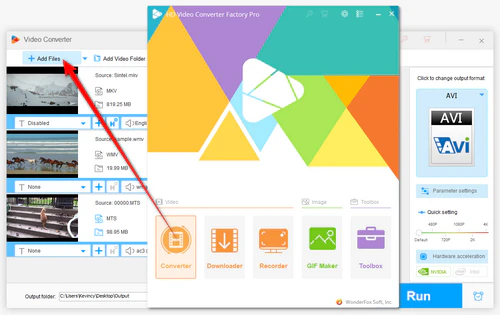
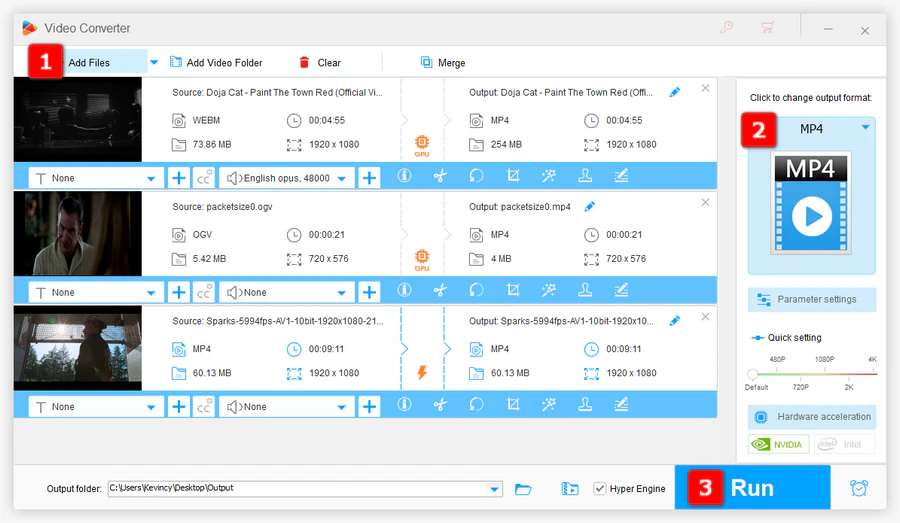
DownloadDownload, install, and launch the HTML5 video converter on your PC. Open the “Converter” module and click “Add Files” or directly drag and drop the videos you intend to convert into this software. Batch conversion is supported, so you can import several files at once.
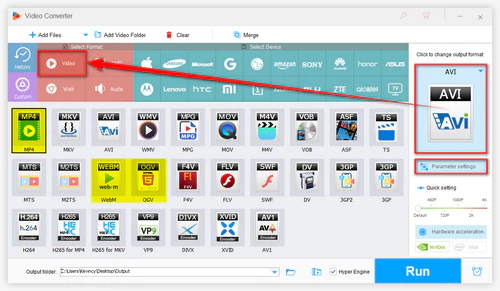
Open the output format list on the right side. In the latest version, the “Web” category no longer includes a separate HTML5 option. To make an HTML5-compatible video, go to the “Video” category and choose “MP4”, “WebM”, or “OGV”. For most websites and devices, MP4 is the safest choice.
💡 Tips: For better compatibility, open “Parameter settings” and use H.264 video with AAC audio for MP4. If you need extra browser fallbacks, you can also output a WebM or OGV copy and add multiple <source> files to your webpage. Meanwhile, you're also allowed to download HTML5 videos using the "Downloader" module when you have permission to save the video.
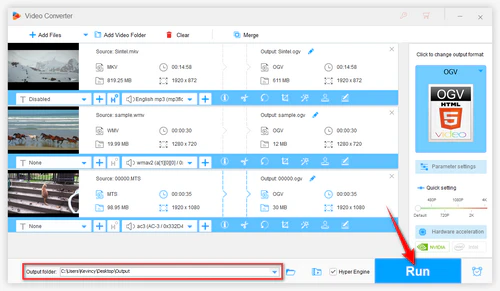
Click the inverted triangle icon at the bottom to customize the output folder. Now click on “Run” on the lower right corner to start converting the video to an HTML5-compatible format.
WonderFox HD Video Converter Factory Pro supports Intel Quick Sync, Nvidia NVENC/CUDA and multi-core CPUs, and it can help you keep a good balance between output quality, file size, and processing speed.
SWF was built for Adobe Flash and can contain more than a simple video stream, including vector animation, audio, and scripted interaction. Adobe ended Flash Player support on December 31, 2020, and modern browsers no longer run Flash content directly. If your SWF is mainly a video or non-interactive animation, the simplest way to reuse it on a modern webpage is to convert it to MP4, WebM, or OGV and embed the result with the HTML5 <video> tag.
For a supported SWF file, you do not need a separate “SWF to HTML5” tool or preset. Use the same three-step workflow above: add the SWF to the Converter, choose MP4, WebM, or OGV from the Video category, and click Run. MP4 with H.264 video and AAC audio is usually the easiest choice for broad playback compatibility.
💡 Important: Converting SWF to a video format only preserves the playable visual/audio result that can be decoded. It does not recreate ActionScript, clickable buttons, games, menus, form input, or other interactive Flash behavior. Interactive SWF content needs to be rebuilt or migrated with tools intended for Flash applications rather than ordinary video conversion.
After conversion, upload the MP4, WebM, or OGV file to your server and reference it with the HTML5 <video> tag. If you only want one file, MP4 is usually enough for most modern browsers and devices. If you want broader fallback coverage, prepare more than one format and let the browser pick the first playable source.
Example:
<video controls width="640" poster="poster.jpg">
  <source src="video.mp4" type="video/mp4">
  <source src="video.webm" type="video/webm">
  <source src="video.ogv" type="video/ogg">
  Your browser does not support the HTML5 video tag.
</video>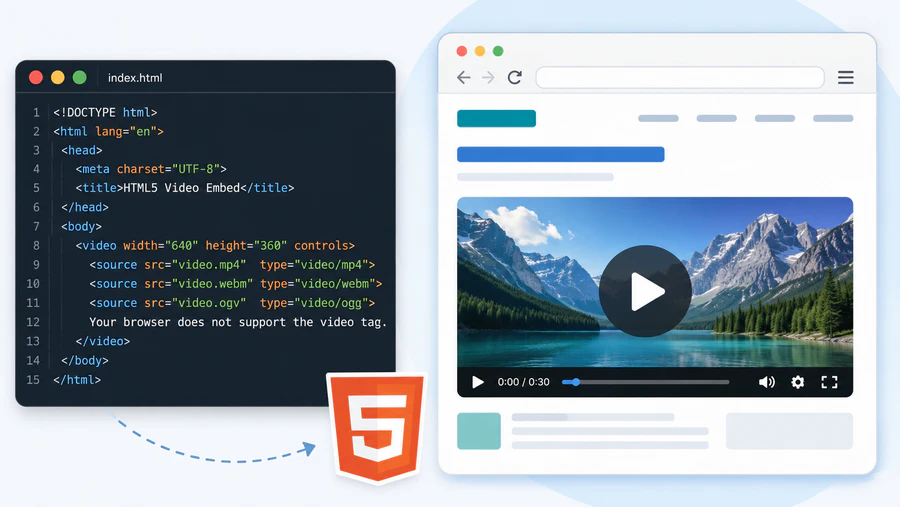
If you have downloaded a video from an HTML5 webpage and the file is saved as WebM, OGV, or an MP4 that does not play well on your device, WonderFox HD Video Converter Factory Pro can also help convert it to MP4, AVI, MKV, MOV and other 500+ formats and hot portable devices. Note that “HTML5 video” usually means a normal media file used by a webpage, not a separate .html5 file. Let's see how to convert HTML5 video to MP4.

DownloadDownload this software and install it on your Windows PC. The process of converting HTML5 video to MP4 is similar to Part 1.
Open the Converter first. Directly drag and drop the downloaded video file, or click “Add Files” to import the target WebM, OGV, MP4, or other saved web video for conversion.
Open the output format list. Click on the “Video” tab and then select the “MP4” profile. MP4 with H.264 video and AAC audio is recommended for common playback, sharing, and editing. You can also select “AVI”, “MKV”, “MOV”, or another format based on your device or software.
Set an output folder and press “Run” to convert the HTML5 video to MP4 at once.
HTML5 itself does not require one fixed video codec. Browser support still depends on the container, video codec, audio codec, browser version, and sometimes the operating system. SWF is not a format supported by the HTML5 <video> element. For ordinary website videos, MP4 with H.264/AAC is still the most convenient output. WebM is a good open-web alternative. OGV is less common today, but it can still be used as an additional fallback when needed.
File Type |
WebM |
OGV/Ogg |
MP4 |
Supported Codec |
VP8/VP9/AV1 video codec; Vorbis/Opus audio codec. |
Theora video codec; Vorbis audio codec. Browser support is more limited than MP4 and WebM. |
H.264 video with AAC audio is the most practical combination. HEVC or AV1 in MP4 may require newer browsers and devices. |
Q1: Is HTML5 a video format?
No. HTML5 is a web standard, and the <video> tag is used to embed video on a webpage. The actual video file is usually MP4, WebM, or OGV.
Q2: Why can't I find the HTML5 option in the Web category?
The latest version of WonderFox HD Video Converter Factory Pro no longer lists HTML5 as a separate Web preset. To output an HTML5-compatible video, open the “Video” category and select MP4, WebM, or OGV.
Q3: Which format is best for HTML5 video?
MP4 with H.264 video and AAC audio is recommended for most users because it works well across major browsers, devices, and editing software. WebM can be added as an extra source for web playback.
Q4: Can I convert SWF, MOV, or FLV to HTML5 video?
Yes, for ordinary video or non-interactive animation that the converter can decode. Import the SWF, MOV, FLV, or other source file into the Converter module, then choose MP4, WebM, or OGV from the Video category and click Run.
Q5: Can every SWF file be converted to HTML5?
Not in the same way. A normal video converter can turn supported SWF media into a standard video file for the HTML5 <video> tag, but it cannot preserve ActionScript, buttons, games, menus, or other interactive Flash logic. Interactive SWF projects need a dedicated migration, rebuild, or archival playback solution.
Q6: Can I convert an online HTML5 video to MP4?
If you have the right to save the video, you can download it first and then convert the saved WebM, OGV, or MP4 file to MP4 or another format with the Converter module.

Kevincy joined the WonderFox team in 2014 and has been a senior columnist ever since. With over two decades of experience in the video editing industry, he shares tutorials, tips, and how-to guides on video/audio processing and personal DVD backups. Family-oriented and passionate about helping others, he is dedicated to making video and audio processing easier for readers.


 Free Download
 Product Page
 Windows, 100% Clean!