

Old SWF files can be difficult to open on modern computers, phones, browsers, and media players. This guide shows you how to convert video-based SWF files to MP4, FLV, WebM, and other common video formats, and how to deal with SWF files that contain animation, vector graphics, ActionScript, or interactive content.
 Kevincy | Updated on Sep 14, 2026
Not necessarily.
An SWF file is not always a normal video file. It can contain embedded video and audio, but it may also consist of vector animation, text, buttons, ActionScript code, a game, or other interactive elements. That difference determines whether a regular video converter can process it directly.
This also explains why an older task such as SWF to FLV works for some files but not others. FLV is a linear video container, so a converter can create an FLV file only when it can decode usable video/audio content from the SWF. Animation logic, buttons, games, and scripted interaction cannot simply be carried over to FLV.
Adobe ended support for Flash Player on December 31, 2020 and blocked Flash content from running in Flash Player beginning January 12, 2021. For security reasons, Adobe also recommends against downloading unauthorized old Flash Player installers. Therefore, this article does not rely on installing the discontinued Adobe Flash Player.
WonderFox HD Video Converter Factory Pro is a practical choice whether your SWF contains a normal video stream or consists of animation, ActionScript code, or other interactive elements.
👉 If the SWF is video-based: you can usually import it into the Converter module and convert it to MP4, FLV, AVI, MOV, MKV, MPEG, WMV, and similar formats. This is the simplest option when you only need broader playback, editing, sharing, or device compatibility.
👉 If the SWF is animation- or interaction-based: direct conversion may fail, produce an incomplete result, or ignore interactive behavior. In that case, open the SWF with a compatible emulator such as Ruffle, play the content normally, and record the playback with the Recorder module.
The program also supports batch conversion, basic editing, compression, and manual control of video/audio parameters. The interface is straightforward enough for users who do not want to deal with command lines or complicated codec settings.
Get the program and follow the tutorial below. 👇
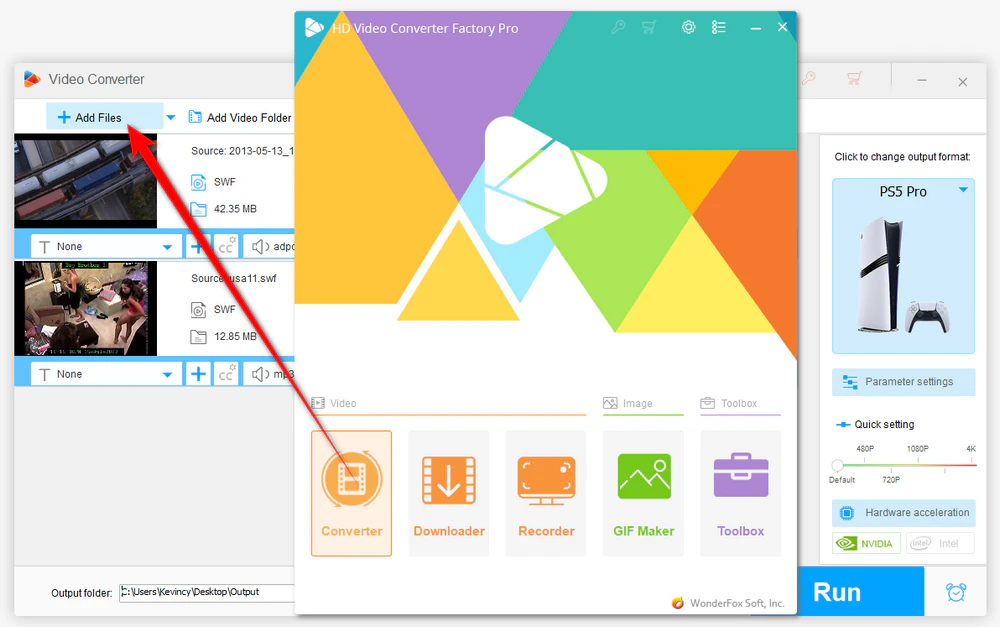
DownloadDownload and install HD Video Converter Factory Pro on your Windows PC. Launch it and open the "Converter" module. Click "Add Files" to import the SWF file, or drag and drop it directly into the workspace. You can add multiple video-based SWF files for batch conversion.
⚠️ If the program cannot recognize the SWF, or the file is mainly an animation, game, menu, or other interactive Flash content, skip to the recording method below instead of forcing a direct conversion.
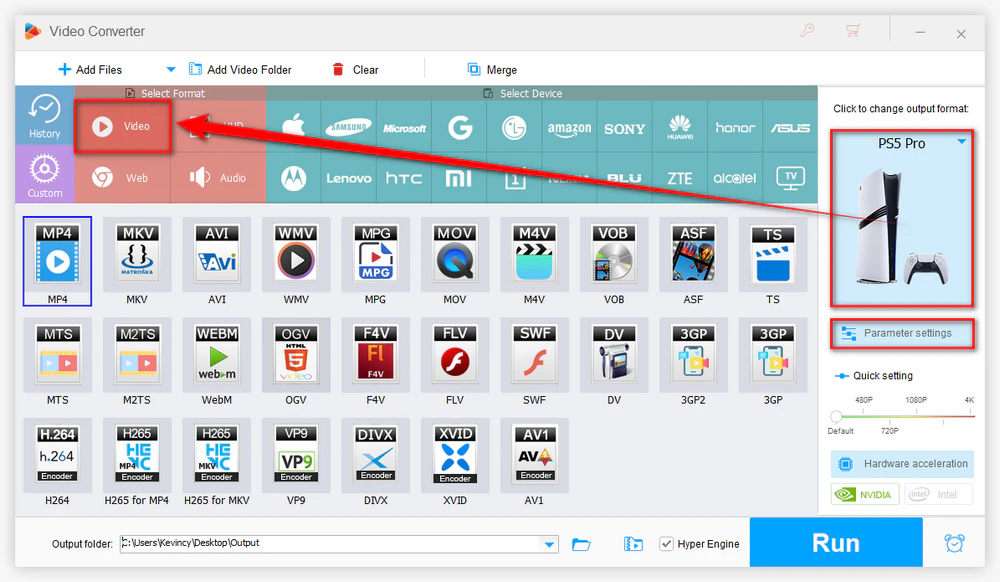
Click the large format image on the right to open the output format library. Go to the "Video" category and select your preferred output profile.
MP4 is usually a safe choice. You can also choose AVI, MOV, MPG/MPEG, FLV, WMV, MKV, WebM, or another supported format when a particular device or application requires it.
Optional: open "Parameter settings" if you need to change the video encoder, resolution, bitrate, frame rate, aspect ratio, audio settings, or other output parameters. For a straightforward conversion, the preset defaults are usually enough.
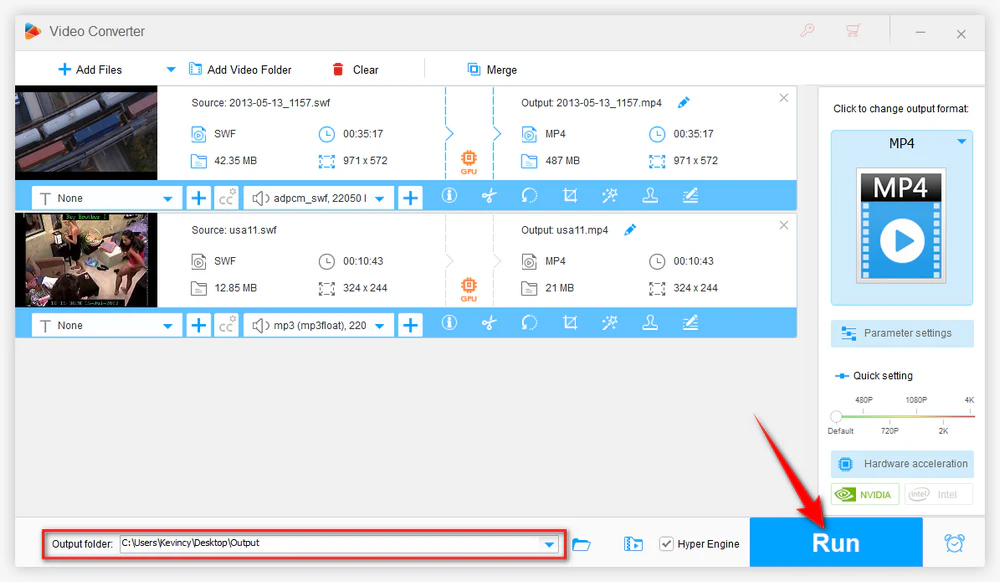
Click the bottom "▼" button to choose where to save the output. Then press "Run" to start the conversion. Once completed, open the output folder and test the converted video in your target player or application.
Because the output is a standard linear video, any interactive SWF behavior such as buttons, game controls, scripted menus, or branching actions will not be preserved by normal video conversion.
👉 If you only need a basic SWF-to-Video conversion, the free version - WonderFox Free HD Video Converter Factory can also handle the same add-file, choose-format, and convert workflow for compatible video-based SWF files. This guide mainly uses the Pro edition because its Recorder gives you a practical fallback when an SWF cannot be converted directly.
One of the most useful details from the older SWF conversion tutorials is that not every SWF should be treated as a video. A normal converter is designed to read decodable media streams. It cannot preserve an interactive game, clickable buttons, scripted navigation, or other ActionScript behavior as a working video file.
When direct conversion does not work, the practical workaround is to run the SWF first and record the part you want to keep. Ruffle is a modern Flash emulator available for desktop and web use. Its compatibility is still not perfect for every legacy SWF, especially more complex content, but it can handle many older Flash files without requiring the discontinued Adobe Flash Player.
Open the SWF in Ruffle or another trusted SWF-compatible environment. Resize the playback window, load the correct scene, and test any buttons or interactions you need to show in the final recording.
Launch HD Video Converter Factory Pro and enter "Recorder". Choose the screen recording mode, select the SWF playback area or full screen, set the output format and quality, and choose the audio source according to what you need to capture.
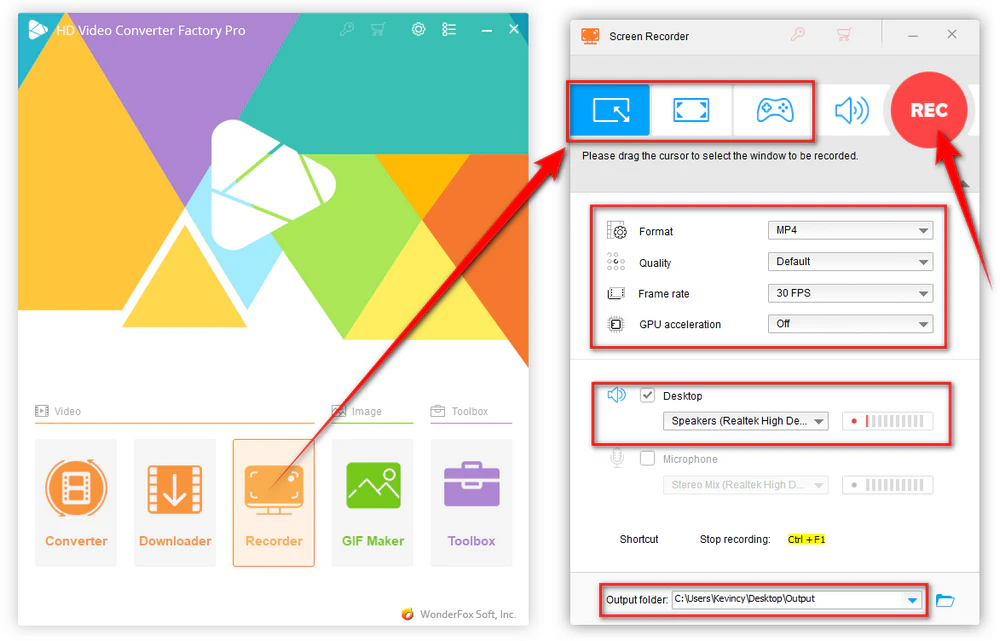
Start recording, return to the SWF, and play or interact with it normally. When the desired content is finished, stop the recording. The result is a regular video file that can be played and shared without Flash. Keep in mind that the recording preserves only what happened on screen; the original interactivity itself is not carried into the video.

WonderFox HD Video Converter Factory Pro can directly convert video-based SWF files to 500+ formats and device presets. When an SWF is not a true video, use its Recorder to capture the animation or interactive playback as a standard video file.
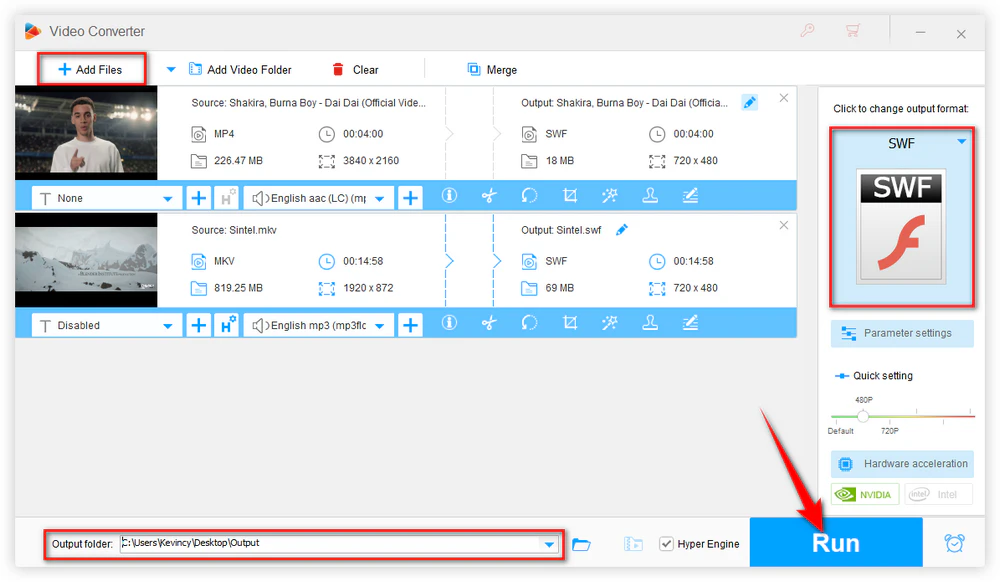
SWF is a legacy format, so most users today are trying to move away from it. However, if an old application, presentation, or workflow specifically requires SWF, HD Video Converter Factory Pro can also convert supported video files to SWF.
Step 1. Open "Converter" and add the source video file.
Step 2. Open the output format list, go to the "Video" category, and select "SWF".
Step 3. Choose the output folder and click "Run".
⚠️ Use this only when you have a clear legacy requirement. For modern websites and general playback, a current HTML5-friendly video format such as MP4 or WebM is usually a better long-term choice.
The file may not contain a normal video stream. Try opening it with a trusted SWF emulator. If it plays there, use screen recording to save the visual content as a standard video.
This is expected. A video format stores a linear audio/video timeline, not ActionScript logic or clickable controls. Record the interaction as you perform it if you need to demonstrate how the SWF behaves.
That is usually a compatibility issue rather than a failed conversion. Modern browsers no longer rely on Flash Player, so FLV is not a good default for current web playback. Convert the source to MP4 or WebM instead unless a legacy system specifically requires FLV.
Keep the output resolution close to the original display size and avoid using an unnecessarily low bitrate or frame rate. For screen-recorded SWF content, record at the actual playback size whenever possible.
Before recording, check the selected audio source in Recorder. If the SWF contains sound, make sure the system audio option is enabled and test a short clip before recording the full content.
Yes, for video-based SWF files. For example, Convertio or 123APPS' Online Video Converter currently provides SWF conversion to MP4 and other video formats in a browser. Online conversion is convenient for small, non-sensitive files, but upload limits and network speed can be drawbacks. Interactive or script-heavy SWF files may not convert as expected.
For a simple video-based SWF, an online converter is the easiest cross-platform option. For animation or interactive content, you can try opening the SWF with Ruffle and then use macOS screen recording through Screenshot or QuickTime Player. Note that capturing internal system audio may require additional audio-routing setup depending on your Mac configuration.
A mobile browser can use an online converter for a small video-based SWF file, but local SWF playback and interactive Flash compatibility are limited on modern phones. For difficult SWF files, a desktop computer is usually more reliable because you can test the file in an emulator and record it if direct conversion fails.
No. Adobe stopped supporting Flash Player after December 31, 2020 and recommends uninstalling it. Adobe also warns users not to install unauthorized Flash Player versions from third-party websites. A maintained emulator such as Ruffle is a safer modern option for trying to run legacy SWF content.
No. Converting or recording SWF content produces a normal video file. It can preserve the visible animation and audio, but not the original clickable controls, scripts, game logic, or branching interactions.
The key to handling an old SWF file is to identify what it actually contains. If it is a video-based SWF, HD Video Converter Factory Pro can convert it to a common video format in a few clicks. If it is an animation, game, or other interactive Flash file, direct conversion may not be suitable; open it with a compatible emulator and record the playback instead. And for the occasional legacy workflow that still asks for SWF, the same program can also export supported videos to SWF from the Video category.

Kevincy joined the WonderFox team in 2014 and has been a senior columnist ever since. With over two decades of experience in the video editing industry, he shares tutorials, tips, and how-to guides on video/audio processing and personal DVD backups. Family-oriented and passionate about helping others, he is dedicated to making video and audio processing easier for readers.


Kevincy joined the WonderFox team in 2014 and has been a senior columnist ever since. With over two decades of experience in the video editing industry, he shares tutorials, tips, and how-to guides on video/audio processing and personal DVD backups. Family-oriented and passionate about helping others, he is dedicated to making video and audio processing easier for readers.

WonderFox HD Video Converter Factory Pro
1. 500+ optimized presets for fast conversion in bulk.
2. Compress large videos with flexible size and quality controls.
3. Trim, merge, crop, rotate, flip, watermark video.
4. Download HD/FHD/4K/8K videos from 1000+ sites.
5. Record live streams, gameplay, webcam, video calls.
6. Make animated GIFs from video or image sequence.
7. Make ringtones, extract subtitles & more...

Privacy Policy | Copyright © 2009-2026 WonderFox Soft, Inc. All Rights Reserved
