
Free Download
Get the Top VTS Video Player for Windows 7/10/11!
AuthorRecommended by the author
Free Download X

SoftwareHow to & Tips

Convert DVDRip DVD

Resources

VTS Video Player – How to Play VTS Files on Windows Easily

Author by Rocabella

Updated on Mar 13, 2026

Many users are confused when they open a DVD folder and see files named VTS_01_0.BUP, VTS_01_0.IFO, and VTS_01_0.VOB. These files are part of the DVD structure, and they are usually stored in a folder called VIDEO_TS. If you’re wondering how to open VTS files, this article will share reliable VTS video players and show you how to play VTS files on Windows easily.

👉 Get the best VTS video player for Windows to open and process VIDEO_TS folders easily:

Got Trouble Playing VTS File?

Recently, we received feedback from users who had trouble opening VTS files after copying a DVD folder to their computer. So what exactly is a VTS file, and why can’t it always be played directly?

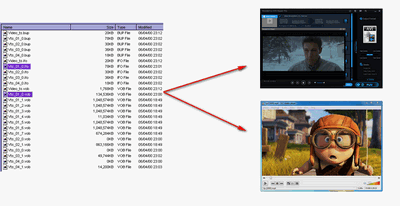
In fact, VTS is not a single file format. It's a group of files used in DVD video discs. These files usually appear in the VIDEO_TS folder and are named with the prefix VTS, such as:

  • VTS_01_0.BUP
  • VTS_01_0.IFO
  • VTS_01_1.VOB

Each of these files plays a different role in DVD playback. When all files are present, the DVD content can be played correctly through a compatible player.

What's the Use of Each VTS File?

VTS_XX_0.IFO file stores navigation and playback information for the title set.

VTS_XX_0.BUP file is a backup copy of the IFO file and is used if the IFO file becomes unreadable.

VTS_XX_0.VOB file stands for Video Title Set XX, Video Object 0, and contains menu data for the title set.

VTS_XX_N.VOB file contains the actual video, audio, and subtitle data of the DVD title.

💡 "XX" may range from 01 to 99, while "N" may range from 0 to 9, depending on how many video segments are included on the disc.

How to Play VIDEO_TS on Windows 10/11?

In a DVD folder, only VOB files contain actual video content. However, playing individual VOB files separately may cause playback issues such as missing scenes or incorrect order. To play VTS videos correctly, it’s better to play the entire VIDEO_TS folder using a compatible media player or DVD tool.

Below, I’ll show you how to play VTS files with two VTS video players on Windows.

Best VTS File Player - WonderFox DVD Ripper Pro

WonderFox DVD Ripper Pro is the best tool for opening DVD folders and processing VTS files on Windows. It has:

  • Built-in VTS file player: You can play VTS videos directly after loading the VIDEO_TS folder.
  • Advanced DVD processing technology: The software can handle many common DVD protections such as CSS, region codes, RCE, Sony ARccOS, UOP, and other structural protections.
  • Flexible output formats: You can convert VTS videos to MP4, MKV, AVI, and many other formats, or optimize them for devices like iPhone and iPad.

With this powerful VTS file player and converter, you don’t need to worry about how to play VTS files on Windows 11/10/8/7/ and lower. Free downloadFree download the program right now!

Free Download Free Download

Method 1 – Using WondeFox DVD Ripper Pro as VTS File Player

Play Main Movie

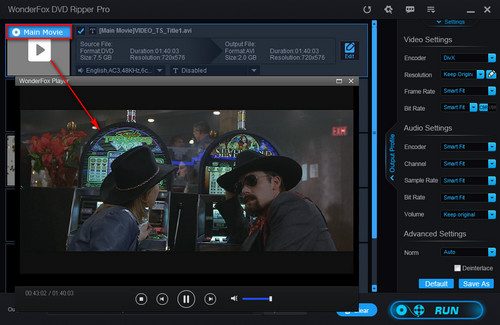
Step 1: Open the software and click DVD Folder. Select the folder that contains the VIDEO_TS files, then click OK to load the content.

Step 2: The program will analyze the DVD and automatically identify the main movie title. You can click the thumbnail to watch it in the built-in VTS player.

💡 The detected main title usually skips unnecessary elements such as warnings, ads, or previews.

💡 If you want to convert VTS to MP4 or other formats for easier playback, you can choose the desired format on the right side of the interface and click Run to start the conversion.

Disclaimer: WonderFox does not support illegal duplication or distribution of copyrighted content. The information in this article is intended for personal use and general informational purposes only.

Method 2 – Using VLC as VTS File Player

Play VTS Video on VLC

Many free media players can open VIDEO_TS folders, and VLC Media Player is one of the most popular VTS media player.

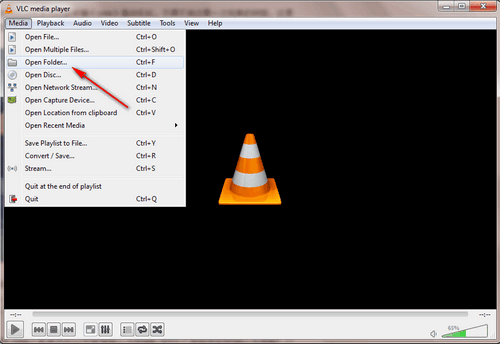
👉 Open VLC media player > click Media on the menu bar > select Open Folder > open Video_TS folder.

Finally, you can play your VTS files.

Warm Tips

Using VLC is a quick way to play VTS videos. But if you want to play them on different devices, WonderFox DVD Ripper Pro may be more suitable as it can also convert your VTS files into digital video files for easier playback, storage, or backup. Download the software to have a try:

Free Download Free Download

All-in-one Video & Audio Converter for Windows

HD Video Converter Factory Pro

HD Video Converter Factory Pro

• Convert any video/audio to 500+ formats and devices;

• Download SD/HD/4K/8K movies and music from 1000+ websites;

• Compress batches of video files at once to save device storage;

• Record meetings, gameplay, streaming content… with no time limit;

• Merge multiple video clips into a complete single file at fast speed;

• Trim, crop, rotate, watermark, add special effects to videos at will.

Free Download HD Video Converter Factory Pro Free Download HD Video Converter Factory Pro

More Related Articles

VIDEO_TS to MP4 - Two Simple Methods to Play VIDEO_TS Files Video_TS to MKV - Easiest Guide on Video_TS File to MKV DVD Folder to MP4 - 3 Simple Ways to Play DVD Folder
VOB Merger - Combine/Join/Merge Multiple VOB Files into One Copy DVD to PC - How to Copy DVD to Computer or Laptop Video_TS to AVI – Playing Video_TS Is a Piece of Cake