Convert DVD for Movie Enjoyment on Any Device
 Recommended by the author
 How to & Tips
 Rip DVD

 by Michelle
Updated on Sep 18, 2026
This post explains how to convert a DVD for viewing or streaming on a TV or streaming devices like Roku, so you can enjoy movies conveniently without a DVD player. A powerful DVD ripper will help you complete the process with ease. Download the recommended software here and keep reading for the detailed instructions below:
Important: Do not rip any copyrighted DVDs for commercial purposes. This guide is for general informational purposes only.
Buying DVDs has become less popular as there are more convenient ways to watch movies at home. If you have a large collection of DVDs, you can convert them to digital files for easy playback on TV. And a DVD to video converter is the key.
A powerful DVD converter is necessary for this task because many DVDs are DRM-protected. You are recommended to use WonderFox DVD Ripper Pro. The software can remove all sorts of encryptions and rapidly convert DVDs to over 500 presets, including MP4, MKV, and H264. Try it now:
WonderFox DVD Ripper Pro
✅ Convert DVD to common formats such as MP4, MKV, MOV, H264, and HEVC.
✅ Provide presets for Samsung TVs, LG TVs, Android TVs, Apple TV, and 4K Smart TVs.
✅ Bypass various DVD protections, including region codes, CSS, and multi-angle.
✅ Copy DVD to ISO or Video_TS with 1:1 intact content.
✅ Fast processing speeds with hardware acceleration.


Before start, please free downloadfree download the software and install it on PC.
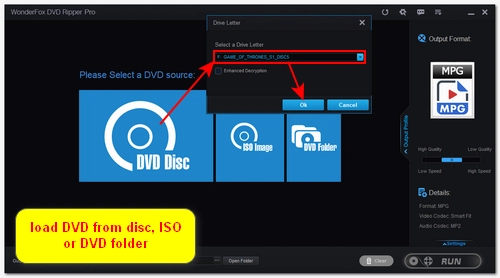
Insert the DVD into your computer's DVD drive, then launch WonderFox DVD Ripper Pro from your desktop. Click the "DVD Disc" button, and the software will automatically detect the available DVD. Simply click "OK" to load the DVD into the program.
Once loaded, the program will auto-select the Main Title.
🔔 Most TVs can't handle digital files using DVD structure, such as ISO images or VIDEO_TS folders. If you have ISO or DVD folders stored on your computer, be sure to click the corresponding option to import the DVD files into the software for conversion.
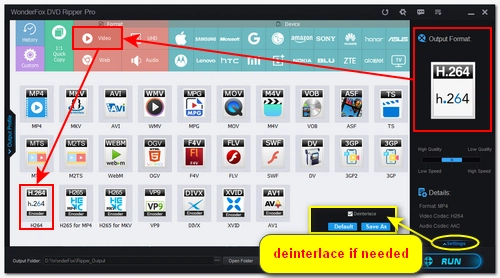
Open the output format page on the right side of the program. Under the "Video" category, you're recommended to select the "H264" profile. This is an optimized video format that will convert your DVD to MP4 format using the H264 video encoder and AAC audio encoder to ensure universal compatibility across devices while keeping a small file size.
💡 Tip: If you are converting an old DVD that may be interlaced, you can open "Settings" in the bottom right corner and select the "Deinterlacing" option to enhance the video and get a clearer output image.
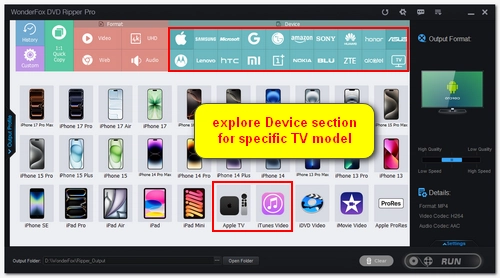
Alternatively, you can explore the "Device" section and choose your specific device. For example, you can convert the DVD directly to Android TV/Google TV, Apple TV (iTunes Video), and 4K smart TVs including Samsung, LG, and Sony.
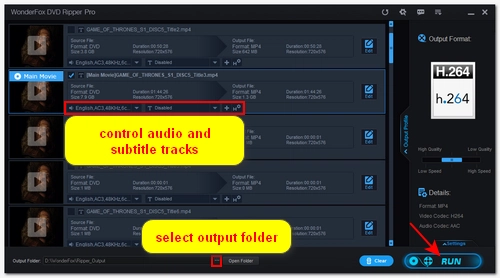
Below the DVD video, you can select the audio and subtitle tracks as needed.
Finally, click the three-dot button at the bottom to set the output folder, and then click "Run" to begin processing.
Once you have the ripped DVD videos, you can use the following methods to stream them to your TV for viewing.
* As a reminder, most TVs and streaming devices do not support DVD menus or DVD folder structures directly. Your DVD should be converted into a standard video file such as MP4 (H264/AAC) in advance. If there are subtitles, hardcoding them into the video can also avoid playback issues.
If your TV or streaming device has a USB port for external media playback, you can copy the ripped DVD video files to a USB flash drive (or SD card), then connect it to the TV or Roku USB port for direct playback. This is the easiest setup, with no network required.
But make sure the videos use a TV-compatible format, otherwise, it may not be recognized by your TV. For Roku users, you need to install Roku Media Player from the Roku Channel Store to find and play movies from your USB drive.
Complete Guide: How to Play Video from USB on TV
If you have already uploaded the ripped DVD media files to your Plex server, you can easily stream them to your smart TV. The advantage of this streaming method is that it does not require the video files to be in a format supported by the TV, because Plex can transcode unsupported videos in real time during the streaming process. But if your videos are H264 MP4 files, Plex will most likely "Direct Play" them to your TV without transcoding.
However, if you're not a Plex user yet, you need to first set up the server, which may be a bit complex for beginners.
Complete Guide: How to Use Plex
If you have an Android TV or your TV has a Chromecast device, you can also cast the ripped DVD files to your TV on the same home network.
Simple Guide: Stream Converted DVD to TV via Chromecast
For watching ripped DVD files on Apple TV, most people choose to cast or screen them wirelessly through AirPlay. This method allows you to send videos from a phone, tablet, or computer, as long as both devices are under the same Wi-Fi network and the video format is compatible with your Apple TV.
Similar to copying DVD to USB to watch on TV, you can also stream DVD to TV with an HDMI cable.
Here is the general workflow:
• Connect your computer and TV with an HDMI Cable. If your PC is an older generation that has no HDMI port, please acquire a USB-to-HDMI adapter. Your TV needs to be close to your PC because most HDMI cables have only a short transmission distance.
• Then, press the input button on your remote control and select HDMI as the input source.
• Now, play the DVD movie on your computer, you'll find that the movie is also being played on TV synchronously. If the movie is not being played on TV, press the "Windows Key + P" and select "Duplicate" or "Second display only".
Bottom Line
Before streaming DVD video to your TV, you need to convert the DVD to a TV-compatible format first. After reading this article, you can just download the recommended DVD converter to convert DVDs for streaming to your TV:

💡 By turning DVDs into digital files, you can also access the DVD videos on more devices, such as your phones, tablets, and game consoles.
In many cases, yes, you can rip DVDs you legally own, but legality depends on the copyright laws of your country.
Generally, ripping DVDs you own for personal use (such as watching on a TV, computer, or mobile phone) is permitted. However, sharing or distributing ripped files is usually not allowed.
When converting DVD for streaming, ensuring compatibility with your device is essential. You should use the following settings for DVD ripping:
• Container: MP4
• Video codec: H.264
• Audio codec: AAC, 160 kbps stereo
• Resolution: Keep original
• Frame rate: Keep original
• Bitrate: 2.5- 4 Mbps
No, converting DVD to 4K resolution is unnecessary because 4K TVs will automatically upscale a 720×480 or 720×576 DVD rip.
Because DVDs use MPEG-2 encoding, you can copy the DVD's MPEG-2 stream to MPG format to avoid quality loss. Additionally, if your DVD contains interlaced video, enabling deinterlacing can help improve the clarity of the final video.

I write about multimedia topics, including video and audio conversion, compression, editing, and downloading. I joined WonderFox in 2020, and my goal is to help readers solve everyday tech problems more easily. In this guide, I have shown you how to rip and stream DVDs to TVs so you can finally play DVDs without a DVD player. Hope you enjoyed it!


I write about multimedia topics, including video and audio conversion, compression, editing, and downloading. I joined WonderFox in 2020, and my goal is to help readers solve everyday tech problems more easily. In this guide, I have shown you how to rip and stream DVDs to TVs so you can finally play DVDs without a DVD player. Hope you enjoyed it!
Backup Your DVD Movies and Play It on Portable Devices
WonderFox DVD Ripper Pro
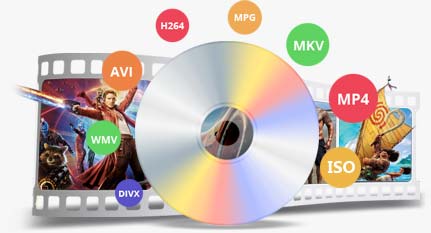
The functional DVD copy tool helps you perfectly copy DVD to DVD folder and ISO image for storage. It also enables you to convert DVD to common digital videos so that you can play DVD movies on mobile phone, tablet and TV anytime and anywhere.