

When a video, song, online clip, or recording sounds too quiet on your Windows PC, turning the system volume to 100% is not always enough. Sometimes the issue comes from the player, browser, speaker, or audio driver; other times, the media file itself was recorded or encoded at a low volume. In this post, we’ve collected 10 practical volume boosters for Windows 11/10 to help you make sound louder in different situations.
Get the overall easiest Windows volume booster to increase the volume of any audio or video file permanently. https://www.videoconverterfactory.com/download/hd-video-converter.exe https://www.videoconverterfactory.com/download/hd-video-converter.exe
 Kevincy | Updated on May 25, 2026
Some Windows PCs offer audio enhancement or equalizer options through the sound driver, but they are not available on every device and do not always solve low-volume files. The tools below cover different needs: some boost the sound you hear during playback, while others permanently increase the volume of audio and video files such as MP4, AVI, MOV, MP3, WAV, FLAC, and more.
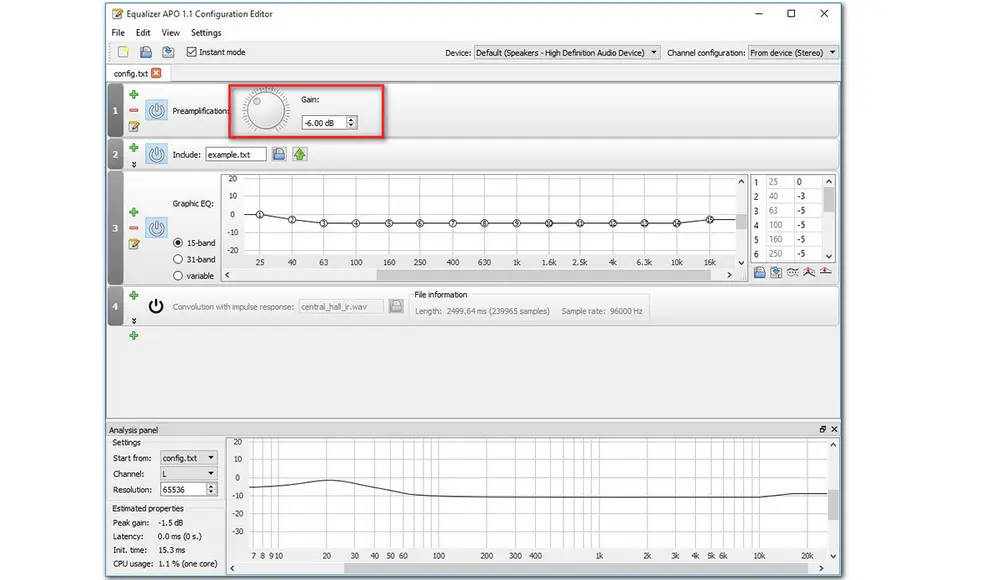
Equalizer APO (Audio Processing Object) is an open-source graphic equalizer. This application is amazing! Whether you are a professional or a novice, you can use it to adjust volume and audio quality very easily. In addition to its brilliant layout, it also serves many purposes! It’s loaded with unlimited filters that you can use to set the audio to the desired level. Besides that, it is compatible with multiple channels, has fast response time, and supports VST plugin integration, making it even more compatible and easy to use. Moreover, it consumes very low CPU usage. This full-featured free volume booster for Windows is worth trying.
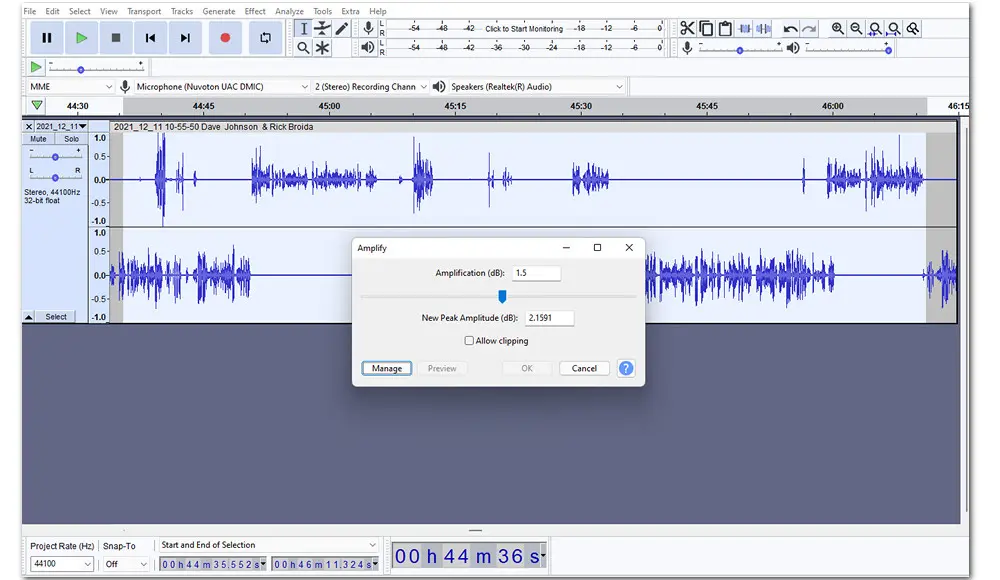
Audacity is a free and open-source editing and recording program for audio. The interface is simple enough for daily audio editing, and it runs smoothly on Windows, macOS, and Linux. Besides volume amplification, it also offers many useful features, such as cutting audio clips, converting audio format, merging multiple files, reducing noise, changing tempo, editing metadata, and applying sound effects.
Audacity is especially useful when you want to make an audio file louder, such as a WAV, MP3, FLAC, or OGG file. After importing the file, select the whole track or only the part you want to edit, then go to Effect > Volume and Compression > Amplify to raise the volume. It is better to start with a small increase, such as 5 dB or 10 dB, because pushing the volume too hard may cause clipping and distortion.
However, Audacity is mainly an audio editor. If you need to make a video louder without separating the audio track manually, a video volume booster or converter will be easier.
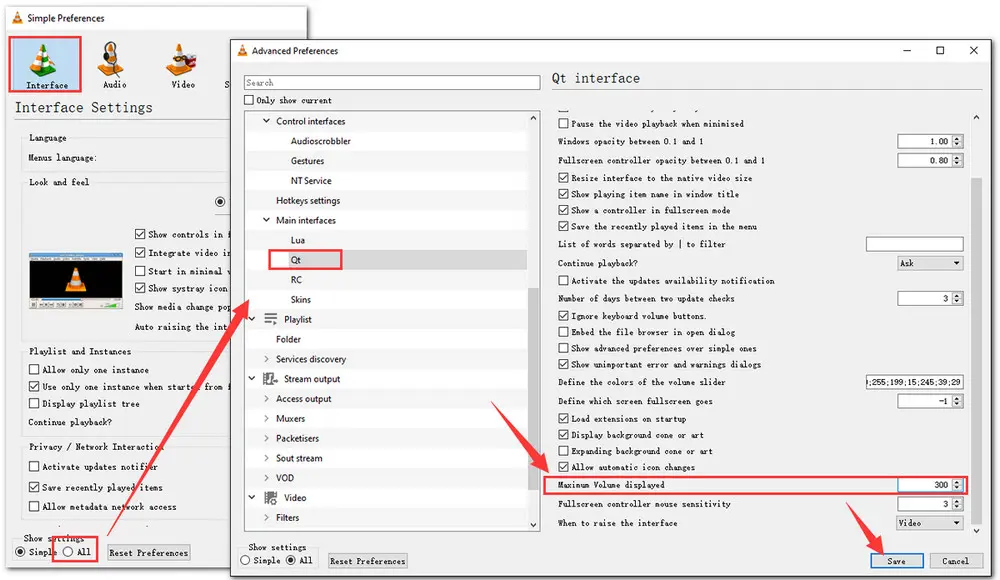
VLC Media Player is one of the best media players that come with many handy playback features. Aside from being a powerful audio and video player, VLC can also serve as a free Windows audio booster. You can raise the playback volume above the normal level in VLC, which is helpful when a movie or song sounds too quiet.
Keep in mind that VLC only makes the file louder while you play it in VLC. It does not permanently change the original media file. If you want to export a louder copy of a video or audio file, use Free HD Video Converter Factory, Audacity, or FFmpeg instead.
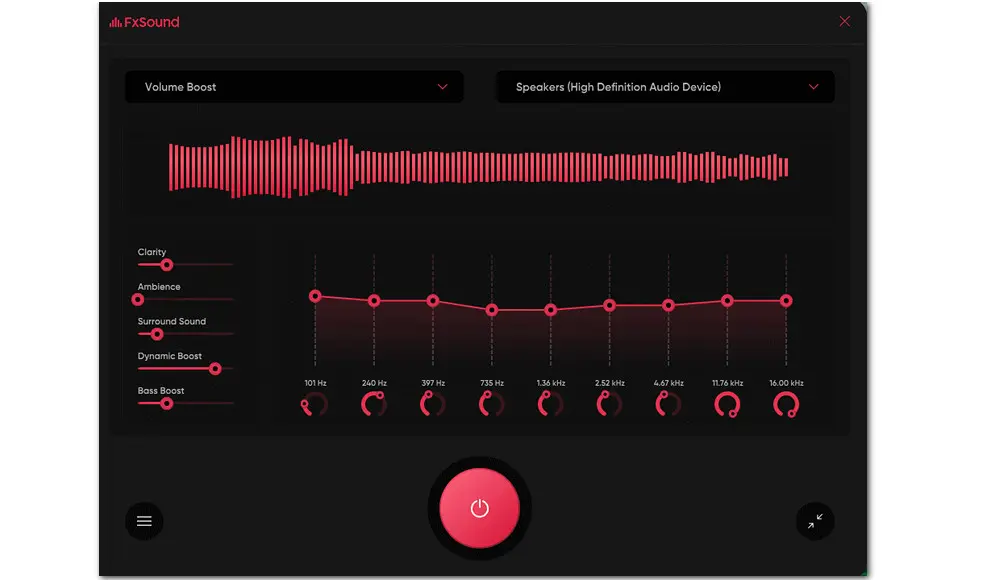
FxSound, one of the most popular sound-enhancing software tools for Windows, can be a good choice for boosting playback volume and improving the way your PC audio sounds. Users had to pay for the FxSound Premium version for a long time, but now FxSound is free for all. You can install the redesigned free sound booster for Windows 10/11 and use its presets and equalizer controls to make speakers or headphones sound louder and clearer.
Like other system-level enhancers, FxSound is best for playback. It does not permanently increase the volume of the source video or audio file.
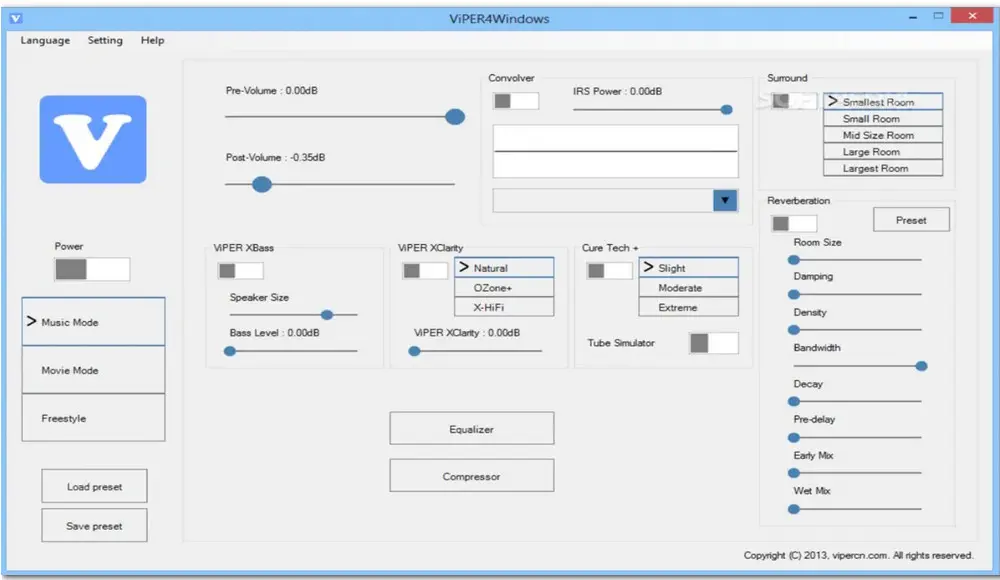
The next program on our list of the best volume boosters for Windows is ViPER4Windows. This audio driver tweak software is free to download and enables you to amplify volume by changing the decibels. It modifies the way your computer renders sound and runs in the background. In other words, it works for the entire Windows operating system instead of one specific application. It is a capable option if you want more control over system-wide sound, but it may take some setup and extreme amplification may still lead to distortion.
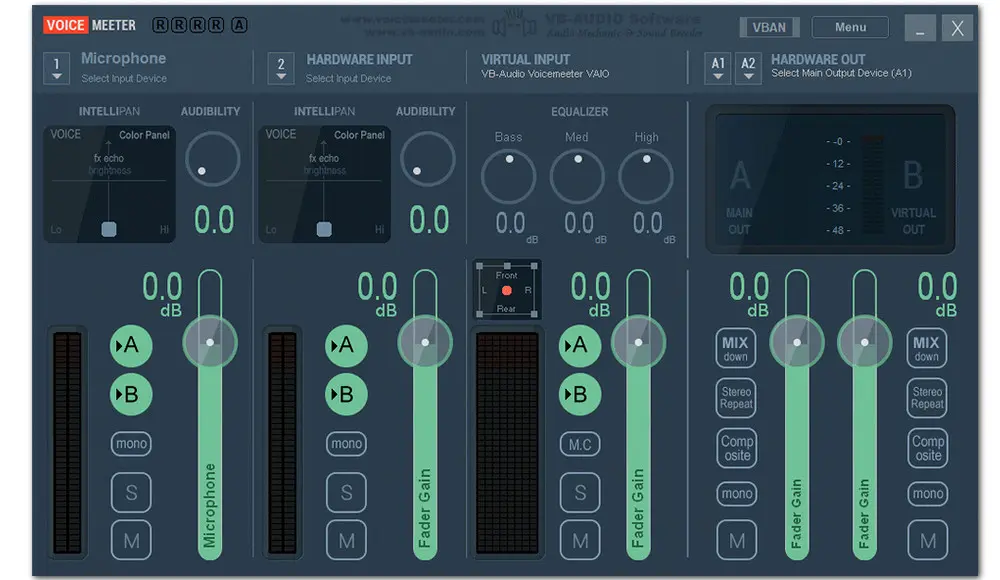
VoiceMeeter is a free-to-use virtual audio device mixer compatible with all Windows OS versions. With VoiceMeeter, you can separately increase or decrease the volume of the applications that are running on your computer at the same time and customize the sounds you have distributed to different channels. Apart from being used to adjust the volume levels, this advanced volume booster for Windows also serves many other functions, like mixing multiple audio sources down to a single audio signal, or recording the desktop audio while sidelining any other sounds and voices. But its operation is not easy for beginners. Thus, for first use, it’s highly recommended to read the manual or watch the tutorial video explaining the features of this app.
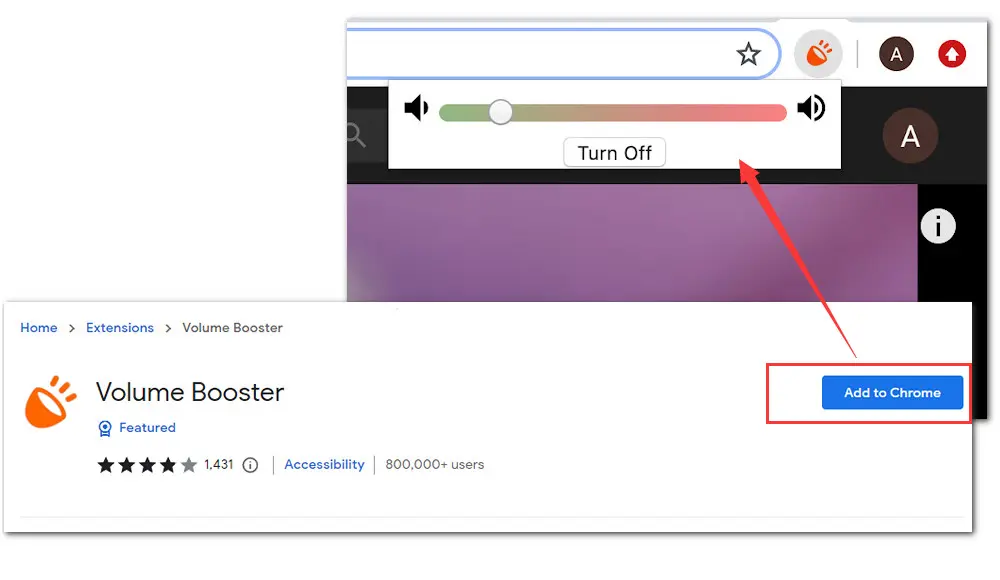
Chrome Volume Booster is another easy way to increase volume without much hassle. It is actually a plugin for your Google Chrome web browser, so it is useful when YouTube videos, online courses, streaming clips, or web players sound too quiet. The usability and convenience of this volume booster for Windows are impressive, and many similar extensions are free to use.
Still, browser volume boosters only affect sound inside the browser tab. They do not modify downloaded videos or local audio files. Also, boosting volume far above normal may cause distortion, damage speakers or headphones, or hurt your ears, so use it carefully.
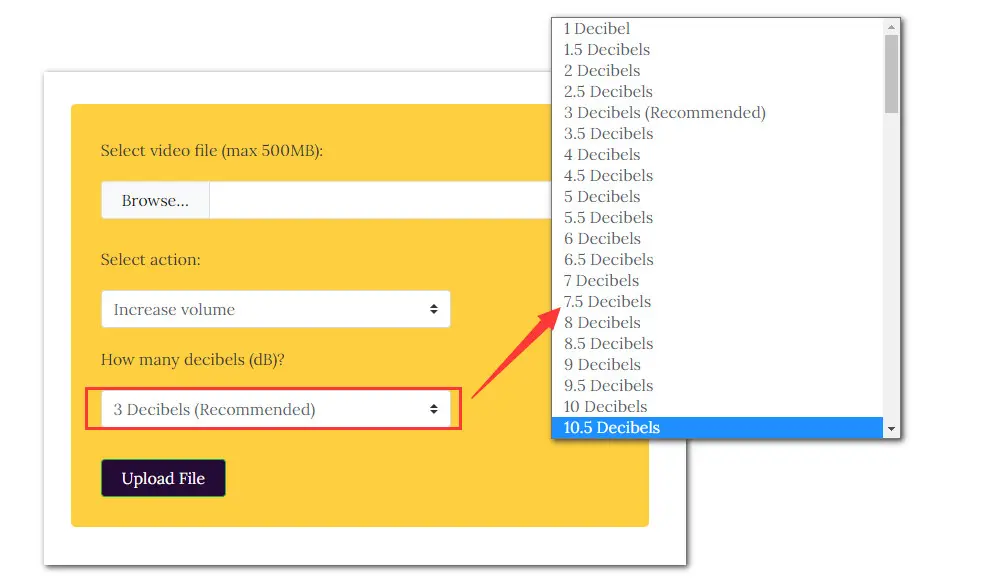
VideoLouder is a web-based video volume booster. It can help you increase or decrease the volume of a video without installing software. You only need to upload the video, choose how many decibels you want to add, process the file, and download the louder version.
The downside is also obvious. Online tools depend on your internet connection, take time to upload and download files, and are not ideal for private or large videos. VideoLouder supports common formats such as AVI, MPEG, MPG, MP4, MOV, and XVID, and the video file size for processing is limited to 500 MB per time. Therefore, it is better for quick handling of small clips rather than large movies, recordings, or batches of files.
→Visit VideoLouder https://www.videolouder.com/
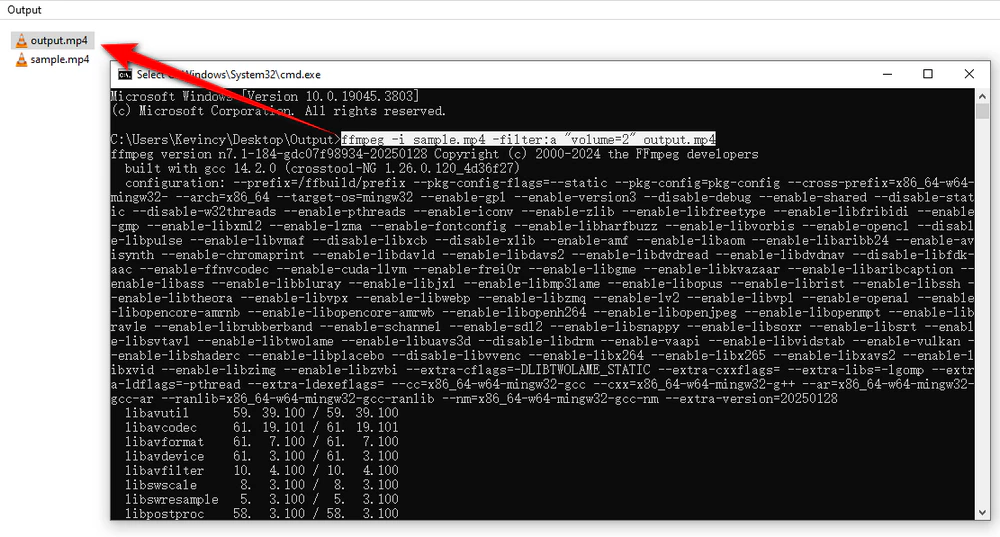
FFmpeg is a free and open-source command-line tool for processing video and audio files. It is not as beginner-friendly as the graphical tools above, but it is powerful if you are comfortable using commands or need to handle files in batches.
To double the audio volume of a video, you can use:
ffmpeg -i input.mp4 -filter:a "volume=2" output.mp4You can also increase the volume by decibels:
ffmpeg -i input.mp4 -filter:a "volume=3dB" output.mp4If you only want to process the audio while keeping the original video stream untouched, try:
ffmpeg -i input.mp4 -filter:a "volume=2" -c:v copy output.mp4The same method works for audio files as well, such as WAV:
ffmpeg -i input.wav -filter:a "volume=2" output.wavFFmpeg is a good choice for advanced users, scripts, and precise control. But for casual users who just want to import a file, move a volume slider, and export the result, a GUI-based volume booster may be much easier.
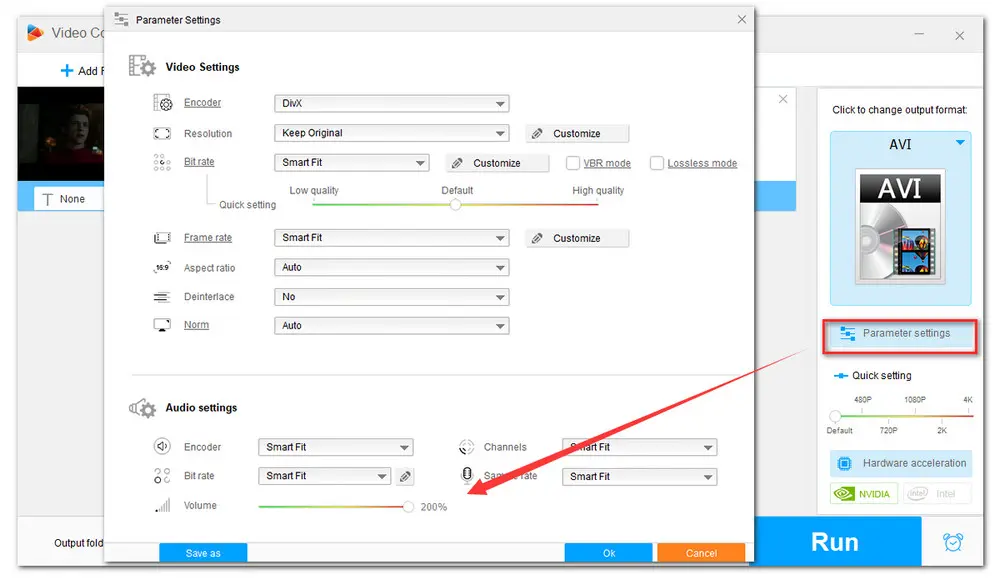
WonderFox Free HD Video Converter Factory is a practical choice when you want to permanently increase the volume of a video or audio file instead of only making it louder during playback. It works with common video and audio formats, including MP4, AVI, MOV, WMV, MP3, WAV, FLAC, M4A, and more.
The process is simple. Add your file to the Converter module, choose an output format if needed, open Parameter settings, and move the Volume slider to the right. You can boost the sound up to 200%, then click Run to export a louder copy of the file.
This is useful for quiet downloaded videos, low-volume recordings, lecture videos, audio files, WAV music tracks, and clips that still sound too soft even when your player and system volume are already turned up. Besides volume adjustment, the program also lets you change format, codec, bitrate, resolution, frame rate, audio channel, and other settings when necessary.
Compared with system sound boosters, this method changes the media file itself. Compared with command-line tools like FFmpeg, it is easier for beginners because you can finish the task with a few clicks.
WonderFox Free HD Video Converter Factory is a full-featured free volume booster for Windows. You can use it to make video and audio files louder, convert formats, compress files, download videos, extract audio from video, and do more. Try it now!
A: Use a video volume booster that can export a new file with higher audio volume. For example, you can import the video into Free HD Video Converter Factory, open Parameter settings, increase the Volume value, and click Run to save a louder copy. VLC or browser volume boosters can make playback louder, but they usually do not change the original file.
A: You can use Audacity or a media converter. In Audacity, import the WAV file, select the track, and use the Amplify effect. In Free HD Video Converter Factory, add the WAV file, open Parameter settings, raise the Volume slider, and export the result. If you do not need to keep WAV, you can also convert it to MP3, FLAC, M4A, or another format while increasing the volume.
A: FFmpeg can copy the original video stream while processing the audio with a command like ffmpeg -i input.mp4 -filter:a "volume=2" -c:v copy output.mp4. This avoids re-encoding the video track, but the audio still needs to be processed because its volume is being changed.
A: The volume may have been boosted too much. When audio peaks go beyond the allowed range, clipping can happen, which makes the sound harsh or distorted. Try a smaller increase first, or use normalization or compression tools if the file has both very quiet and very loud parts.
A: Online tools are convenient for small, non-sensitive files, but they require uploading your media to a website. For private recordings, large videos, or batch processing, desktop software is usually safer and more stable.
That’s all for the best volume boosters for Windows. If you only want louder playback, tools like VLC, FxSound, Equalizer APO, or a browser volume booster can help. If you want to permanently make an audio or video file louder, Audacity, FFmpeg, and Free HD Video Converter Factory are more suitable choices.
For beginners, Free HD Video Converter Factory offers the most straightforward workflow: import the file, raise the volume, and export a louder copy. For advanced users, FFmpeg gives more control through commands. Choose the method that matches your file type, skill level, and whether you need a temporary or permanent volume boost.

Kevincy joined the WonderFox team in 2014 and has been a senior columnist ever since. With over two decades of experience in the video editing industry, he shares tutorials, tips, and how-to guides on video/audio processing and personal DVD backups. Family-oriented and passionate about helping others, he is dedicated to making video and audio processing easier for readers.


Kevincy joined the WonderFox team in 2014 and has been a senior columnist ever since. With over two decades of experience in the video editing industry, he shares tutorials, tips, and how-to guides on video/audio processing and personal DVD backups. Family-oriented and passionate about helping others, he is dedicated to making video and audio processing easier for readers.

WonderFox DVD Ripper Pro
WonderFox DVD Ripper Pro is a professional DVD ripping program that can easily rip any DVD, be it homemade or commercial, to all popular formats including MP4, MKV, MP3, WAV, H264, H265, Android, iPhone, etc. without a hitch. It also lets you edit and compress DVD videos at high efficiency. Download it to enjoy fast and trouble-free DVD ripping experience.

Privacy Policy | Copyright © 2009-2026 WonderFox Soft, Inc. All Rights Reserved
