

Need to make an M4A file easier to play, edit, archive, or use on another device? This guide shows a simple way to convert M4A to common audio formats and also turn other audio files into M4A. The goal is to help you choose what actually fits your playback or editing needs.
 Kevincy | Jul 16, 2026
M4A is a filename extension commonly used for audio-only MPEG-4 files. The audio inside is often encoded with
This matters because two files with the same .m4a extension can contain different types of audio and may behave differently when you convert them.
You may want an M4A converter when your player, editor, car stereo, game console, phone, or another app does not accept the file; when an editing program works better with an uncompressed format; when you need a smaller or more widely supported file; or when you want to create an M4A copy from another audio source for a specific device or workflow.
However, conversion is not always necessary. If your M4A file already works in the target app or device, keeping the original avoids an extra processing step. Also, simply changing .m4a to another filename extension does not change the audio data inside. A real conversion is needed when the codec or container is incompatible.
Convert M4A to common audio formats or turn supported audio files into M4A in a few simple clicks. You can also trim audio and adjust basic output settings when needed.
For Windows users who want a simple graphical workflow, WonderFox Free HD Video Converter Factory can handle common M4A conversion tasks without requiring command lines or codec knowledge. You can use it to convert M4A audio to a format your player or editor accepts, or choose M4A as the output when you need to convert another audio file into an M4A file.
The software also lets you adjust the audio parameters when necessary. Basic editing tools are available for tasks such as trimming unwanted parts or joining audio clips before export. Surprisingly, it even offers a Downloader, allowing you to download music, songs, albums, audiobooks, or mixtaples from YouTube and 1000+ popular websites.
👉 For heavier workloads and advanced features, the Pro editionPro edition provides a broader all-in-one workflow, while the free edition is enough for straightforward format conversion.
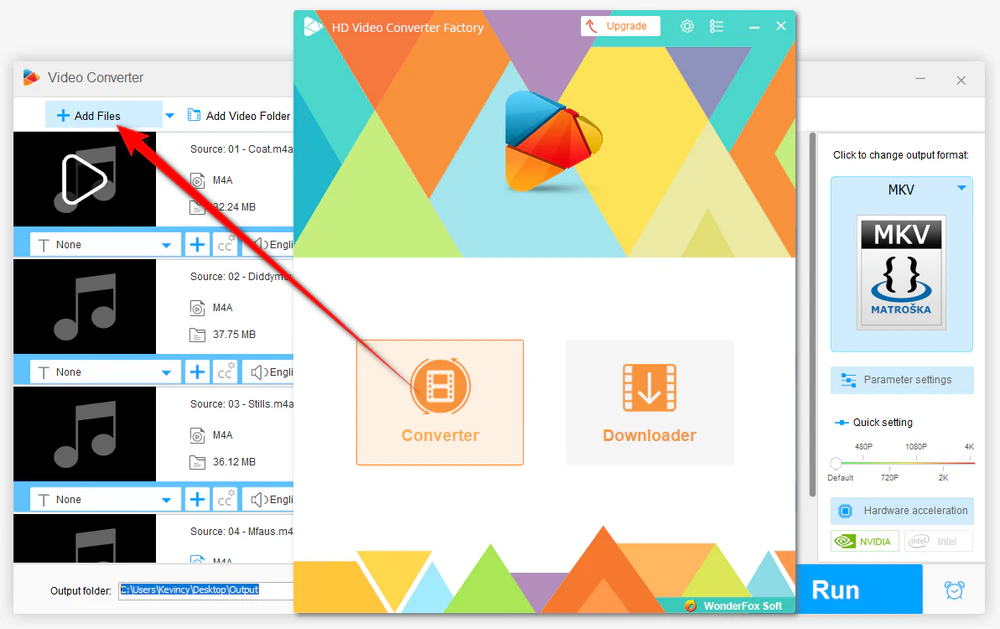
DownloadDownload, install, and launch the freeware. Open Converter > Add Files to import the M4A file you want to convert.
To convert another audio format into M4A, simply import that source file instead. You can also drag and drop files into the main window.
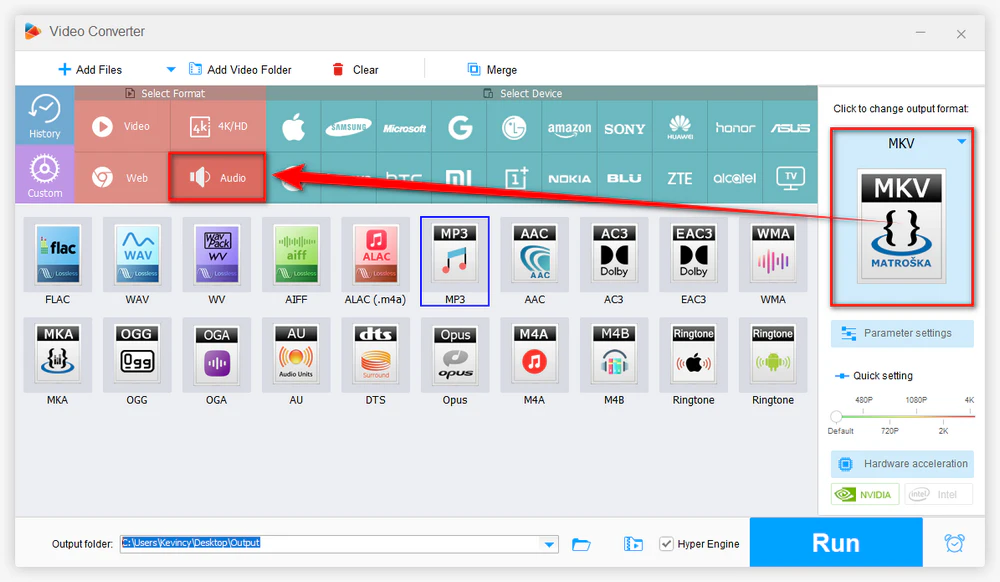
Click the Format profile on the right to open the format library, then go to the Audio category.
💡 Quality note: Converting a lossy AAC-based M4A file to a lossless format like WAV or FLAC does not restore audio information that was already removed. Likewise, converting MP3 to M4A does not make the original MP3 sound better and may introduce another lossy encoding step. If the M4A contains lossless ALAC, converting it to another lossless format can preserve the decoded audio without introducing lossy compression.
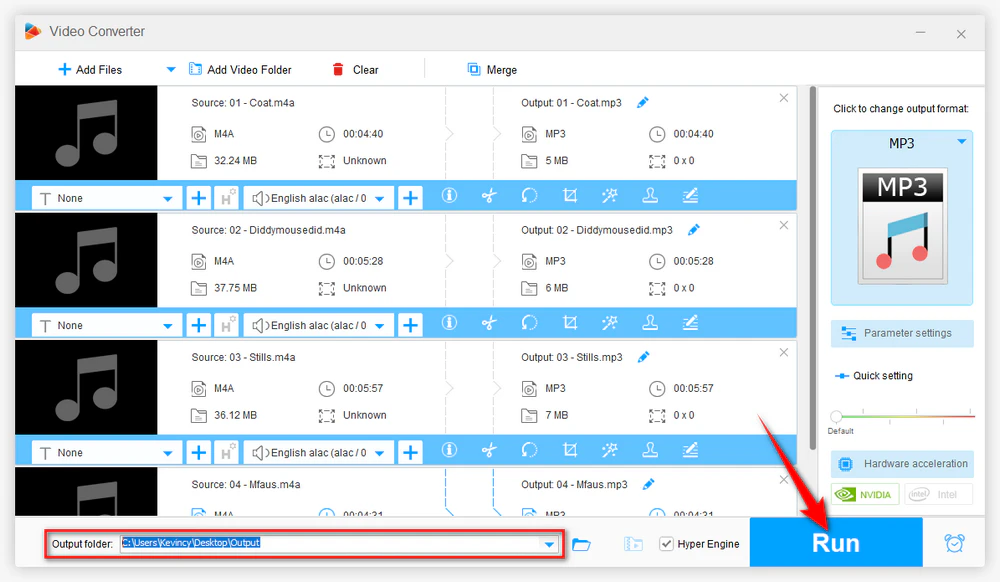
Click the Triangle icon at the bottom to choose an output folder. Then press Run.
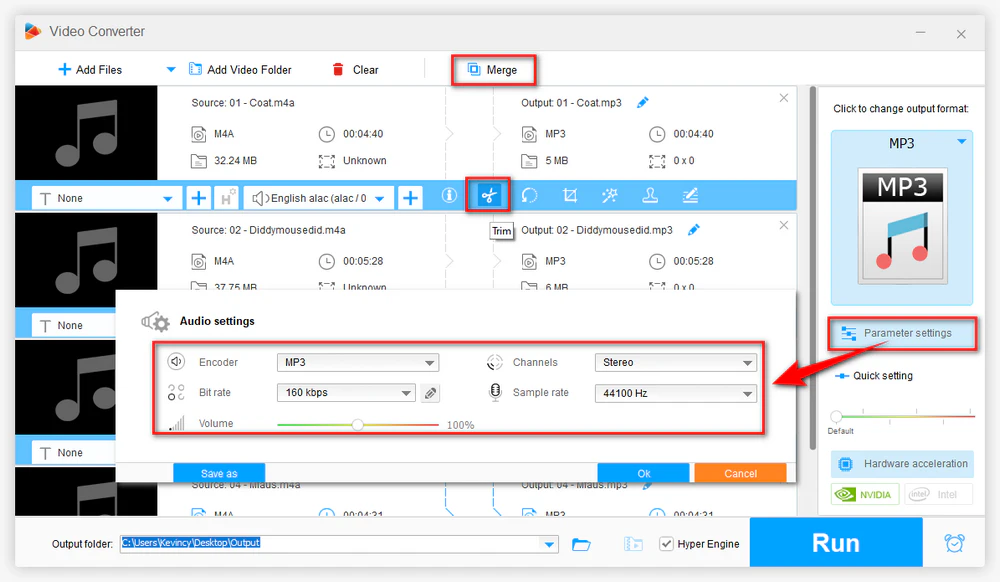
Use the editing tools before conversion if you only need part of the audio or want to combine clips. You can also open Parameter settings to change bitrate, sample rate, channel layout, or volume. Unless you have a specific requirement, the preset defaults are usually a safer starting point than manually increasing every value.
There is no single best format for every M4A conversion. A better approach is to start with the device or app that needs the new file and choose an output it officially supports.
For everyday playback and sharing: Choose a widely supported compressed format like MP3 when you want smaller files and easy playback across phones, computers, car systems, and other devices.
For editing: An editor may work more reliably with WAV or AIFF. Converting an AAC-based M4A to an uncompressed format can make editing easier, but the new file will be larger and will not contain more detail than the original lossy source.
For lossless storage: If the M4A contains ALAC, converting to FLAC or another lossless format can preserve the decoded audio without lossy re-encoding. If the M4A contains AAC, a FLAC output can prevent another lossy encode, but it still cannot recover information already removed by AAC compression.
For a specific app or legacy device: Use the exact format required by that software or hardware. WMA, AAC, OGG, or another format may still be useful when compatibility with a particular system matters more than universal playback.
For converting other audio to M4A: Choose M4A when your target workflow prefers MPEG-4 audio. For example, an uncompressed WAV or lossless FLAC source can be encoded to a smaller M4A file for portable listening. Converting an already lossy source such as MP3 to M4A should be done for compatibility or file-management reasons, not as a way to improve sound quality.
M4A vs. AAC: They are related but not identical. M4A is commonly used as the file extension/container for MPEG-4 audio, while AAC is an audio codec that can be stored inside M4A. If an app specifically asks for a raw .aac file, converting or extracting to AAC may be useful, but unnecessary re-encoding can reduce quality.
Yes, for several common formats. In the current Apple Music app on Mac, go to Music > Settings > Files > Import Settings, choose an encoder, then use File > Convert to create another version of eligible local audio. Apple provides options such as AAC, AIFF, Apple Lossless, MP3, and WAV. This is convenient for files already managed in your Music library, but it does not cover every possible output format.
CloudConvert and Convertio both provide browser-based M4A conversion and can be useful for occasional small files. Since your audio must be uploaded to a third-party server, desktop software is usually a better choice for private recordings, large files, slow connections, or repeated conversions. Free-plan limits can also change over time.
Yes. For an occasional file, a browser-based converter that supports your chosen input and output can work on a phone. For private or large recordings, a local mobile app is preferable to uploading the file. If your goal is specifically to make a custom iPhone ringtone, Apple currently recommends using GarageBand on iPhone to create and export the ringtone, so manually converting every file to M4R is not always necessary.
Yes, but M4A support is not always available out of the box. Audacity's current documentation says the FFmpeg library is required to import and export additional formats including M4A and WMA. This makes Audacity useful when you also need audio editing, but it is less direct than a dedicated converter for a simple format change.
No, not when the M4A contains lossy AAC audio. WAV or FLAC can store the decoded result without further lossy compression, which may be useful for editing or later processing, but they cannot reconstruct data already discarded by AAC. If the M4A contains lossless ALAC, converting to another lossless format can preserve lossless audio.
Yes. Import the source audio and choose M4A as the output. The result depends on the source and encoder settings. Converting WAV or FLAC to a lossy M4A can reduce file size, while converting MP3 to M4A usually involves another lossy encode and should not be expected to improve the original sound quality.
An M4A converter is most useful when you have a real compatibility, editing, storage, or device requirement. Instead of looking for a separate tool for every M4A-to-audio or audio-to-M4A task, you can use one general converter and choose the output that fits the job.
For Windows, WonderFox Free HD Video Converter Factory keeps the process simple. Just keep the source codec in mind and avoid unnecessary lossy-to-lossy conversions when preserving quality matters.

Kevincy joined the WonderFox team in 2014 and has been a senior columnist ever since. With over two decades of experience in the video editing industry, he shares tutorials, tips, and how-to guides on video/audio processing and personal DVD backups. Family-oriented and passionate about helping others, he is dedicated to making video and audio processing easier for readers.


Kevincy joined the WonderFox team in 2014 and has been a senior columnist ever since. With over two decades of experience in the video editing industry, he shares tutorials, tips, and how-to guides on video/audio processing and personal DVD backups. Family-oriented and passionate about helping others, he is dedicated to making video and audio processing easier for readers.
WonderFox HD Video Converter Factory Pro
1. 500+ optimized presets for fast conversion in bulk.
2. Compress large-sized videos with no quality loss.
3. Trim, merge, crop, rotate, flip, watermark video.
4. Download HD/FHD/4K/8K videos from 1000+ sites.
5. Record live streams, gameplay, webcam, video call
6. Make animated GIFs from video or image sequence.
7. Make ringtones, extract subtitles & more...

Privacy Policy | Copyright © 2009-2026 WonderFox Soft, Inc. All Rights Reserved
