


The Apple iPod series are still in wide use today. Primarily designed as music players, but some models also support video playback. If you own an iPod and are looking to enjoy music or videos on it, you need to make sure that your file formats are supported, as all iPod models have strict requirements about playable media formats.
For incompatible files, or if you want to download YouTube music and videos to your iPod, you must convert them into an iPod-friendly format first. A dedicated iPod converter is vital for conversion with high quality preserved. In this article, I will share with you the best iPod file converter to help you easily and quickly convert videos and music for your iPod on a Windows machine. Let's start!
Before playing video or audio on your iPod, you first need to know what media your iPod actually supports.
In general, iPods support .mp4, .m4v, and .mov video files, as well as .mp3, .m4a, and .wav audio files. But there are still differences in supported media specs across various iPod models. For your convenience, I have compiled an iPod media compatibility chart for quick reference:
| Model | Audio Formats | Video Formats | Max. Video Specs |
|---|---|---|---|
| iPod Touch | AAC MP3 Apple Lossless AIFF WAV Audible * FLAC (7th) |
H.264 MPEG-4 * Motion JPEG (5th-7th) * HEVC (7th) |
640×480 (1st-3rd), 1280×720 (4th), or 1920×1080 (5th-7th); 1.5 Mbps (H.264 Low-Complexity), 2.5 Mbps (H.264 Baseline/MPEG-4 Simple), or 10 Mbps; 30 fps |
| iPod Classic | AAC MP3 Apple Lossless AIFF WAV Audible |
H.264 MPEG-4 (only 5th-7th support videos) |
640×480; 2.5 Mbps;30 fps |
| iPod Nano | AAC MP3 Apple Lossless AIFF WAV Audible |
H.264 MPEG-4 (only 5th-7th support videos) |
640×480 (3rd-6th) or 720×576 (7th); 2.5 Mbps; 30 fps |
| iPod Shuffle | AAC MP3 * AIFF (2nd-4th) * WAV (2nd-4th) * Audible (2nd-4th) * Apple Lossless (2nd-4th) |
Not supported | / |
| iPod Mini | AAC MP3 Apple Lossless AIFF WAV Audible |
Not supported | / |
If you're still not sure which formats and specifications your iPod can play, you can simply follow the recommended settings below:
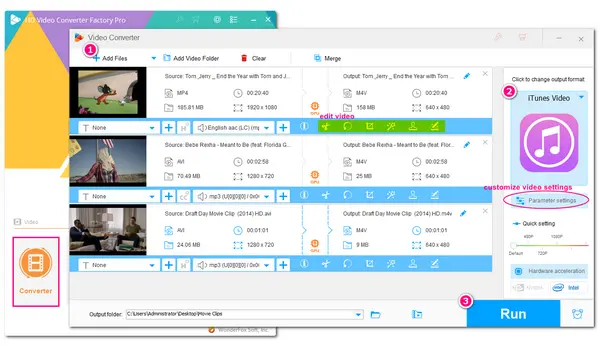
Now it's time to turn your media files into your iPod compatible formats. For a reliable and fast conversion, I recommend this powerful yet easy-to-use converter program WonderFox HD Video Converter Factory Pro.
It's the best iPod video converter for Windows users. With extensive format support, it can convert virtually any type of video and audio file to over 500 profiles, including those supported by iPod. You can also freely adjust the output settings, like resolution, bitrate, frame rate, and codec to suit your needs. Additionally, with its built-in downloader, you can download and convert YouTube videos and music to iPod-compatible files for offline playback.
The software boasts high conversion speed and supports batch conversion. You can free download this program and start converting your files by following the steps below.
 Download for Free
Download for Free
Download for Free
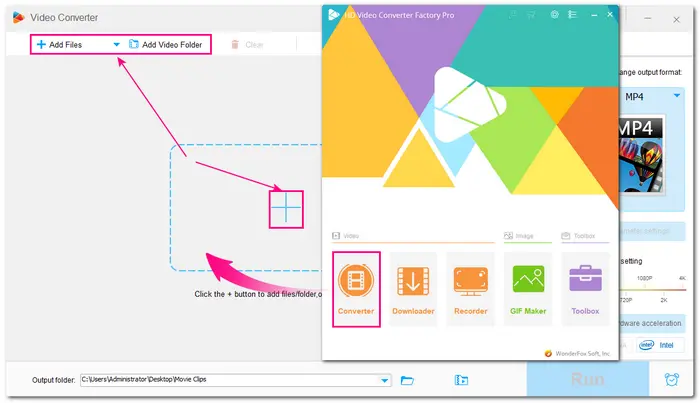
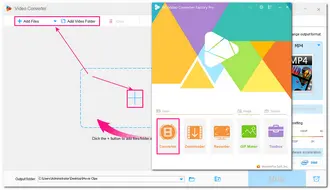
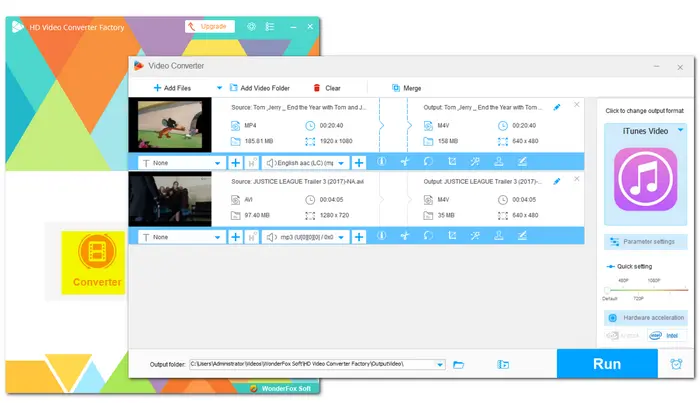
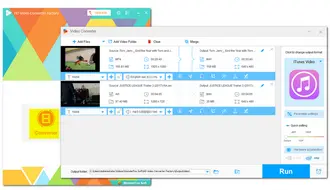
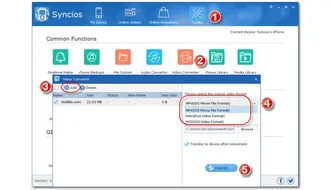
Launch HD Video Converter Factory Pro on your computer and select the Converter module. Click the upper-left + Add Files or Add Video Folder button to import the video or audio files you want to convert. Or you can directly drag and drop the files into the interface.
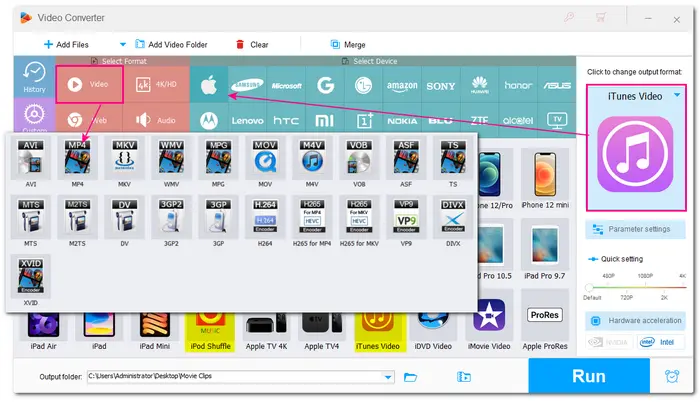
Click on the format image on the right side of the interface to expand the output format library.
• To convert video for iPod:
Under the Video tab, select the H264 preset (MP4 – H264/AAC), which is already optimized for universal compatibility across devices, including iPod.
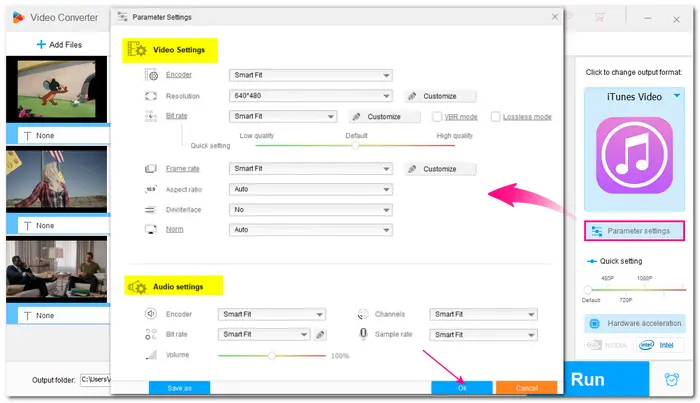
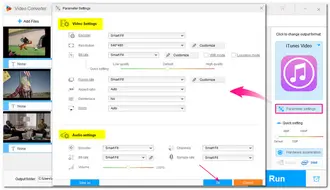
Note that because iPod also has requirements on resolution, bitrate, and frame rate, you need to open Parameter settings and change these parameters to fit your iPod video specs as mentioned above. For instance, you can set the resolution to 640 × 480 or 640 × 360, bitrate to under 2500 kbps, and frame rate to under 30fps or keep as original. If the original video contains a 5.1 or 7.1 audio track, remember to downmix the channels to Stereo as well.
• To convert audio for iPod:
Click the Audio tab and select M4A as the output format.
Optionally, you can open Parameter settings and customize the audio settings as needed.
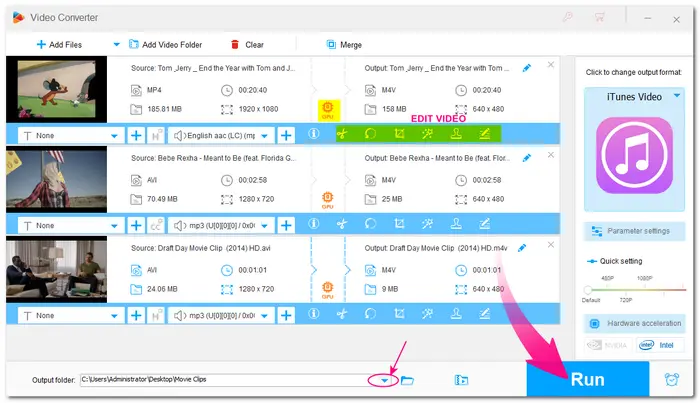
Click the ▼ button at the bottom to choose a destination folder for the converted files. Finally, press Run to start the conversion.
💡 Before conversion, you can use the editing tools below the imported file to refine the file, such as trimming, cropping, rotating, and adding subtitles.
Go to the watch page of the YouTube song or video you want to download. Right-click on the video and select Copy video URL.
Run HD Video Converter Factory Pro and open Downloader. Click +New Download, then paste the URL into the downloader and click Analyze.
Wait until the download options appear. Then select the proper download option for your iPod, e.g., MP4 640x480 for video or M4A for audio. Click OK to add it to the download list.
💡 You can repeat these two steps to add multiple files for batch downloading.
Click the ▼ icon to specify the output path. Then click Download All to start the downloading process.
🛠️ YouTube offers videos encoded in different methods that your iPod may not like. If the downloaded video won't play on your iPod, refer to the conversion method to convert the video to your iPod supported video specs.
 Download for Free
Download for Free
Download for Free
Remember that copying audio or video files directly to an iPod is not allowed. Instead, you need to use the iTunes app to properly sync the converted media files to your iPod device.
On Windows, make sure you have not installed any Apple's newer apps like Apple Music, Apple TV, or Apple Devices, because they often conflict with the legacy iTunes for Windows app, leading to syncing errors.
Also, download the iTunes for Windows app via the Apple's official iTunes Download page. (🔔 Don't download it from the Microsoft Store. Scroll down the page and use the Windows version instead)
Now, follow these steps to transfer the converted video and audio files to your iPod.
💡 For a smooth transfer, you can also right-click the video, select Video Info > Options, and then change the media kind to Movie or Music Video.
If your files cannot be copied to your iPod, please check if the resolution, bitrate, frame rate, and codec settings exceed your iPod's limits. Perform a conversion with the steps outlined above to optimize the file for your iPod.
If iTunes fails to recognize your iPod, close iTunes first. Then open Task Manager and close any iPod or iTunes-related service. Then open iTunes again and see if it can detect your iPod.
Whether if you need to add videos to iPod Touch, Classic, or Nano, or import songs to iPod Shuffle or Mini, once you know the supported formats and specifications for your device, you can easily convert your files and sync them to the target device for convenient playback. With the iPod converter recommended, you can also put YouTube music and videos on your iPod without effort. TryTry the program now!
If the songs are DRM-free, then yes.
AAC (.m4a) is the best choice. For better sound quality, you can use a higher bitrate like 256 kbps for your music. But for best compatibility, set the bitrate to 128 kbps.
If you're using an iPod Touch 6th or 7th gen, then yes. But keep in mind that the movies must also be encoded in a compatible format first: an MP4 file with H.264 video and AAC audio, at 30 fps.
You can use a professional video converter like WonderFox HD Video Converter Factory Pro, which offers iPod-friendly output profiles and lets you customize the output settings to fit your iPod's specific media specs. Detailed steps are given above.

I write about multimedia topics, including video and audio conversion, compression, editing, and downloading. I joined WonderFox in 2020, and my goal is to help readers solve everyday tech problems more easily. In this article, I have showed you how to properly convert video and music files to your iPod device for smooth playback. Hope these tricks help!


I write about multimedia topics, including video and audio conversion, compression, editing, and downloading. I joined WonderFox in 2020, and my goal is to help readers solve everyday tech problems more easily. In this article, I have showed you how to properly convert video and music files to your iPod device for smooth playback. Hope these tricks help!
WonderFox DVD Ripper Pro
WonderFox DVD Ripper Pro is a professional DVD ripping program that can easily rip any DVD (whether homemade or commercial) to all popular formats and devices including MP4, MKV, MOV, 3GP, MP3, WAV, Android, iPhone, and so on. It also lets you edit DVD videos efficiently as well as compress or upscale video quality. Download it to enjoy a fast and trouble-free DVD ripping experience.
Download for Free
Download for Free

Terms and Conditions | Privacy Policy | License Agreement | Copyright © 2009-2026 WonderFox Soft, Inc.All Rights Reserved