

 Michelle | Jul 31, 2026
💡 Before we dive into the solutions, verify your case and see what's causing it so we can prevent this from happening again in the future!
This is a typical error when you import an unsupported video or audio file into Windows Movie Maker. Note that the native media support in the program is quite limited, and standard formats like MOV, MTS, and FLV are not supported. But in some cases, you may find that certain MP4 files, which are supposed to be supported by Movie Maker, still fail to import. This is because these files use unsupported codecs that cannot be recognized by Movie Maker. Keep in mind that a video is made up of a container format (e.g., MOV, MP4) and internal codecs (e.g., HEVC, DTS). Only when both the container format and the codecs are supported can the media file be recognized by Movie Maker.
>> See Solution #1 (recommended 🌟)
>> See Solution #2
👉 Check out Windows Movie Maker supported media files
When this happens, you'll see the preview window is completely black or blank, but the audio plays normally. There are two situations:
1. Only some of your videos show a black screen.
In this case, the culprit lies within these specific videos. They are likely using incompatible video codecs. As mentioned earlier, a video includes codecs inside, and the codecs are divided into video and audio codecs. When the audio codec is supported, but the video codec is not, only the audio can be passed through, so the video will not show.
Additionally, if the video has a variable frame rate (VFR), which is commonly seen in videos recorded by iPhone and some screen recorders, it will show up with a black screen because Movie Maker only accepts constant frame rate (CFR).
>> See Solution #1
2. All videos show a black screen:
This is most likely due to outdated graphics drivers. Windows Movie Maker relies heavily on your graphics card (GPU) to display visuals. If your video card is too old or broken, all your videos will show a black screen. But you may find these videos play fine in media players like VLC, which can use software decoding.
>> See Solution #3
In some cases, an incompatible software version, such as running an older version of the program on Windows 10 or 11, can also lead to display errors (as well as sound issues).
>> See Solution #6
💡 If audio is missing in Movie Maker, please first check if the video has an audio track or if the project's (and the system's) volume is set to zero.
This is just the opposite of the last error, where the video plays smoothly on the timeline, but you hear no audio. Likewise, there are two different cases for this error:
1. Only certain video files have no audio
The only reason for this issue is that these files use an unsupported audio codec, such as AC3 or DTS.
>> See Solution #1
2. Audio is missing completely in all videos
If there is no audio app-wise, it may be that the Windows Audio Service is corrupt or the software version is outdated.
>> See Solution #4
>> See Solution #6
Multiple causes can lead to this error, including:
- Video is too "strong": A video of high resolution, bitrate, and frame rate is simply what Movie Maker struggles to handle. For smooth editing, ensure your file does not exceed 1080p resolution, a 12,000 to 24,000 kbps bitrate, and a 30 fps frame rate.
>> See Solution #1
- Too many caches: This will affect the app's overall performance.
>> See Solution #5
- Old software version: The fact that Movie Maker is just too old to deal with newer media files.
>> See Solution #6
WMV is the best video format for Windows Movie Maker, and we can use a dedicated video converter such as WonderFox HD Video Converter Factory Pro to convert your video to WMV format at once. Meanwhile, this video converter can also help you freely adjust video parameters, including codec, resolution, bit rate, and frame rate, as well as change the audio codec of the video only.
Follow the steps below to optimize your videos to be Windows Movie Maker friendly:
Step 1: Download and install Download and install HD Video Converter Factory Pro and launch it.
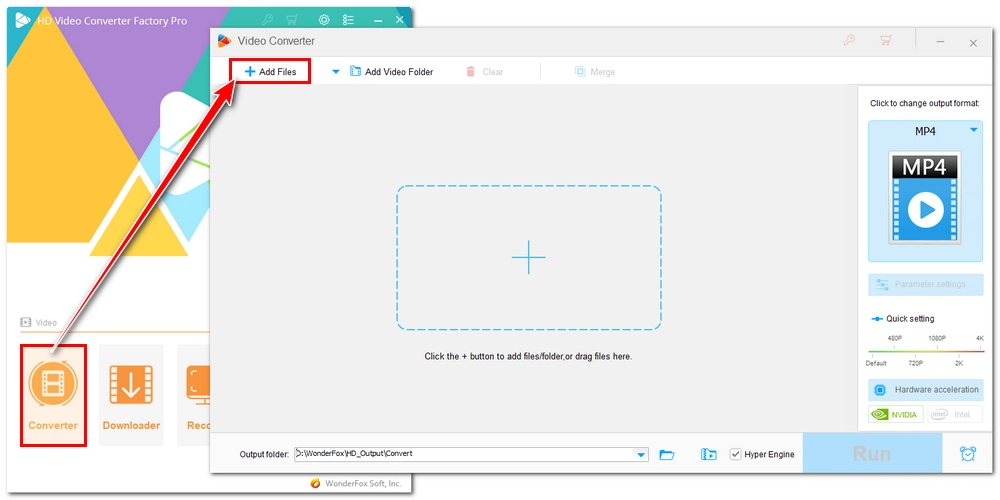
Step 2: Open Converter. Click +Add Files to add your videos to the program, or you can simply drag and drop the files into the interface. The software supports batch conversion, so you can process multiple media files in one go.
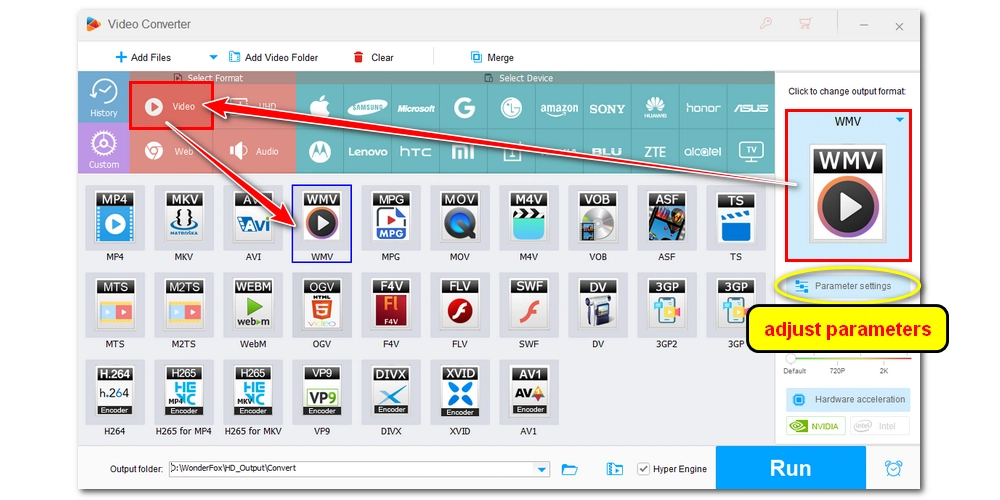
Step 3: Click the format icon on the right to open the Output Format section. Under Video, select WMV.
Since WMV already uses video and audio codecs that Movie Maker natively supports, there is no need to configure the settings. However, if your video is too powerful for Movie Maker, you can open Parameter settings to lower the video resolution, bitrate, and frame rate as needed.
💡 By default, the program automatically converts a variable frame rate video to a constant frame rate.
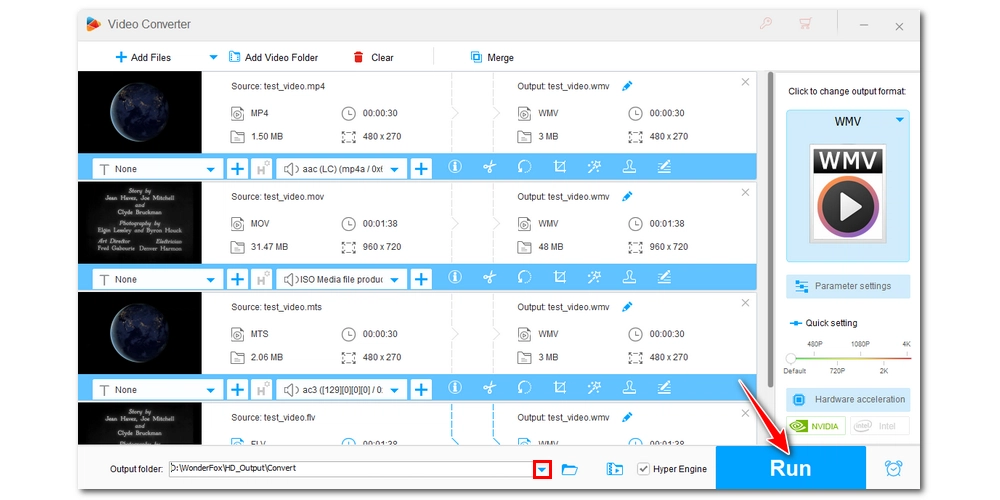
Step 4: Click the ▼ icon at the bottom of the interface to select an output folder. Then click Run to export the final files. After that, you should have no problem importing the files into Movie Maker.
Besides video conversion, you can also install codec packs to give Windows Movie Maker expanded capabilities to recognize more formats and codecs.
One of the popular codec packs is K-Lite Codec Pack. You can install it with these steps:
🔔 The downside of the solution is that you may still encounter import errors if a specific format or codec is not covered by the codec pack. In that case, you would still need to convert the file.
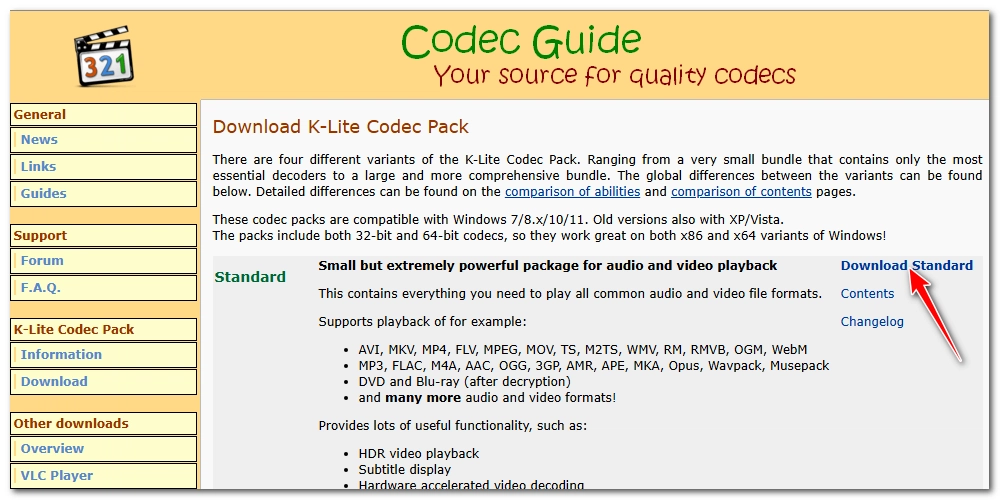
Step 1: Navigate to the Codec Guide: https://www.codecguide.com/download_kl.htm
Step 2: Download the Standard version.
Step 3: Run the installer and follow the on-screen instructions to complete the installation.
Step 4: Once installed, try importing one unsupported file and see if it can be recognized by your Movie Maker.
Updating the display driver is an effective way to resolve the black screen issue in Windows Movie Maker, and here is how:
Step 1: Type Device Manager in your Windows search box and open the matching result.
Step 2: Locate the Display adapters option and expand it.
Step 3: Right-click on the driver name and choose Update Driver.
Step 4: Click Search automatically for updated driver software. It will begin searching online for the latest available driver and download it automatically.
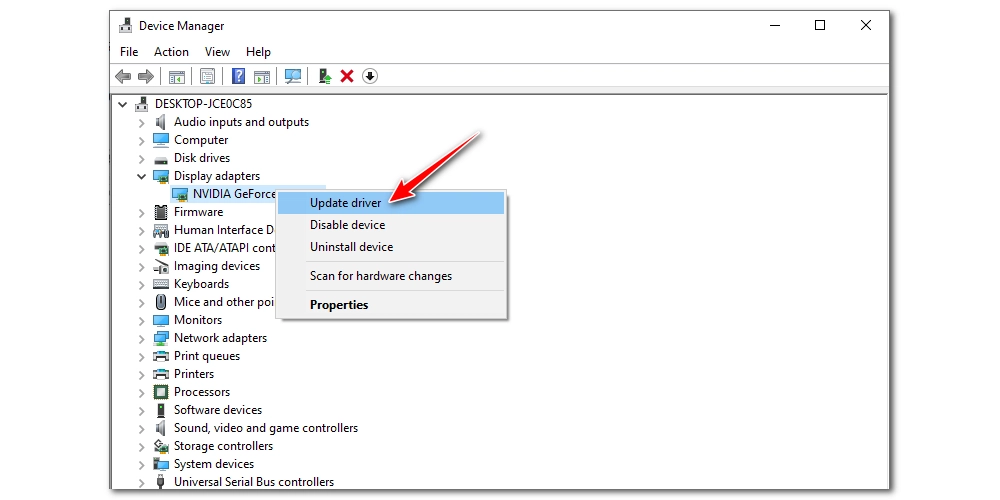
💡 If the auto-update fails or the driver isn't the latest version, you can manually go to the graphics card manufacturer's website, search for your specific graphics card model, and then download and install the latest driver.
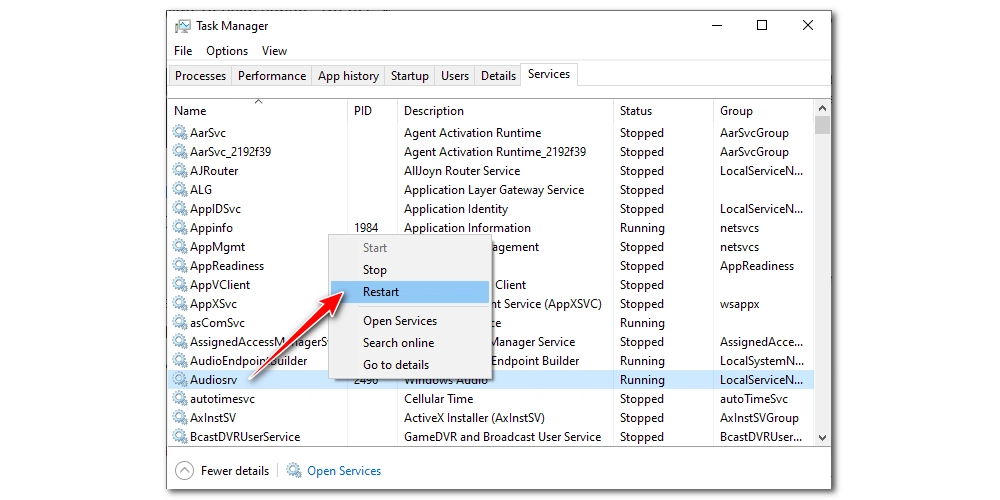
To fix Windows Movie Maker no sound, you can try restarting the Windows Audio service, which is responsible for managing sound on your computer.
Step 1: Right-click on the taskbar at the bottom of your screen and select Task Manager.
Step 2: Switch to the Services tab.
Step 3: Find and right-click on Audiosrv and then select Restart from the drop-down list. It will be restarted after about 10 seconds. Then you can test if the no sound issue is solved.
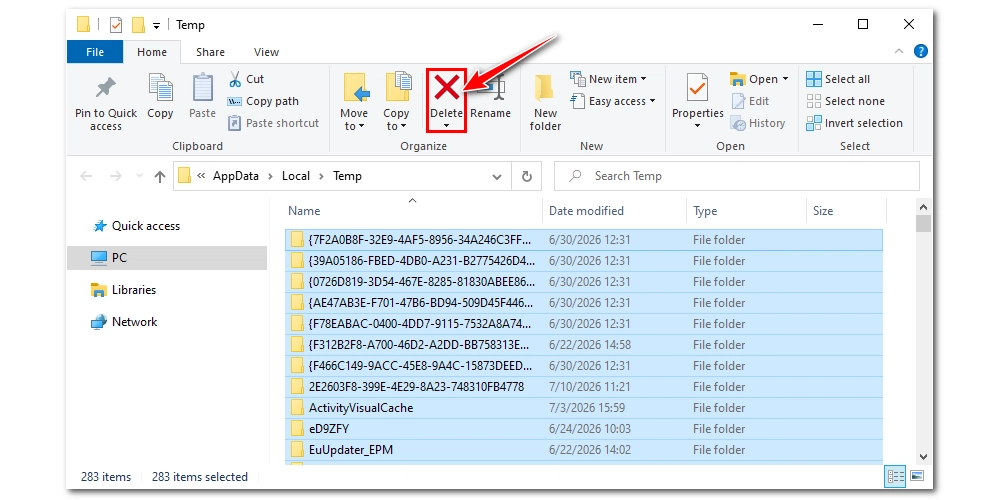
You can clear the Movie Maker cache and temporary render files so that the program can run in optimal status.
Step 1: Press the Windows key + R to open the Run box.
Step 2: Type %temp% and press Enter to open the temporary folder.
Step 3: Select all files, right-click on them, and select Delete.
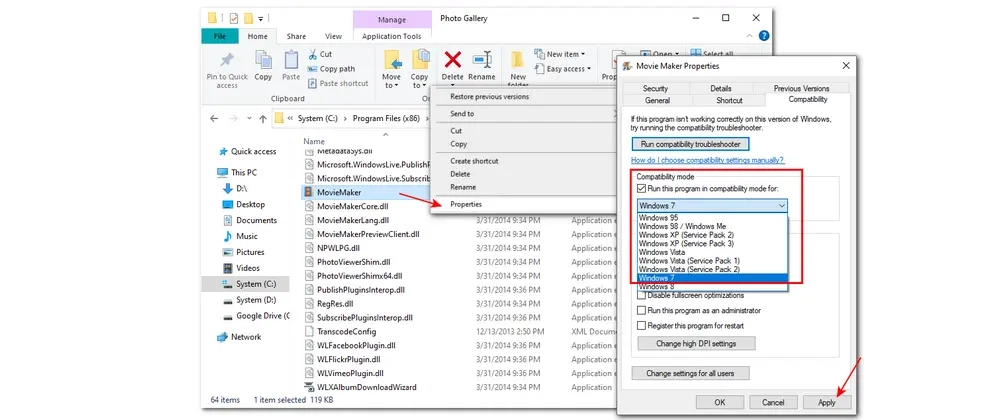
Step 1: Go to this path: C:\Program Files (x86)\Windows Live\Photo Gallery, then look for the MovieMaker file, right-click on it and choose Properties.
Step 2: Click the Compatibility tab and check the box for Run this program in compatibility mode for. Then select Windows 7 in the drop-down menu.
Step 3: Click Apply and close the window.
📌 Windows Movie Maker has been a discontinued product since 2017, but you can still install it on Windows 11 and use it to edit videos with essential editing tools. That said, it's recommended to try a Movie Maker alternative, such as Microsoft Clipchamp, if you find it still troublesome to use after all these attempts above.
Video Formats: Windows Media Video (.wmv, .asf, .wm), MPEG (.mpeg, .mpg, .mpe, .m1v, .mp2, mpv2), AVI, MPEG-4/QuickTime (.mp4*, .mov*, .m4v, .3gp), .dvr-ms, .wtv
Audio Formats: Windows Media Audio (.wma, .asf, .wm), mp3, PCM (.wav, .aif, .aiff)
* MP4 and MOV support vary by the specific version of the software and Windows.
No, Windows 11 does not natively offer Windows Movie Maker because it's a discontinued program. The newest video editor for Windows 11 is Clipchamp. That said, if you want to use the legacy Movie Maker, you can find archived Windows Essentials on third-party sources.
Windows Movie Maker does not have good support for high-res videos like 4K files. The max quality it can edit smoothly is 1080p at 30 fps.

I write about multimedia topics, including video and audio conversion, compression, editing, and downloading. I joined WonderFox in 2020, and my goal is to help readers solve everyday tech problems more easily. In this guide, you can learn why you can't import and play some video files into Windows Movie Maker and the best ways to fix it. Hope you find it helpful!


I write about multimedia topics, including video and audio conversion, compression, editing, and downloading. I joined WonderFox in 2020, and my goal is to help readers solve everyday tech problems more easily. In this guide, you can learn why you can't import and play some video files into Windows Movie Maker and the best ways to fix it. Hope you find it helpful!
✔️ Convert video and audio formats.
✔️ Built-in editor: cut, join, rotate, filters, subtitles.
✔️ Add and remove audio tracks.
✔️ Download from YouTube and 1000+ sites.
✔️ Record computer screen, gameplay, and audio.
✔️ Make GIFs from videos and images.

Privacy Policy | Copyright © 2009-2024 WonderFox Soft, Inc.All Rights Reserved
