

Need to edit an animated GIF? The tricky part is that many ordinary image editors treat a GIF as a still image and may flatten the animation. This guide brings the most common GIF editing tasks together and shows practical desktop and online ways to handle them while keeping the result as an animated GIF.
 Kevincy | Aug 31, 2026
Editing a GIF is a little different from editing a regular JPG or PNG image. A GIF is usually made up of multiple frames played in sequence, so any change may need to be applied consistently across the entire animation. Otherwise, the result can look uneven, shift between frames, or lose its animation.
Typical GIF editing tasks include cropping unwanted areas, rotating or resizing the animation, adding text, inserting an image or logo, and trimming unnecessary parts. The key is to make these changes while keeping the original animation smooth and preserving the GIF format whenever possible.
Below, we'll walk through several practical ways to edit animated GIFs for different needs.
WonderFox Photo Watermark supports animated GIF watermarking plus text/image/logo overlays, crop, resize, rotate, frames, effects, and GIF output. It is a practical choice when you want to keep the final file in GIF format.
WonderFox Photo Watermark is a Windows image editor and watermarking program that supports GIF as both an input and output format. Besides adding text and image watermarks, it provides handy editing tools for cropping, resizing, renaming, adding frames, and applying effects. Its animated-GIF workflow can also save the processed animation back as GIF instead of forcing you to convert it to a video first.
The interface is straightforward, a beginner can handle the application without any difficulty. Get it below and learn how to use it to edit your animated GIFs.
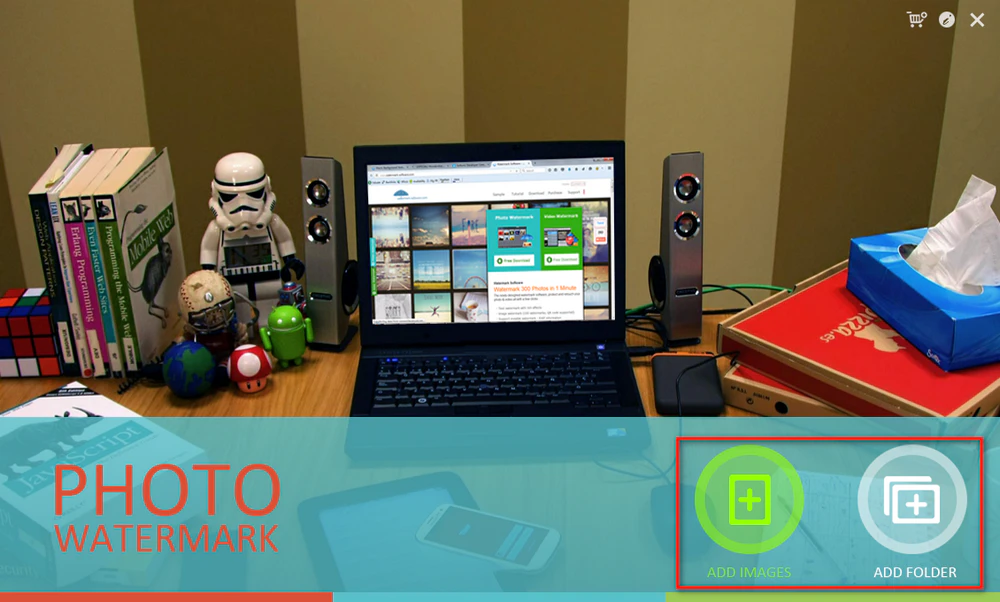
DownloadDownload, install, and launch WonderFox Photo Watermark on your Windows PC. Click ADD IMAGES to import the GIF you want to edit. You can also use ADD FOLDER when you have multiple images to process. After the GIF is loaded, move to the editing screen.
For an animated GIF, preview the file before editing so you can confirm that you selected the correct source. If you are working with an important original, keep a backup copy because resizing, cropping, or adding overlays changes the rendered frames.
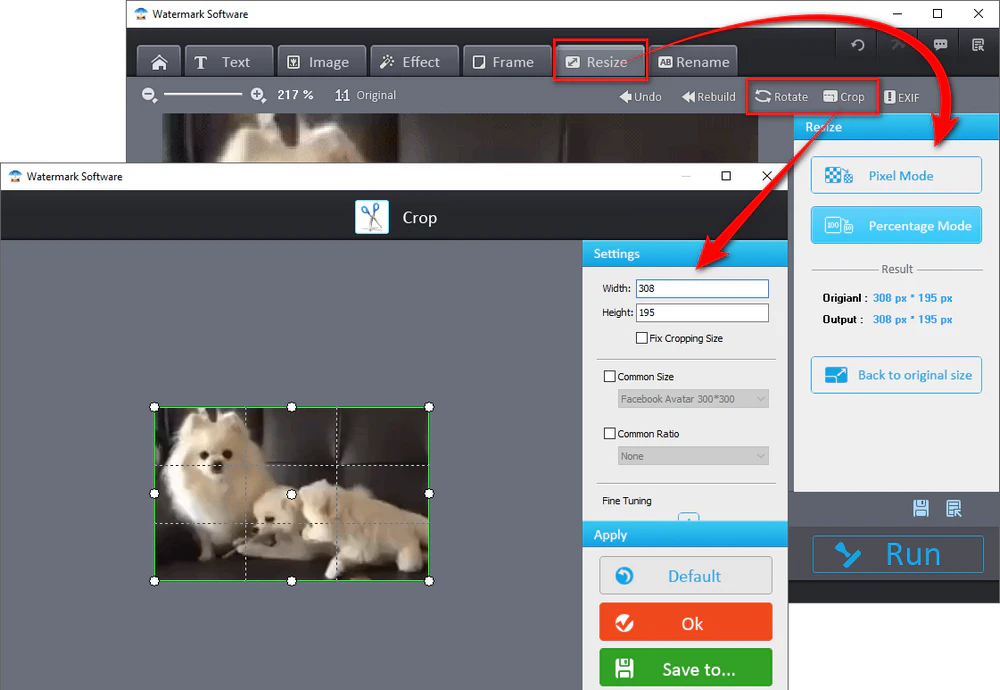
Crop: Click Crop, select the area you want to keep, and confirm the crop. Cropping is useful for removing blank borders, hiding an unwanted edge, or changing the composition without changing the animation length.
Resize: Open Resize when the GIF is too large for a website, forum, chat app, or email. Use a smaller pixel size or percentage while keeping the original aspect ratio unless you intentionally want to stretch the image.
Rotate: Use the Rotate control to correct a sideways or upside-down GIF. This is more convenient than extracting and rotating every frame manually.
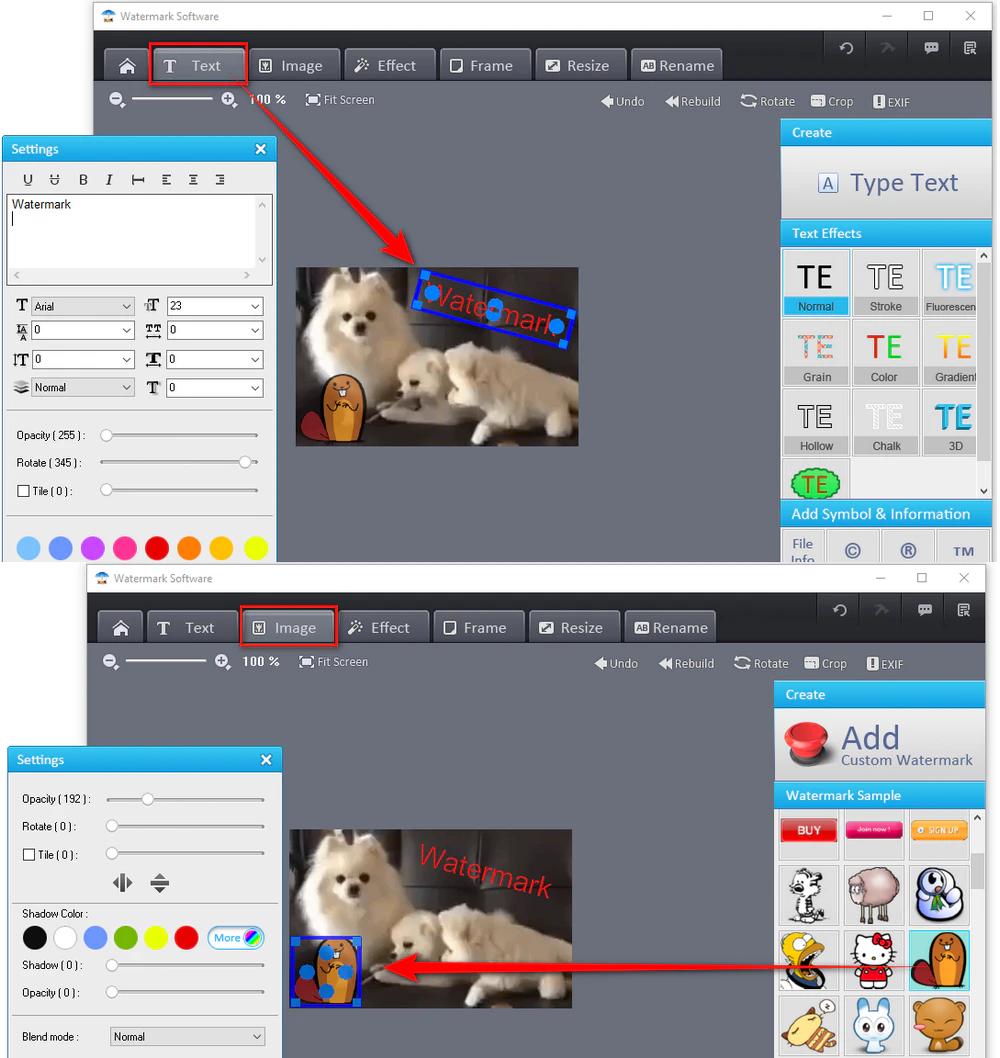
Add text to a GIF: Open the Text tab, type the words you want to place on the GIF, and choose a text effect. You can customize the font, size, color, position, opacity, and rotation. This works well for captions, usernames, dates, short instructions, or a text watermark.
Add an image or logo: Switch to Image and load your own PNG, JPG, logo, signature, or other supported image. Place it over the GIF, adjust its size and position, and fine-tune opacity or rotation when needed. You can also use the built-in watermark materials instead of importing your own graphic.
Other edits: The same editing screen also provides Frame and Effect options. If you process many files together, Rename can help organize the outputs. Avoid unnecessary effects on already heavily compressed GIFs, since extra processing can make banding or color limitations more obvious.
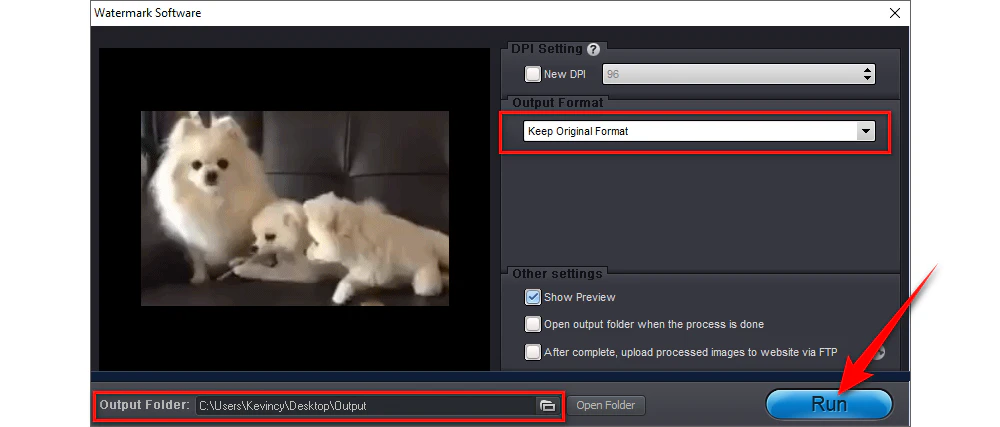
When the edits look right, click "Run" to the output screen. Choose the destination folder and keep the original format or select GIF as the output format. Finally, click Run to process the file.
Open the exported GIF in a browser or another GIF-capable viewer and check the full loop. Make sure the animation still plays correctly, the crop includes the content you need, and the text or logo remains readable throughout the sequence.
Need to cut the GIF by time or remove specific frames? Photo Watermark is mainly designed for visual editing and watermarking rather than frame-by-frame timeline work. For that task, use Ezgif in Method 3 below.
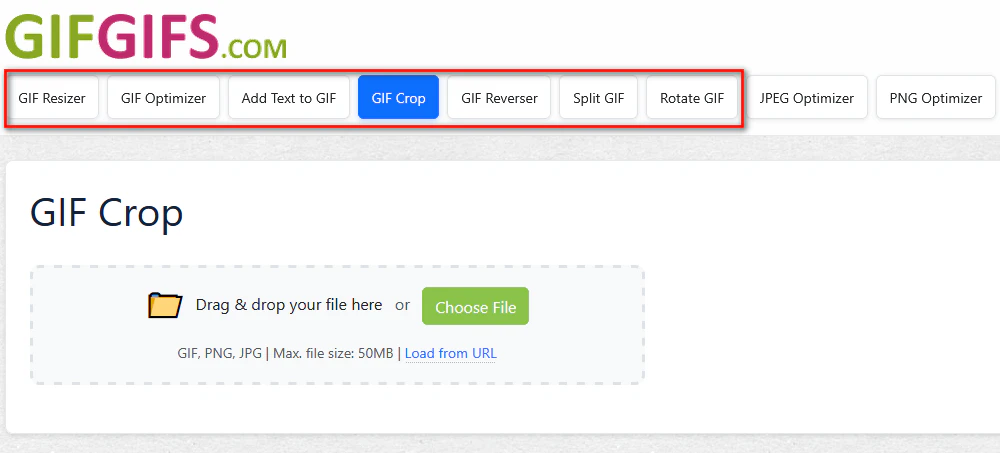
If you do not want to install software for a one-time edit, GIFGIFS provides separate browser tools for common GIF tasks. Its current toolkit includes a GIF Resizer, Optimizer, Add Text to GIF, GIF Crop, Reverser, Split GIF, and Rotate GIF.
Step 1. Open GIFGIFS and choose the tool that matches your task, such as GIF Crop, Rotate GIF, or Add Text to GIF.
Step 2. Upload the animated GIF and wait for the editing controls to appear.
Step 3. Make the change, process the file, preview the result, and download the edited GIF.
GIFGIFS is best for quick, focused edits because each task has its own page. If you need to make several different edits in sequence or remove a precise time range from the animation, Ezgif offers a broader set of controls.
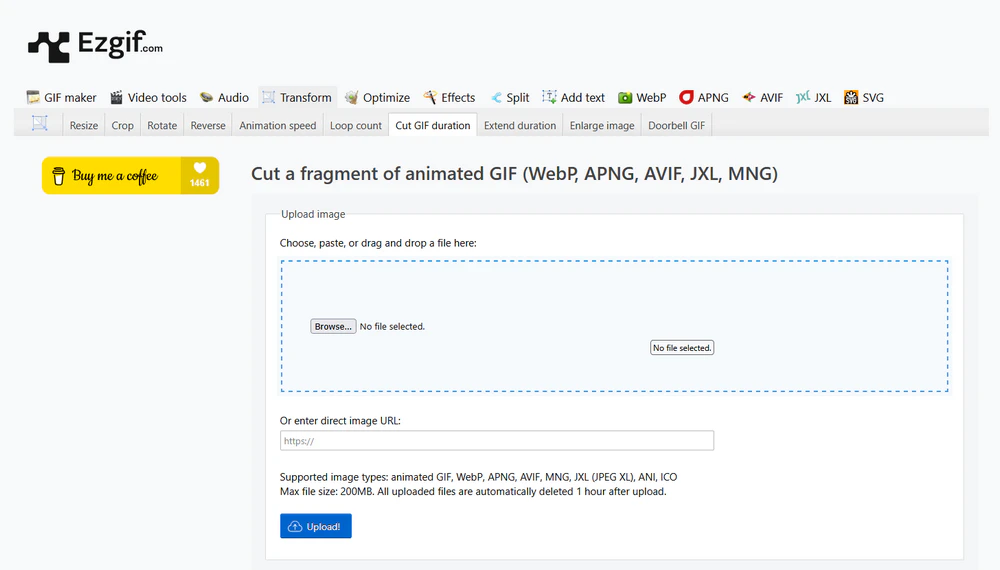
Ezgif is a free online animated-image editor with dedicated tools for resizing, cropping, rotating, reversing, changing speed, adding text, splitting frames, optimizing, and cutting GIF duration. It is especially useful when your edit depends on individual frames or timing rather than only the visible canvas.
Open the corresponding Ezgif tool, upload your GIF, apply the edit, and save the processed result. The crop tool applies the crop across the animation, while the rotate tool rotates or flips all frames together. The text editor can add one caption to the full animation or different text to selected frame ranges.
Go to Ezgif GIF Cutter and upload the animation. You can shorten the GIF by entering start/end time values or exact frame numbers, remove the beginning or end, or cut out a middle section. For finer control, use the frame tools to remove selected frames or adjust their delays.
Ezgif currently accepts animated GIFs up to 200 MB on these editing pages. Because it is a web service, uploading can still take time with a large GIF or slow connection. For private files or repeated desktop work, a local editor may be more comfortable.
WonderFox Photo Watermark keeps the workflow on your Windows PC and is handy for crop, resize, rotate, text, image/logo watermark, frames, effects, and direct GIF output.
For everyday GIF editing on Windows, WonderFox Photo Watermark is a straightforward option when you want to crop, resize, rotate, add text or a logo, and keep the final animation in GIF format. GIFGIFS is convenient for quick single-purpose edits in a browser, while Ezgif is the better fit when you need more control over frames, timing, and GIF duration.
The most important thing is to choose an editor that understands animated GIFs. After exporting, always play the full loop once to confirm that the animation, timing, crop, and overlays all look the way you intended.

Kevincy joined the WonderFox team in 2014 and has been a senior columnist ever since. With over two decades of experience in the video editing industry, he shares tutorials, tips, and how-to guides on video/audio processing and personal DVD backups. Family-oriented and passionate about helping others, he is dedicated to making video and audio processing easier for readers.


Kevincy joined the WonderFox team in 2014 and has been a senior columnist ever since. With over two decades of experience in the video editing industry, he shares tutorials, tips, and how-to guides on video/audio processing and personal DVD backups. Family-oriented and passionate about helping others, he is dedicated to making video and audio processing easier for readers.
WonderFox HD Video Converter Factory Pro
1. Make animated GIFs from videos or image sequences.
2. Trim, crop, rotate, add effects/watermarks to GIFs.
3. Convert GIF to MP4, MOV, WebM and other formats.
4. Adjust GIF size, frame rate, quality, and duration when creating GIFs.
5. Download online media or record the screen.
6. Batch convert and process 500+ presets.

Privacy Policy | Copyright © 2009-2026 WonderFox Soft, Inc. All Rights Reserved
