


WAV, a classic lossless audio format on the Windows platform, boasts the highest sound quality. But you might not want all your audio files stored in this format, as due to its uncompressed nature, WAV files are typically large (taking around 10MB per minute), which can easily eat up storage and make sharing difficult. Also, it's not compatible with every device or platform. If you want to convert your WAV audio to another format to compress the file size or improve compatibility, this article will share a super-fast and easy solution. Let's get started!
WonderFox HD Video Converter Factory Pro is designed specifically for Windows users who want simple and quick video and audio conversions, and is the program we'll use to handle the WAV audio conversion.
With it, you're able to convert WAV to a wide range of formats, including FLAC, ALAC, M4A, WMA, Opus, M4R and more. And best of all, it supports batch conversion.
Let's first see how you can use it to change your WAV files to your wanted format.
WonderFox HD Video Converter Factory Pro makes it easier than ever to fast convert one or more WAV files to MP3, M4A, FLAC, and more in high quality. Get it now to change audio formats handily and rapidly.
 Download for Free
Download for Free
Download for Free
Before you start, please download and install download and install WonderFox HD Video Converter Factory Pro on your Windows PC. Then launch it.
Download for Free
Download for Free
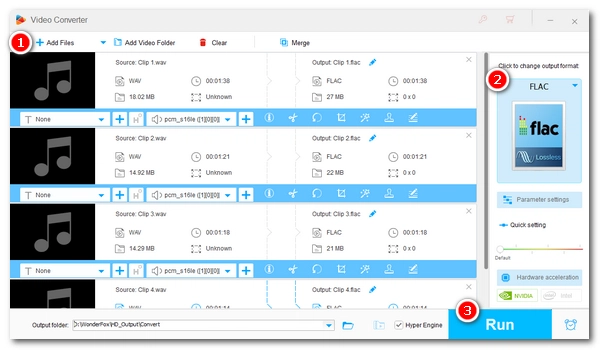
Open the Converter module. Click +Add Files in the upper left or directly drag and drop a single/multiple WAV files into the program.
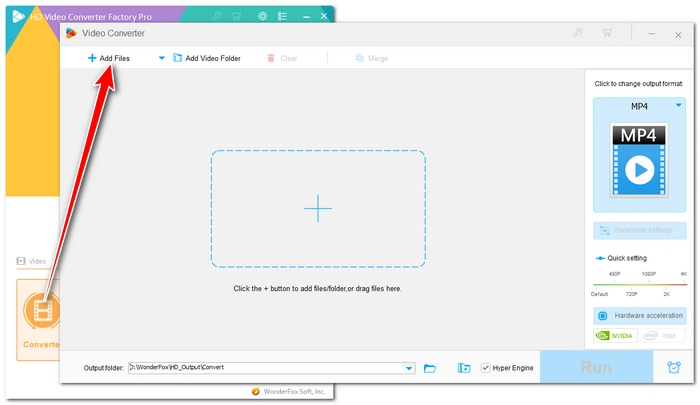
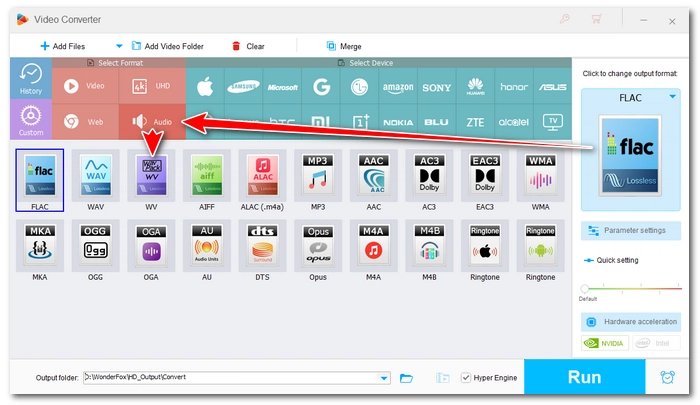
Open the Output Format panel on the right and click the Audio tab. Choose the needed format.
💡 Don't know which format is best for your needs? See the next section >>
Click the ▼ icon to specify a destination folder. Then click Run to start the conversion immediately.
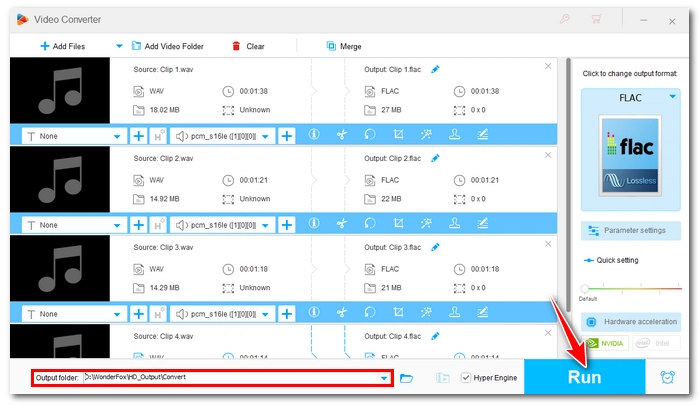
Now that's the whole process to turn your WAV files into a different format. Format conversion is that easy. But if you have advanced needs, such as controlling the output file size and quality, or editing audio, this software can also help you. Jump to this section >>
If you're not sure which format should you convert your WAV files to, this brief breakdown of the common audio formats could be useful to you.
| Compression Type | Choose if you need to | |
|---|---|---|
| FLAC | Lossless | Compress file size without losing quality and use on non-Apple devices |
| ALAC | Lossless | Work within the Apple ecosystem, e.g., iTunes, iPhone, iPad, and Mac |
| M4A (AAC) | Lossy | Listen across devices with quality better than MP3 |
| WMA | Lossy/Lossless | Play on earlier Windows versions and car stereo |
| Opus | Lossy | Stream over the internet |
| M4R | Lossy | Make iPhone ringtones |
For users with specific requirements for sound quality or file size, WonderFox offers customizable parameter options to achieve the best output results for different purposes.
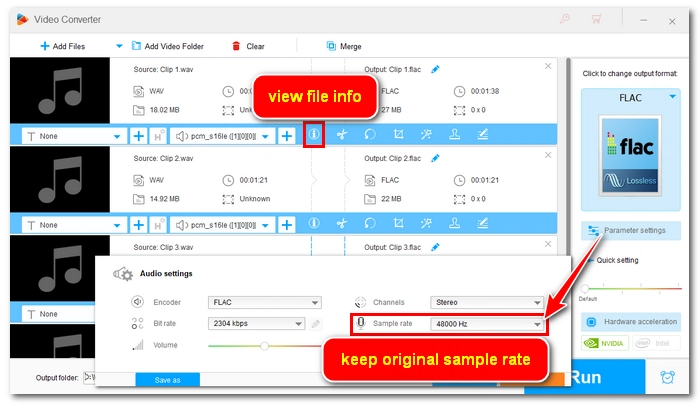
FLAC and ALAC are all lossless formats that can preserve the original sound quality of WAV files. But for optimal output quality, you can go to Parameter settings and select the original sample rate.
If you don't know the original sample rate, click the ⓘ icon below the source audio to view its sample rate.
M4A, WMA, and Opus are all lossy formats, so converting WAV to these formats will result in a loss of audio quality. However, with proper settings, you can minimize this loss to almost imperceptible. Simply set the output bitrate as follows:
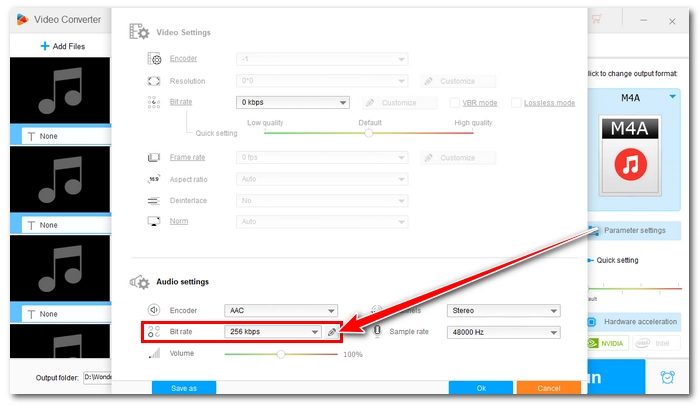
When creating iPhone ringtones, simply converting the format isn't enough. You also need to meet Apple ringtone's length limitation.
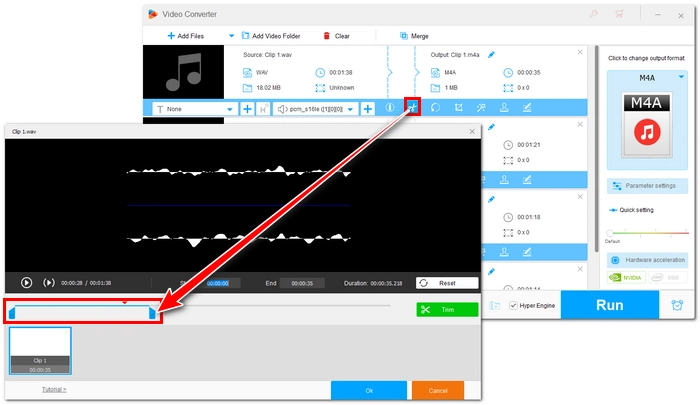
You can click the "Trim" icon (scissors shape) below the audio file. Then drag the slider on the timeline to select the most needed segment, ensuring the total duration does not exceed 40 seconds. Click OK before exporting as M4R format.
Converting WAV format is not only an effective way to free up space but also achieve smooth playback across multiple devices. The good news is that, WonderFox HD Video Converter Factory Pro allows you to quickly convert WAV files to your desired format and adjust parameters to get the perfect result.
Download WonderFox HD Video Converter Factory Pro now and start converting!
 Download for Free
Download for Free
Download for Free
No. Both FLAC and ALAC are lossless compression formats, so the conversion to these formats will still be lossless. But the file size will be reduced by approximately 40%–50%.
Not directly. Windows Media Player can only extract WAV files from a CD and convert them to MP3. It cannot handle existing WAV files like WonderFox HD Video Converter Factory Pro.
This is usually due to the file duration exceeding the ringtone's limit. Keep in mind that the file duration must be under 40 seconds. If it exceeds, the device will not recognize it as a ringtone.
Yes. Opus is audio codec with extremely high compression efficiency. At low bitrates, such as 64kbps to 6kbps, Opus outperforms M4A in terms of high-frequency retention and audio detail, so it's perfect for voice transmission over the internet and for use on devices with limited storage space.

I write about multimedia topics, including video and audio conversion, compression, editing, and downloading. I joined WonderFox in 2020, and my goal is to help readers solve everyday tech problems more easily. In this guide, you can learn the best way to convert WAV file to various audio formats for different situations. Hope you enjoyed it!


I write about multimedia topics, including video and audio conversion, compression, editing, and downloading. I joined WonderFox in 2020, and my goal is to help readers solve everyday tech problems more easily. In this guide, you can learn the best way to convert WAV file to various audio formats for different situations. Hope you enjoyed it!

Terms and Conditions | Privacy Policy | License Agreement | Copyright © 2009-2026 WonderFox Soft, Inc.All Rights Reserved