Convert Video to DivX/Xvid
Convert Video & Audio
How to & Tips




DivX and Xvid are not as common as MP4/H.264 today, but they are still useful when you need a video that can play on older DVD players, TV USB ports, car players, set-top boxes, or other DivX-certified devices. In many cases, the final file is an AVI container with a DivX or Xvid video codec inside.
In this article, a powerful video converter is introduced to help you convert any video to DivX with good video quality. Some reliable online tools are also included. Read on to learn more details!
For users who have many different source files, WonderFox HD Video Converter Factory Pro is a practical desktop choice. It can import MP4, AVI, MKV, MOV, VOB, TS, MPG/MPEG and more videos, then convert them to DivX, Xvid, AVI, MP4, MKV, MOV and other formats. It also supports batch conversion, which is helpful when you need to process several movies or clips at once.
Before conversion, you can trim unwanted parts, crop the picture, merge clips, adjust resolution/bitrate/frame rate, compress large files, or change audio settings. This matters because DivX/Xvid files are often made for specific playback devices. A lower resolution, a moderate bitrate, and MP3 audio can improve compatibility on older devices.
HD Video Converter Factory Pro helps convert videos between DivX, Xvid, AVI, MP4, MKV, MOV and other formats. Batch mode and hardware acceleration can save time for large files and multiple videos.
 Download for Free
Download for Free
Download for Free
* Free download and install the DivX/Xvid converter on your PC. The same basic steps work for any video/audio format conversion.
Download for Free
Download for Free
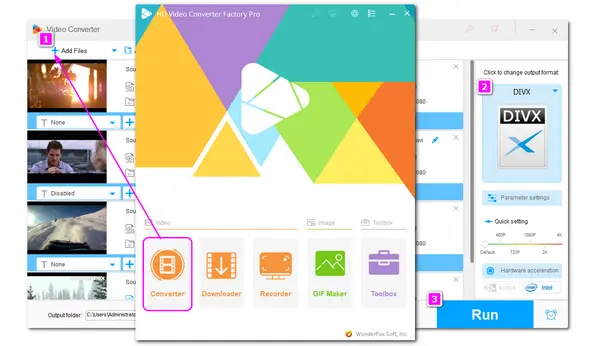
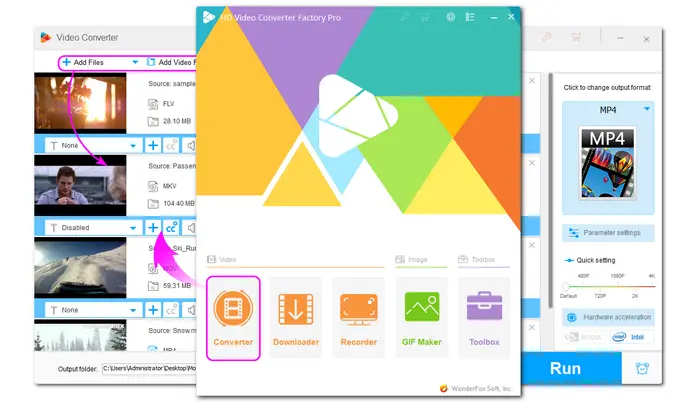
Launch HD Video Converter Factory Pro and choose “Converter”. Click “Add Files” or “Add Video Folder” to import your videos. You can add MP4, AVI, MKV, MOV, VOB, TS, MPG/MPEG, DivX and many other video files. Drag-and-drop also works.
Press the format image on the right to open the output format list.
* Tips: For older DivX/Xvid players, AVI + DivX/Xvid video + MP3 audio is usually safer than newer containers or codecs. If the target device has strict limits, reduce resolution and bitrate instead of keeping a large 4K/HEVC source.
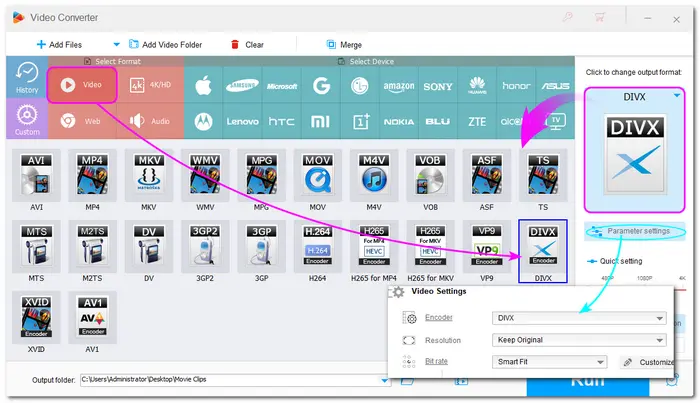
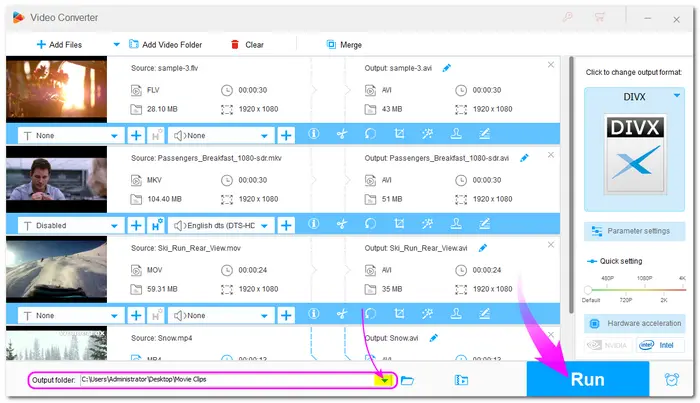
Open “Parameter settings” if you need to change resolution, bitrate, frame rate, aspect ratio, volume, audio codec, sample rate, and more. Then click the bottom ▼ button to choose an output folder. Press “Run” to start converting videos to DivX/Xvid.
If you only have a small file, an online converter can also help. Convertio supports many video conversions and lets you upload files from a computer, URL, Google Drive, or Dropbox. Its free tier, however, is limited to files up to 100 MB and 10 conversions per 24 hours, so it is not ideal for long movies, DVD files, or batches.
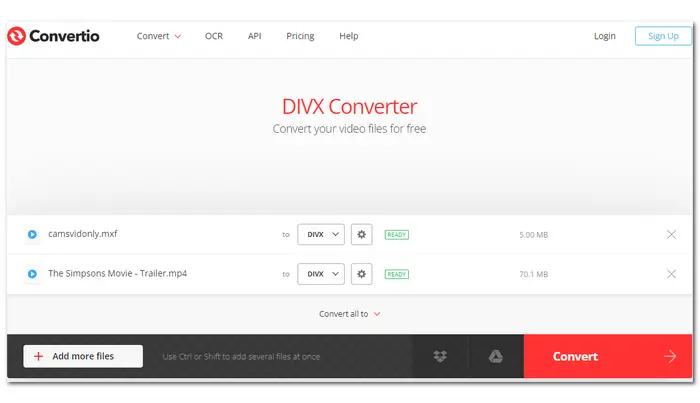
Step 1. Upload your video file to the online converter;
Step 2. Select DivX, Xvid, AVI or another needed output format;
Step 3. Adjust resolution, quality, codec or file length if the tool provides these options;
Step 4. Click Convert, wait for processing, and download the result.
Other online tools you can use for DivX/Xvid conversion:
When to use online tools: short clips, occasional conversion, no installation needed.
When to use desktop software: large MKV/MOV/VOB/TS/MPG files, private videos, batch conversion, stable quality control, or files for older DivX/Xvid devices.
Besides converting to/from DivX, Xvid and AVI, HD Video Converter Factory Pro can also:
Download for Free
Download for Free
MP4 to Xvid: Choose Xvid/AVI when an older player cannot read MP4, H.264, or HEVC. If the source MP4 is 4K or HEVC, downscale it to 720p or 480p for better device compatibility.
AVI to DivX: AVI is only a container. If an AVI file still fails to play, convert the video stream to DivX and use MP3 audio while keeping AVI as the container.
MKV to DivX/Xvid: MKV files may contain HEVC, VP9, DTS, subtitles, or multiple audio tracks. Choose the needed audio track first, then convert to AVI with DivX or Xvid video and a compatible audio codec.
VOB/TS/MPG to Xvid: These files often come from DVDs, camcorders, or TV recordings. Convert them to Xvid AVI if you need smaller files or playback on older DivX/Xvid devices. For encrypted DVDs, use a DVD ripper instead of importing protected discs directly.
MOV to DivX: MOV files from iPhone, cameras, or editing software may not play on legacy devices. Converting MOV to DivX AVI can improve compatibility, but it is not recommended if you still need to edit the file later.
DivX to AVI: If your DivX file uses a .divx extension, converting or remuxing it to AVI can make it easier to open in some players. If the player still rejects it, re-encode the video to DivX/Xvid and audio to MP3.
DivX is a video codec/format family based on MPEG-4 technology. In everyday use, a DivX video is often an AVI file encoded with the DivX codec. It was popular because it could make files much smaller while keeping acceptable picture quality for DVD players, TVs, and portable devices.
* In HD Video Converter Factory Pro, DivX is provided as a video codec. The converted DivX videos are usually AVI files with DivX video and MP3 audio.
DivX and Xvid are both MPEG-4 Part 2 style video codecs. DivX is a branded codec/software ecosystem, while Xvid is an open-source codec. Many older players that support DivX can also play common Xvid AVI files, but compatibility still depends on the exact player, resolution, bitrate, audio codec, and encoding features.
Yes. Add the source file to the converter, choose DivX or Xvid/AVI as the output, adjust the parameters if needed, and start conversion. For DVD VOB files or TV recordings, check the audio track and subtitle settings before exporting.
Yes. If the file already contains DivX video, you can convert it to AVI for wider recognition. If your player still has trouble, re-encode it to AVI with DivX or Xvid video and MP3 audio for a more standard legacy profile.
WonderFox HD Video Converter Factory Pro provides a free trial. You can also try Free HD Video Converter Factory for basic video conversion. Online tools can work for small clips, but free plans usually have file size, speed, or daily conversion limits.
VLC includes basic conversion profiles, including a “Video for DivX compatible player” style preset in some versions. However, it is mainly a media player, so the conversion workflow and output control are limited compared with a dedicated video converter.
DivX and Xvid are still useful when you need AVI files for older players and devices. For most modern devices, MP4/H.264 is usually easier. But if your target device clearly asks for DivX or Xvid, a desktop converter gives you better control over codec, container, resolution, bitrate, audio, and batch processing. Hope this guide helps you finish the conversion smoothly.

Kevincy joined the WonderFox team in 2014 and has been a senior columnist ever since. With over two decades of experience in the video editing industry, he shares tutorials, tips, and how-to guides on video/audio processing and personal DVD backups. Family-oriented and passionate about helping others, he is dedicated to making video and audio processing easier for readers.


Kevincy joined the WonderFox team in 2014 and has been a senior columnist ever since. With over two decades of experience in the video editing industry, he shares tutorials, tips, and how-to guides on video/audio processing and personal DVD backups. Family-oriented and passionate about helping others, he is dedicated to making video and audio processing easier for readers.

Terms and Conditions | Privacy Policy | License Agreement | Copyright © 2009-2026 WonderFox Soft, Inc. All Rights Reserved